
To share games on PS4 between accounts, activate console sharing and offline play on your primary account’s PS4, then sign in with your secondary account.
Ever wanted to play your favorite games with family or friends without buying multiple copies? It’s a common desire, and the good news is, you can easily learn how to share games on ps4 between accounts. This process allows multiple profiles on the same console to access digital games purchased on one main account.
It’s a great way to maximize your gaming experience and save some money. This simple setup lets everyone enjoy your purchased games, creating a shared gaming library within your household.

How to Share Games on PS4 Between Accounts
Sharing games on your PlayStation 4 (PS4) is a great way to let your family and friends enjoy the titles you own without having to buy multiple copies. It’s like sharing your toys, but in the digital world! This guide will walk you through the steps to share your games, explain how it works, and cover some important things you need to know to make sure everything goes smoothly. Let’s dive in and get you sharing those exciting games!
Understanding PS4 Game Sharing: The Basics
Before we start, it’s important to understand the core idea behind sharing games on PS4. Sony allows you to share digital games between two PS4 consoles. This works through something called “Primary PS4” activation. When you activate a console as your primary PS4, all other accounts on that console can play your digital games. This is how you share games with people in your household, but it can also be used with friends outside your home, but you need to be very careful about doing this, as we’ll discuss later.
How Primary PS4 Activation Works
Think of it like this: Your primary PS4 is like your main gaming house. Anyone who visits can play all your games. But, there’s a rule: only one PS4 can be the main house for your account at a time. If you try to make another one the main house, the old one will no longer have access to your games.
Key things to know about the primary PS4:
- Only one PS4 can be set as the primary PS4 for an account at a time.
- All users on a primary PS4 can play games owned by the primary account.
- You can only change your primary PS4 every six months through the settings on the PS4.
- You can change your primary PS4 through the web browser.
Setting Up Game Sharing on Your PS4
Let’s begin the step-by-step process to share games effectively on your PS4. This process will vary a little bit if you are doing it with a family member within your home, or with a friend outside of your home. We will go over both.
Game Sharing Within Your Household (using one console)
This setup is easy and perfect for families using the same PS4. You don’t need to do a lot to start sharing.
- Create User Profiles: Make sure each person has their own user profile on the PS4. Each family member needs their own PlayStation Network (PSN) account. This ensures that all save data and game progress will remain separate.
- Log in to Main Account: Sign in to the PS4 with the PSN account that owns the games. This will be the account that purchased the digital games.
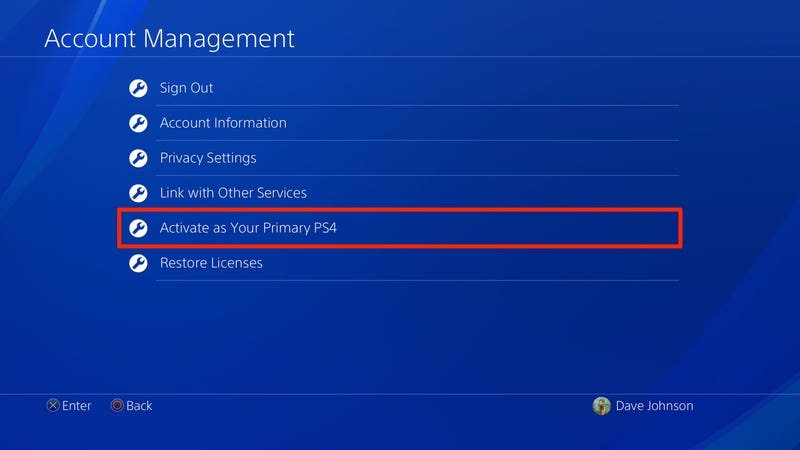
- Make the Console Primary: If this is the account you usually use on this PS4, it’s probably already set as your primary. However, to check, go to Settings, then go to Account Management, then Activate as Your Primary PS4. If your PS4 is not activated, then choose this option. If your PS4 is activated, you will see Deactivate instead of Activate.
- Other Users can now Play: Now, other profiles on the same PS4 can play the games that you purchased with the primary account.
It’s that simple! With this setup, everyone can enjoy games from the main account without any extra steps.
Game Sharing With a Friend (using two different consoles)
This is a little more complicated but also a great way to share games with a friend who has their own PS4. It involves activating the friend’s console as your primary console and your console as your friend’s primary console.
Important Security Reminder: Before you begin, keep in mind that you will be giving your friend access to your PSN account by providing them with your login credentials. While it’s a great way to share games, sharing your login details can make your account vulnerable. We suggest changing your password after the process is complete to maintain safety.
- Discuss with your friend first: Before starting, make sure you have a good understanding of the process with your friend. Both of you will need to provide each other with your account details. Also, only do this with a friend that you trust.
- Friend Logs in to your console with their account: Start by signing in to your PS4 with your friend’s PSN account (the one with the games they want to share with you). If they don’t have a profile set up, they must create one first.
- Activate Friend’s Account as Primary on your PS4: Go to Settings, then Account Management, then Activate as Your Primary PS4 and activate their account as the primary on your PS4.
Note: Remember, this will deactivate their PS4 as the primary PS4 for their account, which is why you need to do this on their console as well.
- Log out of Friend’s Account on your PS4: Once their account is primary on your PS4, log out of their account.
- Log in to your PS4 with your Account: Now, log back into your account. You should now be able to play your friend’s games on your PS4 using your account.
- You Log in to Friend’s console with your account: Now you must do the same process on your friend’s PS4. Your friend must sign out of their PS4 and then you must sign in using your account.
- Activate your Account as Primary on your friend’s PS4: Go to Settings, then Account Management, then Activate as Your Primary PS4 and activate your account as the primary on your friend’s PS4.
Note: Again, this will deactivate your PS4 as the primary PS4 for your account.
- Log out of Your Account on your Friend’s PS4: Log out of your account once it’s activated as primary.
- Friend Log Back In: Your friend can log back into their PS4 using their account. They can now play your games on their PS4 using their account.
Now, both you and your friend can play each other’s digital games on your own PS4 consoles. However, remember the restrictions of only one console being primary at one time. The original account holder is not restricted, but accounts that are not the original owner can only play that account’s games on their primary PS4.
Important Considerations When Sharing Games
Sharing games is fantastic, but it also comes with a few important points to remember. Let’s look at some common situations and concerns that you need to be aware of. Understanding these points will help you avoid common problems and make sure that you do not lose access to your game library.
Account Security
When you share your account details with someone else, you are trusting them with your digital purchases and your personal information associated with that account. It’s important to only share your account details with people you trust. Always be cautious about providing your PSN information to others, and consider changing your password after sharing is set up to maintain your account safety.
Primary Console Limits
As mentioned earlier, only one PS4 can be set as the primary console for a PSN account at a time. If you try to activate your account as the primary console on a new PS4, it will deactivate the previous one, and it can take 6 months to switch this option in the PS4 settings. This can cause issues if you are sharing games with someone and forget that their console is your primary or vice-versa.
To reset the primary PS4 settings before the 6-month period, you will have to access your account online through the web browser. Go to the account management section, and then go to devices. You can then deactivate all devices, which will then reset your primary console settings.
PlayStation Plus Requirements
PlayStation Plus is Sony’s paid subscription service. While game sharing lets you play another account’s games, some online multiplayer features of games often require a PlayStation Plus subscription. If you want to play games online with friends you are sharing games with, your friend needs their own PS Plus subscription. You will not be able to share your PS Plus subscription with another user that has logged in to your account through the game sharing method.
In order to play online with an account that you do not own on your PS4, the console will need an active PS Plus membership on one account on the console. This could be your friend’s account that owns the games, or it could be your account, it does not matter.
Game Availability
Keep in mind that you can only share digital games. You can’t share physical disc-based games using this method. Additionally, not all games can be shared. Sony can put restrictions on specific games, so some titles might be unavailable for sharing. Check the game’s information to ensure you are able to share it before attempting the sharing method.
Potential Issues and Troubleshooting
Sometimes things don’t go as planned, and you might encounter problems with game sharing. Here are some potential issues and how to fix them:
Lock Icon on Games
If you see a lock icon on a game, it means that your console isn’t activated as the primary PS4 for the account that owns the game. Double check that you have activated the correct account as the primary PS4.
Games Not Downloading
If a game is not downloading, you may need to go to the library and see if it is available to download. Click on the game you want to download, and then see if there is a download button. If there is no download button, the game is not available to your account.
Internet Connection Problems
Game sharing relies on your PS4 being online. Make sure you have a stable internet connection to avoid issues. Also, some games may have online verification requirements when you start the game, so make sure you have a stable internet connection.
Account Errors
If you’re seeing errors related to your account, make sure you’re using the correct login information. Ensure your account isn’t locked out due to any security issues. Additionally, check to see if your account is connected to a family account, as these types of accounts have certain restrictions on them.
Deactivating and Reactivating
If there is a problem with a specific game, you may need to try deactivating and reactivating your account as the primary console. This will ensure that all data is up-to-date with Sony.
If you’ve tried these common fixes, and are still having issues, consult the PlayStation support website for additional troubleshooting. They are always happy to help, and can fix problems that you are not able to do by yourself.
Ethical Game Sharing
When game sharing, there are some simple rules to follow, especially if you are sharing with a friend outside of your house. It is essential to ensure that you keep these rules in mind, as sharing your game library improperly may result in your account being banned from the PlayStation network.
- Do Not Sell or Trade Game Access: Do not share game libraries for monetary gain. Game sharing is meant to share within your household or with close friends. Do not sell access to your game library.
- Do Not Share Account Details With Strangers: Do not give account information to strangers or untrustworthy parties. Doing so could put your account at risk. It can also put your friend’s account at risk if you have given them access to your game library.
- Be Mindful of Licensing Restrictions: Keep aware of the specific game’s restrictions on sharing. Not all games can be shared, and some games could be banned from your account if you are improperly sharing them.
- Be Considerate With Download and Access: Be respectful of your friend’s internet bandwidth. Also, consider who is playing games, and at what time. Game sharing should not get in the way of normal gameplay. Always be respectful of your friend’s gaming time, and consider giving them exclusive access during certain times.
Following these ethical guidelines will keep the experience positive and enjoyable for everyone involved and will also ensure that you can continue to enjoy all the benefits of game sharing. Always make sure you follow all of Sony’s rules regarding game sharing.
Sharing games on your PS4 can be an excellent way to save money and enjoy more games with your friends and family. By following these steps and understanding the rules, you can make sure everyone enjoys a smooth and secure gaming experience. Just remember to stay safe by being cautious with your account information and always be considerate of others. Enjoy playing!
How To Gameshare On PS4
Final Thoughts
You can share games on PS4 by activating console sharing and offline play on the primary account’s console. This lets other accounts on that console play the games. Ensure only one console is set as primary for an account at a time.
To successfully share, the secondary account must access the primary account’s library. how to share games on ps4 between accounts needs proper setup. This method does have limitations, and you must be aware of them.

