
Sharing games on Xbox is primarily achieved through setting up a “Home Xbox” on a friend’s console or by using game sharing features on Xbox Game Pass.
Want to enjoy your favorite Xbox titles with friends without buying multiple copies? Figuring out how to share games on Xbox might seem tricky but it’s actually quite simple. You can essentially share your digital library.
The main methods use the Home Xbox setting or leveraging the game sharing of Xbox Game Pass. Both methods give you access to your games on different consoles. This also lets friends play your titles.

How to Share Games on Xbox: A Complete Guide
Sharing is caring, and when it comes to Xbox games, it’s also a fantastic way to save money and enjoy more titles with friends and family! There are a few different ways you can share your Xbox games, whether you’re looking to play with someone in the same house or connect with a friend online. Let’s dive into all the methods to share your favorite Xbox games.
Understanding Xbox Game Sharing Options
Before we jump into the how-to, it’s important to understand the different ways you can share games on Xbox. Microsoft offers a couple of primary methods. The most common ways include:
- Home Xbox Feature: This lets you share digital games and Xbox Game Pass subscriptions with others who use your chosen “Home” console. Think of it as creating a shared family library on one specific Xbox.
- Physical Game Sharing: This one is straightforward, you can physically hand your game disc to someone else and they can play on their own console.
- Xbox Game Pass Friends & Family (Not Always Available): In some regions, Microsoft has offered a version of Game Pass that allows you to share with multiple people. This isn’t always available, so you need to check if it is in your location.
These are the main options. Now, let’s break down each method in more detail so you can pick the best one for your situation.
Setting Up Your Home Xbox
The “Home Xbox” feature is a brilliant way to share your digital games. However, you can only have one designated Home Xbox at a time. So if you have two or more consoles, you need to decide which one will be the “home” console. This is usually the one most frequently used by other people in your household. Here’s how to set it up:
Making a Console Your Home Xbox
- Sign In: Make sure you’re signed in to the Xbox console with the Microsoft account that owns the games you want to share. This is very important!
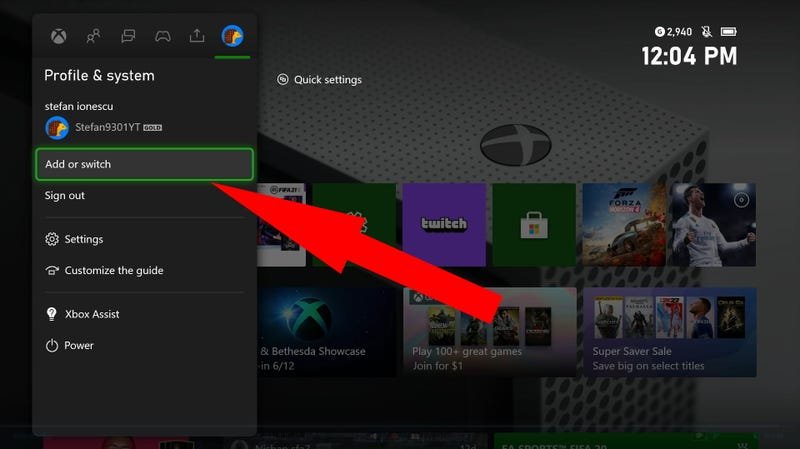
- Open Settings: Press the Xbox button on your controller to open the guide, then go to ‘Profile & system’ and select ‘Settings.’
- Navigate to Personalization: In the settings menu, go to ‘General,’ then select ‘Personalization.’
- Choose Home Xbox: Select ‘My Home Xbox.’
- Make This My Home Xbox: If this console is not already your Home Xbox, you’ll see the option to ‘Make this my Home Xbox.’ Select it.
What Happens When You Set a Home Xbox?
- Game Sharing: Any other user who logs in on that ‘Home’ console can play the games purchased by your account, even if they’re using their own profile.
- Game Pass Sharing: If you have an active Xbox Game Pass subscription, anyone on your ‘Home’ Xbox console can access the games and benefits of the subscription. This includes both console and PC games if your plan includes it.
- Account Restrictions: Only the owner’s account can set or change the Home Xbox console, so it’s important to be careful with this setting.
Switching Your Home Xbox
You can switch your Home Xbox up to five times each year. If you need to change it more often than this, you have to contact Xbox support. Here’s how to change your Home Xbox:
- Sign in: Sign in to your Microsoft Account on the Xbox Console you want to designate as the new ‘Home’ console.
- Navigate to the Home Xbox setting: Go through the same steps as above; ‘Profile & system’ > ‘Settings’ > ‘General’ > ‘Personalization’ > ‘My Home Xbox’.
- Make This My Home Xbox: Select the ‘Make this my Home Xbox’ option. The previous console will lose the ‘Home’ status.
Remember to only do this when necessary, so you don’t go over the limit. Each change counts towards the limit, and going over it might be difficult.
Understanding Limitations of Home Xbox
While the Home Xbox feature is great, there are some things to be aware of:
- One Home Console at a Time: You can only have one ‘Home’ Xbox assigned to your account at any given time.
- Digital Game Sharing Only: This method only works for digitally purchased games. You cannot share physical game discs with it.
- Online Play: Everyone on the Home Xbox can play the games, but they need their own Xbox Live accounts to play online multiplayer.
- Account Owner Access: To make any changes to the ‘Home Xbox’, the account holder must be present.
Physical Game Sharing
Physical game sharing is the most straightforward method. If you own a game on a disc, you can simply lend it to someone else. This means passing the game disc over, and they are free to play the game on their Xbox.
How it Works:
- Borrowing Games: If you borrow a physical game, you can install and play the game as long as the disc is in the console.
- Ownership: Only one person can play the game at the same time when using the disc because the console requires the disc to be present in the console for game to work
This method is good for sharing with friends, family, or anyone willing to accept your physical disc. However, it does have a drawback. You cannot play the game when you pass the disc to someone.
Things to Consider
- Disc Required: The person you share with needs the physical disc every time they want to play.
- Physical Handling: Game discs can be scratched or damaged, so care should be taken to keep them safe.
Xbox Game Pass Sharing
Xbox Game Pass is a subscription service that gives you access to a library of games. As mentioned before, if you have Xbox Game Pass, your subscription benefits can be shared on your ‘Home’ Xbox. Let’s explore what this means in more detail.
Game Pass on Home Xbox
When you have a ‘Home’ Xbox set, anyone using that console can play games from your Game Pass subscription, even if they don’t have their own subscription. It’s a fantastic feature if several people in your household want to access the same games. For example, if you have Game Pass Ultimate, all users on your Home Xbox can play PC titles and also have access to the Cloud titles as well. This makes game nights a lot more affordable for families.
Xbox Game Pass Friends & Family (Where Available)
Microsoft has tested a special Xbox Game Pass plan that allows you to share with multiple family members or friends outside of your household. This allows multiple users to use the Game Pass at same time on different consoles. This plan is not always available, so it’s best to check if your region is eligible. When available, it typically involves purchasing a more premium Game Pass plan that lets you add several other users to your account.
Limitations to Game Pass Sharing
- Home Xbox Only (For Standard Game Pass): Standard game pass can only be shared with other users on the ‘Home’ Xbox.
- Friends and Family Availability: the family plan is only available in selected regions.
Sharing Games With Friends Online
While ‘Home Xbox’ is great for those in the same house, what if you want to share games with a friend online? While you can’t directly lend digital titles to a friend’s console, there are ways to play together.
Game Sharing through Play Together
Many games offer features that allow you to play with friends online, even if they don’t own the game. If you own a game, you can invite your friends to join you in a multiplayer session. This doesn’t directly “share” the game, but it lets you enjoy it with others.
Games That Support Shared Play
Some games have features such as:
- Co-Op: Games with co-op modes allow you and your friends to play through the game’s story together.
- Multiplayer: Many games have online multiplayer modes, letting you play against or with your friends.
- Share Play Features: Some games might offer a feature that lets you share the game experience with someone over a network. (usually in form of local co-op via online connection)
Tips for Playing Games Together
- Game Invites: Learn how to send game invites through your friend list.
- Crossplay: if the game supports cross-play, then it’s possible to play with players on other platforms (like PC or PlayStation).
Troubleshooting Game Sharing
Sometimes, game sharing doesn’t work as expected. If you’re having problems, here are some things to check:
Common Issues and Solutions
- Incorrect Home Xbox: Make sure you’ve set the correct console as your Home Xbox. You might have accidentally assigned the wrong one. Double-check and make sure the console you are using is designated as Home Xbox.
- Account Issues: Make sure you’re logged into the correct Microsoft account on both consoles.
- Internet Connection: Ensure you have a stable internet connection for the best results.
- Game Updates: Both consoles might need to have all game updates installed.
- Restart Devices: Sometimes restarting your console can resolve the issues.
- Contact Xbox Support: If all else fails, reach out to Xbox Support. They can provide detailed help to your specific issue.
Best Practices for Sharing Games
Game sharing is a great way to save money and enjoy more games. Here are some best practices to help:
Tips for Efficient Game Sharing
- Plan Ahead: Think about who you want to share with, and set up your Home Xbox accordingly.
- Manage Your Home Xbox: Be careful when switching your Home Xbox. Keep in mind that the limit is 5 times a year.
- Communication: If you are sharing games, communicate with those using the console to avoid conflicts.
- Respect Account Owners: Treat the account owner with respect because they own the games being shared.
Sharing games on Xbox is great for families and friends. Whether you are using the home xbox feature or just loaning a disc, you can have great experiences with others. By following these steps, you can enjoy games while also saving money. Game on!
How to Game Share on Xbox ~The Easy Way~
Final Thoughts
To share games, you must enable your Xbox as the home console for the account that owns the game. This allows other profiles on that console to play. Remember, only one console can be designated as the “home” console at any given time.
You can also use Xbox Game Pass Ultimate’s sharing feature. This extends some benefits to other accounts. So, that’s how to share games on Xbox with friends or family locally. It is important to know the restrictions of the system.

