
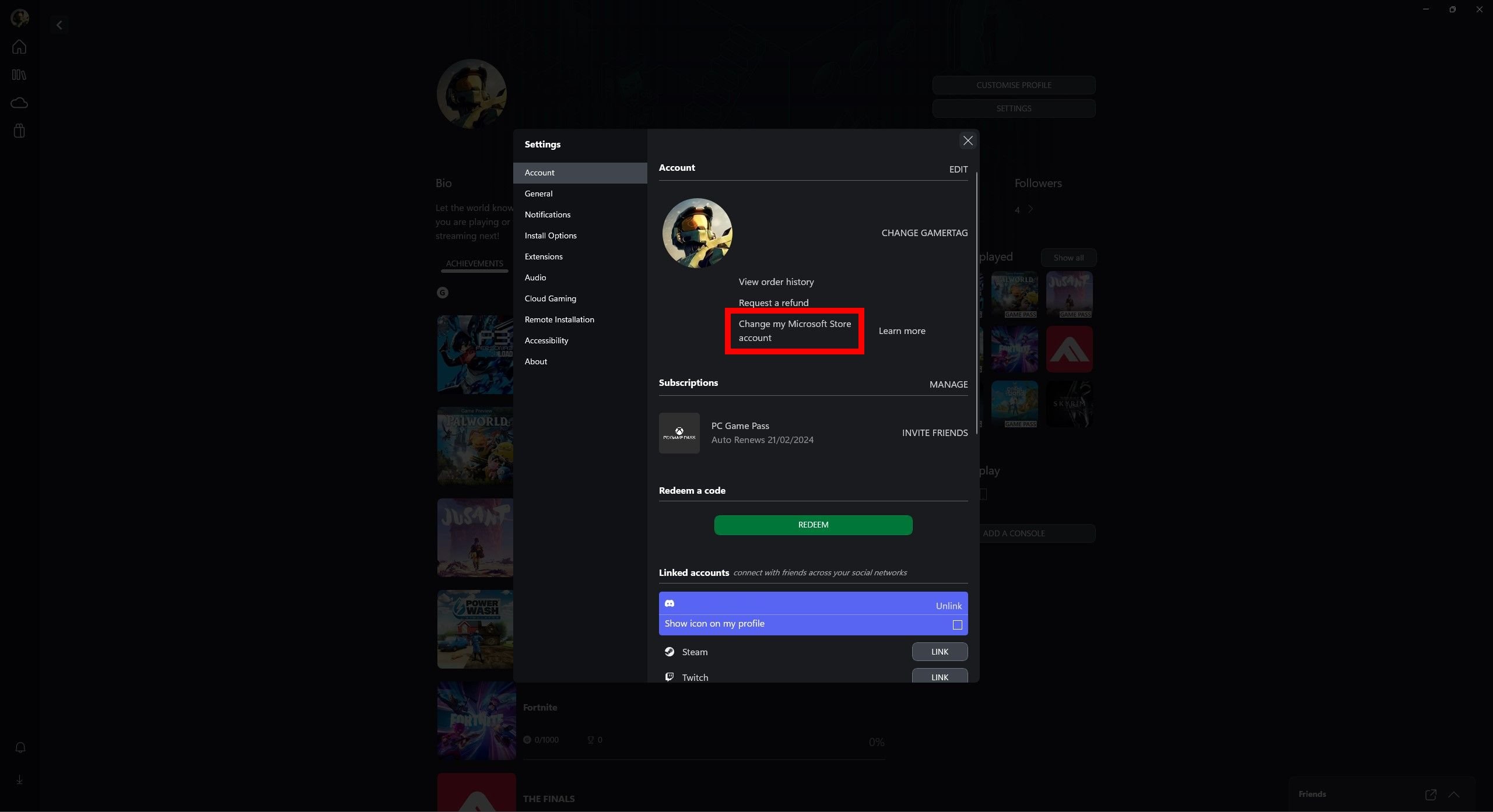
Sharing Xbox Game Pass on PC is possible through setting a primary PC via your Microsoft account and having other users log in with their own accounts.
Want to enjoy the vast library of games with family or friends? It is quite common for PC gamers to wonder how to share xbox game pass on pc, and fortunately it’s not as complicated as it might seem. The process involves some account management.
You’ll essentially designate one PC as the “home” console. After that, others can simply log into that PC with their Microsoft accounts to access the games included in the subscription. This allows multiple people to enjoy the games.

How to Share Xbox Game Pass on PC: A Simple Guide
Hey there, fellow gamers! Are you excited about all the fantastic games available on Xbox Game Pass for PC but wish you could share the fun with your family or friends? Well, good news! While Xbox Game Pass doesn’t have a straightforward “share” button, there are clever ways to allow others on your PC to enjoy the games you’ve got access to. It’s not quite like handing over a physical game, but it’s close. In this guide, we’ll show you the different methods to get the most out of your Game Pass subscription, letting everyone join the gaming party. So, grab your controllers and let’s get started!
Understanding How Xbox Game Pass Works on PC
Before we dive into sharing methods, let’s quickly understand how Xbox Game Pass works on PC. Unlike consoles where you can often share game libraries more directly, PCs have a slightly different system. Your Game Pass subscription is tied to your Microsoft account. This means whoever is logged into the Microsoft Store app on your PC with that account has access to the library of games associated with that subscription. This simple concept forms the basis of how we can get our games shared.
Microsoft Account: The Key to Access
Think of your Microsoft account as the key to all your digital goodies. When you buy a Game Pass subscription, it’s connected to this account. When you log into the Microsoft Store on your PC with this same account, you can then download and play any game included in the Game Pass library. Therefore, sharing the account is one way to give access to other users on the PC, but we need to be smart about this, as we don’t want to give them full access to your emails or other personal stuff.
The Limitations of Direct Sharing
It’s important to note that Xbox Game Pass on PC doesn’t have a built-in family share feature, unlike some other services. This means you can’t simply add family members to a list to share games. You need to get a bit creative. Also, the same game cannot be played on different devices with the same account at the same time.
The Primary Method: Using Multiple User Accounts on Your PC
The best and safest method for sharing Xbox Game Pass is by using multiple user accounts on your Windows PC. Here’s how it works:
Step 1: Create Separate Windows User Accounts
First, you need to make sure that everyone who wants to play games has their own user account on your PC. This keeps each person’s settings and files separate, which is especially helpful if you share a computer. Here are the steps to create a new user account:
- Click the Start button (the Windows logo).
- Click on the Settings icon (it looks like a gear).
- Go to “Accounts”.
- Click on “Family & other users” or “Other users”.
- Click “Add someone else to this PC”.
- Choose “I don’t have this person’s sign-in information”.
- Select “Add a user without a Microsoft account”.
- Enter a username and password for the new account.
- Click “Next” and “Finish”.
Now you have an extra user account to share the gaming fun!
Step 2: Logging in to the Microsoft Store with Your Account
Next, after creating the separate user account, you will need to log in to the Microsoft Store with the account that has the Xbox Game Pass subscription, This is a crucial step, follow these steps:
- Switch to the new user account you’ve just created.
- Click the Start button and search for the “Microsoft Store”.
- Open the Microsoft Store app.
- In the upper-right corner, click on the profile picture icon.
- Select “Sign in”.
- Enter the email address and password of the Microsoft account that has the Xbox Game Pass subscription.
Step 3: Setting Up Microsoft Store for Game Sharing
After logging into the Microsoft store, now the most important part is here, you need to take care of the steps that follow.
- Keep the Microsoft Store app logged in with the account that has Xbox Game Pass.
- You don’t have to download the games for the different users on the same PC. The games will be ready to play.
- The new users will be able to play the games, without having access to your Microsoft Account.
Step 4: Switching Between User Accounts for Playtime
Now that everything is set up, each person can easily switch between their user accounts on the PC to enjoy their gaming sessions. Here’s how to switch between user accounts:
- Click the Start button.
- Click on your current user profile picture/icon.
- Select the desired user account from the list.
- Enter the password for that user account if prompted.
Remember, only one account can be active at a time. So if someone is playing a game, another person can’t play the same game on a different account on the same PC at the same time using the same account. So it is recommended that you log out of the game before switching between users.
Advantages of Using Separate User Accounts
- Personalized Settings: Each user has their own desktop settings, saved games, and progress.
- Privacy: Everyone’s files and documents are kept separate and safe.
- No Sharing of Full Account Access: You don’t need to share your Microsoft account details, protecting your privacy.
- Easy Switching: It is simple to switch between accounts without having to fully log out and back in each time.
Important Considerations When Sharing
While sharing Xbox Game Pass on PC using separate user accounts is relatively straightforward, there are a few things to consider to ensure everything runs smoothly:
Offline Play and Login Requirements
Xbox Game Pass for PC does have an offline play mode in which you can play selected games, but at some point in time, you will need to login online, to verify the Xbox Game Pass subscription. So you need to make sure that the PC that you are playing with the Xbox Game Pass is connected to the internet every once in a while. The Microsoft store will regularly check the validity of your subscription so you can enjoy the games.
Game Downloads and Storage Space
Keep in mind that you need enough space to download the games. All games will be installed on the PC locally, this means that the games require a huge amount of storage space. Make sure that your PC has the needed storage space for the games you want to play. When sharing with multiple people on the same PC, there will be multiple games which will take a considerable amount of storage.
Game Availability and Region
Game availability might vary by region. Make sure the game you want to play is actually available in your region with Xbox Game Pass. Also, some games might be included in the console version of Xbox Game Pass and not the PC version, or vice-versa. Always check the game details before installing a game to make sure it’s available for your account.
Simultaneous Gameplay Limitations
Remember that you cannot play the same game on different accounts on the same PC at the same time using the same Game Pass subscription. This is an important rule that Xbox has in place to prevent unauthorized game sharing. If multiple people want to play the same game at the same time, they’ll each need their own Xbox Game Pass subscription on separate accounts, or they will have to wait until one person stops playing.
Staying Logged into the Microsoft Store
It’s crucial to keep the main Microsoft account (the one with the Game Pass subscription) logged into the Microsoft Store on the PC, but you can sign out of the account if you are not planning to play the game for a while, and then sign in when you are ready. This ensures that all other users can still access the Game Pass games. If you log out of the store completely with the main account, the other user accounts won’t be able to use the games until you sign back in.
Alternative Methods (and Why They’re Not Ideal)
While using separate user accounts is the most recommended method, it’s worth noting some other methods people might try and why they’re not as good:
Sharing Microsoft Account Credentials
Sharing your Microsoft account email and password might seem like a shortcut. But, this is a big no-no. This gives other users full access to your email, personal information, and potentially financial information. It’s not just risky, it can also violate Microsoft’s terms of service. You don’t want your gaming adventures to compromise your digital safety. So, avoid this method at all costs.
Using Third-Party Software or Tools
Some people might try using third-party software or tools that claim to enable game sharing in other ways. These methods are often unreliable and may even come with malware. They can also be risky and could lead to your account being banned. It’s best to stick to the legitimate methods for game sharing, such as using separate user accounts, as that is the most recommended method.
Optimizing Your Game Pass Experience on PC
To make sure that you get the most out of your Xbox Game Pass subscription, there are a few things that you can do:
Stay Updated
Make sure your Windows operating system, Xbox app and the Microsoft Store app are updated, This will ensure that you have the most recent features and bug fixes. Keeping your system up-to-date also helps in overall performance and security.
Check Game Pass Library Regularly
The Xbox Game Pass library is ever-changing. New games are always being added and sometimes old ones leave. Check the library often to find new and exciting titles to play. Take advantage of the many games included in your subscription!
Xbox App Settings
Get familiar with the Xbox app settings. Here you can manage your game downloads, account settings, and even connect with other players. This can help you keep a record of what you are playing and enjoy your games even more.
Cloud Saves
Xbox Game Pass for PC supports cloud saves for many games. This means you can keep your game progress safe, and even transfer it to a different PC if needed. Always make sure you are properly saving to the cloud. Always ensure you have a stable internet connection while saving to cloud.
Xbox Game Pass Perks
Keep a look at the Game Pass perks that are available to you. These include in-game content or even subscriptions for other services. These can add a lot of value to your existing subscription.
Sharing Xbox Game Pass on PC doesn’t have to be complicated. By using separate user accounts, you can share the games with your family or friends on the same computer safely, while making sure you stay in control of your Microsoft account. Keep following the steps above, and you will be able to enjoy Xbox Game Pass for PC with the people you like. Remember to always be aware of security concerns, and be sure to follow the proper methods when sharing your Xbox Game Pass with others.
How to Game Share Game Pass on Microsoft Store Windows 10 and 11
Final Thoughts
To share Xbox Game Pass on PC, enable offline permissions on the account with the subscription. Next, sign into the Microsoft Store on the other PC with that same account. This lets others play games.
Remember that only one person can play a specific game at a time. Sharing also requires the PC to be set as the primary console. Understanding these steps helps with successful “how to share xbox game pass on pc”.

