
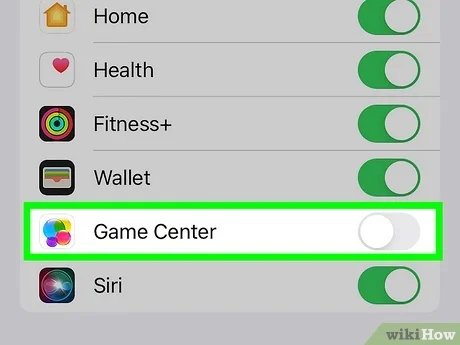
To shut off Game Center, navigate to your device’s Settings, tap ‘Game Center,’ and toggle the switch to the off position.
Ever find yourself bombarded by game notifications when you’d rather enjoy some peace? It’s a common issue for many gamers. Figuring out how to shut off Game Center can drastically reduce those interruptions.
We’ll quickly show you the simple steps to take control of your gaming experience. It is really easy to do, and you will enjoy the peace that comes with it. So, follow along and reclaim your focus!

How to Shut Off Game Center
Have you ever been playing a game on your iPhone or iPad and a Game Center notification pops up? Maybe you’re not interested in leaderboards or playing with friends right now. Or perhaps, like many people, you just want a break from the constant updates and game invites. It’s okay! Game Center is a cool feature for some, but it’s not for everyone, and you definitely can turn it off. This article will show you exactly how to turn off Game Center so you can game in peace.
Understanding Game Center
Before we get into the nitty-gritty of turning it off, let’s talk a little bit about what Game Center actually is. Think of it as a social network just for gamers on Apple devices. It lets you do a few key things:
- Track your scores on different games.
- See how your friends are doing on games.
- Challenge friends to beat your high scores.
- Find new games to play.
- Play multiplayer games with friends and other people.
Game Center is automatically connected to your Apple ID, so if you are signed in to your Apple ID on your device, Game Center is also active. Some people love using Game Center to see their progress and interact with friends, but it can also be distracting if you’re not into it, especially with all the notifications. It’s completely fine if you want to turn it off, and Apple made it easy to do just that.
Why Turn Off Game Center?
There are many reasons someone might want to shut off Game Center. Here are a few common ones:
- Avoiding Distractions: Game Center notifications can pop up at inconvenient times, disrupting your gaming or anything else you are doing on your phone or iPad.
- Privacy Concerns: You may not want your gaming activity to be visible to others. Perhaps you don’t want to share your high scores or the games you’re playing.
- Battery Life: In some cases, having Game Center constantly running in the background can use a bit of battery power. If you are trying to conserve battery, turning it off can help.
- Simplicity: Maybe you simply prefer a cleaner experience and want to avoid unnecessary features, opting to game without the extra layer of social features.
- No interest in competitive gaming: If you do not enjoy competing with others, or you are more of a solo player, then Game Center might be a useless feature.
Whatever your reason is, it’s perfectly valid, and you have the right to customize your experience to suit your preferences.
How to Disable Game Center on iOS and iPadOS
The process to turn off Game Center is the same on both iPhones and iPads because they use the same operating system, iOS (or iPadOS). Here’s a step-by-step guide:
Using the Settings App
This is the most common way to shut off Game Center. Here’s what you need to do:
- Open the Settings app: Look for the gray gear icon on your home screen and tap it.
- Scroll down to “Game Center”: Keep scrolling down until you find “Game Center”. It’s usually located fairly lower in the list, often after “Notifications”.
- Tap “Game Center”: Tap on “Game Center” to enter the Game Center settings.
- Toggle the switch: You will see a toggle switch at the very top, next to the “Game Center” title. If this switch is green, it means Game Center is on. Tap this switch to make it go gray. Once it’s gray, Game Center is turned off.
That’s it! After doing this, Game Center will be turned off for all the games you have on your device. You won’t receive any more notifications, and your scores will no longer be tracked by Game Center. When you want to turn it back on, just go back into the same settings page and flip the switch back to the green “on” position.
Specific Game Settings
While the method above disables Game Center entirely on your device, sometimes you might only want to turn off Game Center access for some games only. In this case, you can turn off the access game by game. However, doing so won’t stop all the Game Center notifications if it is enabled on the main switch. Here’s how you can turn of access for individual games:
- Open Settings: Just like before, open the gray gear icon on your home screen to open the Settings.
- Select the game you want: Scroll down until you see a list of all the apps installed on your device. The games are usually organized in alphabetical order. Find and tap the game you want to adjust.
- Look for the Game Center switch: Inside the settings for the specific game, look for an option labeled “Game Center”. It might be within a section labeled “allow access” or something similar.
- Turn the switch off: Tap on the switch next to “Game Center” to turn it off. If it was green, it should turn gray.
By doing this, the specific game won’t be able to send you Game Center notifications or track your game progress in Game Center. But note that this does not mean that Game Center is disabled. If Game Center is activated in the main settings, all other games will still utilize it. This method will only prevent that specific game from using it. This is useful if you want to use Game Center for most games but want to turn it off for some specific games only.
What Happens When You Turn Off Game Center?
So, you’ve turned off Game Center. Now what? Here’s what you can expect:
- No More Notifications: You won’t receive any more game invites, friend requests, or leaderboard updates from Game Center.
- No Leaderboard Tracking: Your scores and achievements will not be tracked on Game Center. Any scores or achievements you earn while Game Center is turned off will not be recorded, so if you turn it back on, they won’t appear.
- No Multiplayer Access: You might not be able to play multiplayer games that require Game Center to connect with other players. This will depend on the game, but many games use Game Center to help find and connect you to other players, so you may not be able to use their multiplayer functionalities.
- No Sharing of Activity: Your friends won’t be able to see your gaming activity, high scores, or achievements.
- No interference: When you play any game, you will not receive any random Game Center notification that may interfere with your gaming experience.
It’s worth noting that turning off Game Center does not erase your progress. If you turn it back on, all your old data like scores and friends will be back. This is because your data is still connected with your Apple ID, but the games are just not accessing them at the moment. Turning off Game Center only stops the game from using the feature, not actually deleting anything related to game center or your game data. This means you don’t have to worry about losing your data and can still access it when you want by turning on Game Center.
Turning Game Center Back On
If you ever decide you want to use Game Center again, turning it back on is just as easy as turning it off. Here’s how:
- Open Settings: Again, open the gray gear icon on your device’s home screen.
- Scroll to Game Center: Find “Game Center” in the list and tap on it.
- Toggle the Switch: The switch at the top will be gray if it is turned off. Tap on the switch to turn it back to green.
That’s it! You are now back in the game. Once you’ve turned it on, you can access your previous scores, friend list, and start receiving notifications again. You can also access multi-player games that require Game Center. It is simple to switch back and forth, making it easy to customize your experience exactly how you want it.
Game Center Alternatives
If you’re looking for an alternative to Game Center for tracking your game progress, sharing scores, or playing with friends, there are other options you can explore. These alternatives are not built-in to Apple devices, meaning they might not work with every game and will require downloading an additional app. Here are a few popular choices:
Discord
Discord is a popular communication platform, particularly among gamers. It allows you to create servers, join communities, and chat with friends. While it’s not specifically designed for tracking game progress, many games have integrated Discord communities where players can share scores, strategies, and chat with other players. Discord can be a good alternative if you want to communicate with other gamers and see what they are playing or discussing.
- Pros: Great for social interaction, multiple ways to connect with people, widely used by gamers.
- Cons: Not designed primarily for tracking game scores, may not integrate directly with all games.
In-Game Social Features
Many games have their own built-in social features. Some games have their own friend list where you can add people and play with them, and it also allows you to see your own progress within the game. This means that not all games require Game Center to use their social features, and you can instead use the built-in features they have made specifically for their games.
- Pros: Convenient to use, does not require extra apps, designed specifically for that game.
- Cons: Might not offer same features as Game Center, can be different between every game.
Dedicated Social Gaming Apps
There are other apps specifically made for social gaming like gamer profiles, achievements, and so on. This depends on your specific needs, and you can explore some apps in the app store to see if they fit your needs.
- Pros: Designed for gamers, can offer specific features, can integrate with games.
- Cons: Requires extra app, might not work with all games, functionality is not guaranteed with all games.
Customizing Your Gaming Experience
The important takeaway is that you have control over your gaming experience. Game Center can be a fun feature for those who enjoy it, but it’s not compulsory. Whether you prefer the social aspect of Game Center, or a distraction-free experience, Apple allows you to choose what works best for you. Remember, you can always switch it on or off whenever you want. So don’t worry about not trying it out or if you want to try out the distraction free experience for once.
By exploring these options, you can take control of your gaming experience, ensuring it’s enjoyable and convenient. You should decide what works for you, and it’s all right to not use Game Center if you don’t find it useful. Remember, gaming should be fun, and you should play the way you like best. And if you ever decide to come back to using it, it will always be there to use again.
Turning off Game Center is straightforward and can improve your gaming experience. It’s all about creating a setup that suits your preferences. You can use this guide every time you feel the need to switch back and forth between using Game Center, to make your gaming experience the way you want it to be.
How To Turn Off Game Center On iPhone (iOS 18)
Final Thoughts
To disable Game Center, go to Settings, find Game Center, and toggle the switch to the off position. This will prevent game invites and achievements notifications. You can turn it back on anytime using the same process.
Following these simple steps, you’ve learned how to shut off game center. This action effectively stops Game Center activity. Managing this setting provides greater control over your gaming experience.

