
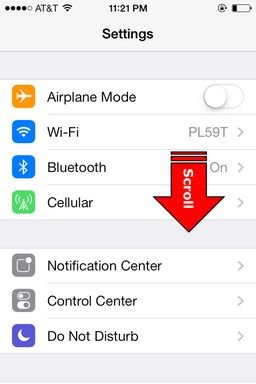
To sign out of Game Center, navigate to your device’s Settings, tap ‘Game Center’, and then toggle the ‘Game Center’ switch off.
Have you ever found yourself wanting a break from Game Center? Perhaps you’re using a shared device, or maybe you just want to temporarily disconnect. It’s a simple process actually and many people want to know how to sign out game center.
Finding the setting isn’t always immediately obvious, but it is easily done. This small change allows you more control over your gaming experience and privacy.

How to Sign Out of Game Center
Game Center is a cool feature on Apple devices, like iPhones and iPads, that lets you play games with friends and track your progress. Sometimes, though, you might want to sign out of Game Center. Maybe you’re sharing your device, or maybe you just want to use a different Apple ID for games. It’s not a problem! Signing out is easy, and this guide will walk you through the steps. We’ll explore different ways to sign out, troubleshoot common issues, and answer some questions you might have along the way. Let’s get started!
Why Sign Out of Game Center?
Before we dive into the how, let’s think about why you might need to sign out of Game Center. There are several common reasons:
- Sharing Devices: If you’re letting a friend or family member use your iPhone or iPad, they might want to use their own Game Center account.
- Different Apple IDs: You might have different Apple IDs for different purposes, and you want your gaming progress to be tied to the correct account.
- Troubleshooting: Sometimes, signing out and back in can fix glitches or problems with Game Center.
- Privacy: You may want to keep your gaming activity separate from your main Apple ID for privacy reasons.
Whatever your reason, signing out is a straightforward process. We’ll look at different methods for different situations.
Signing Out of Game Center on iPhone and iPad (iOS/iPadOS)
The most common way to sign out of Game Center is through your device’s settings. Here’s how to do it:
Step-by-Step Guide:
- Open Settings: On your iPhone or iPad, find the Settings app (it looks like a gray gear icon) and tap it to open.
- Find Game Center: Scroll down until you see “Game Center.” It’s usually grouped with other Apple app settings. Tap on “Game Center.”
- View Your Apple ID: At the top of the Game Center settings page, you’ll see your Apple ID listed.
- Tap on Your Apple ID: Tap on the Apple ID name to access more settings
- Sign Out: Find the “Sign Out” option. It’s usually at the very bottom. Tap “Sign Out.”
- Confirm: A prompt will ask you to confirm that you want to sign out of Game Center. Tap “Sign Out” again.
And that’s it! You’re now signed out of Game Center. If you want to sign back in, follow the same steps, and you’ll be prompted to enter your Apple ID and password.
Things to Remember:
- Make sure you know your Apple ID and password before signing out.
- When you sign back in, your game progress should still be there.
- Some games might require you to log in again after signing out of Game Center.
Signing Out from Within a Game
Sometimes, a game might offer its own way to sign out of Game Center. This is usually less common, but it’s worth checking if you’re having trouble with the usual method. Here’s what you might look for:
In-Game Options
- Game Settings: Look for a gear icon or a “Settings” menu within the game.
- Account Settings: Check if there’s a specific option for “Account” or “Game Center.”
- Sign Out Button: If the game has the option to sign out, it will usually be very clear with a “Sign Out” or “Disconnect” button.
Keep in mind that each game may be different. If you don’t see a clear option, then the settings method above is the way to go.
Managing Multiple Game Center Accounts
Some people manage multiple Apple IDs for various reasons. If you’re switching between different Game Center accounts frequently, keeping the different devices can be helpful.
Using Different Devices
- Dedicated Devices: Some people have a dedicated iPad or iPhone for gaming, which helps keep game accounts separate.
- Switching Apple IDs: You can easily switch the Apple ID associated with Game Center by logging out and then logging in with a different one. Remember to backup any important data before signing out of an Apple ID.
Troubleshooting Common Issues
Even with simple processes, you might run into a few issues. Here are some common Game Center problems and solutions:
Issue: Cannot Sign Out of Game Center
- Check for Updates: Ensure your iPhone or iPad is using the latest version of iOS or iPadOS. Sometimes, older software can have glitches that prevent you from signing out correctly. Go to Settings > General > Software Update to check.
- Restart Your Device: A simple restart can resolve many issues. Turn off your device completely, then turn it back on.
- Check Your Apple ID: Make sure you’re using the correct Apple ID and password. Try signing in to another Apple service, such as the App Store or iCloud, to verify your credentials.
- Internet Connection: You may experience problems if you do not have a stable Wi-Fi or cellular connection. Sign out only when connected to a strong network.
Issue: Game Progress Not Saved
- Cloud Sync: Make sure that you enable cloud sync for games. This will save your progress in the iCloud account for that Apple ID.
- Game-Specific Backup: Some games use their own systems to save progress. Check if there’s an in-game backup option or if you have linked your account to a third-party service.
- Check Your Apple ID: Make sure you are using the correct Apple ID where your game data was previously stored. Sometimes if you have many devices or switch ids, it can lead to confusion.
Issue: Game Center Freezes or Crashes
- Force Quit the App: If Game Center (or a game linked to Game Center) is freezing or crashing, force quit it and then relaunch it. On most devices you can do this by swiping up from the bottom of your device and then closing the app.
- Free Up Storage: Running out of space can cause apps to crash. Make sure your iPhone or iPad has some free storage. Go to Settings > General > iPhone Storage to check. Delete any old or unused apps and files.
- Check Game Requirements: Make sure that your devices meet the requirements of the specific games you are playing.
Game Center and Privacy
Game Center connects you with other players and allows you to see their game activity. You can manage how much of your data is visible to other players in Game Center settings. In the settings section, you can control:
Privacy Settings
- Profile Privacy: Control who can see your profile. You can choose to make it visible to everyone, to just friends, or to no one.
- Game Activity: You can decide who can see what games you play and your progress.
- Friend Requests: Control who can send you friend requests.
- Game Invites: Control who can send you game invites.
Keeping your Game Center account private can help ensure that you are only interacting with people that you choose to interact with, and also help keep your gaming activity separate from your main Apple ID. To manage these settings, go to Settings > Game Center.
The Importance of a Secure Apple ID
Your Apple ID is crucial for accessing all of Apple’s services, including Game Center. Keeping your Apple ID secure is important to protect your data. Here are a few tips:
Protecting Your Apple ID
- Strong Passwords: Use a strong, unique password for your Apple ID. Avoid common passwords like “123456” or “password”.
- Two-Factor Authentication: Enable two-factor authentication for an extra layer of security. This requires a verification code from a trusted device every time you log in.
- Keep Your Information Updated: Make sure that your recovery information, such as a phone number or alternate email, are up to date in case you need to recover your account.
Protecting your Apple ID is a key aspect of managing your Game Center account safely. If your ID has been compromised, it can be difficult to protect yourself from outside intrusion.
Additional Tips for Game Center Users
Here are some additional things to keep in mind for a better experience with Game Center:
More Game Center Tips
- Game Updates: Always keep your games updated to the latest versions. Game updates often come with bug fixes and improvements.
- Community Guidelines: Adhere to Game Center’s community guidelines and treat other players with respect. It can also lead to fun and productive gaming sessions when players are fair and polite.
- Parental Controls: If kids use your iPhone or iPad, enable parental controls to manage their gaming time and interactions in Game Center.
By keeping these points in mind, you can have a safe and fun experience using Game Center.
Signing out of Game Center is usually straightforward. By following these steps, you can quickly switch between accounts or make sure your gaming data is tied to the right Apple ID. Whether you are sharing devices, troubleshooting, or just like to change things up, Game Center allows a level of flexibility to personalize the experience. If you run into problems, the tips provided can help you resolve them easily. Always make sure that your Apple ID is secure and your gaming activity is controlled by your preferences.
iPhone 14/14 Pro Max: How to Sign Out Of Game Center
Final Thoughts
To quickly sign out, go to your device’s settings. Find the Game Center option within settings. Tap your Apple ID at the top and then select sign out. This will disconnect your profile.
Signing out of Game Center is very straightforward. The process only takes a few moments. You must follow the steps closely to properly complete this action and the procedure is same across all iOS devices.
Now you know how to sign out game center effectively.

