
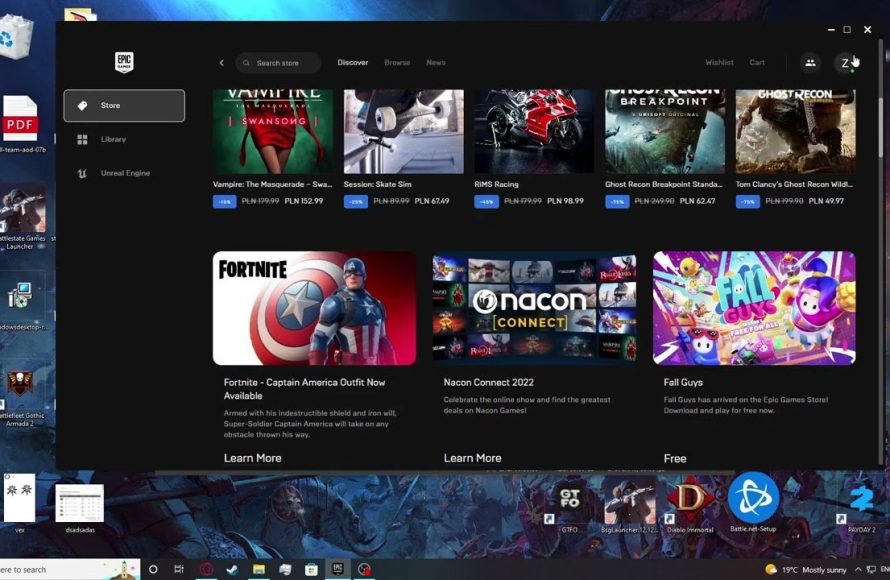
To sign out of the Epic Games Launcher, click your profile icon in the bottom-left corner and then select “Sign Out”.
Ever felt that need to quickly switch accounts or just take a break from gaming? Maybe you share a computer, or want some privacy. Knowing how to sign out of epic games launcher is pretty useful.
This simple action is sometimes overlooked, but it is essential. You’ll be glad to know the process is quick and simple. Let’s get into that.

How to Sign Out of Epic Games Launcher: A Complete Guide
It’s important to know how to sign out of the Epic Games Launcher, whether you’re switching accounts, sharing your computer, or simply want to be extra secure. The process is pretty straightforward, but sometimes it’s helpful to have a clear guide. Let’s explore all the ways you can log out of the Epic Games Launcher, covering different scenarios and troubleshooting any common issues.
Why You Might Need to Sign Out
Before we jump into the how-to, let’s think about why you would need to sign out in the first place. There are several reasons:
- Switching Accounts: Maybe you have multiple Epic Games accounts, one for personal use and one for family or friends. Signing out allows you to log in with a different username and password.
- Security Concerns: If you’re using a shared computer, like at a library or a friend’s house, signing out is a must to keep your personal gaming data safe. This makes sure that others can’t access your account and games.
- General Maintenance: Sometimes, logging out and back in can resolve minor glitches or problems with the launcher. It’s like giving it a little refresh.
- Privacy: When you’re done playing, logging out ensures no one else can see your profile or game progress unless they have your login details.
- Prevent Unauthorized Access: If you leave your account logged in, someone could access it without your permission. Signing out minimizes that risk.
The Quickest Way to Sign Out: The Basic Method
The most common way to log out of the Epic Games Launcher is simple and takes just a few steps. Here’s how:
- Open the Epic Games Launcher: First, make sure the launcher is running on your computer. You’ll see the window where you can access your games and the store.
- Locate Your Profile Icon: Look in the top-right corner of the launcher window. You’ll find a small circle icon, usually with your initials or a default picture.
- Click on the Profile Icon: Click the icon and a menu will appear.
- Select “Sign Out”: From this menu, find the “Sign Out” option (it’s usually at the bottom) and click it.
- Confirm Sign Out (If Prompted): In some cases, you might get a popup asking if you’re sure. If this happens, click “Sign Out” again or the affirmative option to confirm your intention.
- You’re Signed Out!: The launcher will then log you out. You’ll be taken back to the login screen.
That’s it! You’re now safely signed out of your Epic Games account.
Alternative Ways to Sign Out
While the method above is the most common, there are some other ways to achieve the same result, which could be useful in specific scenarios. Let’s explore them:
Using the Settings Menu
Sometimes, the “Sign Out” option can be hidden within the settings of the launcher. Here’s how you can sign out through this method:
- Open the Epic Games Launcher: Start the launcher as you normally would.
- Go to Settings: Click on your profile icon in the top-right corner, just like when we signed out directly. This time, select “Settings” from the dropdown menu.
- Look for Account Settings or Sign Out: In the Settings menu, browse through the options. Some versions of the launcher might have a dedicated “Account Settings” section, or you might see a “Sign Out” option directly in the list.
- Click Sign Out: If you see a “Sign Out” button within Account Settings or directly in Settings, click on it.
- Confirm: Confirm if you are prompted.
- Signed Out!: You’ll be logged out of the Epic Games Launcher after this.
This method is useful if you are already in the settings menu and want to sign out from there, or if the direct “Sign Out” button is not available (though this is rare).
Closing the Launcher
A less direct, but still functional method for signing out involves closing the Epic Games Launcher completely. When you close and then reopen the launcher, it will require you to log in again. This is helpful for a quick logout:
- Close the Launcher: Locate the Epic Games Launcher icon on your taskbar (or dock) and right-click on it. Choose the “Close window” or “Quit” option. Make sure the launcher disappears from the taskbar and the system tray.
- Reopen the Launcher: Start the Epic Games Launcher again. When it opens, you’ll see the login screen, and you’ll be signed out of the previous account.
This is technically not a direct sign-out, but it achieves the same effect. This works if you want a very fast way to sign out or you’re experiencing minor bugs with the launcher, so closing and reopening the launcher will also refresh it.
What To Do If You’re Having Trouble Signing Out
Sometimes things don’t always go as planned. Here are some common issues and how to tackle them if you’re having trouble signing out of the Epic Games Launcher:
The “Sign Out” Button Is Missing
If you cannot see the “Sign Out” option when clicking your profile icon, this may be due to several reasons.
- Check for Updates: An outdated launcher can sometimes have glitches. Make sure you’re using the most recent version of the Epic Games Launcher. Check for updates within the launcher settings or download a new version from the official Epic Games website.
- Restart the Launcher: Closing and restarting the launcher, as discussed in a previous section, might resolve the problem. This could also refresh the interface.
- Try the Settings Menu: Look for the sign out option in the Settings area as discussed above.
If these methods fail, you can try contacting Epic Games customer support for more personalized help.
The Launcher Freezes or Crashes When Signing Out
If the launcher freezes or crashes while you’re trying to log out, here are some ways to resolve the issue:
- Force Close the Launcher: Press “Ctrl + Shift + Esc” on Windows to open the Task Manager or use “Force Quit” in macOS. Locate the Epic Games Launcher in the list, click on it, and choose “End Task” or “Force Quit”. Then, try to restart the launcher and sign out properly.
- Restart your computer: Sometimes a simple restart can fix many technical problems. Try restarting your computer and then trying to sign out again.
- Check your Internet Connection: A poor internet connection can also cause problems. Make sure your internet is working well.
- Run As Administrator: On Windows, right-click the launcher icon and choose “Run as administrator”. This can fix permission related problems.
Remembering your Credentials
A big part of signing out is to do with your login details.
- Write It Down: Keep your login details in a secure location. This could be a note or a password manager. Don’t keep your login information in a public place.
- Password Reset: If you forget your password, Epic Games offers ways to reset it. You’ll need the email associated with your account. Follow the steps carefully to make a new password.
When You’re Still Signed In
Sometimes, even though you think you signed out, you’re still signed in. Check out these tips if that happens:
- Double-Check Your Actions: Make sure you clicked “Sign Out” and not some other button.
- Try Another Method: Use a different way to sign out. If you used the profile icon menu, try closing the launcher.
- Clear Cache: Sometimes, the launcher keeps old data. Try clearing the cache. Look for this option in the settings, or search online on how to clear the Epic Games launcher cache for your operating system.
- Reinstall the Launcher: If nothing works, try uninstalling and reinstalling the Epic Games launcher. Download the latest version from the official Epic Games website.
Tips for Secure Account Management
Here are a few extra tips to help you manage your Epic Games account safely:
- Use a Strong Password: Always choose passwords that are hard to guess. Include numbers, symbols, and both lowercase and uppercase letters.
- Enable Two-Factor Authentication (2FA): 2FA adds an extra layer of security. You’ll need a code from your phone or email to log in. This prevents unauthorized users from getting into your account.
- Be Cautious of Phishing: Don’t enter your Epic Games login details on any site except the official Epic Games website. Scammers may create fake websites to steal your account details.
- Keep Your Information Up to Date: Always make sure your email address and other contact info are current. You’ll need them for password resets and to hear from Epic Games about your account.
Signing out of the Epic Games Launcher is usually a simple process, but understanding all the different ways and potential issues is crucial for good account management. With these steps and tips, you can sign out with confidence and keep your account safe.
By understanding how to navigate different scenarios for signing out, you ensure that your gaming experience stays secure and personalized to your needs. Always be mindful of the steps, double-check your actions, and don’t hesitate to explore the available settings for additional control over your account.
Epic Games Store 2022 – How To Sign Out
Final Thoughts
To sign out, you must click your profile icon. Then, locate the “Sign Out” option in the dropdown menu. This will immediately log you out.
If you share your computer, signing out is important. This action protects your account information from unauthorized access. You successfully learned how to sign out of epic games launcher.

