
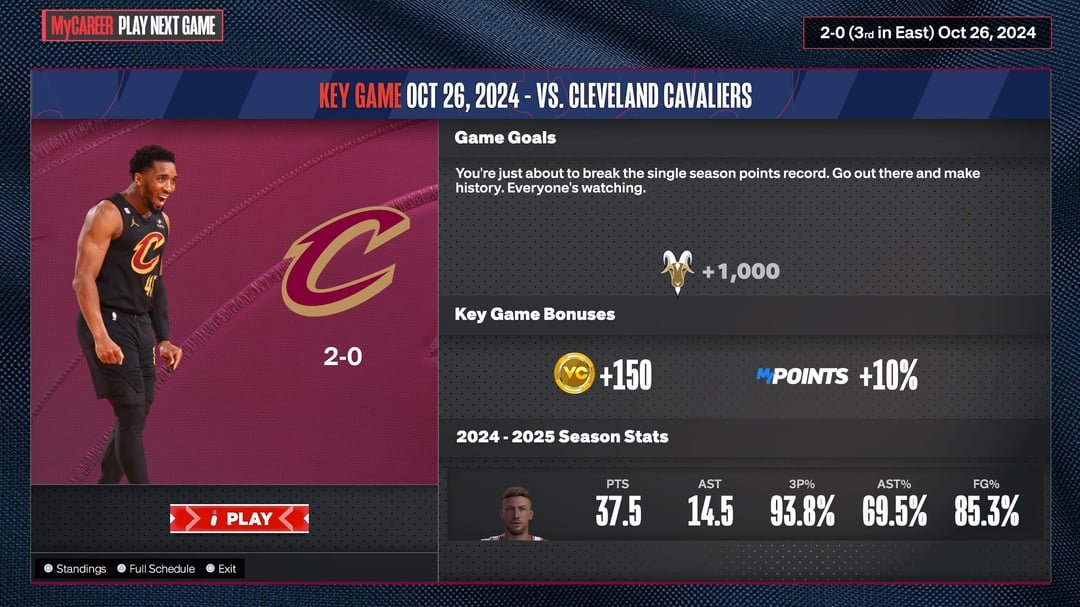
To sim games in MyCAREER 2k24, navigate to the in-game menu, select the ‘Sim to End’ option, or choose ‘Sim to Next Appearance’ to skip ahead to your next game.
Want to fast-track your MyCAREER journey in 2k24? Many players find themselves needing to skip through less crucial games. Understanding how to sim games in mycareer 2k24 is vital for efficiently progressing through the season. It allows you to focus on key matches and cut down on repetitive gameplay.
This guide will show you the simple method that lets you rapidly advance through the calendar, without needing to play every single contest. We make it easy for you to learn how to skip games effectively.

How to Sim Games in MyCareer 2K24
Okay, so you’re diving into MyCareer in NBA 2K24, and sometimes you just want to fast-forward through some games, right? Maybe you’re trying to get to a specific milestone, build up your stats, or you just don’t feel like playing every single minute of every game. That’s where simulation, or “simming,” comes in handy. Let’s break down exactly how to sim games effectively in MyCareer, covering all the important stuff you need to know.
Understanding Game Simulation in MyCareer
Before we jump into the “how,” it’s important to understand what simulation actually means in the context of NBA 2K24. When you sim a game, the game’s AI takes over, and it plays out the match based on your player’s skills, team quality, and other factors. It’s like the game is playing itself, but with your player still involved, of course. This means you’ll still earn VC (Virtual Currency) and progress towards goals, but you won’t have direct control over the action.
Think of it like this: you’re the coach, but you’re letting your team do their thing on the court. You’re still part of the story, but you’re watching it unfold from the sidelines. This allows you to move quicker through the season, which can be especially helpful when grinding for badges or hitting certain story milestones.
When Can You Sim Games?
Knowing when you can actually sim a game is key. You can’t just skip every game from day one. Here are some common times when simming becomes available:
- After Playing a Certain Portion: Often, you’ll need to play a good chunk of the first quarter (usually up to the first timeout) or sometimes the whole first quarter before the option to sim comes up. This is designed to make sure you still actively participate in the early part of the game.
- When a Story Objective is Complete: Sometimes, the game lets you sim once you have completed your current objective in the MyCareer story. This prevents you from skipping content that is crucial to the narrative.
- If Your Team is Winning By a Significant Margin: In a lot of sports games, including 2K24, if your team has a big lead, there is often an option to sim the remainder of the game. This recognizes that the outcome of the game is likely settled.
Be aware that sometimes, the game may block you from simming specific games, especially big rivalry matchups or important playoff games. This helps maintain the excitement and intensity of these significant contests. If you can’t sim a game, it’s likely for a good reason, and the game might be highlighting it as an important one.
How to Actually Sim Games
Okay, let’s get down to the nitty-gritty of how you actually sim games. It’s pretty simple once you know where to look:
Simming During a Game
This is the most common method, usually occurring when you’ve already played a portion of the game:
- Start a MyCareer Game: Begin your MyCareer game as you normally would. Play until you reach the point where simming becomes available (usually the first timeout in the first quarter, sometimes a bit later).
- Open the Pause Menu: Once you’re in a part of the game that is simmable, bring up the pause menu by pressing the appropriate button on your controller (Options on PlayStation, Menu on Xbox, or Esc on PC).
- Find the “Sim to End” Option: Look for an option such as “Sim to End,” “Sim to Next Break”, or something similar on the pause menu. The exact wording might differ based on the current point in the game, but it is usually easy to spot.
- Confirm and Sim: Select this option, and the game will then simulate the rest of the game automatically. You’ll see the game speed up and a text overlay showing the remaining game simulation unfolding on the court.
- Results Screen: After the simulation is over, you will see a results screen showing final score, stats, and VC earnings.
Simming Through the Calendar
Sometimes, especially later in the season, the option to sim through your schedule becomes available, meaning you can move past multiple games at once.
- Go to the MyCareer Menu: From the main MyCareer hub, navigate to your schedule or calendar. This is where you can see a list of upcoming games.
- Look for “Simulate” or “Advance” Options: Sometimes, you may see an option to simulate the game on the schedule itself. This is often shown as “Sim to Next Game”, or “Advance to Next Match,” or something similar.
- Confirm: Select the simulate option, and the game will then move past that game, or games, until the selected point in the schedule. This allows you to skip through games in bulk, rather than one game at a time.
Tips for Effective Game Simulation
Simming games can be helpful, but it’s important to be smart about it. Here are a few tips to make sure you’re making the most of your simmed games:
Monitor Player Condition and Performance
- Keep an Eye on Fatigue: Don’t just blindly sim through games. Pay attention to your player’s fatigue level. Simming too many games in a row might lead to lowered energy levels, which will affect your performance when you do play.
- Watch Out for Bad Games: If your player is having a tough time, you might want to jump in and play instead of simming. Simulation does not give the player any chance to improve their play.
- Check Team Chemistry: When you sim the game, it might affect team chemistry. Make sure to watch your team chemistry. A bad team chemistry could result in losses while simming.
Using Simming Strategically
- Grind for Badges, Then Sim: Play to grind for your badges, and then sim games once you have achieved the badge goals. This saves you time and helps your player progress fast.
- Focus on Key Games: Don’t sim through games against rivals or games that matter to your season story. You can then sim the rest of the games that are not as important.
- Use Simming to Save Time: If you are running low on time, simming can save you hours. This will help you if you are trying to get through the season quickly.
Understanding How Simming Affects Your Player
- VC and Rewards: When you sim a game, you will still earn VC and make progress towards your goals, but they might be lower than if you had played the entire match. Simming is good for those times where you are low on time and want to progress quicker through the season without having to play the game.
- Stat Growth: While you will still get stats, they may be less than if you played the whole game. If you want the best possible stats, playing the game is always a better choice.
- Progression: Simming helps you move through the season faster. However, if you want to progress, make sure you play the games so that you can get badges, and also make sure you are progressing well in your goals.
When Not to Sim
- Key Rivalry Games: Games against rivals should not be simmed. These are often pivotal games that can improve your place in the rankings or story progression. Playing them will improve your game play.
- Playoff Games: These games matter most, so you should play them. Playoff games are important to the story and can heavily affect how you perform in the coming season. Simming these can have a huge negative effect on your story.
- When You are on a Losing Streak: It is generally not a good idea to sim games if your team is struggling. Stepping in can help get your team back on track with your skills and knowledge.
- When You Are Chasing a Record: If you are close to a record you want to break, you should play those games and try to break those records.
Troubleshooting Common Simming Issues
Sometimes, you might run into issues when trying to sim a game. Here are some common problems and what you can do:
Sim Option Not Appearing
- Play More of the Game: Make sure you have played enough of the game for the sim option to appear. Usually, you have to play until the first timeout of the first quarter.
- Story Lock: Some games might be locked due to the story progression, meaning you will need to play them. If that is the case, the game usually highlights why you can’t sim.
Simming Affecting Performance
- Energy Levels: If you are simming constantly, your player might be fatigued. You can solve this by playing a game or two, or resting before moving on to more simming.
- Stats: If you want better stats, you need to play the game. Simming the game will likely not improve your statistics, unless your player is performing very well in the game.
- Adjust Difficulty: If your player is having a really hard time in games, try lowering the difficulty to have a better time and also improve the game stats.
Game Glitches and Bugs
- Restart the Game: If you think there might be an issue with the game, close the game and restart it again. This usually fixes any small glitches.
- Check for Updates: Make sure you have the latest game updates. Game updates often fix bugs and problems.
- Contact Support: If you think the issue is more serious, you can contact 2K support.
Using the MyCareer App and Simming
The MyCareer app, available on your in-game phone, can sometimes offer additional options for managing your career, although it doesn’t directly enable simming. However, here’s how you might use it in conjunction with your simming strategy:
- Check Your Schedule: You can review upcoming games, allowing you to plan when to sim and when to play for specific milestones.
- Monitor Your Stats: Keep track of your player’s performance and badge progress to decide when simming is a good idea. If your player is not doing well, then it might be a good idea to play a few games.
- Manage Endorsements: Endorsements can give you extra VC. If you have an endorsement you want to level up, you should play the game instead of simming to get the highest possible bonus.
The Benefits of Knowing How to Sim
Knowing how to sim effectively in MyCareer is a time-saver. It allows you to focus on the parts of the game you enjoy the most, rather than being forced to play every minute of every single game. It also allows you to get through seasons quicker, making it easier to get through the story mode. Understanding the game modes will ultimately improve your overall experience, and knowing how to sim is a key aspect to that process.
By knowing when, why, and how to sim properly, you can navigate your MyCareer journey with more control and efficiency. This will let you reach your goals faster and let you make the most of your gaming experience.
HOW TO SIMULATE GAMES AND EARN GOAT POINTS FAST IN NBA2K24!
Final Thoughts
To quickly sim games in MyCareer 2K24, navigate to the calendar in your hub. Then, choose the game you want to simulate and select the “Sim to End” option. This action will skip the gameplay and jump to the results.
You also have the option to “Sim to Next Break” which plays until a stoppage. This offers a mix of control and simming for certain play styles. With these tools, learning how to sim games in mycareer 2k24 becomes very efficient.

