
To sort Steam games by size, navigate to your library, switch to the “List View,” then click the “Size on Disk” column header. Clicking it again will reverse the sort order.
Ever wondered which games are hogging the most space on your hard drive? Managing your storage can be a headache, especially with ever-growing game libraries. You might be asking yourself how to sort Steam games by size to quickly identify the space culprits. It’s actually a pretty simple process.
This simple method allows you to see which games need to be uninstalled or moved to a different drive. Now you can easily keep your storage organized and make room for new games.

How to Sort Steam Games by Size
Okay, gamers, let’s talk about something we all deal with: the ever-growing mountain of games in our Steam library. Sometimes, you just want to know which games are taking up the most space on your computer. Maybe you’re running low on storage, or perhaps you’re just curious. Whatever the reason, knowing how to sort your Steam games by size is a super handy trick. It helps you see at a glance what’s hogging the most gigabytes. This guide will show you exactly how to do it. No complicated stuff, just simple steps to manage your game library better.
Understanding Why Sorting by Size Matters
Before we dive into the “how,” let’s quickly cover the “why.” Why would you even need to sort your games by size? Well, several reasons come to mind. First and foremost, storage space is precious. Modern games can be huge, some going beyond 100GB! If you are using a computer with a smaller Solid-State Drive (SSD), those big games can quickly use up all of your space. Sorting by size helps you identify these space-eaters so you can decide if you really need to keep them installed. You might also want to move them to a secondary hard drive.
Another reason is that a cluttered drive can sometimes slow your system down. When your drive is nearly full, it takes longer for your computer to find files and do its thing. By understanding which games are the largest, you can manage space more effectively, leading to smoother performance overall. Plus, it’s just good to keep your digital things organized, right? Think of it like sorting your toys; it just makes everything easier to find and play with!
Sorting Steam Games by Size: The Direct Method
Steam has a feature to show you a list of the installed games in size order. This is the most direct way to do it, and it is pretty simple. Here are the steps:
- Open Steam: Start the Steam application on your computer. Make sure you are logged into your account.
- Go to your Library: Click on “Library” at the top of the Steam window. This will take you to the list of all of your games.
- Switch to the “List” View: If your games are shown in grid format (with pictures), change it to list view. Look for the small list icon in the upper right. It looks like three horizontal lines. Click on it to see your games in a list.
- Click on the Size Column: In the list view, you should see column headers. One of these is labeled “Size.” Click on that header. This sorts your games according to how large they are. Clicking it once will show the smallest games first. Click it again to show the biggest ones first.
That’s it! Your games are now sorted by size, and you can easily see which ones take up the most space. You can also quickly identify the smallest games. This method is simple and quick and great when you just want to see which games are big and which are small on the installed games section.
Exploring Alternative Sorting Methods: Steam’s Storage Manager
Steam also has a tool specifically for managing your storage, and it can be useful if you want to move or uninstall games. This is the Steam Storage Manager, and here’s how to access it and what you can do:
Accessing the Storage Manager
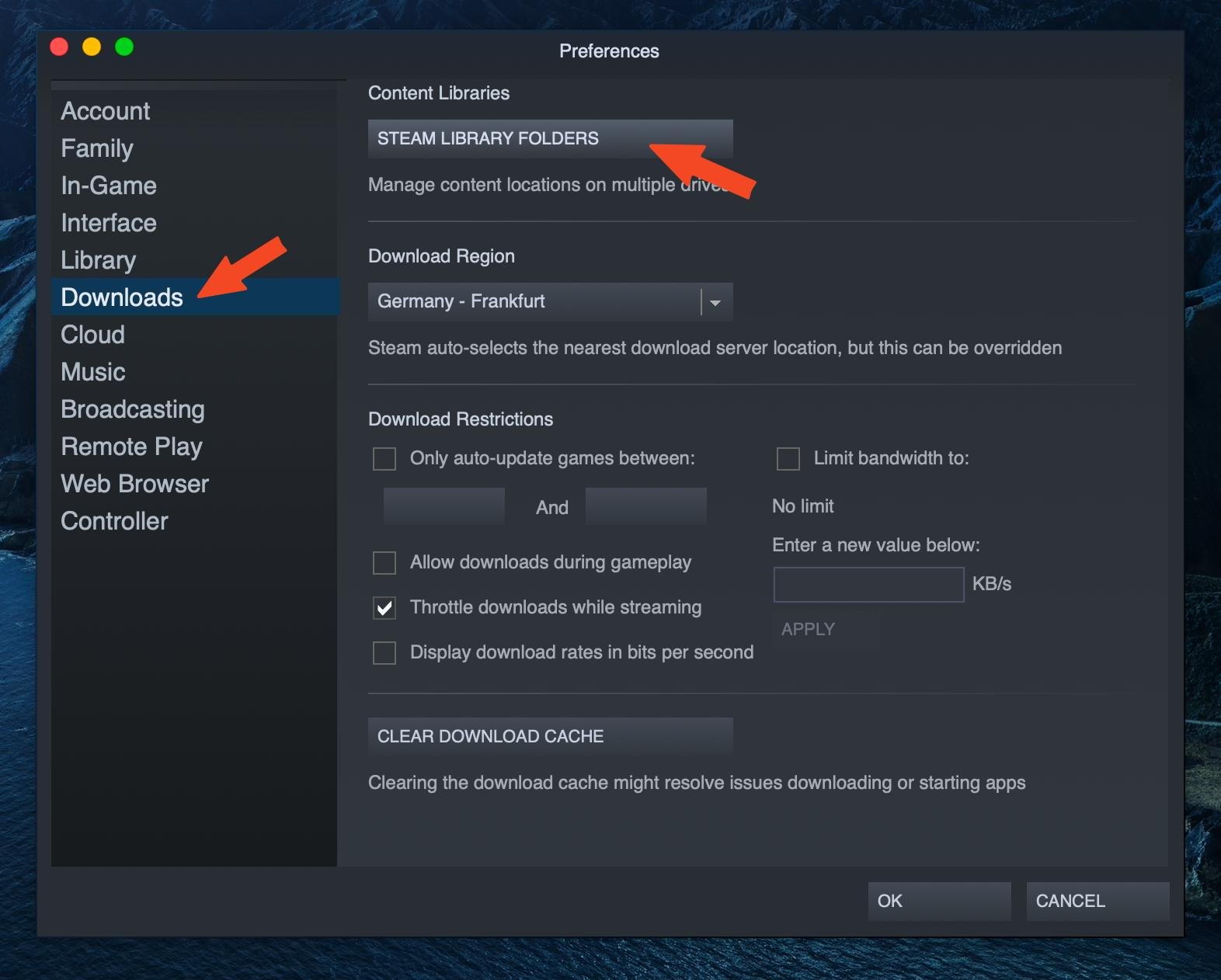
- Open Steam Settings: While in the Steam application, find and click on “Steam” in the top left corner, and from the menu, pick “Settings.”
- Navigate to Storage: In the Settings window, click on “Downloads.” Then, at the top of that section, pick “Storage”.
How the Storage Manager Can Help
The Storage Manager shows you a breakdown of all your storage drives, along with the total space used and what Steam games occupy. Here’s what you can do with it:
- View Installed Games by Drive: It shows all your games installed on each drive separately, which is good if you have more than one.
- Sort Games by Size: When you click on a drive, you’ll see the installed games listed. Click the “Size” column to sort. The biggest games will appear at the top (or bottom, if you click again).
- Move Game Installations: If you have more than one hard drive, you can move games from one to another without needing to reinstall them. You can click a game and move it from your SSD to your HDD (or the other way around!).
- Uninstall Games: The Storage Manager also lets you quickly uninstall games you no longer want. Select the game and click “Uninstall.”
The Storage Manager helps keep your storage organized. It also gives you more control over where your games are located.
Tips and Tricks for Managing Game Storage
Sorting games by size is a great start, but what else can you do to better manage your storage? Here are some additional tips and tricks that can make a big difference:
Uninstalling Games You No Longer Play
This is the most obvious one, but often the hardest to do! We tend to hold onto games just in case we ever get back into them. However, you must ask yourself, “When was the last time I played this?” If it’s been months or even years, consider uninstalling it. You can always re-download it later if you decide to play again. Use the Steam Storage Manager to uninstall games easily. Don’t worry—your save data is usually stored in the cloud, so you don’t lose your progress.
Moving Games to a Different Drive
If you have a second hard drive (an HDD), consider using it to store the games you don’t play as often. This frees up space on your faster SSD drive for the games you play often. Use the Storage Manager to move games easily.
Using External Hard Drives
If you’re still running out of space, an external hard drive is a good solution. You can pick up a terabyte external hard drive pretty inexpensively these days. Just plug it into your computer, and Steam can use it to store games just like an internal drive. This is also good if you have a laptop, as it’s not as easy to add more storage to a laptop internally.
Using Disk Cleanup Utilities
Windows has built-in disk cleanup tools that can help you free up space. Search for Disk Cleanup on your computer and run it. It will scan your computer for unnecessary files that you can safely delete. This can free up additional storage, even though it won’t directly impact Steam games.
Optimizing Steam Settings
Steam has some settings that can impact how much storage you use. For example, in Settings, under “Downloads,” you can set limits on how quickly Steam downloads new games. This can be useful if you have a slow internet connection and you don’t want your downloads to interrupt what you’re doing on the computer. This won’t directly impact your storage, but it might help manage your overall download performance. Also, turn off any beta programs, if you are not using them, as they may add extra files to your drives, which is unnecessary if you are not using the beta programs.
Why Some Games Appear Larger Than Others
You might notice that some games seem much larger than others. What makes one game take up 2 GB while another takes up 50 GB or more? Here’s a quick rundown:
- High-Resolution Textures: Modern games have super detailed textures that make them look amazing. The better they look, the bigger these textures get.
- Audio Files: Games also have a lot of audio, including music, sound effects, and voice acting. All these sound files add to the game’s size.
- Videos: Cutscenes, intro movies, and other video content can also take up a large amount of space.
- Multiple Languages: Some games include audio and subtitles in many languages. All these language files mean a larger game.
- Game Content Updates: Games that get regular updates, like online games, can increase in size over time as new content is added.
It’s not just about how long a game is or how much gameplay it offers. The size of the game has more to do with the quality of the graphics, the richness of the audio, and the amount of media included within it.
Advanced Techniques: Using Third-Party Tools
For people who want even more detailed control, there are a few third-party tools that can be used to manage your Steam game storage. These tools often offer features beyond what Steam provides natively. These are not strictly needed, but might be worth knowing about if you have some very unique requirements
Example Third-Party Tool: Steam Library Manager
This free program is designed specifically for managing Steam game files. It is not a product of Valve, and you should be careful when downloading any programs from third party developers. But it often gives you these options:
- Move Games more easily: Sometimes, the Steam storage manager has errors. In those cases, Steam Library Manager can be a good choice.
- See more details: This program often gives you a bit more insight into the exact file usage on the drive, which can be helpful.
Use these tools at your own discretion. If you are unfamiliar with the tool or developer, be cautious when giving it access to your computer.
Making an Informed Decision About Storage
Ultimately, managing your game storage is all about making informed choices. Understanding how much space your games use allows you to make better decisions about which games to keep installed and which games to move. By using the techniques described above, you can easily keep your library organized and manageable. By sorting your Steam games by size, you’re taking control of your gaming space and ensuring you have enough room for new games that catch your eye!
It is all about being organized and having more space to download new games, so you can keep playing more great titles!
How to sort your Steam games by size-2024
Final Thoughts
Sorting your Steam library by size is straightforward. You can view your installed games in the storage manager; this shows each title’s file size. Then, simply click the “Size” column heading to sort games from largest to smallest or vice-versa.
This method gives you a clear view of your library’s space usage. Quickly identify which games occupy the most space. Knowing ‘how to sort steam games by size’ will help you manage your storage effectively.

