
To stop ads on android games, you can often use a paid, ad-free version of the game or utilize a DNS-based ad blocker app.
Ever been engrossed in a game, only for an annoying ad to pop up and break your focus? It’s a common frustration for android gamers. We all know how disruptive these interruptions can be to the gaming experience. That’s why many search for solutions on how to stop ads on android games.
Luckily, there are several ways to enjoy your games uninterrupted. From upgrading to a paid version of the game to employing certain apps, you’ll find a method that suits you. We will guide you through some simple steps.

How to Stop Ads on Android Games
Okay, let’s be real. You’re in the middle of an awesome game, about to beat the high score, and BAM! An ad pops up, right? It’s super annoying. Those little videos or pop-ups that interrupt your fun – we’ve all been there. But guess what? You don’t have to just deal with them. There are ways to kick those pesky ads to the curb and enjoy your games in peace. This article will walk you through all the methods for stopping ads on your Android games. Let’s dive in and get you back to playing!
Understanding Why Ads Appear in Android Games
First, it helps to know why these ads are showing up in the first place. Most of the time, the games you download from the Google Play Store are free. But, creating games costs money. To keep these games free for you, the developers often put ads in them. These ads are like little commercials that help them earn some money. Think of it like watching a free TV show – there are usually commercials, right? It’s the same idea.
These ads can come in different forms, such as:
- Banner Ads: These are the ads you see at the top or bottom of the game screen.
- Interstitial Ads: These are full-screen ads that show up between levels or after a game over.
- Video Ads: These are short videos that can sometimes be skipped after a few seconds, or sometimes you have to watch the whole thing.
- Rewarded Ads: These are the ads that you choose to watch to get a reward, like extra lives or coins in the game.
Understanding the different types of ads can help you figure out the best way to handle them. Some methods will work better for certain types of ads than others. Now that we know why ads are there, let’s look at how to make them go away.
Turning Off Your Internet Connection
One of the easiest ways to stop most ads is to simply turn off your internet connection, either your Wi-Fi or mobile data. When your Android device isn’t connected to the internet, the game usually can’t load ads because it has no way to get them. It’s like trying to listen to the radio when the antenna is broken – the signals can’t get through!
How to do it:
- Open your device’s settings app.
- Find “Wi-Fi” or “Network & Internet” depending on your device.
- Toggle the Wi-Fi switch to the “off” position.
- If you use mobile data, toggle the mobile data switch to the “off” position as well.
Things to keep in mind:
- This method only works for offline games that don’t require an internet connection to play. Many games today need a constant connection for things like online leaderboards or multiplayer features. If the game requires the internet, this won’t work.
- You won’t be able to do things in games that need the internet, like getting your daily rewards, buying stuff, or competing with others.
- Also, if you have a game that saves progress on the cloud, this method might make you lose the progress and you have to upload it again when you connect with the internet.
Using Airplane Mode
Airplane mode is another quick way to disconnect from the internet and stop ads in some games. It cuts off all wireless connections. It’s like putting your phone in a bubble where it can’t send or receive signals.
How to turn on airplane mode:
- Swipe down from the top of your screen to open the quick settings panel.
- Look for an icon of an airplane. Tap it to turn airplane mode on.
Things to note:
- Just like turning off Wi-Fi and data, this will prevent you from using any internet-based game features.
- If you need to use anything that requires a connection, you’ll have to turn off Airplane Mode first.
- This method is also only effective for games that do not require internet connectivity.
Leveraging Ad Blocker Apps
Several apps on the Google Play Store can block ads on your entire phone, including in games. These apps act like a shield, blocking the connections that would load ads. Think of it like having a bouncer at the door of your game, refusing to let the ads in.
Popular Ad Blocker Apps
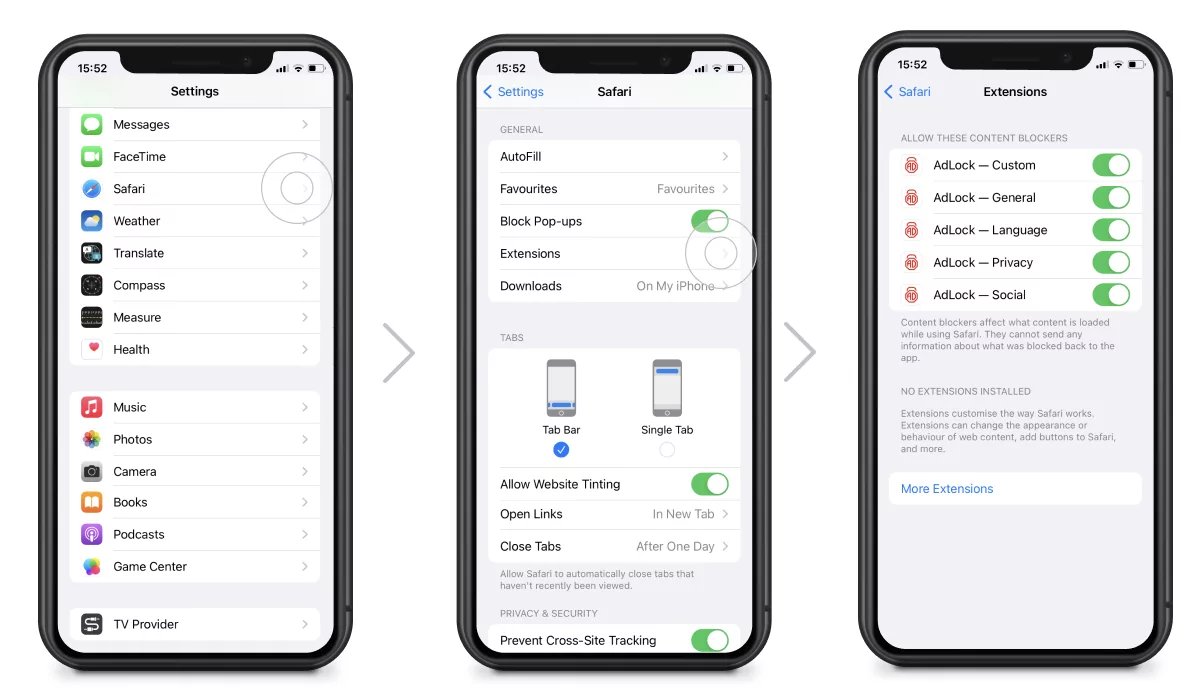
- AdLock: It is a well-known ad blocker app and is effective in many situations.
- Block This!: This app focuses on blocking ads system-wide, and it works quite well.
- AdGuard: AdGuard is a powerful ad blocker that filters ads through a VPN.
How to Use Ad Blocker Apps
- Search for the app you choose on the Play Store and install it.
- Open the app. The app will guide you through the initial setup process. It might ask for permission to access the device’s VPN settings.
- After setup, the ad blocker will usually start working automatically in the background.
Important Considerations When Using Ad Blockers
- VPN Usage: Many ad blocker apps create a local VPN (virtual private network) to filter out ad traffic. Your network data will be routed through the VPN so the app can intercept ad requests.
- Battery Usage: Running a VPN in the background can sometimes use a bit more battery. Keep an eye on your phone’s battery life.
- Performance Impact: Some ad blockers might slow down your device slightly. It’s often a very small change, but it could matter if you have an older device.
- Trust and Security: Only download ad blocker apps from trusted developers, and always read user reviews. Some apps might not be safe, and that is why you should do your research before installing an app.
Modifying DNS Settings
Another way to block ads is to change your device’s DNS (Domain Name System) settings. The DNS is like the internet’s phone book – when you type a website name in your browser, the DNS helps find the right address. By changing the DNS to a service that blocks ad domains, you can prevent your device from downloading those ads. This method is very efficient for most of the devices.
How to Change DNS Settings
There are few ways to change DNS settings. Here are two ways:
Method 1: Using Private DNS
- Go to your device’s Settings.
- Go to “Network & Internet” or “Connections.”
- Select “Private DNS” or “Private DNS mode.”
- Choose the option “Private DNS provider hostname.”
- Enter the DNS address of your selected DNS. Common ones include:
- dns.adguard.com (AdGuard DNS)
- dns.nextdns.io (NextDNS)
- Click “Save.”
Method 2: Using a DNS Changer App
- Download and install a DNS changer app from the Google Play Store.
- Open the app and select the DNS provider that blocks ads.
- Activate the DNS changer.
Key Things to Remember About DNS Settings
- Reliability: This method is generally reliable and works well.
- Privacy: Using a trusted DNS provider can sometimes provide some level of extra privacy protection on the internet.
- Complexity: It’s a little more technical compared to some of the other methods, but it’s not too difficult if you follow the instructions.
Exploring Game Settings
Sometimes, game developers give you the option to remove ads by paying a small fee. This is usually called buying an “ad-free version” or a “premium” version of the game. It is like buying a ticket to see a movie without the interruptions of commercials. Usually, they are not too expensive, and you can enjoy playing games without any interruptions. Additionally, some games offer the option to watch ads in exchange for in-game bonuses. These are optional and not forced on you. You can make that choice yourself. Most of the time you get better control of how you play the game without many interruptions.
How to Check for Ad-Free Options
- Open your game.
- Look for a “settings” menu, or a button that looks like a gear.
- Check if there’s an option to buy an ad-free version, or something similar. It might be called “Remove Ads” or “Premium Upgrade”.
Advantages of Paid Ad-Free Options
- No More Ads: You get rid of those annoying ads completely.
- Support the Developers: Buying the game helps the game developers continue to create games you love.
- Sometimes Extra Features: Some premium versions give extra stuff, like new levels or characters.
Using Modified APKs
This method involves downloading a modified version of the game (an APK file) that has been altered to remove ads, and is done from a website that provides these modifications for free. This is similar to copying a game disc and using it, but instead of a disc, we use an altered file of a game. However, this method has some risks.
Where to Find Modified APKs
- There are many sites that provide modified APKs. A quick search on the internet can provide you with different sites.
- Always, use a trusted site, because some sites might have harmful files attached with the APK.
How to Use Modified APKs
- Download the APK file.
- You must allow the installation of apps from unknown sources in your device setting. The settings can be found in the “Security” tab of your settings.
- Install the downloaded APK file.
Risks of Using Modified APKs
- Security Risks: Modified APKs can contain malware or viruses. You have to download the APK from a trusted source to avoid getting infected by a malicious program.
- Legality Issues: Modifying games without permission can sometimes be illegal, so you have to keep this in mind before downloading them.
- Game Instability: Modified games sometimes don’t work as well as the original game because of changes in the original code of the game.
- No Updates: You won’t be able to update the game normally because the game is not from the Play Store.
Rewarding Yourself with Patience
Sometimes the best strategy is to be patient, especially with games that offer very short ads that can be skipped. These games often give you an option to skip the ad after a short time. So you don’t have to watch the whole ad. If you can skip ads, it may be worthwhile to wait for a few seconds and quickly skip them. This will help you avoid the use of other methods that might affect your gaming performance and experience.
The Benefits of This Approach
- Simplicity: It is very simple to wait a few seconds and tap on a skip button.
- No Technicality: It does not require any advanced skills.
- No Risk: This method has no risks of malware or legal issues.
By using these tips, you will be able to have more control over your gaming experience, without the interruptions of pop up ads. Remember, it’s all about making your gaming time more enjoyable, so go ahead and take back the power and enjoy your gaming time!
Block Ads on ALL Games (FREE and FAST) #shorts
Final Thoughts
To effectively stop ads on android games, utilize airplane mode, although this limits online features. Another option is to install ad-blocking applications from the Play Store. These apps often use VPN services to filter ads.
You can also explore game settings for options to remove ads with in-app purchases. Many games offer a premium version or a one-time fee for ad-free play, offering a permanent solution.
Ultimately, you have several methods available to manage interruptions. Consider these options when you’re figuring out how to stop ads on android games and choose the one that best fits your gaming habits and preferences.

