
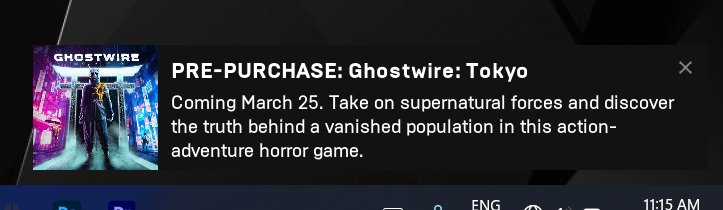
To stop Epic Games pop ups, adjust the notification settings within the Epic Games Launcher or your computer’s system settings, specifically disabling notifications for the application.
Annoying pop-ups from the Epic Games Launcher can interrupt your work or gaming sessions. It can be frustrating when you just want to get things done. Many people search for solutions on how to stop Epic Games pop ups, and it’s not as complicated as you might think. You can easily regain control and silence these interruptions with simple settings changes. This process involves making adjustments either within the launcher itself or directly in your operating system’s notification preferences.

How to Stop Epic Games Pop Ups
Those pesky Epic Games pop-ups can be a real nuisance, especially when you’re trying to focus on something important or just want some peace and quiet. They can appear when you least expect them, interrupting your game, work, or even your favorite videos. Let’s face it, nobody likes to be bombarded with notifications they don’t need. But the good news is that you can stop them! This article will guide you through all the steps you can take to reclaim your screen and your focus.
Understanding Why You See Epic Games Pop Ups
Before we dive into how to get rid of these pop-ups, it’s helpful to understand why they’re there in the first place. Epic Games uses pop-ups to communicate important information. This could be about new game releases, special sales and promotions, friend requests, game updates, and even announcements about the Epic Games Store itself. While some of these are helpful, they can become overwhelming if you’re not interested or prefer to get this information at your own pace.
Types of Pop-Ups You Might Encounter
Epic Games pop-ups come in different shapes and sizes, some more annoying than others. Here are a few common ones you might be seeing:
- Game Launch Notifications: These pop up when a game is ready to play or when a friend starts playing a game.
- Friend Request Notifications: These appear when someone adds you as a friend.
- Sale and Promotion Announcements: These pop up to notify you about discounts and special deals on games.
- Game Update Notices: These alert you when a game you own has an update.
- Epic Games Store Updates: These inform you about new features or changes in the store.
Disabling In-App Notifications Within the Epic Games Launcher
One of the most effective ways to control Epic Games pop-ups is by adjusting settings directly within the Epic Games Launcher. These settings allow you to fine-tune which types of notifications you see.
Step-by-Step Guide to Adjusting Launcher Settings
Here’s how to customize your notification preferences:
- Open the Epic Games Launcher: Find the launcher icon on your desktop or in your start menu and click it.
- Go to Settings: Click on your profile icon in the bottom-left corner of the launcher. Then, click on “Settings.”
- Find the “Notifications” Section: Scroll down until you find the “Notifications” section. You’ll see several options to customize here.
- Customize Notifications: You will see options like “Game Launches”, “Friend Requests”, and others, as mentioned above. You can turn these notifications on or off by clicking the toggle next to each notification type. For example, if you don’t want to see friend requests, switch the “Friend Requests” toggle to off. If you don’t want to see sales and promotion announcements, turn off that toggle.
- Save Your Changes: Once you’re done customizing your settings, your changes will be saved automatically. There is no save button to click.
By turning off the toggles for specific notifications, you will reduce number of pop-ups significantly.
Adjusting Windows Notification Settings
Sometimes, the Epic Games Launcher notifications are tied to your operating system’s notification settings. If you continue to see pop-ups even after turning them off in the Epic Games Launcher, you might need to adjust the settings in Windows.
How to Customize Windows Notifications for Epic Games
Here’s how to access and adjust your Windows notification settings:
- Open Windows Settings: Click on the start button (the Windows logo in the bottom left corner of the screen). Then, click on the “Settings” icon (usually a gear). Alternatively, you can search “Settings” in the search bar.
- Go to “System”: In the Settings window, click on “System.”
- Select “Notifications & Actions”: In the left-hand menu, click on “Notifications & actions.”
- Scroll to “Get notifications from these senders”: Scroll down until you see the list of apps that can send you notifications.
- Locate Epic Games Launcher: Look for “Epic Games Launcher” in the list of apps.
- Turn off Notifications: You can either turn off all notifications from the Epic Games Launcher by clicking the toggle to the “Off” position or click on “Epic Games Launcher” to adjust the type of notifications you receive.
- Customize Specific Notifications: If you choose to click on “Epic Games Launcher”, you will be given options to fine-tune which specific notification from the Epic Games launcher you see or not. For instance, you might want to turn off the banners of epic games, but you might want to keep the notifications in the notification center.
Adjusting the windows notification setting will prevent Epic Games from pushing pop-ups. These settings give you even more fine-tuned control over when and how notifications appear.
Using Third-Party Software to Manage Notifications (Use With Caution)
While the above methods are usually sufficient, you might find some third-party software that claims to help you manage notifications, including those from the Epic Games Launcher. However, you should be extremely careful when using any third-party software.
The Risks of Using Third-Party Software
Here are some risks to be aware of:
- Malware and Viruses: Some third-party software may contain malware or viruses that could harm your computer.
- Privacy Concerns: These apps may collect your data or monitor your activity without your consent.
- Software Conflicts: Third-party software can cause conflicts with other programs, leading to instability and crashes.
- Epic Games Violations: Using certain types of software might violate the terms of service for the Epic Games Store, potentially leading to account bans.
It’s generally best to avoid third-party software for managing notifications if possible. Using the methods we’ve already discussed is safer and more reliable.
Alternative Methods to Stay Informed
If you are worried about missing out on crucial information from Epic Games, there are other ways to stay in the loop without being constantly interrupted by pop-ups.
Checking the Epic Games Store Regularly
You can check the Epic Games Store regularly to stay informed about new releases, sales, and game updates.
- Visit the Store Page: Open the Epic Games Launcher and go to the “Store” section. Here you can find all new game releases, updates, and promotional offers.
- Browse Games: You can browse through different games and see what’s new. Epic Games usually highlights the newest releases and upcoming sales.
This method provides you the opportunity to stay informed at your own convenience, without getting your screen cluttered with pop-ups.
Following Epic Games on Social Media
Epic Games is active on various social media platforms. By following their official accounts, you will get the latest updates without having them pop-up on your screen.
- Twitter: Follow their official Twitter account for quick updates on releases, sales, and news.
- Facebook: Follow their Facebook page for news, announcements, and community posts.
- Instagram: Follow their Instagram for images, videos, and short updates.
- Reddit: Follow or check their subreddit for community discussions, updates and player feedback.
Social media is a great way to stay up-to-date with Epic Games’ announcements without the interruption of pop-up notifications.
Checking Your Email for Epic Games Updates
When you create an Epic Games account, you’re usually asked for an email address. Epic Games also sends email updates for the latest news. Check your inbox and spam folder for messages from Epic Games.
- Email Newsletters: Epic Games sometimes sends out email newsletters to its users to provide special offers and information on new games.
- Account Emails: Epic Games sends out transactional emails like payment confirmations and account management notices that may be helpful.
Reviewing your email allows you to catch all important updates at your own pace without the immediate interruption of pop-up windows.
Using Do Not Disturb Mode
Many operating systems offer a “Do Not Disturb” mode. This mode will stop all pop-up notifications from apps, including the Epic Games Launcher. This can be helpful when you need complete focus. Here’s how to use it:
Windows Do Not Disturb Mode
Here’s how to activate Do Not Disturb mode on Windows:
- Open the Action Center: Click on the “notifications” icon located in the bottom-right corner of your taskbar.
- Enable “Do Not Disturb”: Click on “Do not disturb”. It will switch to “On”. When this mode is turned on, you will stop receiving most notifications.
- Customize Settings: You can customize what notifications you see in do not disturb mode. To do so, you need to follow steps from earlier on this article, as how to customize your Windows notification settings.
Do Not Disturb mode is very useful when you are working or playing and do not want any interruptions.
macOS Focus Mode
On macOS, the equivalent of Do Not Disturb is called Focus Mode. Here’s how you can enable it:
- Click the Control Center Icon: This icon is typically located on the top-right corner of your screen. It is usually represented by a toggle.
- Select Focus: Then, select “Focus.” You will see different options like “Do Not Disturb” or “Personal,” “Work,” etc.
- Select the Focus Mode you want to activate: Select “Do Not Disturb” to turn it on, or any of the other Focus Modes. You can further customize these Focus Modes in your System Preferences.
Focus Mode can help eliminate interruptions from all apps, including Epic Games.
Regularly Checking Epic Games Launcher Updates
Keeping your Epic Games Launcher up to date is important for the application to work properly. Updates sometimes include new settings that may help you reduce pop-ups or solve some bugs related to notifications. So, ensure that your application is running the latest version.
How to Check for Launcher Updates
Follow these steps to check for updates:
- Open the Epic Games Launcher: Click the launcher icon to open it.
- Check for updates: You’ll find an update notification on the bottom-left corner of your screen. Click on it and allow the app to update.
- Restart the Launcher: You’ll need to restart the launcher to apply the update.
Regularly updating your launcher can help it run smoothly and might provide more flexibility to adjust notification preferences in the future.
Stopping those annoying Epic Games pop-ups is completely within your control. By making the right adjustments in the Epic Games Launcher settings and also in your Windows or macOS settings, you can create a more peaceful digital space to play games or focus on your work. You no longer need to be constantly bothered by unwanted interruptions. Remember, you can also get important information by checking the Epic Games Store, following their social media, and reading their email updates. Keep your Epic Games Launcher up-to-date for the best experience. This approach will help you to take control of your notifications so you can enjoy your computer without the constant interruptions of pop-ups.
How to Turn Off Popup Notifications in Epic Games Launcher
Final Thoughts
To stop annoying Epic Games pop-ups, disable notifications within the launcher settings. Go to settings, then notifications, and adjust preferences. This action prevents unwanted advertisements and game update reminders.
You can also explore your operating system’s notification settings. Locate Epic Games in the list and manage its notification permissions. This ensures only essential alerts will come through.
Ultimately, how to stop epic games pop ups involves controlling notification preferences within both the Epic Games launcher and your system settings. This method gives you more peaceful computer usage.

