
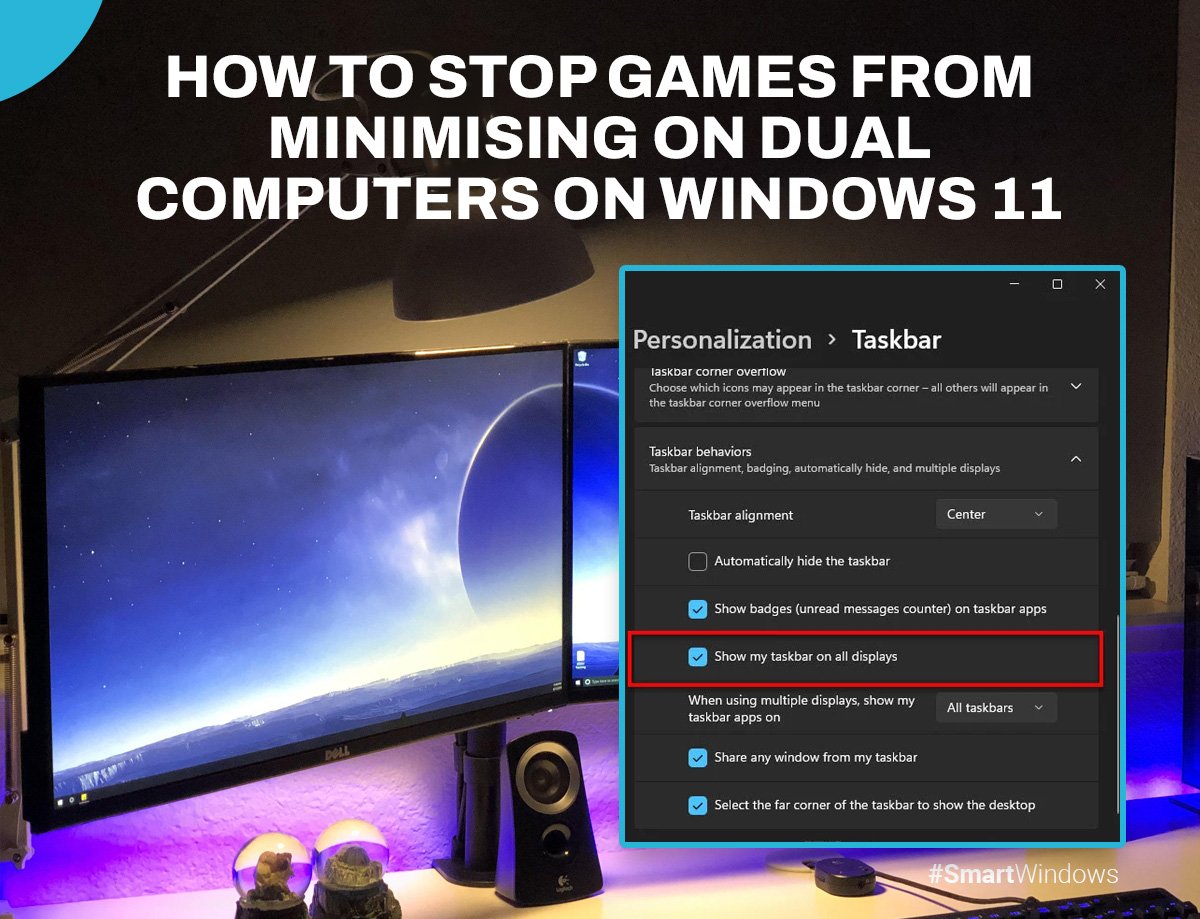
Try running your game in borderless windowed mode. This often prevents games from minimizing when you click on your other monitor on Windows 11.
Are you frustrated by games constantly minimizing when you use your second monitor? This common issue on Windows 11 can interrupt your gameplay. We will explore practical solutions to address how to stop games minimizing dual monitors windows 11.
It is annoying to have your gaming experience disrupted. You want to seamlessly use both screens. Thankfully, there are settings and workarounds to help. We will cover these fixes to help you enjoy uninterrupted gaming.

How to Stop Games Minimizing on Dual Monitors in Windows 11
It’s super annoying, right? You’re in the middle of an awesome game, and suddenly, it shrinks down to a tiny window because you clicked something on your other monitor. This is a common problem when using two screens with Windows 11, but don’t worry – you’re not alone, and there are ways to fix it. We’ll explore why this happens and how to make your gaming experience smooth across both of your monitors, preventing those frustrating game minimizes.
Understanding Why Games Minimize on Dual Monitors
Before we get into fixing the issue, let’s understand why it’s happening. When you have two monitors, Windows treats them as one big desktop. When you click on your second monitor, Windows thinks you want to switch your focus away from the game, and it minimizes the game window. This is usually because of how the game is programmed to interact with window focusing and also specific Windows settings which sometimes cause conflicts. Think of it like this – if you’re watching TV and someone calls your name, you might look away from the TV. Similarly, the computer thinks you’re focusing on another task, so it hides the game. This is a natural mechanism, but it’s not ideal when you want to keep an eye on your game while using the other screen.
Game Window Mode
One of the biggest reasons your games minimize is the window mode they are running in. Games can run in three primary modes: Fullscreen, Windowed, and Borderless Windowed.
- Fullscreen Mode: This mode gives the game exclusive control over the display. It’s usually the most performance-efficient. However, it’s also the most prone to minimizing when you interact with another screen.
- Windowed Mode: In this mode, the game runs within a window just like any other application. This makes it easier to switch between applications but usually has lower performance.
- Borderless Windowed Mode: Also known as Fullscreen Windowed mode. This mode makes the game look like fullscreen, but it operates in a window behind the scenes. This balances better performance than windowed, and it also helps prevent minimizing issues when you click the other monitor.
The key is understanding how your game’s window mode affects its behavior across multiple monitors.
Windows Focus and Activity Settings
Windows has its own rules about which window is active. When you click on something on your second monitor, the operating system thinks that second monitor is now the active thing, so the game on the main monitor minimizes to get out of your focus. These focus and activity settings are designed to be helpful, but in multi-monitor setups, especially for gaming, they can be a real nuisance.
To understand it more easily, you can think of the Windows focus settings like traffic management system for the windows. When it feels that the game is not in your focus, it will automatically minimize the window.
How to Prevent Games From Minimizing
Now that we know why games minimize, let’s explore the solutions that you can apply for stopping this.
Switching to Borderless Windowed Mode
The most effective way to stop games from minimizing is to use Borderless Windowed Mode. As explained earlier, this mode provides a balance of fullscreen view while not getting minimized easily when you switch monitors.
Here’s how to change the display mode, although the exact method may vary slightly depending on the game:
- Launch Your Game: Open the game that’s giving you trouble.
- Go to Graphics/Display Settings: Look for settings related to graphics or display options in the game’s menu. Usually it’s in the settings.
- Change Display Mode: Find an option for “Display Mode,” “Window Mode,” or something similar. Change this to “Borderless Windowed” or “Fullscreen Windowed.”
- Apply Changes: Save the changes and restart the game if required.
After switching to Borderless Windowed mode, try clicking on the other monitor. The game should stay in focus and not minimize. This method works in most cases, and is often the easiest solution.
Adjusting Mouse Behavior Settings
Sometimes, the way your mouse interacts with your monitors can cause issues with minimizing. You might have noticed that the game doesn’t always minimize immediately, but only after you have clicked on the other monitor and then back again. Here’s how to fix this :
- Check Mouse Cursor Wrapping: Some games have options related to “mouse cursor wrapping.” If enabled, your cursor might get “stuck” in the game window and prevent seamless transition to the other monitor. Try disabling this if available.
- Mouse Speed and Acceleration: Sometimes the mouse speed or acceleration setting can cause issues with the game’s window focus. Try adjusting the mouse speed and acceleration settings in windows from the Mouse setting or by installing the mouse software if provided by the manufacturer.
Windows Game Mode
Windows 11 has a feature called Game Mode, designed to improve game performance. While it’s beneficial in many situations, sometimes this feature can conflict with dual monitor setups, and cause minimizing issues.
Here’s how to check and adjust Game Mode:
- Open Settings: Click the Windows start button, type “Settings,” and press enter.
- Navigate to Gaming: In settings, click on “Gaming”.
- Check Game Mode: Click “Game Mode”.
- Toggle Game Mode: You can try turning Game Mode on or off to see if this resolves the issue. If it is already on, try turning it off and vice-versa.
After this, check if the issue has been resolved by playing a game and switching between the monitors.
Adjusting Focus Assist Settings
Windows 11’s Focus Assist feature is designed to reduce distractions by controlling notifications. Sometimes, it can interfere with the game’s focus. You can try adjusting these settings to prevent the game minimizing issues.
To adjust Focus Assist, follow these steps:
- Open Settings: Click the Windows start button, type “Settings,” and press enter.
- Go to System: In the settings menu, click on System.
- Click on Notifications: Find and click on the “Notifications” option.
- Open Focus Assist Settings: In the notification settings, click on the “Focus Assist” setting.
- Adjust the Settings: Here you can set the focus assist to different levels, such as “Off”, “Priority Only,” or “Alarms Only.” Try experimenting to see which one works for you. Often, setting it to “Off” or “Priority Only” can prevent minimizing issues.
Updating Graphics Card Drivers
Outdated graphics card drivers can cause a variety of issues, including unexpected game minimizing. Keeping your drivers updated is very important for optimal performance and compatibility. Here is how to do it:
- Visit Manufacturer’s Website: Go to the official website of your graphics card manufacturer (NVIDIA, AMD, or Intel).
- Find Your Drivers: Look for the “Drivers” or “Support” section, and download the latest driver that is available for your graphics card model and operating system.
- Install the Driver: Follow the instructions on the website to install the new driver on your system.
After installing the updated driver, try running the game again to see if the issue has been resolved. Usually outdated graphics drivers are the culprit for many types of weird game behaviors.
Using Third-Party Applications
There are some third-party applications that help you manage the behavior of windows on multiple monitor setups. These applications can provide options to keep games on focus. However, while they might be helpful, they might also come with some drawbacks, so it is better to use them when all of your other options have been exhausted.
Here are few applications that you can consider:
- DisplayFusion: This is a popular multi-monitor management application that offers various options to control window behavior.
- Actual Multiple Monitors: Another application that lets you customize window behavior across multiple monitors.
Running the Game as an Administrator
Running games as an administrator can resolve a wide range of issues. Sometimes, Windows restricts certain privileges which might cause problems with focusing and minimizing. To do this:
- Right Click Game’s Shortcut: Right-click on the game’s shortcut or executable file.
- Run as Administrator: In the context menu, select “Run as administrator.”
This will give the game all the needed permissions. However, do keep in mind that running every game this way all the time might pose some security risks, so do this only when necessary.
Checking for Conflicting Software
Sometimes, other applications running in the background can conflict with your game. These conflicting applications might interfere with the game’s focusing behaviors.
Here’s how to troubleshoot this:
- Close Unnecessary Applications: Before running your game, close any unnecessary applications.
- Task Manager: Open Task Manager and see if there are any applications running in the background that might be causing conflicts. You can close these by right clicking and selecting “End Task”.
- Safe Boot: If you are unable to isolate the conflicting application, you can boot your computer in safe mode and try running the game from there. If it works in safe mode, then there’s likely a software conflict, and you can try to do a clean boot and start each background program to find the conflicting one.
Hardware Issues
Although it is not always the case, sometimes your hardware may cause issues with how the games behave. Check your cables and monitors. Make sure the display cables are connected correctly and none of them is faulty. Sometimes a faulty display cable can cause weird issues. Try a different cable to see if that helps.
Also, make sure all your hardware is compatible and that the power supply unit is able to power all the components. Insufficient power or bad hardware can also cause the game to behave in undesirable ways.
Reinstalling the Game
If none of the methods above work, then a clean reinstall of the game might be the best idea. Sometimes files get corrupt and cause issues, therefore a complete fresh reinstall of the game might solve your minimizing problems. Here’s how to reinstall a game:
- Uninstall the Game: Go to Windows Settings, click on “Apps”, and then find the game. Click on uninstall.
- Delete Residual Files: After uninstalling, go to the location where the game was installed and delete any residual files.
- Reinstall: Finally, reinstall the game from your preferred platform, such as Steam, Epic Games, etc.
Windows Updates
Sometimes, outdated operating system files can also lead to such problems. Therefore, keeping your system up to date is important. Here’s how to update your system.
- Open Settings: Click the Windows start button, type “Settings,” and press enter.
- Go to Windows Update: In the settings, click on “Windows Update”.
- Check for Updates: Click on “Check for Updates” and install any available updates.
After installing the updates, reboot your computer to apply the changes.
You’ve gone through a bunch of options now, and one of these should do the trick. From changing display modes to messing with focus settings, there are multiple ways to keep your games running on your primary monitor while you are browsing on your second one. Try each one and remember – patience is key. It’s all about finding what works for you.
How to fix game minimizing when using second screen
Final Thoughts
To prevent games from minimizing on dual monitors in Windows 11, try running the game in borderless windowed mode. This setting often stabilizes multi-monitor setups. Alternatively, ensure your graphics drivers are up-to-date; outdated drivers can cause such issues.
Another option is to check for any conflicting third-party software. Background apps might interfere with game display settings. “how to stop games minimizing dual monitors windows 11” often involves these solutions. Test these methods and pinpoint what works.

