
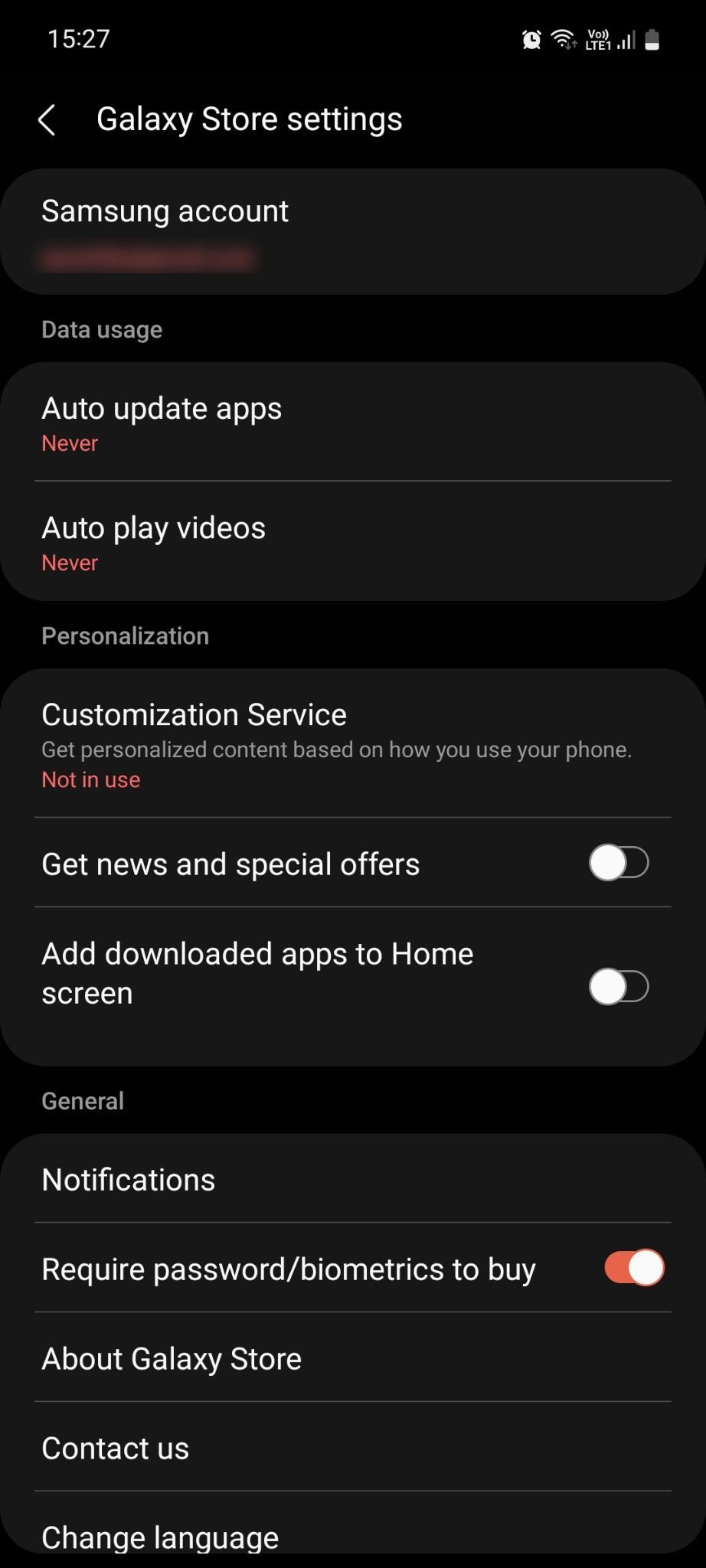
To stop Samsung from downloading games, disable the ‘Auto install’ feature within the Galaxy Store settings and uninstall unwanted game apps.
Are you finding random game downloads on your Samsung device? This can be frustrating, especially when you didn’t initiate them. Many users face this issue, and knowing how to stop samsung from downloading games is essential for a clutter-free phone. We’ll show you the simple steps to take control over which apps end up on your device.

How to Stop Samsung from Downloading Games
It can be super annoying when your Samsung phone or tablet starts downloading games you didn’t ask for. It’s like a surprise party you didn’t RSVP to, and sometimes, these games are ones you really don’t want taking up space or using your data. This is often due to the way some apps and services on Samsung devices are set up, and sometimes it’s a case of a pre-installed app or a push notification gone rogue. But don’t worry, you’re not stuck with these unwanted downloads! There are several things you can do to regain control over what gets installed on your device. Let’s explore these solutions together, step-by-step.
Understanding Why Games Download Automatically
Before we jump into solutions, it’s helpful to know why your Samsung might be grabbing games without your say-so. Here’s a breakdown of common causes:
- Pre-Installed “Bloatware”: Samsung, like many phone manufacturers, partners with other companies to have certain apps preloaded on their devices. Some of these apps might be game launchers or services that automatically suggest or download games. These pre-installed apps are often known as “bloatware.”
- Galaxy Store’s Recommendations: The Galaxy Store, Samsung’s own app store, sometimes pushes recommendations for games based on your browsing history or what it thinks you might like. These recommendations might trigger automatic downloads if you haven’t adjusted the settings.
- Game Launcher Settings: Samsung’s Game Launcher app is designed to organize and enhance your gaming experience. However, some of its settings might lead to automatic game downloads or installations if you’re not careful about managing them.
- Third-Party Apps: Sometimes, other third-party apps you’ve installed could have permission to suggest or download content. Always be cautious about the permissions you grant to apps.
- Promotional Offers and Ads: Occasionally, you may see promotional offers or ads within apps that lead to automatic game downloads. These could be hidden within banners or prompts.
- Software Updates: Occasionally, device software updates might contain updates to pre-installed apps, which might include new games or games within suggested application folders.
Turning Off Automatic Game Downloads Through Settings
Now, let’s get to the good part: stopping those unwanted game downloads! Here are some practical steps you can take by adjusting your phone’s settings:
Disabling Game Launcher Notifications and Suggestions
The Game Launcher app is often the culprit behind game recommendations and downloads. Here’s how to tame it:
- Open the Game Launcher app. You can find it by swiping up from the bottom of your home screen or finding the app in the app drawer.
- Tap the three dots (usually in the upper right-hand corner). This will open a menu with various options.
- Select Settings.
- Look for options related to “Notifications,” “Recommendations,” or “Promotions.” These may vary slightly depending on your device and software version.
- Turn off options like “Game recommendations” or similar toggles that suggest downloading or installing new games.
- Also, consider turning off “Notifications” entirely for Game Launcher if you don’t need to see them.
Adjusting Galaxy Store Settings
The Galaxy Store is another place that can try to push game downloads onto your phone. Here’s how to control it:
- Open the Galaxy Store app on your phone.
- Tap the three horizontal lines (often called a “hamburger menu”) usually located on the top left of the screen.
- Select Settings from the menu that appears.
- Look for options like “Automatic updates,” “Recommendations,” or “Marketing notifications.”
- Turn off “Auto updates” so the apps wont automatically update and hence will not push game downloads.
- Disable any settings related to “Recommendations” and “Marketing notifications”, so the galaxy store will not keep on suggesting games or send you game promotions.
Managing App Permissions
Sometimes, other apps you’ve downloaded might be the problem. These apps might request permission to download or suggest games. Here’s how to manage their permissions:
- Go to your phone’s main Settings app.
- Tap on Apps or Application Manager.
- Scroll through the list of apps and select an app you are suspicious about.
- Tap on Permissions.
- Carefully review the permissions the app has. If you see any permissions related to storage, notification, or installing new apps, and you don’t need them, consider revoking them. Tap the permission to turn it off.
Checking for Hidden Installs in Folders
Sometimes, the games may be installed but they are not easy to spot, they might be hidden within a folder or a subfolder. Follow these steps to check:
- Check each folder on your home screen and application drawer.
- Also check the folders in your Game Launcher application.
- If you find any game icons that you don’t recognise or you don’t remember installing, then uninstall them.
Using Package Disabler Pro (For Advanced Users)
For those who want more control, there are third-party tools that can help disable system apps that might be downloading games. A tool like “Package Disabler Pro” (available on the Google Play Store) can help with this, but it is mainly recommended for users who are comfortable with these type of applications and know what they are doing. If you are not comfortable with advanced stuff, skip this part. Using this type of application in the wrong way can mess up your phone’s software. So, if you are not careful using this type of app can potentially break the functionality of the device.
Important Considerations
- Use with Caution: Disabling essential system apps could lead to your device malfunctioning. So make sure before disabling any application, you know what that application does.
- Not Always Necessary: Most people will be able to stop automatic downloads using the methods described above, so using a app like this is not necessary in most of the cases.
- Read Reviews: Before using a package disabler app, make sure to read the app reviews thoroughly so you know how that app works.
How to Use Package Disabler (General Guide):
- Install Package Disabler Pro (or a similar app).
- Carefully review the list of apps on your device.
- Look for apps related to gaming, advertising, or recommendations that you want to disable.
- Select and disable unwanted applications.
Managing App Updates to Prevent Automatic Game Downloads
Another key to keeping your device free of unwanted game downloads is controlling how your apps get updated. Here’s a closer look at how you can manage app updates to prevent unwanted surprises.
Turning off automatic updates for all apps
The quickest way to stop unexpected app updates is by turning off the automatic updates on the Google Play Store and Galaxy store. This will give you control over when apps get updated, and hence, avoid any unexpected game downloads with updated apps. Here is how to do it:
Google Play Store
- Open the Google Play Store app on your phone.
- Tap on your profile picture in the upper right-hand corner.
- Select Settings.
- Tap on Network Preferences.
- Select Auto-update apps.
- Select Don’t auto-update apps or Auto-update apps over Wi-Fi only depending on your preference.
Galaxy Store
- Open the Galaxy Store app on your phone.
- Tap the three horizontal lines (often called a “hamburger menu”) usually located on the top left of the screen.
- Select Settings from the menu that appears.
- Look for an option like “Automatic updates.”
- Turn off the toggle for Automatic updates.
Reviewing app updates before installing
By turning off auto-updates, you get an opportunity to review the updates before installing them. This way, you can check if any apps come with unwanted games or extra suggested game downloads. Here is how:
- After turning off the auto updates, whenever there is an update, you will see the option to manually update the apps.
- Before updating any application, always check the “What’s New” section or “update details” so you know what the updates include.
- If you are uncomfortable with any update, then don’t install it.
Uninstalling Pre-Installed Games
Sometimes, the best way to deal with unwanted games is to simply remove them from your phone. Samsung devices often come with pre-installed games, and here’s how you can uninstall them:
Simple Uninstall Method
- Go to your phone’s home screen or app drawer.
- Locate the game you wish to uninstall.
- Press and hold the app icon.
- Tap the Uninstall option (it might look like a trash can icon or just say “Uninstall”).
- Confirm if prompted.
Uninstalling Through Settings
- Go to your phone’s main Settings app.
- Tap on Apps or Application Manager.
- Scroll through the list of apps and select the game app you want to remove.
- Tap the Uninstall button and confirm if prompted.
Dealing with Stubborn Pre-Installed Apps
Sometimes, some pre-installed games and bloatware can’t be uninstalled using the normal method. In those cases, you might have to:
- Disable the App: In Settings > Apps, select the app and choose “Disable.” This will prevent the app from running and consuming resources. However, it won’t remove it completely.
- Use a Third-Party App Uninstaller: For stubborn pre-installed apps, you may need to use an app uninstaller from the playstore (make sure to check the app’s reviews first), although this may require some caution and research. Use it carefully.
Regularly Checking Your Download Settings
It’s a good idea to routinely check your download settings and app permissions to ensure they haven’t changed without your knowledge. Here is how you can do it:
- Set a reminder to check your download settings periodically, maybe every few weeks or once a month.
- Go through the settings we discussed before for Game Launcher, Galaxy Store, and app permissions, making sure they still align with your preferences.
By taking these steps, you’ll be able to have better control over your Samsung device and prevent it from downloading unwanted games. These suggestions give you a variety of methods to keep your phone free from bloatware and unsolicited games, and that way you can have a better phone experience.
How to stop apps from downloading by themselves on your Android device Samsung Motorola Kyocera
Final Thoughts
To stop Samsung from downloading games, disable auto-updates in the Google Play Store and Galaxy Store settings. You can also revoke permissions for these stores. Additionally, review the pre-installed app list and disable or uninstall anything you don’t want.
By adjusting these settings, you have control over what gets installed on your device. This will effectively resolve the issue of unwanted game downloads. Now you know how to stop Samsung from downloading games.

