
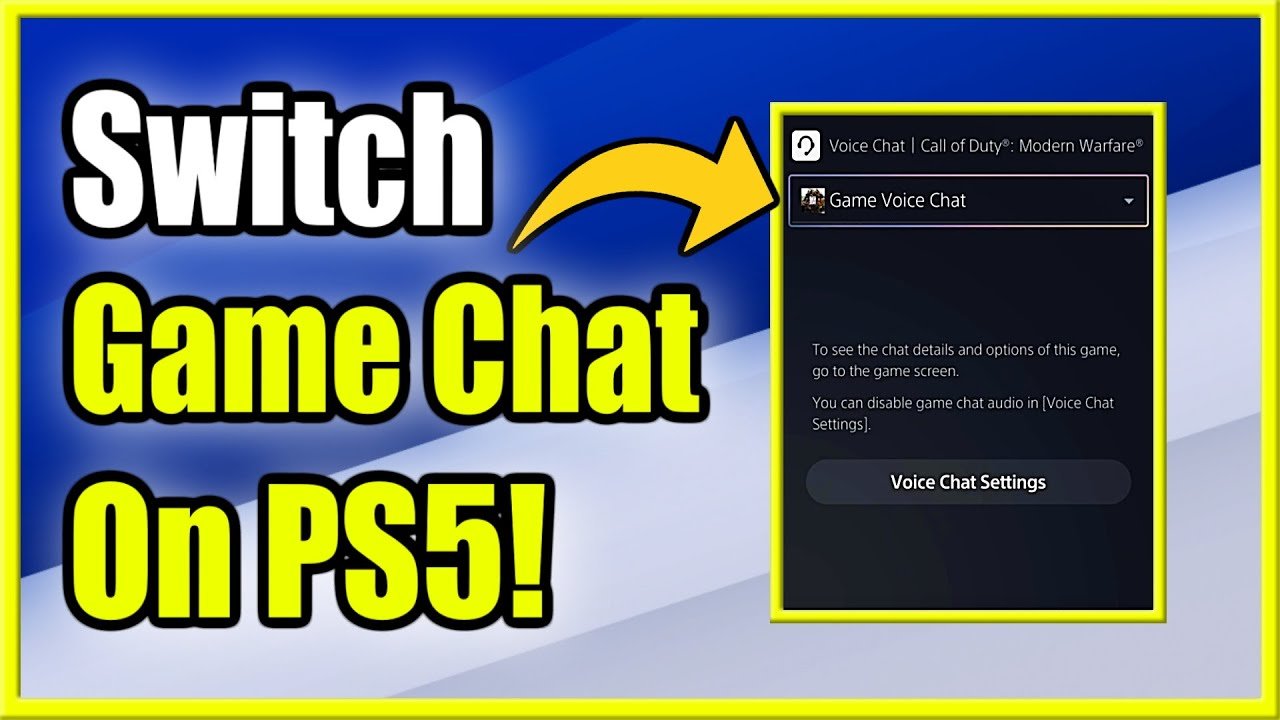
To switch to game chat on PS5 Fortnite, press the PlayStation button, navigate to the ‘Voice Chat’ option in the control center, and select ‘Game Voice Chat’.
Struggling to communicate with your squad in Fortnite on your PS5? It’s a common issue, and figuring out how to switch to game chat on PS5 Fortnite can feel confusing. Many players face this initial hurdle, wanting to strategize effectively with their teammates without using a separate party chat.
This guide will help you quickly connect with your fellow Fortnite players via in-game voice communication. We will show you the simple steps to activate game chat.

How to Switch to Game Chat on PS5 Fortnite
Playing Fortnite with your friends on the PlayStation 5 is awesome, but sometimes getting the voice chat working can feel like a puzzle! Don’t worry, though. This guide will walk you through all the steps to get your game chat up and running so you can strategize, celebrate, and maybe even commiserate with your squad. We will show you how to switch to game chat in Fortnite on your PS5, make sure your microphone is working, and troubleshoot common problems.
Understanding Fortnite’s Voice Chat Options
Fortnite gives you a few ways to communicate. You can use party chat, which is a PlayStation 5 feature that lets you talk with friends in a group, even if they’re not playing the same game. But, for real-time coordination in Fortnite, you’ll want to use the in-game game chat. It lets you talk to everyone on your team in that particular Fortnite match, regardless of whether they’re your PlayStation friends or not.
What is Party Chat?
Party chat is your PlayStation’s system-wide voice communication feature. You can create a party with friends and chat with them, regardless of what they are playing. This is great for hanging out and chatting. When you are playing Fortnite, if you are in a party chat, you may not be able to hear the game chat from the others, that are not in your party chat. You will have to switch to game chat for that.
What is Game Chat?
Game chat is the voice communication built into Fortnite itself. It allows you to talk to your teammates who are currently in the same match as you. It’s important when you want to communicate effectively during a game, like calling out enemy positions or planning your next move. This is especially helpful when you’re playing with random players, not just your friends.
How to Switch from Party Chat to Game Chat
Here’s how you change from party chat to game chat so you can talk to your Fortnite teammates:
- Open the PlayStation Control Center: During a Fortnite match, press the PlayStation button on your controller. This brings up the control center at the bottom of the screen.
- Select the Voice Chat Card: Navigate through the control center to find the “Voice Chat” card, which usually shows which players are in your current voice channel.
- Click on Voice Chat Option: Press the ‘X’ button on the controller, you will see multiple options such as Party, Game and Mute.
- Choose Game Chat: Select “Game Chat” from the list. This will switch your audio from your PlayStation party chat into the game’s voice channel.
Enabling Voice Chat in Fortnite Settings
Sometimes, even if you switch to game chat through the PS5 menu, the Fortnite settings might be preventing you from using your mic. Here’s how to check your in-game settings:
Accessing the Fortnite Settings
- Start Fortnite: Launch the game on your PS5.
- Open the Menu: When you’re in the main lobby, press the Options button on your controller (it looks like three horizontal lines).
- Go to Settings: Choose the gear icon, which leads you to the Settings menu.
Navigating to the Audio Settings
- Click on the Audio Tab: In the Settings menu, use the shoulder buttons (L1 or R1) to navigate to the “Audio” tab, which shows a speaker icon.
Adjusting Voice Chat Settings
- Voice Chat: Look for the “Voice Chat” option. Make sure it is set to “On”. If it’s set to “Off,” you won’t be able to talk to your teammates.
- Voice Chat Method: You may see an option to choose between “Open Mic” and “Push to Talk.”
- Open Mic: With this option, your microphone is always on and transmits sound. Be careful to minimize background noise.
- Push to Talk: This means your mic only works when you press and hold a specific button. You should use an assigned button.
- Voice Chat Input Device: Select the microphone you want to use for game chat. This could be the microphone on your headset or a separate USB microphone. Make sure you have selected the correct one.
- Voice Chat Output Device: You can also choose where you want to hear the voice chat. It is better to keep this option as the same device as the voice input device for better experience.
Making Sure Your Microphone is Working
Now that you’ve set everything up on both PlayStation and Fortnite, you need to make sure your mic is working correctly. There are a few steps to take:
Checking the PS5 Microphone Settings
Before you dive into Fortnite, verify your mic works on the PS5 itself:
- Go to Settings: From the PS5 home screen, navigate to “Settings” (the gear icon at the top).
- Select Sound: Choose “Sound” from the settings list.
- Select Microphone: In the sound options, choose “Microphone.”
- Adjust the Input Device: Here, make sure your desired microphone is selected from the dropdown menu.
- Test Your Microphone: Some versions of PS5 software show an input meter when you talk into the mic, if available, try to use that to confirm the mic is receiving your voice.
Testing Your Mic in Fortnite
Once you’ve confirmed your microphone works within the PlayStation settings, try it in Fortnite:
- Join a Game: Start any Fortnite game mode (like Battle Royale).
- Talk to Your Team: If your voice chat method is set to “Open Mic,” start talking. If it’s “Push to Talk,” press and hold the button you assigned and talk.
- Check the Game Chat UI: Watch for the voice chat indicator by your name on the screen to see if you are talking. Usually, a microphone icon appears next to your name when you speak in the game.
Troubleshooting Common Game Chat Issues
Sometimes, even after following all the steps, voice chat might still not work correctly. Here are common issues and how to fix them:
Issue: Can’t Hear Anyone
- Check Your Audio Output: Ensure your audio output device is set correctly. In both PS5 and Fortnite’s settings, confirm that the correct headset or speaker option is selected.
- Game Chat Volume: In Fortnite’s settings (Audio tab), make sure the “Voice Chat Volume” slider is not set too low or at zero.
- Headset Connection: If you use a wired headset, check the connection to the controller. If wireless, make sure it’s charged and paired correctly.
- Restart Fortnite: Sometimes, a simple restart can resolve temporary bugs. Close the game completely and then reopen it.
Issue: Microphone Not Working
- Check Microphone Mute: Look for a mute button on your headset or controller. Accidentally muting your microphone happens often.
- Microphone Input Level: In PS5 settings (Sound > Microphone), adjust the “Microphone Level” to ensure it is set at an appropriate level.
- Restart Your PS5: Reboot your PS5. This can sometimes fix software problems.
- Try a Different Microphone: If possible, test with another microphone. This will help you find out if your original microphone is broken.
Issue: Echoing or Feedback
- Double Audio: If you are hearing game audio from your TV and headset both at the same time, mute your TV’s audio to avoid echoing.
- Too Close to Speakers: If you have speakers nearby, try moving them further away from the microphone or use headphones.
- Adjust Sensitivity: If available in your microphone settings, adjust the sensitivity to avoid picking up background sounds.
Issue: In-Game Chat Icon Not Showing
- Voice Chat Setting: Double check the voice chat setting in Fortnite (Audio settings). Sometimes, it can be accidentally toggled off.
- Network Issues: Make sure your internet connection is stable and working. If your network is unstable, the game chat may not be working correctly.
- Update Game: Ensure that you have the latest version of Fortnite installed on your PS5. Developers often push updates to resolve bugs.
Advanced Tips for Clear Communication
Getting the basics down is essential, but you can fine-tune your settings for even better chat experience.
Use Push to Talk
If you frequently find that your background noises are getting picked up, try using “Push to Talk”. This makes sure that only your voice is getting sent. In this way your teammates will not hear you rustling your controller, or the background noises in your room.
Adjust Audio Levels
Take time to adjust the game audio and voice chat volume separately for the best experience. Some people might prefer louder game sound and lower voice levels or vice versa. Adjust them for best experience.
Keep your Headset Updated
Make sure that your headset firmware is always up to date. New firmware updates often fix some bugs or improve the voice quality. Check your headset manufacturer website or app to find if there are new updates for your headset.
With these troubleshooting tips, you will be able to communicate more effectively with your teammates in Fortnite. Remember to adjust your settings until you get the voice quality, and other settings at a level that is comfortable for you. Now that you know how to switch to game chat, you’ll be able to enjoy playing Fortnite with your friends or other team members even more!
Getting the voice chat working perfectly takes a bit of practice and patience. But now that you know how to switch to game chat, and how to adjust all the settings for both PlayStation 5 and Fortnite, you’re now ready to make better strategies, call out enemies, and finally claim those victory royales!
How to Fix Game Chat Audio & Mic Not Working in Fortnite on PS5
Final Thoughts
To use game chat on PS5 Fortnite, quickly navigate to the audio settings within the game menu. Select the voice chat input method, ensuring your headset or microphone is correctly configured. Then choose the appropriate output for your voice chat audio.
This adjustment is key to communicating with your team. Switching to game chat lets you hear and speak to your squad during gameplay. This simple method answers the question of how to switch to game chat on ps5 fortnite efficiently.

