
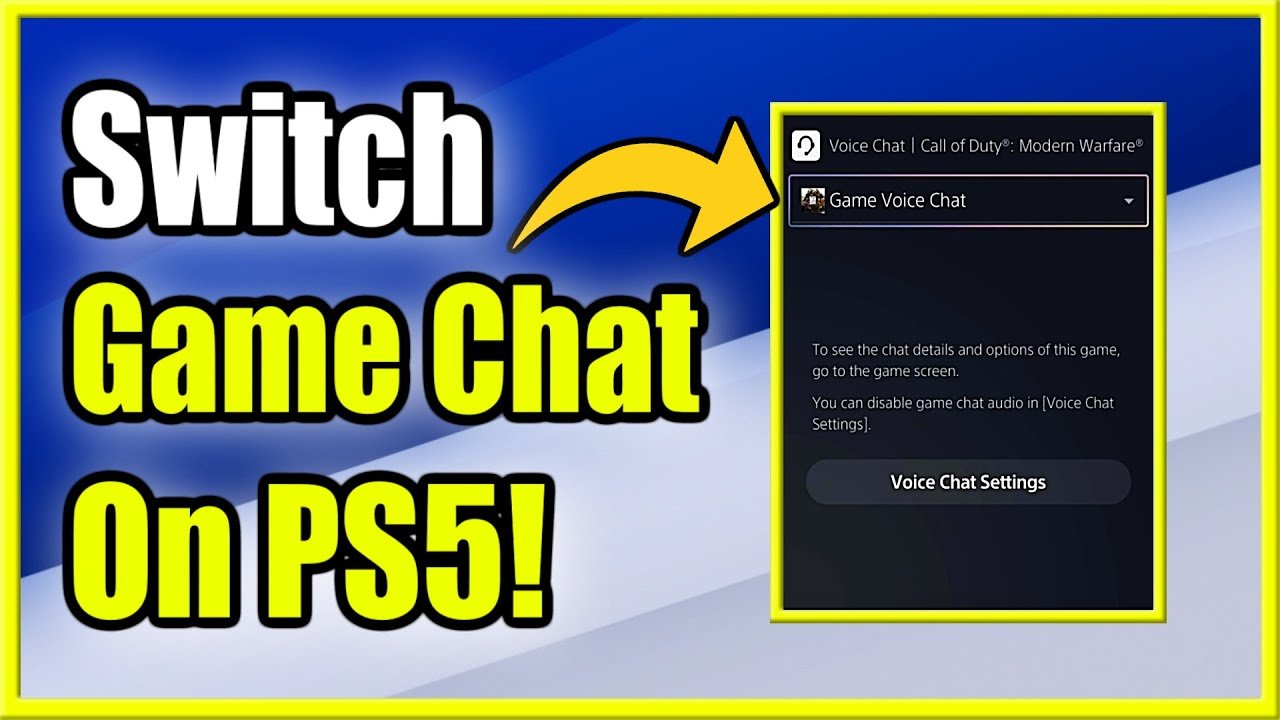
To switch to game chat on your PS5, press the PlayStation button, go to the “Sound” tab in the control center, then select “Game Chat.”
Ever find yourself shouting at your TV, only to realize your squad can’t hear you? It happens to the best of us. The PS5 offers amazing audio options, but knowing exactly how to switch to game chat ps5 can be tricky. Navigating the menus can feel like a puzzle sometimes.
This guide aims to make switching over quick and painless. We’ll give you a clear step-by-step method, so you will be back chatting with your friends in no time, without any frustration.

How to Switch to Game Chat on PS5
Getting ready to chat with your friends while playing awesome games on your PS5? It’s super easy! Sometimes, you might find yourself in a party chat when you really want to be in game chat, or maybe you’re just starting out and aren’t sure how to change it. Don’t worry, this guide will show you all the different ways you can jump into the game chat and start talking strategy, celebrating victories, or just having fun.
Understanding the Basics of PS5 Voice Chat
Before we dive into how to switch, it’s good to understand what we mean by “game chat” and “party chat.” They’re both ways to talk to other people, but they work a little differently.
Game Chat
Game chat is when you talk to other players who are in the same game as you. You don’t need to be friends with them; anyone in the game can hear you (unless they mute you!). This is the best way to communicate with your team during a match or share funny moments with fellow gamers in a multiplayer world. This helps a lot in team-based games where co-ordination is very important for a victory.
Party Chat
Party chat is when you talk with a group of friends that you’ve invited to a virtual “party.” You don’t need to be in the same game to chat in a party. It’s great for talking to your friends while you choose games or plan your next gaming session. You can also use it to talk while playing different games. Party chat does not include the other players in your game, only the people in the party can hear you.
Switching from Party Chat to Game Chat
Okay, so you’re in a party with your pals, but now you want to chat with the other players in your game. Here’s how you do it:
Using the Control Center
The Control Center is your go-to place for quick settings. Here’s how to use it to change your chat:
- Press the PlayStation button on your DualSense controller. This will bring up the Control Center menu at the bottom of your screen.
- Scroll using the directional buttons on your controller to the “Voice Chat” section. It looks like a microphone.
- You’ll see a list of all current voice chat activity. If you’re in a party, it will show the party name.
- Select the “Game Chat” option. If you are in a game, it would say “[Game Title] Chat” here.
- If you’re in a party, you’ll likely see a prompt asking if you want to switch. Choose “Switch.”
- You are now in game chat! You can now talk to other players in your game.
Using the Quick Menu
You can also manage your chat options directly from the game.
- Press the PlayStation button on your controller.
- The Quick Menu will pop up on the left side of the screen.
- Navigate down to the “Sound” icon, which looks like a speaker. Select it.
- In sound menu, you’ll see the “Voice Chat” settings. Click on it.
- Now select the “Game Chat”.
Switching from Game Chat to Party Chat
If you are done chatting with random teammates and want to join your friends in a party chat, here’s how you do it:
Using the Control Center
The process is very similar to switching to game chat, but you select the party instead.
- Press the PlayStation button on your DualSense controller.
- Scroll to the “Voice Chat” section in Control Center.
- You will see the game chat which is in current use. You can also see any active parties.
- Select the party you want to join.
- A prompt will appear asking if you want to switch from the game chat. Select “Switch”.
Using the Quick Menu
This also works in the same manner as it does to switch to the game chat.
- Press the PlayStation button on your controller.
- Go to the “Sound” icon in the Quick Menu.
- Select “Voice Chat.”
- Select the party you want to join instead of game chat.
Troubleshooting Common Chat Problems
Sometimes, things don’t go as planned. Here are some common issues and how to solve them:
I Can’t Hear Anyone in Game Chat
- Check your microphone. Make sure your headset is properly plugged in and that the microphone isn’t muted. On your DualSense controller there is a small button which if clicked, will mute the microphone on your headset. If the button is lightened then it means the mic is muted. Make sure to turn the light off so the microphone can hear your voice.
- Check game volume settings. Sometimes, game chat volume might be turned down. Go to your game’s settings menu and find the “Voice Chat” or “Audio” settings and check the volume levels.
- Check your PS5 audio settings. Go to Settings > Sound > Microphone and make sure the correct microphone is selected and input level is high enough. Also make sure that you have chosen the right device for the output of the voice, if you are using headphones make sure that the headset is selected.
- Check for crossplay settings. If you are playing a game that has cross-play compatibility, then you may need to enable voice chat in game settings, sometimes it can be turned off by default.
My Microphone Isn’t Working
- Check the physical connection. Make sure your headset is properly connected to your controller or console. If it’s a wireless headset, make sure it’s charged and paired.
- Try a different microphone. If you have another headset or microphone, try using it to see if the issue is with your original device.
- Restart your PS5. Sometimes a simple restart can fix audio issues.
- Check the mute button. As mentioned above, make sure you haven’t accidentally muted your microphone with the mute button on the DualSense controller.
- Check the system settings. Go to Settings > Sound > Microphone and check that your microphone is selected and is detecting voice inputs.
I Can Hear Everyone in Game Chat, but They Can’t Hear Me
- Check your microphone output. Make sure you have selected the correct output device (for example, your headset) and ensure that the volume is set high enough.
- Make sure the microphone is not muted.
- Speak clearly. Sometimes, your microphone might not pick up your voice if you’re speaking too softly or too far from the mic.
- Try closing and reopening the game. This may resolve some issues.
Tips for a Smooth Voice Chat Experience
To make sure your voice chat is smooth and enjoyable, keep these tips in mind:
- Use a good quality headset. A good headset will give you clear audio and improve the quality of your voice.
- Make sure your headset is charged. If using wireless headset, make sure that it is charged so it doesn’t run out during important times.
- Be respectful to other players. Remember that everyone wants to have a good time, so be polite and respectful in your game chats. Avoid using foul language or being toxic.
- Adjust your microphone input level. Go to PS5 settings and adjust your microphone input level to make your voice sound clearer and loud enough for others to hear.
- Choose the correct output device. Make sure that your headset or headphones are the chosen output devices if you are using them, so you can hear the audio from the game or chat.
Setting Default Chat Preferences
If you find yourself switching between game chat and party chat often, you can set a preference in the system settings. This will make the process more automatic.
Configuring Default Chat Settings
- Go to Settings on your PS5 home screen. It looks like a gear icon.
- Scroll down to Sound and select it.
- Select the “Voice Chat” option.
- In Voice Chat settings you can find “When joining a game, prioritize” and set it to “Game Chat” or “Party Chat” as per your preference. This setting will automatically default to the chosen preference once you enter a game.
- In Voice Chat settings you can also set if you want to automatically join a party chat if you are invited or not. Choose “Automatically Join Parties” to enable or disable this feature.
Using Different Headsets
PS5 is compatible with a wide variety of headsets, both wired and wireless. Here’s how to make sure yours is set up correctly.
Setting Up a Wired Headset
Wired headsets are the easiest to use, just plug it into the port at the bottom of the DualSense controller. Ensure the headset is fully inserted into the port.
Setting Up a Wireless Headset
To use a wireless headset, the initial setup is a bit different. You have to connect it with the console once, and then in future it will automatically pair with the console as long as it is turned on and is in the range of the console. Follow the steps for pairing:
- Go to Settings.
- Select “Accessories.”
- Choose “Audio Devices.”
- Turn on your headset in pairing mode. Typically, this is done by holding down the power button for a few seconds until an LED starts blinking.
- Your PS5 should detect your headset. Select it to pair.
- Once paired, select your headset as the Input Device and Output Device in the Audio Devices menu.
Now, the headset is set up and ready to use. You can switch to game chat and chat with your teammates using your new wireless headset.
Switching between game and party chat on PS5 is very easy once you know how. By following the instructions in this article, you’ll be chatting with your friends and teammates in no time. Whether you are making game plans in game chat or chilling with your friends in party chat, the PS5 makes it simple to communicate with everyone.
PS5: How to Switch From Party Chat to Game Chat Tutorial! (For Beginners) 2024
Final Thoughts
To switch to game chat on your PS5, press the PlayStation button to open the control center. Select the “Sound” option. Then, choose “Game Voice Chat”. You must select this each time you want to switch back from party chat.
This simple selection method allows you to move between party chat and in-game communications quickly. Remember you have to switch manually each time. Therefore, learning how to switch to game chat ps5 is crucial for effective team play in online games.

