
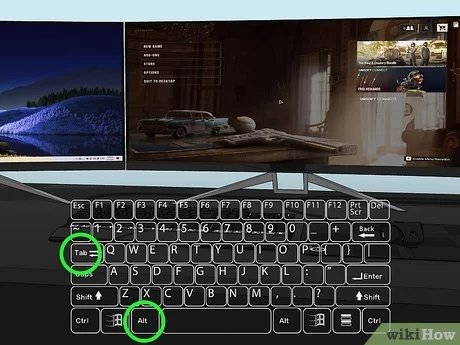
To switch what monitor a game is on, use the game’s display settings menu, or utilize Windows display settings to move the game window between monitors.
Ever find your game launching on the wrong screen, disrupting your perfect setup? It’s a common frustration, but thankfully, it’s easily fixed. You’re not alone in wondering how to switch what monitor a game is on.
We’ll guide you through the quick steps to ensure your games always play on the display of your choice. Whether it’s using in-game options or your operating system, getting the right monitor is simple.

How to Switch What Monitor a Game Is On
Ever had a game start on the wrong screen? It’s like when your favorite toy ends up in the wrong box! It can be a little annoying, especially when you’re ready to play. But don’t worry, it’s usually a simple fix. This article will guide you through all the ways to move your games from one monitor to another. Whether you have two screens or even three, we’ll cover everything you need to know.
Understanding Multiple Monitors
Before we dive into moving games, let’s quickly talk about multiple monitors. Having more than one screen can make using a computer so much more fun! You can have a game on one screen, while having a website or your homework on another. But your computer needs to know which screen you want your game on, and sometimes it makes the wrong choice. That’s where this guide comes in. We will explain the different ways your computer might use your monitors.
Primary vs. Secondary Monitors
Your computer has a ‘main’ monitor, also known as the primary monitor. This is usually where your taskbar and desktop icons first appear. Think of it like the head of a class – it’s the main one! The other monitors are ‘secondary’ monitors. Games usually start on the primary screen, but we will look into changing this to your desired screen. Understanding the primary display is crucial for directing where the game should launch. The primary monitor setting can be configured in your operating system display settings.
Monitor Configurations
Monitors can be set up in different ways. You might have them side by side, one above the other, or even at an angle. This affects how you move your mouse and windows between screens. We also have duplicate displays, where both monitor shows the same thing. These configurations affect how the game will appear on the display. The most common are extended and duplicate displays. We’ll focus on extended displays since that allows us to have different things on each screen.
Common Methods for Switching Game Monitors
Now let’s get into the actual switching. There are different ways to move your games. Some are quick and easy, while others may need a few more steps. We will discuss the most effective approaches.
Using Game Settings
Many games have built-in settings that allow you to choose which monitor to play on. This is often the easiest method. Look for options like “Display,” “Graphics,” or “Video” in the game settings. Inside you will likely find a drop-down menu that lists all of your connected monitors. Simply choose the correct screen from the menu, and save your settings. This will make the game open on the selected monitor next time.
Here’s how to usually do it, with a simple explanation:
- Open your game.
- Go to the game’s “Settings” or “Options.”
- Find the “Display” or “Graphics” section.
- Look for an option called “Monitor,” “Display,” or something similar.
- Choose the monitor you want from the list.
- Save your settings and restart the game.
This method works for most modern games and allows for precise control over the display output.
Keyboard Shortcuts (Windows)
Windows has some handy keyboard shortcuts for moving windows between screens. If your game is in windowed mode (not full screen) you can quickly move the window to a different screen. Here are some useful shortcuts:
- Windows Key + Shift + Left Arrow: Moves the active window to the monitor on the left.
- Windows Key + Shift + Right Arrow: Moves the active window to the monitor on the right.
Keep pressing the left or right arrow, it will keep moving the game window across all of the monitors, until the desired monitor is selected. These shortcuts are great for fast screen switching, especially if you are using multiple monitors.
Changing Your Primary Monitor
If a game always starts on the same monitor, it might be set as your primary one. Changing your primary monitor can be a useful solution. This will cause games, along with other application to initially launch on the newly selected primary monitor. This is a simple change made in your Windows settings.
Steps to Change Your Primary Monitor in Windows:
- Right-click on your desktop and choose “Display settings.”
- Scroll down to the section that shows your monitors.
- Click on the monitor you want to be the main one.
- Scroll down a bit further and you’ll see “Make this my main display,”. Make sure this option is checked, then Click apply.
- Your primary monitor is now changed.
After changing the primary display, new games should launch on the selected monitor.
Forcing Games to Start on a Specific Monitor (Windowed Mode)
Sometimes the best option is to force a game to start where you want. When a game is in windowed mode, it will remember its position and will relaunch at that specific spot. This method works best when you want a consistent display experience. After positioning the window on a specific screen, make sure the next time the game open, you will find it on that same screen.
Using Windowed Mode for Specific Monitor Launch:
- Launch your game and put it into windowed mode from the settings.
- Use your keyboard shortcuts, or drag the window to your desired screen.
- Close the game.
- Reopen the game. It should start on the screen where it was last closed.
Specific Game & Platform Considerations
Every game is different, and each platform can have its own quirks. Let’s look at some things to keep in mind.
Steam Games
Steam games often use the in-game display settings. Sometimes you might find a launch option in the Steam settings. If the game is still starting on the wrong monitor, you can try adjusting the settings within Steam’s interface itself. Ensure that your primary monitor is configured in Windows and verify the game’s display setting are correct.
Other Game Launchers
Game launchers like Epic Games, GOG Galaxy, or Origin have similar setting considerations. Typically, the game settings will be primary factor in which monitor your game opens on. If the display is not showing correctly, or the game is launching on the wrong display, check in game settings for the correct option, and if needed try the windows keyboard shortcut to move the window to the desired screen.
Older Games
Older games may not have the same monitor options. They might not work well with modern multiple monitor setups. For older games you may have to experiment with forcing the game to window mode, or changing your primary display. It may require extra steps to make older games run correctly on the intended screen.
Full Screen vs Windowed Mode
Full screen games often ignore display settings and use the primary monitor as the primary display. In this case, windowed mode provides more control over the display output. You can move the game window to a specific monitor in windowed mode. Windowed mode also allows for easier switching between programs, which is often useful for multitasking. Keep in mind that some games will always go to the primary display, no matter which settings you change, in this case you will have to change the primary display itself to have the game open on your desired screen.
Troubleshooting Common Problems
Sometimes, things don’t go as smoothly as planned. Let’s look at some common problems and solutions.
Game Still Starts on the Wrong Monitor
If your game keeps starting on the wrong screen even after trying the settings, try these steps:
- Restart your game and your computer. Sometimes, a simple restart can fix the issue.
- Make sure the game is not set to “Windowed Fullscreen” mode.
- Check that your graphics card drivers are up to date, often outdated drivers can cause display issues.
- Verify that your primary display is configured correctly in the Windows settings.
The Game is Not Responding
If the game freezes or becomes unresponsive after trying to move it between monitors, you might need to try again with the Windows keyboard shortcut. If the problem continues, force close the game and try again after a computer restart.
Display Problems
If your game shows up all stretched, or with the wrong resolution, go to the in-game settings, and fix the resolution from the display settings, and make sure that the resolution is configured correctly for the monitor, and that the display scaling is also configured correctly for each monitor in windows display settings.
Additional Tips for Multimonitor Gaming
Here are some extra tips to make your multimonitor gaming better.
Keep Your Drivers Updated
Graphics card drivers play a big part in how your games display on monitors. Always use the most up to date driver version, as this often fixed many of the display issues you might run into. Older driver versions can cause all sorts of problems. Most display card manufacturers have automatic update functions built in.
Using Different Refresh Rates
Make sure that all of your monitors are running with the same refresh rates, as this might cause some compatibility issues. Try to set all the refresh rates the same, or use the most optimal refresh rate for your monitor.
Monitor Arrangement
Make sure your monitor arrangement within Windows display settings correctly mirrors your physical monitor positions. If the display setting doesn’t mirror the actual monitor layout, you might encounter mouse or window movement problems between screens. Always adjust the positions in the display settings for the best user experience.
Switching what monitor a game is on doesn’t have to be hard. By following these tips and tricks, you’ll be able to enjoy your favorite games on your desired screen without any problems. Remember to check your game settings, use keyboard shortcuts, and keep your computer up to date. With a little practice, you’ll become a master of multimonitor gaming!
How to Open Games on a Certain Monitor (Best Tutorial)
Final Thoughts
Changing a game’s display is usually simple. Most games have an option in their settings menus to choose the desired monitor. Alternatively, you can use Windows display settings, selecting the correct monitor as primary.
Many graphics card control panels also allow monitor selection. This method forces the game to start on chosen screen. Thus, you can easily manage your gaming display.
To conclude, how to switch what monitor a game is on involves checking in-game options, altering primary display settings, or utilizing your graphics card software for screen selection.

