
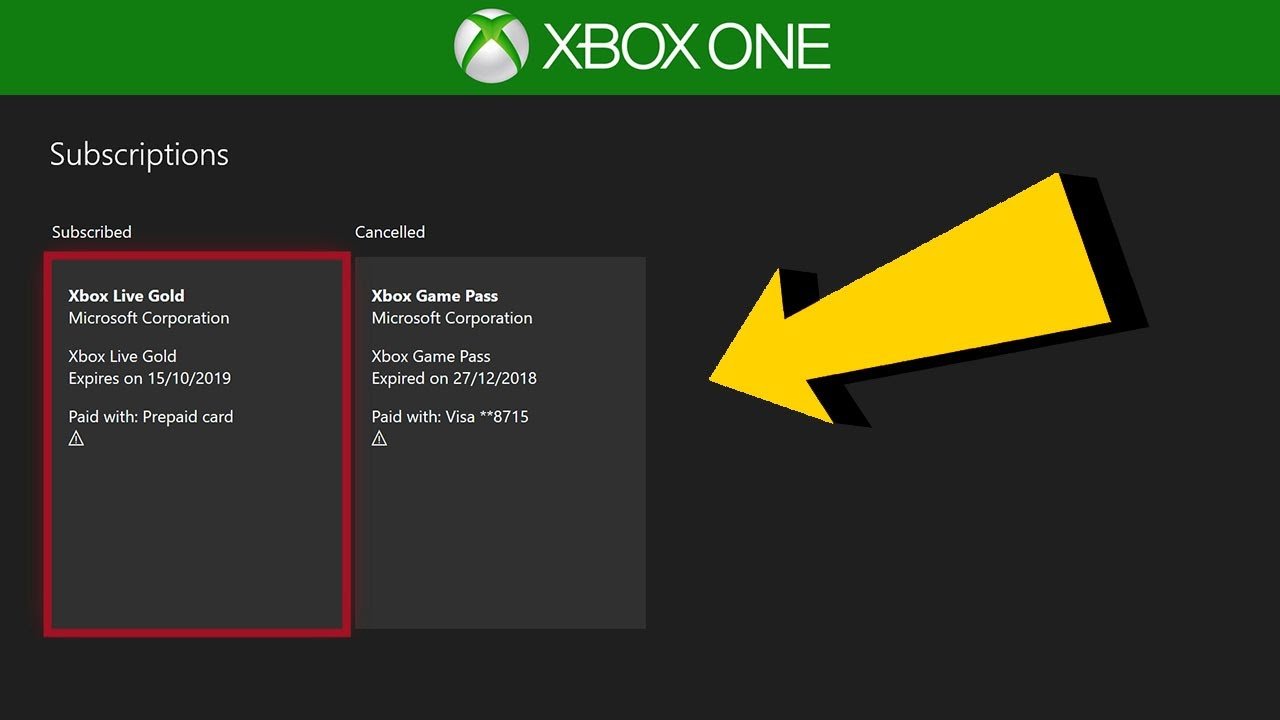
You can tell if you have Game Pass by checking your Microsoft account subscriptions on your Xbox console, the Xbox app on PC, or on the Microsoft website.
Ever find yourself wondering, “how to tel if i have game pass?” It’s a common question, especially if you’ve recently signed up or share an account. We’ll walk you through the simple steps to confirm your Game Pass status.
Checking is straightforward; it just requires a quick peek into your account settings. You will know for sure in minutes, let’s explore how you can verify this.

How to Tell if I Have Game Pass
Okay, so you’re wondering if you have Xbox Game Pass, right? It’s totally understandable! With so many cool games and ways to play, it can sometimes be tricky to keep track of your subscriptions. Don’t worry; we’re here to make it super simple for you to figure out if you’re part of the Game Pass club. This guide will walk you through all the different ways to check, whether you’re on your Xbox console, a PC, or even a phone.
Checking on Your Xbox Console
If you’re an Xbox gamer, this is probably where you’ll want to start. The console’s interface is designed to make checking your subscription status really easy. Here’s how you can do it:
Using the Guide Button
The quickest way to check is through the Xbox Guide. Follow these steps:
- Press the Xbox button on your controller. This is the big button in the middle with the Xbox logo.
- This will open the Guide menu. Look for the “Profile & System” tab. It’s usually on the far left and looks like your gamerpic. Select that.
- From here, look for “Settings.” Select “Settings” and press ‘A’ button.
- In the settings menu scroll down to “Account.” Select “Account”.
- In the “Account” menu, select “Subscriptions”.
- Now you should see all your subscriptions like Xbox game pass, or Xbox live Gold if you have. If you have “Xbox game pass” in the list, then you have game pass subscription.
It’s super fast and you’ll know instantly if you’re enjoying the benefits of Game Pass.
Checking the Games Section
Another way to know if you have a Game Pass is by looking at the Game Pass games. Here’s how you can do that:
- From the Xbox Home screen, go to “My Games & Apps”. You can find this on the Home screen, or from the Guide menu.
- Select “See all.”
- Now, you should see all your games and apps. You might see two sections one for “owned games” and other one for “games with game pass”. If you see “games with game pass” section, this means you have game pass.
Checking on Your PC
Game Pass isn’t just for consoles! You can also play tons of games on your computer if you have Game Pass for PC or Game Pass Ultimate. Here are the methods to check your status on PC:
Through the Xbox App
The Xbox app is the main place to manage your Game Pass on PC. Here’s how to see if you have an active subscription:
- Open the Xbox app on your PC. If you don’t have it, you can download it from the Microsoft Store. Just search for “Xbox” and install the app.
- Log into the Xbox app using the Microsoft account that you use for your games. It’s really important to use the right account to see your Game Pass status.
- On the left side of the app, you should see several tabs. One of them will be your profile, select it.
- On your profile page, You can see all your subscriptions. If you see “Xbox game pass”, then this means that you have game pass.
Via the Microsoft Store
You can also check your Game Pass through the Microsoft Store, which is also a great way to manage your subscriptions and purchases:
- Open the Microsoft Store on your PC. You can usually find it pinned to your taskbar, or by searching for it in the Start menu.
- Click on your profile picture on the top-right corner.
- From the menu that appears, choose “My Library”.
- Now click on “Subscriptions” section. This will show all your subscriptions. if you see “Xbox game pass” that means you have game pass.
Checking via the Xbox Mobile App
The Xbox mobile app is a fantastic tool for keeping up with your gaming life, even when you’re away from your console or PC. It also lets you quickly see your subscription status.
Using the Xbox Mobile App
- Download and open the Xbox mobile app on your phone or tablet. You can find it on the App Store (for Apple devices) or the Google Play Store (for Android devices).
- Log in to the app with the same Microsoft account you use for gaming.
- Tap your profile icon. This is usually in the bottom right corner of the screen.
- From here select “Subscriptions”. You will be able to see your subscriptions. If you have “Xbox game pass”, then it means you have game pass.
Understanding Game Pass Tiers
It’s important to know that there are different types of Game Pass. Let’s look at each one so you can know exactly what you have, when you have a game pass.
Xbox Game Pass for Console
This is the basic Game Pass plan for Xbox console users. It gives you access to a catalog of games that you can play on your Xbox console.
PC Game Pass
This plan is specifically for PC gamers. With this subscription, you can play a selection of games on your computer. Sometimes the selection is slightly different from the Xbox console games.
Xbox Game Pass Ultimate
This is the all-inclusive subscription and the most popular choice for gamers. With Game Pass Ultimate, you get everything from both the Xbox Console Game Pass and PC Game Pass. And that’s not all! You also get access to Xbox Cloud Gaming, allowing you to stream and play games on your phone, tablet, or even a smart TV. Plus, Xbox Live Gold is included, which means you can play online multiplayer games.
What if you Don’t Have Game Pass?
If after checking all these places you discover that you don’t have Game Pass, don’t worry! Here’s what you can do:
- Sign Up for Game Pass: You can sign up for Game Pass on your Xbox console, PC, or through the Xbox website. You can choose the Game Pass option that suits you best, whether that’s for console, PC, or Ultimate.
- Check for Deals: Keep an eye out for promotional deals on Game Pass. Sometimes, you can get discounts on your first month or even a longer period. These deals can often be found on the Xbox website or on gaming-related news sites.
- Try Game Pass for Free: Sometimes, Microsoft offers a trial period, where you can try Game Pass for a short period for free. This is a great way to test the service before purchasing a subscription.
Other Ways to Confirm Game Pass
Sometimes, you might be looking for a particular indication that Game Pass is active, besides just seeing it in the menus. Here are a few other clues to look for:
Game Pass Game Icons
On your Xbox, games that you have access to because of your Game Pass will often have a small Game Pass icon on their game tile. This icon usually looks like the Game Pass logo which is a white ‘X’ with a circle around it on a green background. So, if you see that icon on your game, then you have game pass.
Cloud Gaming Access
If you have Game Pass Ultimate, you should have access to cloud gaming. This lets you play games on your phone or tablet. If you can start a game using the cloud, then you know you have Game Pass Ultimate.
Free Games with Gold
Game Pass Ultimate includes Xbox Live Gold which provides free games every month. If you’re getting free games every month then you likely have Game Pass Ultimate. However, this is not just exclusive to Game Pass Ultimate, as any Xbox Live Gold subscriber will receive these benefits as well.
Looking at Your Email
After purchasing any kind of game pass, Microsoft will send you an email to your registered email address. So if you’ve recently purchased, or upgraded your subscription, then you can confirm that by checking your inbox for a confirmation email.
Troubleshooting
Sometimes, things don’t always go as planned, and you might not be able to confirm whether you have game pass using these methods. Here are some basic troubleshooting steps to take to find out why.
Restart Your Device
Sometimes, a simple restart can fix glitches that make it hard to see your subscription status. This can be useful for both Xbox console or on PC.
Check Your Internet Connection
Your subscription status is connected to the internet. Make sure you have a stable and working internet connection. If your internet connection is down then you won’t be able to load the information correctly.
Ensure You Are Logged Into Correct Account
Always double-check that you’re logged in with the correct Microsoft Account. If you have more than one account it can be easy to mix them up. If you use a different account then you won’t be able to see if that account has an active game pass subscription.
Contact Xbox Support
If you have tried every other method then it might be a good idea to contact Microsoft’s support team directly. They might be able to help you look into the cause of your issue and confirm your subscription status.
Finding out if you have Xbox Game Pass is pretty easy once you know where to look. Whether you’re on your console, PC, or phone, there are several quick ways to check. By following this guide, you’ll always be sure of your subscription status. Now, go enjoy those games!
How To Get Xbox Gamepass Ultimate For Free!
Final Thoughts
To check, visit your Microsoft account online. The services and subscriptions section displays your active subscriptions. If you see “Xbox Game Pass” listed with a valid date, you have the service.
You can also check directly on your Xbox console. The Game Pass tab within your Xbox home screen shows your current status. It’s a simple way to see if you have it or not.
In summary, how to tel if i have game pass is easily done through your online Microsoft account or Xbox. Checking either location confirms if you must access the service.

