
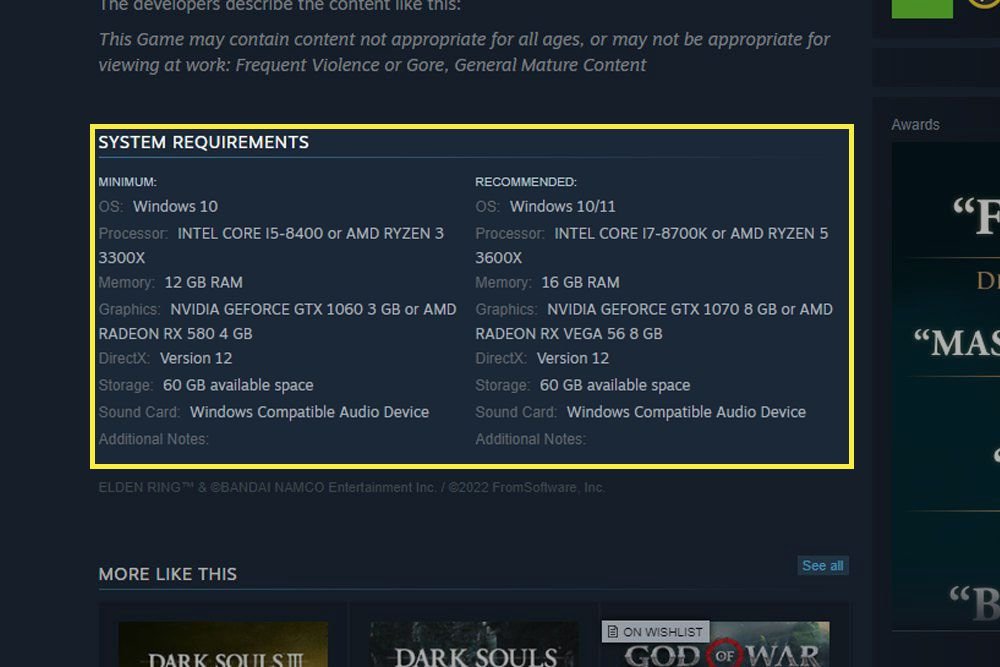
To determine if your PC can run a game, compare the game’s minimum and recommended system requirements with your computer’s specifications. Check your CPU, RAM, graphics card, and operating system.
Ever felt the excitement of a new game release only to wonder, “can my computer actually handle this?”. It’s a common question, and figuring out how to tell if my pc can run a game doesn’t have to be complicated.
We’ve all been there, staring at those daunting system requirements. It’s crucial to know what your PC is made of, and how it stacks up against what the game demands.
By checking a few key components, you can easily avoid disappointment and enjoy your games without frustrating performance issues.

How to Tell If My PC Can Run a Game
So, you’ve got your eye on that awesome new game, but you’re not sure if your computer can handle it? Don’t worry, you’re not alone! Figuring out if your PC is powerful enough to play a game smoothly can seem a little tricky, but it’s actually quite simple once you know what to look for. This guide will walk you through everything you need to know, step-by-step. We’ll break down the important parts of your computer, explain what they do, and then show you how to compare that information to a game’s requirements. Let’s get started!
Understanding Game System Requirements
Every video game needs certain “parts” inside your computer to work correctly. These are called system requirements. Think of it like this: if a recipe asks for flour, eggs, and milk, you can’t make the cake without those ingredients. Similarly, games need certain types of hardware and software to run. Game developers usually provide two sets of system requirements: minimum requirements and recommended requirements.
Minimum Requirements
The minimum requirements are the absolute lowest specs your PC needs just to get the game to start up and be playable. It might run okay, but it might also be slow, choppy, and not look very nice. Imagine trying to watch your favorite movie on a super old TV – you can see the movie, but it might be blurry or the sound might be weird. Minimum requirements are for that kind of experience. It’s like barely making the grade; you passed, but it wasn’t pretty.
Recommended Requirements
The recommended requirements are what the game developers suggest for the best possible gaming experience. This usually means the game will run smoothly, look great, and have all the cool visual effects turned on. This is like watching that same favorite movie on a brand-new, high-definition screen with great sound – it’s enjoyable and crisp. If your computer meets or exceeds these recommended requirements, then you’re in for a treat! This means you should be able to enjoy the game exactly as the developers intended.
Key PC Components to Consider
Now, let’s look at the most important parts inside your computer and how they affect gaming performance. These are the things that both game requirements and your own computer specifications will mention:
Processor (CPU)
The CPU, or Central Processing Unit, is like the brain of your computer. It handles all the instructions and calculations. In games, the CPU helps manage the game world, character actions, and other complex tasks. A faster and more modern CPU generally means your games will perform better. Think of it as the engine of your car – a more powerful one gets you going faster. The CPU’s performance is often measured by its clock speed (GHz) and the number of cores it has. Higher numbers usually mean better performance.
- Clock Speed: Measured in GHz (Gigahertz), this refers to how quickly the CPU processes instructions. A higher number here is usually better.
- Number of Cores: Think of cores as additional “brains” that can handle different tasks at once. More cores allow the CPU to work on several things simultaneously, which can be particularly useful for gaming.
Graphics Card (GPU)
The GPU, or Graphics Processing Unit, is responsible for rendering all the visuals you see on the screen. This includes all the characters, environments, and special effects. In simple terms, the GPU is your computer’s artist. A powerful GPU is absolutely crucial for smooth and pretty graphics in video games. Often times, the performance of the GPU will make a bigger difference in game performance than your CPU. It’s like the camera lens on your phone; a better lens means better and sharper photos and videos. GPUs have their own memory (VRAM), and a good amount of VRAM is also essential for modern games. A more powerful GPU ensures smooth frame rates and allows you to use better graphical settings, making your game look more stunning.
- VRAM: VRAM is the GPU’s memory where it stores the graphical data. Games that use high-resolution textures and complex graphical effects will need a good amount of VRAM.
- Model Number: The name and model number of your GPU (e.g., NVIDIA GeForce RTX 3060 or AMD Radeon RX 6700 XT) are crucial for comparison against game requirements. Generally, higher numbered models or newer generations are more powerful.
Random Access Memory (RAM)
RAM, or Random Access Memory, is your computer’s short-term memory. It is used for storing data that the computer is actively using. Having enough RAM allows your PC to switch between programs and games quickly and smoothly. In games, RAM is used for storing things like game levels, textures, and other temporary data. If you don’t have enough RAM, your game can suffer from stuttering or even crash. This is like your desk – you need enough space to work effectively, and if your desk is cluttered, your work is slower. The amount of RAM is measured in Gigabytes (GB), and the more you have, the more smoothly your games and programs should run, particularly while running other apps in the background.
Storage (Hard Drive or SSD)
This is where your games and other files are stored. It is important to note, some games may run faster on Solid State Drives (SSDs) than Hard Disk Drives (HDDs). While having an HDD is okay for game storage, an SSD will significantly improve load times and game performance. SSDs are becoming more commonplace now because they load games much faster than traditional HDDs. Think of them as the filing cabinet for your computer. You need enough space to store your games, but also, some games like to have files on SSDs because it makes accessing them really fast. An SSD is like having a file cabinet that can find things instantly.
Operating System
Your operating system (OS) is the software that runs your entire computer. Most games are built to work on specific operating systems, like Windows 10, Windows 11, or macOS. Make sure your PC has the operating system required by the game you are trying to play. It’s like needing a specific kind of key to open a door – the game will not work if it’s not the correct operating system. Always make sure to check the system requirements on a game before purchasing.
Finding Your PC’s Specifications
Now that you know what specs are important, let’s find out what your PC has. Luckily, this is pretty easy to do:
Using the System Information Tool (Windows)
The easiest way to check your PC’s specs on Windows is to use the System Information tool:
- Press the Windows key, and type “System Information.”
- Click on the “System Information” app.
- Look for the following information:
- Processor: This will tell you your CPU model and speed. For example “Intel(R) Core(TM) i7-12700H” or “AMD Ryzen 7 5800X”.
- Installed Physical Memory (RAM): This shows how much RAM you have, in GB. For example, “16 GB”.
- Operating System: This will say which version of Windows you are running (e.g., Windows 10 or Windows 11).
Finding Your Graphics Card Information (Windows)
To find your graphics card information, you can use the Device Manager or the Display Settings:
Using Device Manager
- Press the Windows key, and type “Device Manager”.
- Click on the “Device Manager” app.
- Expand the “Display adapters” section.
- You will find your graphics card listed here (e.g., “NVIDIA GeForce RTX 3070” or “AMD Radeon RX 6800”).
Using Display Settings
- Right-click on your desktop and select “Display settings.”
- Scroll down and click on “Advanced display settings”.
- Click on “Display adapter properties for Display X,” where X is the monitor you’re checking.
- Under the “Adapter” tab, you will see the details of your graphics card.
Finding Your Storage Information
You can find your storage information in File Explorer:
- Open File Explorer (the folder icon on your taskbar).
- Click on “This PC”.
- Under “Devices and drives,” you will see your hard drives and SSDs, along with their sizes and free space.
For macOS Users
If you have a Mac, you can find your system specifications by doing the following:
- Click the Apple logo in the top left corner of your screen.
- Select “About This Mac.”
- In the window that appears, you will see information about your processor (CPU), memory (RAM), and operating system (macOS version).
- Click the “System Report” button to get more details, including graphics card information.
- In the System Report, look for the “Graphics/Displays” section to find information about your graphics card.
Comparing Your Specs to Game Requirements
Once you know your PC’s specifications, the next step is to compare them to the game’s system requirements. Here’s how you do it:
Finding Game System Requirements
You can usually find the system requirements for a game on the following places:
- Steam: On the game’s store page, look for a section that says “System Requirements”.
- Epic Games Store: Similar to Steam, you’ll find the requirements on the game’s store page.
- GOG.com: The system requirements are also provided on the game’s page.
- Game Publisher’s Website: Sometimes, you can find the requirements on the official website of the game or publisher.
- Online Gaming Communities: Some fan pages and forums may contain details and discussion about game requirements.
Making the Comparison
Now, compare the specifications you found for your PC with the minimum and recommended requirements listed for the game. Here is a general guideline:
- CPU: Make sure your CPU meets at least the minimum requirement. If possible, try to get something that matches or exceeds the recommended one.
- GPU: This is very important for gaming! Your GPU should be at least equal to the minimum required, but try to match the recommended specification for best performance.
- RAM: You need at least the minimum amount of RAM, but it’s often best to have the recommended amount or more.
- Storage: Make sure you have enough free space to install the game, SSD is mostly preferable over HDD.
- Operating System: Make sure your operating system is supported by the game.
Example: Let’s say a game has these system requirements:
| Minimum | Recommended | |
|---|---|---|
| CPU | Intel Core i5-4460 or AMD FX-6300 | Intel Core i7-7700 or AMD Ryzen 5 1600 |
| GPU | NVIDIA GeForce GTX 760 or AMD Radeon R7 260X | NVIDIA GeForce GTX 1060 or AMD Radeon RX 580 |
| RAM | 8 GB | 16 GB |
| Storage | 40 GB HDD | 40 GB SSD |
| OS | Windows 10 64-bit | Windows 10 64-bit |
If your PC has an Intel Core i5-6600 CPU, an NVIDIA GeForce GTX 1050 GPU, 8GB of RAM, and Windows 10, it meets the minimum requirements, but won’t be able to run at recommended settings, so you may need to lower graphics settings to get a more playable experience.
If your PC has an Intel Core i7-8700 CPU, an NVIDIA GeForce RTX 2060 GPU, 16GB of RAM, and Windows 10, it is capable of running the game at recommended settings.
What to Do If Your PC Doesn’t Meet Requirements
If your PC doesn’t meet the minimum requirements, the game may not even start. If it does start, it may be very laggy and unplayable. If you only meet the minimum requirements, then you may want to lower your in-game graphic settings for better gameplay. If you fall short, here are a few things you can try:
Lowering Graphics Settings
Most games have options to adjust the graphical quality. Turning down settings like shadows, textures, and special effects can help improve performance if your PC is struggling.
Closing Background Applications
Close unnecessary applications running in the background (like web browsers, music players) as these consume processing power and RAM. This can free up some resources and improve the performance of your games.
Upgrading PC Components
If you are an advanced user, consider upgrading some components of your computer, like adding more RAM or getting a better graphics card. This can greatly improve your gaming performance, but make sure that the new components you plan on using are compatible with the other components of your system, like your motherboard. For users unfamiliar with computer components, it is best to seek professional help on this.
Play older games
Sometimes the answer is to just play older, less intensive games that your PC can handle well. There are lots of amazing older games to enjoy if your PC cannot play newer titles. This allows you to still have fun playing games without the headache of having to upgrade your computer or running a game that’s unplayable on your PC.
Use Cloud Gaming Services
Cloud gaming services can stream games to your PC from a powerful server. This can be an option if your computer is old and not capable of handling modern titles. However, you will require a reliable and fast internet connection.
Figuring out if your PC can run a game might seem complex at first, but with the right knowledge it becomes much easier. By learning to find your PC’s specifications and comparing it with the minimum and recommended requirements of the game you want to play, you can save time and avoid headaches and disappointment, and more importantly have a much better gaming experience. Remember, the goal is to have fun!
How To Find Out If Your PC Can Run A Specific Game [Simple]
Final Thoughts
In short, checking the game’s minimum and recommended specs against your PC’s components is key. You should compare your CPU, GPU, RAM and OS to the listed requirements. Remember the ‘recommended’ specs provide a better gameplay experience.
Matching these specs is crucial. If your PC meets or exceeds the minimum, the game should run, but performance might vary. This process will answer how to tell if my pc can run a game, and ensure smoother gaming.

