
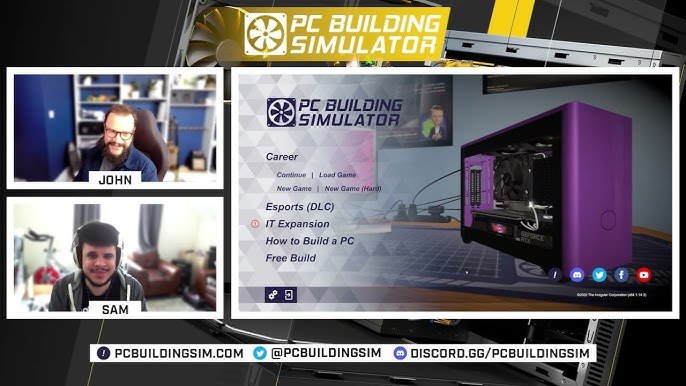
Identifying your game’s build history often involves checking the game’s settings menu, looking for a version number or build ID, or consulting any accompanying documentation.
Ever been curious about the specific version of your game you are playing? Knowing how to tell what build history my game is can be very important, especially for troubleshooting or if you are participating in beta tests. Games often receive updates and changes. It is essential to be aware of the exact build.
Pinpointing this information helps you understand what version features are present. This makes it easier to find fixes or understand past game modifications. It also aids in knowing if you’re on the latest version. It is therefore useful to have a system to identify your build history.

How to Tell What Build History My Game Is
Knowing which version of a game you’re playing can be super important. It helps you understand if you have the latest fixes, if you’re experiencing a bug that’s already been solved, or even if you’re eligible for certain online events. This article is your guide to figuring out the build history of your games, no matter what platform you’re using. We’ll go over different ways to check, from looking at the game menu to using online resources. Let’s get started!
Why Knowing Your Game Build Matters
Before we dive into how, let’s talk about why it’s useful to know your game’s build number or version. Think of game builds like different editions of a book. Each edition might have new chapters (features), corrections (bug fixes), or small changes (tweaks).
Troubleshooting: If your game is acting up, knowing the build number helps you search for specific issues that others might be facing in the same version. This can guide you to solutions or workarounds faster.
Staying Updated: Build numbers help you track if you have the most current version of a game. This is particularly crucial for online multiplayer games where outdated versions might not be compatible with other players or the servers.
Accessing Content: Sometimes, new game content, online events, or features are only available in specific versions. Checking your build ensures you’re not missing out on the fun.
Understanding Patches: When developers release patches, knowing the previous build number helps you understand exactly what has been changed or improved, which can also help you when encountering bugs.
Modding Compatibility: If you enjoy modding games, the game’s build number is essential to ensuring compatibility with the mods you want to use.
Where to Find the Game’s Build Information
Now that you understand why knowing your game build is useful, let’s get to the nitty-gritty of where to find it. The location of this information will vary depending on the game and the platform you’re using. However, it’s typically hidden in one of these common spots:
In the Game’s Main Menu
The easiest and most common place to find build information is within the game’s main menu. Here’s how to check:
Look for a Version Number: Often, game developers will display the version or build number at the bottom of the main menu screen, sometimes in a small, subtle text. Keep your eyes peeled for things that look like “v1.0.5” or “Build 2345”.
Check the “Settings” or “Options”: If the version is not visible on the main menu screen, check within the “Settings,” “Options,” or “About” sections. Some games place the information within these submenus.
“Game Info” or “Legal” Sections: These sections sometimes contain the build information. Look out for any legal notices and see if it’s mentioned there.
Example: Imagine you’re playing a racing game. The version number could be at the bottom corner of the main menu, or inside the “Options” menu under “Graphics.” Look carefully!
During the Game’s Loading Screens
Sometimes, game developers include the build number during the game’s loading screens. This information can flash by quickly, so pay attention when your game is loading up.
Look at the Bottom of the Screen: Just like in the main menu, the version or build number might appear at the bottom corner of the loading screen.
Pay Close Attention: Loading screens usually disappear quickly, so be ready to read the bottom of the screen closely.
Check if the number disappears: If you are unsure if that was the version or not, try restarting your game again.
Using the Game’s Launcher
If you play a game on PC, it probably has a launcher you use to start the game. These launchers sometimes display the game’s build information. This is especially common on launchers like Steam, Epic Games, or Battle.net.
Steam: In Steam, right-click on the game in your library, then select “Properties”. In the new window, look for the build ID in the “Updates” tab, or sometimes in the “Local Files” tab under “Verify integrity of game files”.
Epic Games Launcher: Similarly to Steam, the version is not displayed directly. You may have to click the settings button on the game and check for the specific build number, some games do show the version in the launcher itself.
Battle.net: In the Battle.net launcher, you can usually find the version number near the game’s play button.
Specific Game Launchers: Some games have their own unique launchers. Look for the build number displayed somewhere on the main screen of that launcher or under the settings of the launcher.
Checking Console System Settings
Consoles like PlayStation, Xbox, and Nintendo Switch have their own methods for finding game version information.
PlayStation: Go to the game on your console’s home screen, press the “Options” button on the controller, then select “Information.” The version of the game will be displayed here.
Xbox: Find the game on your console’s home screen, press the “Menu” button, and choose “Manage game & add-ons.” Then look under “Updates.”
Nintendo Switch: From the HOME Menu, select the icon of the game. Press the “+” or “-” Button. Select “Software Update” and then select “Via the Internet”.
Note: Sometimes these console interfaces may only show which version is installed but not the exact build numbers.
Using Online Game Databases
When all else fails, there are online game databases you can use to help figure out your version. These databases often keep track of the different builds for many games.
Game Wikis: Websites like the official game’s wiki, or other fan wikis, might have a dedicated page for patch notes and build histories. Search for the game and look for those pages.
Community Forums: Search for your game’s community forum on websites like Reddit, or Steam. Players often discuss which version they’re running, and you can compare it to your own.
Game Patch Note Websites: Websites that compile information on game patches often contain a lot of information about build numbers. Look up the game to see if the build number is listed.
Understanding the Build Number Format
Game build numbers aren’t always formatted the same way. Here are some of the common formats you might see:
Version Numbers: These are usually in the format of “v1.0”, “v2.3.1”, or “v3.0.0”. The first number indicates a major version, the second number means a major update, and the third number represents minor changes or bug fixes.
Build Numbers: These might look like “Build 1234” or “Revision 5678.” Some developers use build numbers for internal tracking and also for public releases.
Date Codes: Some games use date codes as part of the version, like “20231026”. This usually means the build was created on October 26, 2023.
Alphanumeric Codes: Some games may have complex alphanumeric codes that are used for specific internal testing versions, which are not common in the general public version of a game.
Example: a build number such as v2.5.3 would mean it is version 2, the fifth major update of that version, and then the third patch of that specific update.
Common Scenarios and Troubleshooting
Sometimes, finding your game’s build number isn’t always straightforward. Here are a few common situations and how to navigate them:
No Version Information Found
If you can’t find any version information within the game, launcher, or console menus:
Check the Game’s Website: Visit the official website for the game. Some developers list the current version on their site.
Contact Customer Support: Reach out to the game’s customer support. They should be able to tell you what the most current build is and how to check yours.
Check Community Forums: Sometimes a community member may be able to give you some insight if they faced similar problems or if they know where it is located for your specific game.
Outdated Version
If you discover your game is running an old build:
Check for Updates: On consoles or game launchers, make sure that you have allowed automatic updates and that your system is fully up-to-date.
Manually Update: Check for the option to manually update your game on your chosen platform.
Restart the Launcher/Console: Sometimes restarting your platform can solve update problems.
Reinstall the Game: When all else fails, you can try reinstalling the game to make sure you have the latest version.
Different Versions
If you play with friends and you are on different versions:
Verify Game Files: If on PC, you can check the integrity of game files to make sure that you are on the latest version.
Check for Game Settings: Make sure the game and the launcher are set to automatically update when there is an update available.
Update Manually: Check with the game launcher or the console to ensure all players have the latest update installed.
Dealing with Early Access Builds
Games in early access can often change very quickly. Knowing which build you’re on becomes very important.
Pay Close Attention: Developers are more likely to give information about version or build information during early access.
Beta Branches: Some games use different “beta branches” to test new changes. Make sure you have the correct beta branch selected if you want to play the newest version.
Read Patch Notes: Keep an eye on the game’s website, the launcher, and community forums, and find out what the newest update includes.
Special Cases
Some games don’t follow common formats or naming conventions.
Uncommon Labels: A developer might use an uncommon naming convention that isn’t immediately recognizable. Look closely for any labels that are similar to version numbering.
Unique Identifiers: Some games might have unique identifiers, like internal codes, that may not seem as familiar as version numbers.
Community Help: When you’re facing a unique format for a game, the community or the developer’s own websites may help you with this problem.
Figuring out what build history you are on doesn’t have to be super difficult. By checking the game menu, launchers, or online databases, you can quickly find this important information. Now you can troubleshoot issues more easily, be sure to have the most recent versions, and enjoy all the features of your game. Remember to check for the information on your platform’s menus or launchers, in online resources, or by contacting customer support. Keep gaming and good luck!
How to World Build History
Final Thoughts
To check your game’s build history, examine the game’s main menu or settings screen for version numbers or date codes. Sometimes a ‘readme.txt’ file within the game folder provides this information.
Another method involves checking your game launcher or store page for details about the current patch. This helps you pinpoint the specific build.
Therefore, ‘how to tell what build history my game is’ ultimately requires careful investigation of these key areas. This information is a must for troubleshooting and understanding the game’s current state.

