
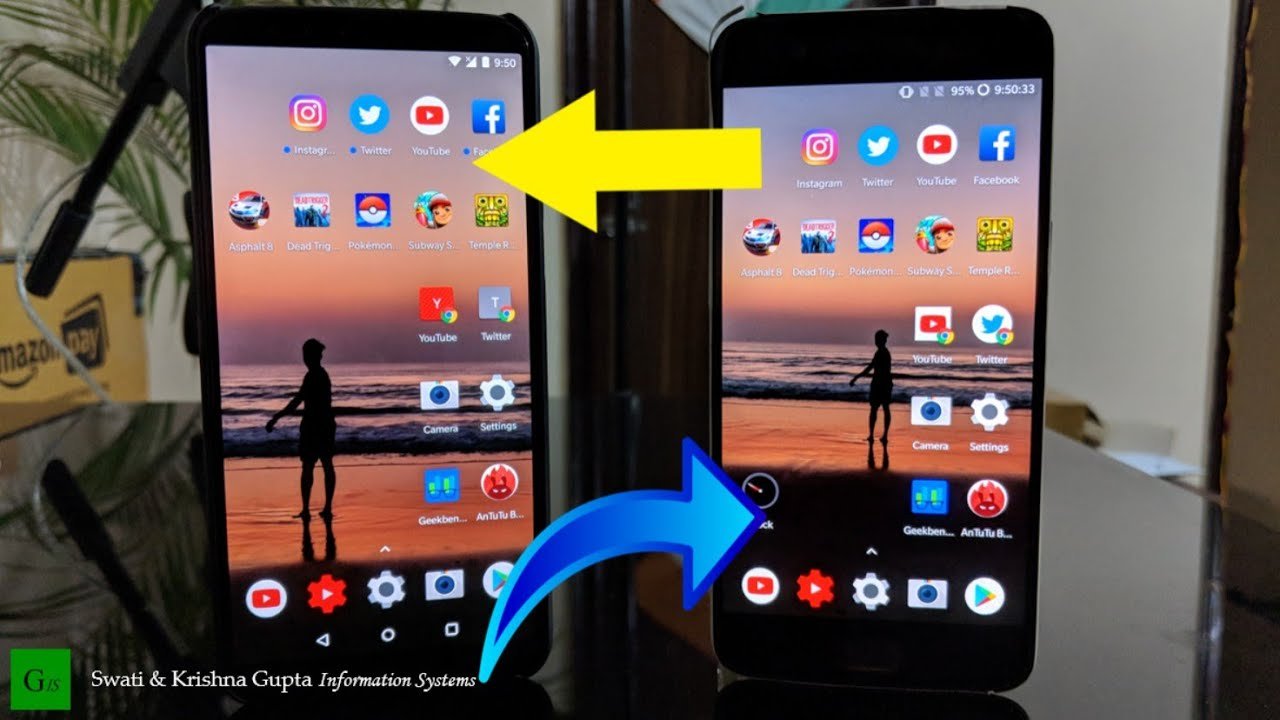
Transferring a game between phones often relies on cloud saves linked to your gaming account or using a phone’s backup and restore feature.
Switching to a new phone but worried about losing all your game progress? Many of us have been there, desperately wanting to continue our adventures. Figuring out how to transfer a game from one phone to another can seem tricky, but it’s usually straightforward.
This article guides you through the common methods. We’ll explore how game developers handle saving game data, and how you can use it to move your games with ease. You won’t have to start from the beginning!

How to Transfer a Game From One Phone to Another
So, you got a brand-new phone and you’re super excited to play all your favorite games on it! But, uh oh, how do you actually move those games over? It’s a common problem, and thankfully, there are several ways you can transfer your game progress and the game itself from your old phone to your new one. This guide will walk you through the different methods, making the process as easy as pie. Let’s get started!
Understanding Game Transfer Challenges
Before we jump into the “how,” it’s good to understand why transferring games can sometimes be tricky. Games aren’t just simple apps; they often have a lot of data, including your saved progress, in-app purchases, and settings. This data is stored in different ways, and not all games use the same method. This means there’s no single magic button to transfer everything perfectly every time. Here are some of the common reasons it gets complex:
- Different Operating Systems: Moving games from an Android phone to an iPhone (or vice versa) can be the most challenging. These systems handle data differently, and some games might not even be available on both.
- Game-Specific Cloud Saves: Many games use their own cloud save systems. This means you need to log in to your game account on the new phone to get your progress back. If you never made an account in your old phone it can be an issue.
- Local Saves: Some games only save your progress on your phone. If this is the case, you’ll need to find a way to directly copy the game files, which can sometimes get technical.
- App Store Differences: Sometimes, a game will be available on one app store (like Google Play Store) and not the other (like Apple App Store).
- Incompatibility: Older games sometimes might not be compatible with the latest operating systems.
The Quick and Easy Method: Cloud Saves
The easiest way to transfer a game is if it uses cloud saving. Think of cloud saving like saving your progress in a special online storage locker. Your game progress is safe and you can get it back from any device. Here’s how this normally works:
How to Use Cloud Saves
- Check for Cloud Save Option: On your old phone, open the game and look for a “settings,” “account,” or “cloud save” option. This is usually within the game’s menu.
- Create an Account: If you haven’t already, you’ll probably need to create an account using email or social media. Make sure to remember your username and password.
- Save to the Cloud: Once logged in, the game should give you a button to save your progress to the cloud. Make sure you tap it before moving to your new phone!
- Install the Game on the New Phone: Download the same game from the App Store or Google Play Store on your new phone.
- Log In to Your Account: Open the game and look for the “login” or “connect account” option, then use the same account information.
- Load Your Progress: Usually, the game will ask if you want to load your cloud save. Say “yes,” and your progress should magically appear!
Important Note: Always make sure your old phone has the most up-to-date version of the game installed before performing the save, as there could be compatibility issues between old and new versions. Also, always make sure you have a stable internet connection for both saving from the old phone, and downloading it back to your new phone.
Common Cloud Save Methods
Many games use different methods for their cloud saves. Here are some common ones that you might encounter:
- Google Play Games: Many Android games use Google Play Games to save progress. This is linked to your Google account, so as long as you are using the same Google Account you can easily retrieve the data.
- Game Center (Apple): For iPhones, many games use Game Center, which is connected to your Apple ID. Similar to Google Play Games, it’s easy to transfer data if you’re using the same account.
- Game-Specific Accounts: Games like Fortnite, Clash of Clans, or Pokémon Go have their own accounts. You’ll need to log in to these specific accounts on your new device.
- Social Media Connections: Some games allow you to save your progress using your Facebook, Twitter, or other social media accounts.
Transferring with Phone-to-Phone Transfer Tools
If cloud saves aren’t available or you have issues with them, many phones have built-in tools that help to copy data over. While these aren’t designed specifically for game transfers, they sometimes work and can save you time. Here’s how these tools work:
Using Android’s Built-In Transfer Tool
Most Android phones have a tool to transfer data. Here’s how you use it:
- Turn On Both Phones: Ensure both your old and new Android devices are powered on and charged.
- Initiate Transfer on New Phone: During the setup of your new Android phone, you’ll encounter an option to transfer data from your old device. Choose this option.
- Select Your Old Phone: Your new phone might search for your old device via Wi-Fi or Bluetooth. Select your old phone from the list.
- Choose What to Transfer: You’ll get a list of things to transfer, like apps, photos, and settings. Make sure you pick the specific game app and “app data.” (Note: selecting all may help).
- Start the Transfer: Let the phones do the magic! This can take a while, depending on how much data you have.
- Check Your Game: After the transfer is complete, try opening the game on your new phone. It may just work!
Using iPhone’s Quick Start
iPhones also have a similar transfer feature called Quick Start. Here’s how to use it:
- Turn On Both Phones: Make sure your old and new iPhones are both charged and powered on. Also make sure they are running on same software version.
- Position Phones Near Each Other: Place both devices close to one another. Your new iPhone will show a “Quick Start” screen.
- Scan the Animation: An animation will appear on your new iPhone. Use the old one to scan it.
- Enter Old Passcode: You’ll need to enter the old phone’s passcode on the new phone.
- Choose Transfer Method: Select the “Transfer from iPhone” option.
- Choose What to Transfer: As with Android, you’ll have the option to choose specific content to transfer or just everything. Make sure to select the game or all apps and data.
- Start Transfer: This might take some time depending on how much data there is. Once the transfer completes, see if the game works on the new device.
Important Note: These methods won’t transfer everything perfectly every time, especially for games that store data in a very particular way. Make sure you double check to see if you’ve saved all of your progress via cloud saving, before using any of these methods.
Advanced Methods: Transferring Local Save Data (For Tech-Savvy Users)
If cloud saves don’t exist for your game and phone-to-phone transfers are not working you’ll have to try another method. This method involves finding the game data on the old phone and manually moving it to your new phone. This is a little more complex and may not always work, so proceed with caution!
Finding Game Files on Android
Android phones allow you to access the file system to find the data. Here’s how:
- Install a File Manager App: You’ll need a file manager app. There are many options in the Google Play Store, such as “Files by Google” or “Solid Explorer.”
- Open File Manager: Once installed, open the file manager app.
- Navigate to the Game Folder: Game data is often stored in one of these places:
- Internal Storage/Android/data/: Most games are in this folder. Look for a folder that has the name of the game in it (e.g., com.gamename.example).
- Internal Storage/Android/obb/: Some games have additional files in the obb folder, often large ones.
- Internal Storage/Games/: Some games use a folder in internal storage named ‘games’.
- Copy the Game Folder: Find the game folder, tap and hold on it, and choose the copy or share option. You’ll need to move this folder to a place you can access on your computer or new phone using the method mentioned below.
Finding Game Files on iPhone (More Difficult)
Accessing game files on an iPhone is much more difficult. Apple hides the file system for safety, so it’s not easy for people to access these files. This usually requires using a third-party tool and doing what is called “jailbreaking” the phone, which can void your warranty. We do not recommend doing this unless you have advanced knowledge about this process.
Note: As Apple doesn’t want users easily accessing file system, we won’t cover a detailed process to move files from iphone, as it is not recommended.
Transferring the Files Using Computer or Cloud Storage
After you’ve located the game data on your old phone, here’s how you move it to your new one. You’ll need a computer or a cloud service like Google Drive or Dropbox.
- Connect Old Phone to Computer: Connect your old phone to your computer using a USB cable.
- Copy the Game Folder: Access the file system via file explorer (windows) or finder (mac) and copy the game folder from your old phone to your computer. Alternatively, upload the game folder to a cloud service like Google Drive or Dropbox.
- Connect New Phone to Computer: Connect your new phone to your computer (if using a computer). If you used a cloud service you can skip this step.
- Copy the Game Folder to the New Phone: Move the game folder from your computer to the appropriate directory on your new phone by using file explorer or finder. Make sure it’s in the exact same place as it was on your old phone (e.g., Internal Storage/Android/data/ or Internal Storage/Games/ ). If you use a cloud service, then copy or download it from the cloud service to the appropriate directory.
- Install the Game on Your New Phone: If not already installed, download the game again on the new phone from the app store.
- Open the Game: Open the game and see if the progress is there!
Important Note: This method can be difficult. The file locations and names can sometimes be confusing. Some games may not allow manual transfer of save files. Make sure you backup all the data from the old device to the computer before you delete anything and always double check that you are saving data to the correct location.
Game Transfer Compatibility Chart
To help you quickly understand how different methods might work for your specific situation, take a look at this handy chart:
| Method | Ease of Use | Android to Android | iPhone to iPhone | Android to iPhone | iPhone to Android | Success Rate |
|---|---|---|---|---|---|---|
| Cloud Saves | Very Easy | High | High | Medium (if game is available) | Medium (if game is available) | High |
| Phone-to-Phone Transfer Tool | Easy | Medium | Medium | Low | Low | Medium |
| Manual File Transfer | Advanced | Medium/High | Very Low | Low | Low | Medium/Low |
Additional Tips for Smooth Game Transfers
Here are a few extra tips to make game transfers as smooth as possible:
- Update Everything: Make sure that both your old and new devices have the latest software updates, as well as the latest game version, installed.
- Check the Game’s Support Page: Many games have websites with guides and FAQs about transferring data. Check to see if your game has specific steps for a transfer process.
- Use Stable Wi-Fi: A good Wi-Fi connection can reduce download and transfer times.
- Be Patient: Transferring data, especially large game data, can take time. Don’t panic if the process is slow.
- Battery: Make sure both the old and the new phones are fully charged to ensure there is no interruption in the transfer process.
Moving games from one phone to another can feel a little complex. However, by using the cloud save method if possible, or one of the several other methods mentioned in this article, you can successfully transfer your data and continue playing your favorite games on your new device! Remember to always check if cloud saving is possible, and always backup all your data before you try to manually transfer game data from one phone to another.
How To Manually Transfer A single App from one Android Phone To Another
Final Thoughts
Transferring games between phones is simpler than you might think. Cloud saves, a common feature, allow you to pick up your progress. Always verify the game utilizes cloud services before proceeding.
You also have options like sharing apps via Bluetooth or specialized transfer tools. These apps move the entire game file. Remember that this method may not save game progress; check in game settings.
Ultimately, how to transfer a game from one phone to another depends on the game itself and your preferences. Choose the method that best suits your situation.

