
To transfer games from Steam to another computer, copy the game files from the ‘steamapps’ folder to the same location on the new computer, then install the game on Steam.
Want to play your favorite Steam games on a different PC without redownloading everything? It’s a common need, and thankfully, the process of figuring out how to transfer games from steam to another computer isn’t difficult. You can easily move your gaming library with some basic file management. This will save you time and bandwidth.
This method works great for large games, especially if you have slow internet. Let’s delve into the easy steps so you can start playing your games on your other system right away!

How to Transfer Games from Steam to Another Computer
So, you’ve got a new computer, or maybe you just want to play your favorite Steam games in another room. That’s awesome! But, you don’t want to download all those big game files again, do you? Of course not! Thankfully, there are some easy ways to move your games from one computer to another without having to go through a full download. Let’s explore these methods together.
The Easiest Way: Using Steam’s Built-in Backup Feature
Steam has a handy tool that lets you back up your games and then restore them on another computer. It’s like making a copy of your game files so you can quickly move them around. Let’s see how it works:
Step 1: Backing Up Your Game on the Old Computer
First, you need to get your game ready to move. Follow these steps on the computer where your games are currently installed:
- Open the Steam app.
- Go to your Library (where you see all your games).
- Right-click on the game you want to move.
- Select “Backup Game Files…”
- A new window will appear. Here, check the box next to the game or games you want to back up.
- Click “Next.”
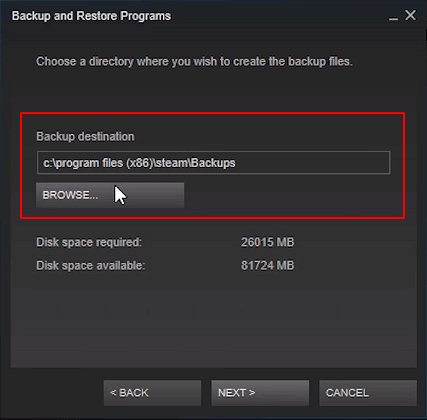
- Now, choose where you want to save your backup files. Pick a place on your computer or an external hard drive. It’s good to create a new folder just for these backups to keep everything organized.
- Click “Next” again.
- Steam will ask you the size of the files, if you have enough space, choose the first option, which is default or if you have less space, then choose the second option, or you can change the file size that you like, then click next.
- Steam will begin making the backup. This may take a while, especially for large games, so be patient!
Step 2: Moving the Backup Files
Now that you have the backup, you need to move it to your other computer. Here’s how:
- If you saved the backup on an external hard drive, connect it to the new computer.
- If you saved the backup on your old computer, you’ll need to move the backup folder to your new computer. You can use a USB drive, an external hard drive, or even a shared network folder to do this. Choose whatever works best for you.
Step 3: Restoring the Game on the New Computer
Now for the exciting part – getting the game onto your new computer! Here’s what to do:
- Open Steam on your new computer.
- Go to the “Steam” menu in the top left corner.
- Select “Backup and Restore Games…”
- Select “Restore a Backup.”
- Find the folder where you saved your game backup. Select the folder.
- Click “Next”.
- Steam will start putting the game back onto your computer. It might take a little time, depending on the game size.
And that’s it! Your game should now be ready to play on your new computer.
Copying the Game Files Directly (For Advanced Users)
If you’re comfortable digging into your computer’s files, you can directly copy the game files from one computer to another. This method is faster than making a backup, especially for very large games, but you have to be more careful to get it right. Keep in mind that this method might cause problems if not done carefully. Here’s how to do it:
Finding Your Steam Game Files
First, you need to locate the folder where your Steam games are stored on your old computer. Here’s how:
- Open Steam.
- Go to “Steam” in the top left corner, and then click on “Settings”.
- Select “Downloads”.
- Click the “Steam Library Folders” button.
- Here you will see all the locations where your games are installed. The default location is usually under C:\Program Files (x86)\Steam\steamapps\common, but it might be different for you. Take note of the folder(s) where your game is located.
- Close Steam. Now, go to that specific folder in your computer’s File Explorer.
Copying the Game Folder
Now that you’ve found your game files, you need to copy them to your new computer:
- Plug in your external hard drive to your old computer.
- Find the game folder and copy it to the external hard drive. This might take a while, especially for large games.
- Once the copy is done, safely remove the hard drive.
Putting the Game Folder on the New Computer
Now, you need to move the game folder to the right place on your new computer:
- Connect your external drive to the new computer.
- Open Steam on the new computer, then go to “Settings” > “Downloads” > “Steam Library Folders” to locate your games install folder(s)
- Now, go to that folder in your computer’s File Explorer.
- Copy the game folder from your external hard drive into the common folder. If a folder with the same name already exists, rename the copied folder slightly (add a “1” or similar), and copy the contents of the folder to the existing game folder.
Letting Steam Know About the Game
Even though the files are there, Steam still needs to find and “install” the game:
- In Steam, find the game in your Library.
- Click “Install”.
- Steam will begin to check the game files. It will see that most of the files are already there and will quickly finish “installing” the game. You might see a small download of missing files, or sometimes, it might finish almost immediately.
That’s it! The game should now be playable on your new computer.
Important Things to Consider
Before you move games between computers, keep a few important things in mind to make the transfer go smoothly:
- Make sure you have enough space. Check how big your game is and make sure you have enough room on your new computer and whatever drive you’re using to move the files.
- Keep your game saves. Game saves are different than game files. Most games save game progress in a separate place. Steam usually handles this through the cloud. Make sure Steam Cloud Sync is on for your games in Steam’s Settings, or you may need to manually copy the save game folder, which is usually located under Documents\My Games, or your Username or AppData folder. Check your game’s page on Steam for details on cloud saves.
- Updates: After moving a game, Steam might need to update the game. This is a good thing, but keep in mind that you may have to wait a little while for it to download the updates.
- Internet Connection: While transferring files does not require an active internet connection, Steam needs to be online to see the files, as the process requires verification.
- Operating Systems: Make sure the game runs on the operating system of your new computer. Some older games might not work on newer operating systems.
- Third-Party Software and Mods: If you have installed any third-party software or modifications, you may need to reinstall these on your new computer. Copying the folder may not make these function properly.
- Steam Account: Remember that you need the same Steam account on both computers. You can’t move games between different Steam accounts.
- Game License: You have to own the games on your Steam account to play them on another computer, moving the game files won’t allow you to play a game if it’s not in your account library.
Troubleshooting
Even when you’re careful, sometimes things can go wrong. If you run into issues, here are some common problems and how to fix them:
Problem: Steam doesn’t recognize the game after moving the files
- Solution: Restart Steam. Sometimes, Steam just needs a fresh start to see the files. If that doesn’t work, try to verify the game’s integrity. To do this, Right-click on the game in your Library, go to “Properties,” then “Local Files”, and click “Verify Integrity of Game Files.” Steam will look for missing or damaged files and try to fix them.
Problem: Game doesn’t work correctly
- Solution: If the game is working, but having issues, you might need to reinstall it completely. Use Steam to uninstall the game, and then use the steps above to move it again. Also, be sure to check for any updates that may need to be installed.
Problem: I don’t have enough space on my external hard drive
- Solution: Try moving just a few games at a time, or look into getting a bigger external hard drive. Alternatively, a shared network drive can be used to move files.
Problem: Game crashes or has errors
- Solution: Check if your computer meets the minimum system requirements for the game. Outdated drivers or missing DirectX components can also cause issues. Sometimes, a full reinstall of the game will fix this problem. Also make sure you do not have any issues with antivirus or firewall, as that can interfere with a game.
Alternative Methods for transferring games
While the above methods cover the most common scenarios, some users might be interested in alternative ways to transfer game data, especially those with large libraries or unreliable external storage.
Using a Local Network
If both computers are connected to the same local network, you can share the game files directly between them. This method avoids the need for external storage, but it’s necessary to set up a network share, and be aware, that this approach is slower than using a USB 3.0 connection or faster. Here’s how to do it:
- First, set up a network share on the old computer. Right click on the game folder, go to properties, and click on sharing. Share the folder to all users on your network. Make sure you note the network path.
- On the new computer, you can use File Explorer to go to the network path, and navigate to the game files. Copy the game files to the new computer as before.
Cloud Storage Services
Services like Google Drive or Dropbox can be used, however, this is not recommended, as they are not ideal for large game files due to bandwidth constraints. Still, you can create a folder to store your game files, upload them from your old computer, and download them on your new computer. This approach is not ideal as it depends on upload and download speeds, which tend to be slower than USB. However, this method can be useful if no other option is available.
Using a USB Drive
If you do not have an external hard drive, you can use a USB drive. Be aware that most USB drives tend to be slow, and transfer speeds depend on USB connection type, and the drive’s speed. You will need a USB drive that is large enough to store the game files. Transfer the files to the USB drive on your old computer, and transfer the files from the USB drive to your new computer. USB drives might be slower for larger games.
Moving games from one computer to another doesn’t have to be difficult. With these methods, you can avoid downloading your games again and be back to gaming in no time. Whether you use Steam’s backup feature or copy the files directly, remember to follow the steps carefully, and you will be playing your favorite games on your new computer in no time.
Fastest way to move Steam games from one PC to another
Final Thoughts
Transferring Steam games involves copying game files directly or using Steam’s backup feature. Both methods work well, but copying requires manually placing files. Backups are useful for larger transfers. Make sure to authenticate with your account on the new machine.
Steam’s library folder contains all game data. You can copy this to an external drive, then move it to the new computer. If done correctly, games will appear ready to play. This is an easy way to transfer games.
In short, ‘how to transfer games from steam to another computer’ is achieved either via direct file copying or using the built-in backup utility. Remember to use the same account, and the process is generally very straightforward.

