
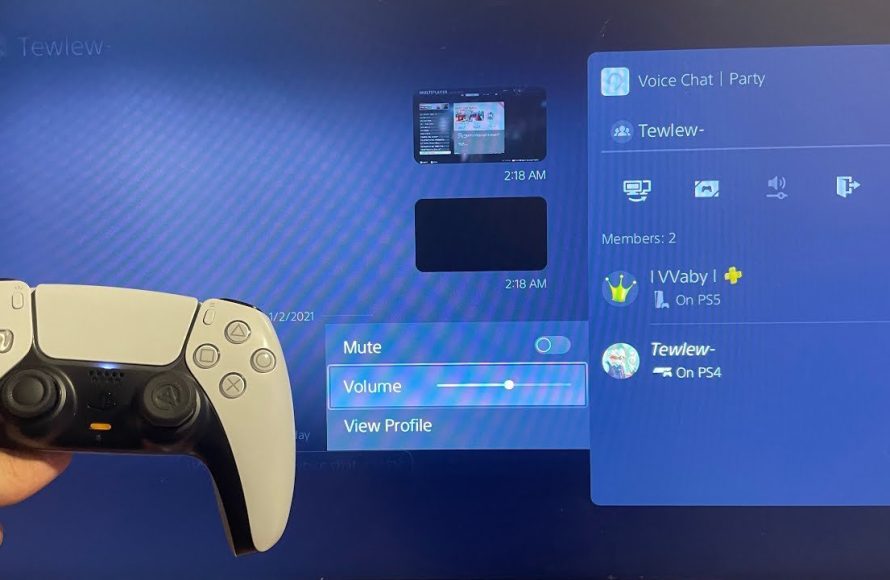
To turn down game volume on PS5, press the PlayStation button, go to the Sound tab, and adjust the volume slider for the game.
Ever find yourself in a situation where the game’s audio is just a bit too loud, threatening to drown out everything else? It’s a common issue, and thankfully, learning how to turn down game volume on PS5 is quite simple. You don’t need to be tech-savvy to make these adjustments.
The good news is the PlayStation 5 offers easy controls to manage sound levels. You can swiftly change the game volume using the quick menu. It is a straightforward process to balance sound for your gaming sessions.

How to Turn Down Game Volume on PS5
Okay, gamers! Let’s talk about something super important: sound. Sometimes, game sounds can be way too loud. Maybe you’re trying to sneak in some gaming while someone else is sleeping, or perhaps the explosions are just rattling your brain a little too much. Whatever the reason, knowing how to turn down the game volume on your PS5 is a must-have skill. It’s not complicated, and we’re going to walk through all the ways to do it.
Adjusting Game Volume Through the Quick Menu
The quickest way to change your game’s volume is by using the PS5’s handy Quick Menu. Think of it as your instant control panel while you’re in the middle of playing. Here’s how to use it:
- Press the PlayStation button: This is the button in the center of your DualSense controller, with the PlayStation logo on it. A single press will bring up the Quick Menu.
- Navigate to Sound: Using the directional buttons on your controller, move through the icons at the bottom of the screen until you find the “Sound” icon. It looks like a speaker.
- Adjust the Volume: Once you’ve selected the Sound icon, you’ll see a slider for “Volume”. Use the directional buttons to move the slider left to decrease the game volume or right to increase it. The changes are instant, so you’ll hear the difference right away.
- Go back to the Game: Once you set the volume to the level that you prefer, press the circle button on your controller to return to the game.
That’s it! You’ve just learned how to quickly adjust the volume while you are in the game. This method is great because it doesn’t interrupt your gameplay. You can make these changes whenever the sound gets too much or not enough.
Fine-Tuning Volume Levels in the Settings Menu
Sometimes, you might need more detailed control over the volume levels. This is where the main Settings menu comes in handy. Here’s a breakdown of how to get to it and adjust the volume:
Accessing the Settings Menu
- Go to the Home Screen: Press the PlayStation button to go to the PS5 home screen.
- Find the Settings Icon: Use the directional buttons to move up to the top of the screen and find the “Settings” icon. It looks like a little gear. Select it by pressing the X button.
Navigating to Sound Settings
- Scroll to Sound: In the Settings menu, use the directional buttons to scroll down until you find “Sound”. Press the X button to select it.
Adjusting Audio Output
- Choose “Audio Output”: After you have entered in the Sound Settings page, look for “Audio Output” and select it.
- Adjust Output Device: You can select where the sound comes out from in this section (like from your TV or your headphones).
- Adjust Game Volume: Go to the Game section, where you can adjust master volume, game volume, music volume, and the voice chat volume. Move the slider left to make the sound quieter, or right to make it louder.
The benefit of this method is that you can control different audio elements separately. Want the music to be lower but the game sounds to stay louder? This method allows you to do that.
Understanding Different Audio Channels
The PS5 also provides different audio channels, meaning you can control the loudness of various types of sound coming from your games. This is super helpful if you only want to turn down certain parts of the audio without affecting other elements.
Game Audio Channels
These settings will influence different types of sound within your games:
- Master Volume: This is like the main volume control for everything. If you lower this, all sound will be quieter.
- Game Volume: This specifically controls the volume of the main sound effects and environmental noises in the game. Lowering this will reduce the noise of explosions and other game actions.
- Music Volume: This adjusts the volume of any in-game music. If you’re not a fan of background music in games, you can reduce or completely mute it here.
- Voice Chat Volume: This allows you to control the volume of other players talking to you during online games. If people are too loud during gameplay, this will be your best friend.
Why Use Different Channels?
Using these different channels allows you to customize your gaming experience based on your preferences. If you find voice chat too loud or that the background music is overwhelming, then these specific controls are essential.
Adjusting these audio channels
To adjust these audio channels, simply access to the settings page as mentioned before, select sound and then the “Audio Output” section. There you will find the slider to adjust the audio.
Using Headphones with Volume Control
If you prefer using headphones, you might have another volume control option available right on your headset. Many gaming headsets come with their own volume wheel or buttons.
Types of Headset Controls
- Volume Wheels: Many headsets have a small wheel on one of the earcups. Turning the wheel will change the volume.
- Volume Buttons: Some headsets use buttons instead of a wheel. Pressing the “+” button will increase the volume, and pressing the “-” button will decrease it.
How to Use Headset Controls
- Put on Your Headphones: Make sure your headphones are connected properly to your PS5.
- Find the Controls: Locate the volume controls on your headset, which is normally on the left ear or right ear.
- Adjust the Volume: Use the wheel or buttons to change the volume level until it is comfortable for you.
If you are using a headset, you can adjust the volume through the headset or the PS5. This is a good way to adjust the volume quickly.
Specific Game Volume Settings
Some games have their own individual volume settings within the game itself. This means you can adjust the volume specifically for that game without affecting other games or the general system volume.
Accessing In-Game Settings
- Pause the Game: Open the in-game menu by pressing the options button or the start button on your controller.
- Find the Options/Settings Menu: Use the directional buttons to navigate through the menus, until you find “Options”, “Settings”, “Audio”, or similar.
- Locate the Audio Settings: Find audio section in the setting page. This section will usually contain a variety of volume sliders.
Adjusting Volume in the Game
- Change Volume Levels: Use the directional buttons on your controller to adjust the volume sliders. This is generally similar to the sound setting section in PS5 settings, however, these are specifically only for that game.
- Test the Volume: Listen to the game after adjusting the volumes to make sure it sounds how you prefer it.
- Save Your Settings: If the game has an apply or save button, press this to save your changes.
This method can provide the most precise sound control, because it is customized to that game. If a specific game has some loud sound effect or music that you prefer to make it more quieter, this is a great solution.
Troubleshooting Common Volume Issues
Sometimes, even when you try to adjust the volume, things might not work the way you expect. Here are some common issues and how to troubleshoot them:
Volume Too Quiet
- Check all volume controls: Make sure that the main volume control in the quick menu, in the sound settings and the in-game settings are not set to mute, or at very low settings.
- Check your headset volume: If you use a headset, make sure that the volume control on the headset is not at low level.
- Restart your PS5: Sometimes, simply turning off your PS5 and turning it back on can fix volume issues. This clears out some temporary data.
Volume Too Loud
- Start with the quick menu: Use the quick menu to make a quick adjustment.
- Adjust different audio channels: Go into the settings menu, navigate to the Sound section, and check if game sound, music volume or voice chat are set at a higher level than intended.
- Check in-game settings: As previously mentioned, there might be in-game settings for the audio, so check this too.
Sound Cutting Out or Distorted
- Check your audio cables: Make sure that your HDMI cable or headphones are properly connected to the PS5.
- Restart the PS5: As with the other issues, restarting the console can fix this issue.
- Update PS5: Go to system and update system software to make sure you have the latest version of the system.
If all else fails, sometimes checking the official PlayStation support pages or forums can help.
Adjusting the volume on your PS5 doesn’t need to be a challenge. You have a lot of ways to turn down the sound and make your gaming experience more enjoyable. If you have to adjust the volume frequently, using the quick menu or headset controls might be the quickest solution for you. If you prefer more precise audio control, then the in-game settings and settings menu will give you more detailed settings for your game and sound. Once you get used to the different ways to adjust the volume, it’ll become very easy. Keep playing and enjoying your games.
How to Turn Down Your Game Volume on PS5
Final Thoughts
To quickly adjust game volume, use the PS button to access the control center. Then select the “Sound” option. You can move the slider to the left to lower the volume, or further to the right for a louder setting. It’s a straightforward process.
You can also manage volume through the main settings menu. Navigate to “Sound” and you can fine-tune audio levels. This offers an alternative for those who prefer a menu based approach to adjust the volume.
This detailed method shows how to turn down game volume on PS5. Remember, you have options for quickly changing volume within games. Now, you can easily manage the sound level of your game.

