
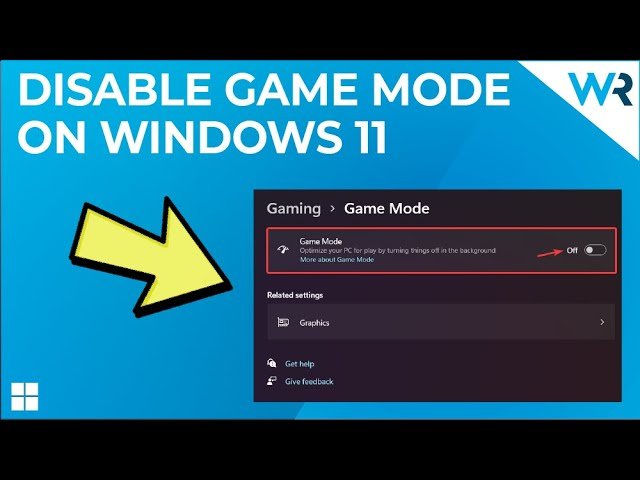
To turn game mode off, you usually need to navigate to your device’s settings, find the gaming section, and then toggle the game mode feature to the off position.
Have you ever noticed your phone or computer acting strangely while you’re trying to relax with a game? It’s likely due to game mode being active. Many devices have this feature intended to prioritize game performance.
However, sometimes, this mode can interfere with other activities or even cause performance issues. So, knowing how to turn game mode off becomes crucial to get your device running properly.

How to Turn Game Mode Off: A Simple Guide
Alright gamers, sometimes Game Mode, while usually awesome, just doesn’t quite do what you want. Maybe it’s making a different program act funny, or perhaps you’re done gaming and just want things back to normal. Whatever the reason, turning Game Mode off is usually a snap once you know where to look. This guide will walk you through how to turn off Game Mode on different devices. We’ll cover Windows PCs, some gaming consoles, and even a few phone tips. Let’s dive in and get your devices back to their preferred settings!
Turning Off Game Mode on Windows PC
Windows 10 and 11 both have a built-in Game Mode feature, which is meant to make your games run better. But sometimes, it might cause problems with other programs or even with the games themselves. Here’s how to turn it off:
Accessing Game Mode Settings
First, you need to get to the right spot in your computer’s settings. Here’s how:
- Click the Start button. It’s usually at the bottom-left of your screen and looks like the Windows logo.
- Click the Settings icon. It looks like a little gear.
- In the Settings window, click on Gaming. It’s usually got an Xbox logo next to it.
Disabling Game Mode
Once you’re in the Gaming settings, turning off Game Mode is super easy:
- On the left side of the window, click on Game Mode.
- On the right side, you’ll see a switch that says “Game Mode.” Click it to turn it Off. The switch will look gray when it’s off.
That’s it! Game Mode is now turned off on your Windows PC. You can close the settings window. If you’re having issues, restarting your computer might help changes take full effect.
What if Game Mode Keeps Turning Back On?
Sometimes, even after you turn it off, Game Mode might turn itself back on. This can happen because of updates or if certain game programs have settings that override your choice. Here are a few things you can try:
- Check Individual Game Settings: Some games have their own Game Mode settings. Open the settings within the specific game and see if there is a setting to enable or disable game mode specific to that application.
- Update your Windows System: Outdated system can sometimes cause this issue. Ensure your Windows is updated to the latest version. Navigate to Settings > Windows Update > Check for Updates.
- Restart Your Computer: Sometimes a simple restart will solve such problems.
Turning Off Game Mode on Xbox Consoles
Xbox consoles, like the Xbox Series X/S and Xbox One, have Game Mode for your TV. This isn’t the same as the Game Mode on your computer. The Xbox Game Mode tries to reduce lag on your TV when you’re playing games. Here’s how to control it:
Understanding Xbox Game Mode
The Xbox console’s Game Mode isn’t something you turn off on the console itself. It’s something that your TV has and that the Xbox can sometimes trigger automatically. It works by telling the TV to use settings that are better for fast-paced games, like making the screen respond faster to your button presses.
How to Turn Off Game Mode on Your TV
To turn off Game Mode, you need to change your TV settings. The exact steps can be different depending on your TV brand and model, but generally, here’s how you’d do it:
- Get the TV Remote: Grab your TV remote.
- Open the TV Settings: Press the menu or settings button on your remote.
- Navigate to Picture Settings: Look for a section called Picture, Image, or Display. The name varies across TV brands.
- Find Game Mode: Look for an option labeled Game Mode, or something similar (sometimes it might be called “Low Latency Mode” or “Fast Response Mode”).
- Turn It Off: Choose to disable it. It might be a toggle switch, a checkbox, or a different setting, depending on your TV.
Why Turn Off TV Game Mode?
Turning off Game Mode on your TV can make the picture look better for watching movies or TV shows. Game Mode can sometimes make colors or details look slightly different than what you might want. But remember, turning it off might introduce a bit of lag when you’re playing games. It’s often a trade-off between picture quality and response time.
Game Mode on Android Phones
Many Android phones have a Game Mode that helps enhance gaming performance. You might want to turn it off for several reasons, such as to save battery or if it’s interfering with other apps. Here’s how you might do it.
Accessing Game Mode Settings on Android
Android Game Mode settings can be in slightly different places depending on your phone’s brand (Samsung, Google, OnePlus, etc.) But here’s a general guide:
- Open the Settings app on your phone.
- Search for “Game” or “Gaming” using the search bar in settings.
- Look for a section or setting that mentions something like “Game Booster,” “Game Mode,” or “Gaming Hub.”
Disabling Game Mode
Once you’ve found the Game Mode settings, here’s how to turn it off:
- Usually, there’s a switch or toggle to turn the whole Game Mode on or off. Switch this to Off.
- Sometimes, there’s an option to turn it off for individual apps. You can either disable it for all apps or select the specific ones you wish to turn off for.
- Some phones have more advanced settings where you can choose between different performance modes. Choose a mode that doesn’t focus on gaming, like “Balanced” or “Normal.”
Potential Issues with Android Game Mode
Sometimes, Game Mode on your phone can cause issues with other apps that are not games. For example, it may stop other apps from running in the background, to ensure games get all the power. Turning off Game Mode will revert your phone to its normal behavior.
Game Mode on iPhones and iPads
Apple doesn’t use the term “Game Mode” directly, like other systems do. Instead, they have features that improve the gaming experience. While there isn’t a single switch to “turn off Game Mode” like on Windows, there are some things you can do to change how your device handles gaming.
Focus Modes for Gaming
Apple introduced Focus Modes, including a Gaming Focus, which can impact how your device behaves when you play games. You can manage these settings to change what alerts and notifications you get during gaming.
Changing Focus Mode
- Go to Settings on your iPhone or iPad.
- Tap on Focus.
- Check if the Gaming focus mode is activated. If it’s on, tap it.
- Turn it off by tapping the switch at the top of the screen.
Low Power Mode
Another aspect is your phone’s Low Power Mode. Turning this on can reduce performance, which may affect your gaming. However, it is not recommended if you are playing a graphic intense game.
Turning Off Low Power Mode
- Go to Settings.
- Scroll down and tap on Battery.
- If the Low Power Mode switch is green (on), tap it to turn it off and make it gray.
Adjusting Graphics Settings in Games
Many games on iPhone and iPad allow you to change their graphic settings. Lowering graphics settings can reduce the load on your device, impacting performance and battery usage. This is not the same as turning off game mode, but may help if your device is lagging.
Accessing In-Game Graphic Settings
- Open your game.
- Look for a Settings menu or similar icon, usually found in the pause menu or main menu of the game.
- Adjust settings related to graphics quality, like shadows, textures, or resolution, to lower settings to ease the strain on your device.
Why Turn Off Game Mode?
So, why might you want to turn off Game Mode in the first place? Well, there are several good reasons:
- Problems with Other Programs: Sometimes, Game Mode can interfere with programs that aren’t games, causing them to act weirdly or not work right. This is especially true when game mode is trying to optimize for a game in the background and affecting the behavior of other applications.
- Battery Saving: Game Mode might use more power than needed for other apps or tasks. Turning it off could potentially help save battery life.
- Picture Quality Preferences: On TVs, Game Mode might make the picture less vibrant or detailed. If you’re watching movies or TV, you might prefer the way the picture looks without Game Mode.
- It’s Just Not Needed: Sometimes you simply don’t need the extra performance that game mode offers. Turning it off might return your device to a more balanced state for normal use.
By understanding how to turn Game Mode off, you have the power to customize your device to work exactly how you want. It’s all about finding the right balance between gaming performance, visual quality, and general usability. Don’t be afraid to experiment with settings to discover what works best for you.
Understanding how Game Mode functions across different platforms is crucial for optimising your overall device experience. This guide provides the essential steps to both enable and disable this feature, giving you greater control over your device’s resources and performance. Keep in mind that the ideal setting may vary depending on your specific needs, and taking time to adjust these settings will improve your device experience.
How To Turn OFF Game Mode On Samsung Smart TV
Final Thoughts
To turn game mode off, you typically need to access your device’s settings menu. Find the “Gaming” or “Game Mode” option. Then, toggle the switch to the off position.
You can also disable it within the specific game app. Just navigate through the game’s settings. The location might vary depending on the title, but you’ll generally find a game mode option. Remember, these steps describe how to turn game mode off.

