
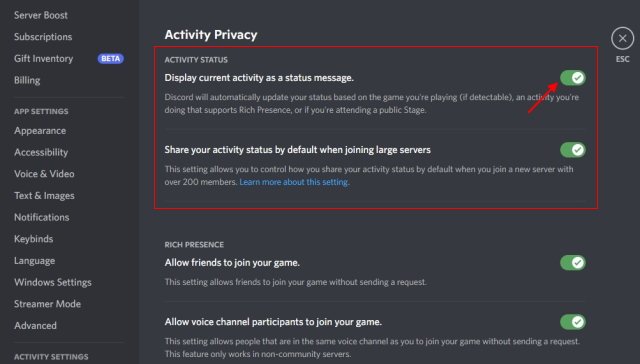
To turn off Discord game status, navigate to User Settings, select Activity Privacy, and toggle the “Display current activity as a status message” option off.
Have you ever wished for a little more privacy while gaming? That little Discord notification telling everyone what you’re playing can sometimes feel like too much. You might be working on something and prefer not to broadcast your gaming habits, that’s fine!
Luckily, Discord allows you to control this information easily. This article will guide you through how to turn off Discord game status, giving you the control you want. We will get straight to the steps.

How to Turn Off Discord Game Status
Ever been in the middle of a serious Discord chat, but your friends keep seeing you’re playing “Cookie Clicker” for the tenth hour straight? Or maybe you want to keep your game choices private? Discord’s game status feature is fun, but sometimes you just need a little peace and quiet. Don’t worry, it’s easy to turn off, and this guide will show you exactly how. We will explore all the different ways you can make your game status disappear, giving you full control over your privacy on Discord.
Understanding Discord’s Game Activity
Before we dive into the “how-to,” let’s quickly understand what Discord game activity is all about. When you’re playing a game on your computer, Discord can often detect it. When it does, it shows your friends what you’re playing right next to your name. This is called your “game status” or “rich presence.” It’s a way for friends to see what you’re up to and maybe even join in if it’s a multiplayer game. However, there are many reasons why you might want to turn this off. Maybe you are playing a game that you do not want others to see, or perhaps you simply prefer to game without the social spotlight. Discord gives you several easy options to do just that.
Disabling Game Activity for Specific Games
Sometimes, you might not want to completely turn off your game status; instead, you only want to hide the activity of one particular game. Discord lets you pick and choose. Here’s how you can do that:
Steps to Disable a Game Status for One Game
- Open Discord: Start by opening the Discord application on your computer.
- Go to User Settings: Click the gear icon (⚙️) at the bottom left of your Discord screen, next to your username. This opens your user settings.
- Select Activity Privacy: In the left-hand sidebar, find and click on the “Activity Privacy” tab.
- Locate the Registered Games: In the right-hand pane you will find “Registered Games” in bold. Below that, a list of games which discord has registered should be present.
- Toggle the Status off: Find the game you want to hide in the list. You will see a little switch or toggle next to its name. Click the toggle to turn it off (when it’s gray, it’s off).
- Close the Setting: You can now close the settings page. Your friend will not see you playing that game anymore!
This way, you control which games show up and which stay hidden from your friend list. This is a handy feature to use when you play lots of different games. Remember that if you are playing games and don’t have them registered, they will not be displayed as a status.
Completely Turning Off Discord Game Status
If you’d rather just have a blanket “off” switch for all game statuses, Discord provides a way to do that too. This stops your friends from seeing all games you might play. Here’s how:
Steps to Turn off all Game Activity
- Open Discord: Just like before, start by opening your Discord application.
- Open User Settings: Click the gear icon (⚙️) at the bottom left.
- Navigate to Activity Privacy: Find “Activity Privacy” on the left side menu and click it.
- Disable “Display current activity as a status message”: On the right side you will see “Display current activity as a status message”. Click the toggle next to this option, making sure it appears as gray to signify “off”.
- Close the settings: You are done. Your friends will no longer see what games you are playing.
That’s it! This method hides any game status, no matter what you’re playing. It’s a quick and simple solution if you desire more privacy on Discord. Keep in mind that this disables all game activity status, even from registered games.
What is the difference between disabling the “Display current activity” and disabling activity for a specific game?
The difference between these two is an important one. When you disable a specific game, you are telling Discord to hide that game activity only, but other registered games activity may be visible. On the other hand, when you disable “Display current activity”, you are telling Discord to hide all game activity, even if those games are registered in the list. So if you are looking for a more specific solution, using the first method to disable for a single game can be better for those who enjoy showing some games but want to hide others. If you prefer a more general solution, use the later, so you do not have to worry about selecting which games should be hidden and which should be shown.
Hiding Discord Game Status on Mobile
Want to keep your gaming habits private on your phone too? Discord’s mobile app makes it simple to turn off your game status there. Here’s how to do it on your mobile device:
Steps to Disable Game Status on Mobile
- Open the Discord App: Launch the Discord app on your smartphone or tablet.
- Go to Your User Profile: Tap on your profile picture at the bottom right of the screen. This opens your user settings.
- Select Activity Privacy: Scroll down the menu and find “Activity Privacy” and tap it.
- Turn off “Display current activity as a status message”: Find and tap the toggle switch next to “Display current activity as a status message”. When it is gray, it’s off.
- Return to Discord: You are done, return back to your discord screen. Your mobile game activity will not be shown anymore.
Just like that, you’ve turned off game status on your phone. This makes your mobile gaming habits completely private, and your friends will not be able to tell what you are playing.
Discord Game Status and Privacy
It’s important to know that turning off your game status is all about your privacy. No one else can see that activity on your profile if you decide to disable it by using the methods above. Some people enjoy the feature of showing their gameplay, while others prefer not to. Ultimately, the decision to show or hide your game status is completely up to you, and you have all of the tools necessary to do so built into Discord’s settings.
Troubleshooting Game Status Issues
Sometimes, things might not work perfectly. Here are some common problems and solutions you might encounter with Discord game status:
Common Problems and Solutions
- Game isn’t detected: If Discord isn’t detecting your game, make sure the game is supported by Discord. Also, ensure that “Display current activity as a status message” is toggled on. Sometimes, restarting the game can also help.
- Game is detected but showing incorrectly: If the game is displayed but with the wrong title, try restarting both Discord and the game. Check to make sure that “Display current activity as a status message” is toggled on for the game you are trying to show.
- Game activity is stuck after closing the game: Sometimes, your status might get stuck on a game even after you’ve closed it. If this happens, try restarting Discord.
- The game status still shows even after disabling it: If you disabled the activity for a game using the first method we spoke about, and the status still shows, make sure the game is not also included in “registered games”, which can show status even if the “Display current activity” is disabled.
- All game activity still shown after disabling all of it: Check that the “Display current activity as a status message” setting is indeed disabled on the computer, or mobile device that is showing the wrong game status. If all is good, restarting Discord can often help.
If these basic steps do not work, try updating your Discord to the latest version or contacting the Discord support team for more help.
Other Ways to Manage Your Discord Presence
Apart from game status, Discord gives you other ways to manage your online presence. Here are some related features:
Other Helpful Discord Settings
- Custom Status: You can set a custom status message to show instead of your game activity. Click on your profile picture in the bottom left and click “Set a custom status”.
- Do Not Disturb mode: Want peace and quiet? Set your status to “Do Not Disturb” so your notifications are muted.
- Invisible Mode: Appear offline to everyone on your friends list, even if you are still using Discord. Set your status to invisible by clicking on your profile picture at the bottom left and clicking “Invisible”.
- Notification Settings: Adjust your notification settings to control when you get pings from your server or DMs from users.
These settings, along with game status controls, help you make your Discord experience just right. The different types of status modes that Discord offers is helpful to control how visible you want to be. So, if you feel like you need to take a step back from being social online, use any of these settings to tailor your experience.
Being able to manage your game status on Discord gives you more power over your online identity. Discord has always tried to give its users as much control as possible, and this feature is no exception. Remember, you get to choose how much you share and when you share it. Whether you’re hiding your game activity or showing it off, Discord gives you the tools to manage it easily.
How To Hide Game Activity On Discord | Turn Off Game Activity Discord
Final Thoughts
To stop Discord from showing your game activity, access User Settings, then the Activity Privacy tab. Find the “Display current activity as a status message” toggle. Switch it off.
This disables the game status display for all games. You have successfully turned it off. This is how to turn off discord game status.

