
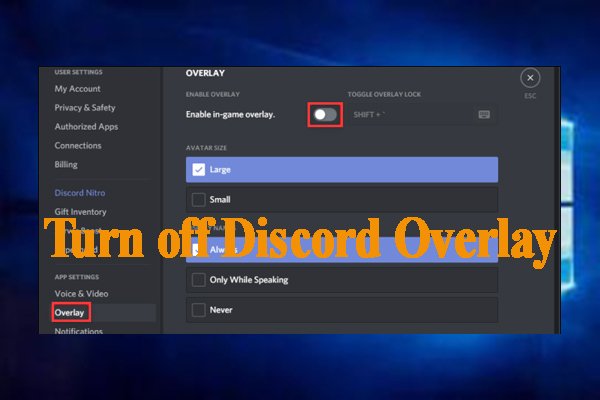
To turn off Discord overlay in game, navigate to Discord’s User Settings, select “Overlay,” and toggle the “Enable in-game overlay” option off.
Sometimes, that Discord overlay can be a bit much, popping up at the most inconvenient times during gameplay. It’s a common frustration for many gamers. The good news is, figuring out how to turn off discord overlay in game is actually quite simple. This short guide will quickly show you how to disable that overlay, giving you back focus on your game.

How to Turn Off Discord Overlay in Game
Discord is a super cool way to chat with friends while you’re playing your favorite video games. It lets you talk, share screens, and even see who else is playing. However, sometimes that little Discord overlay that pops up on your screen can get in the way. It might block important parts of the game, slow things down, or just be distracting. The good news is, you can totally turn off the Discord overlay, and it’s not hard at all. This article will show you exactly how to do it, step-by-step. We will explore all the different ways you can control the Discord in-game overlay settings so that your gaming experience is just how you want it.
Why Turn Off Discord Overlay?
Before we jump into how to disable the overlay, let’s look at why you might want to do it in the first place. There are several good reasons to consider turning off the in-game overlay:
Performance Issues: The overlay can sometimes use up your computer’s resources, especially on older computers. This can lead to lag, lower frame rates, and an overall less smooth gaming experience. If your game is getting choppy when the overlay is active, turning it off is a good idea.
Visual Obstruction: The overlay can sometimes cover up important parts of the game’s interface. This could be your health bar, mission objectives, or other critical information you need to see to play well. When the overlay is blocking your view, it’s definitely time to shut it off.
Distraction: Even if it’s not blocking anything vital, the overlay can just be distracting. The little notification pop-ups and the chat window can pull your focus away from the game. If you find yourself checking Discord instead of focusing on your game, turning it off can help you concentrate.
Specific Game Conflicts: Some games might not work well with the Discord overlay. It might cause crashes, freezes, or other weird glitches. If you’re having trouble running a game, disabling the overlay is a good troubleshooting step.
Personal Preference: Sometimes, you just don’t want the overlay. Maybe you prefer a cleaner game screen or you simply don’t need the extra features while playing. And that’s perfectly fine! It’s your game, so it’s your choice.
So, whether you are looking to increase performance, minimize distractions, or are simply facing a conflict with your game, learning to turn the Discord overlay off is a valuable skill for any gamer.
Turning Off Discord Overlay: The Step-by-Step Guide
Now, let’s dive into how to actually turn off that overlay. There are a few ways to do it, and we’ll cover them all. The primary method involves adjusting Discord’s in-app settings, which is the most common and straightforward solution. We will also explore how to disable it for specific games only, if that suits your needs better.
Using Discord In-App Settings to Disable Overlay Globally
This method turns off the overlay for all games. If you don’t want the overlay at all, this is the quickest way to handle it.
1. Open Discord: The very first step is to start up your Discord application.
Find the Discord icon on your computer (it looks like a white controller with a smiling face inside a blue circle) and click on it to open it.
2. Go to User Settings: Once Discord is open, look for the little gear icon near the bottom left of your screen. This is the “User Settings” button. Click on it.
3. Find Overlay Settings: In the User Settings menu, you’ll see a list on the left side of the screen. Scroll down until you see the “Game Overlay” option, usually under the “App Settings” section. Click on “Game Overlay.”
4. Disable the Overlay Toggle: You’ll see a big toggle switch labeled “Enable in-game overlay.” To turn off the overlay, simply click this switch so that it moves to the left and turns grey. This means the overlay is now disabled for all games.
You can see the difference:
When the switch is to the right and green, the overlay is ON.
When the switch is to the left and grey, the overlay is OFF.
5. Close Settings: Now, you can close the User Settings by clicking the “X” at the top right of the window or by simply clicking anywhere else within the Discord app. The change will take effect immediately.
From now on, whenever you start a game, the Discord overlay won’t appear.
Turning Off Overlay for Specific Games
What if you like the overlay for some games but not for others? You can turn off the overlay on a game-by-game basis. Here’s how to do that:
1. Open Discord: Just like before, you need to have the Discord app open.
2. Go to User Settings: Then, find that gear icon at the bottom left and click it to access “User Settings.”
3. Navigate to “Registered Games”: On the left-hand menu in your User Settings, look for and click on “Registered Games” or “Activity Settings” depending on which version of discord you are using. You’ll find this option right above “Game Overlay” which we visited previously.
4. Find Your Game: Here, you’ll see a list of all the games Discord has detected on your computer. Scroll through this list and find the game for which you wish to turn off the overlay.
5. Toggle Overlay Off: On the right of the game’s name, you’ll see a monitor icon with a red line through it (if overlay is currently off) or a blue monitor icon(if overlay is currently on). Click this icon to change the status of the overlay for this specific game.
If you see the monitor icon with a red line through it, the overlay is OFF for that game.
If you see the plain blue monitor icon, the overlay is ON for that game.
By clicking on this icon you will change the state of the overlay. If it was on, you will turn it off. If it was off, you will turn it on.
6. Repeat for Other Games: If you have more games where you want to turn the overlay off, just find them in the list and repeat the process above. You can mix and match which games have the overlay on and off exactly to your liking.
7. Close Settings: Once you’re done setting the overlay for the games you want, simply close the User Settings window. Your settings will be saved, and the changes will be applied immediately, the next time you launch those games.
Alternative Methods
Besides the main in-app methods, there are some other techniques you can use to manage your Discord overlay. These may be helpful in special cases.
Using Game Launch Options
Some games allow you to add custom launch options. This is often an advanced technique, but it might work in some cases to keep the Discord overlay from starting. The process varies from game to game, so it is not a universally reliable solution.
Here is an example of how to do this with games on Steam:
Open your Steam library.
Right click on the specific game that you want to stop the discord overlay.
Select “Properties”
In the window that appears, look for “Launch Options” in the “General” tab.
In the text field there, enter the parameter, which will look like this: –disable-overlay or something similar. (You may need to check online forums related to your game to find the right command)
Close the window and run your game.
However, note that this method depends on the specific game itself, so it might not work in all cases.
Using Task Manager (Windows)
If Discord’s overlay is being really stubborn, you can use the Windows Task Manager to manually shut down Discord’s overlay process. This should only be done if you have the specific technical knowledge and know-how. This method is temporary and should not be your go-to for turning off the overlay for the foreseeable future.
1. Open Task Manager: Press Ctrl + Shift + Esc to open the Task Manager.
2. Find Discord Processes: Look for any processes that have “Discord” or “Discord Overlay” in their name. These might be under the “Processes” tab or the “Details” tab, depending on how you have the Task Manager setup.
3. End Processes: Right-click on each of these Discord or Discord overlay processes and select “End Task.” This should close the process and therefore, close the overlay.
4. Restart Discord (Optional): This approach should be a temporary solution and not something that you should be relying on all the time. When restarting discord, the settings that you have chosen from the methods in previous sections will take precedence again.
This should be considered an option only in specific and troublesome situations, as it is not a normal way to turn off the Discord Overlay, and closing the processes using the task manager can lead to unexpected behavior or other errors in the application.
Troubleshooting Common Issues
Sometimes, even when you think you’ve turned off the overlay, it might still pop up. Here are some things you can check if you’re still seeing the overlay:
Restart Discord and the Game: Sometimes, the changes don’t take effect until you completely restart both Discord and the game. Try closing both and reopening them.
Check Your Settings Again: Make sure that you have correctly turned off the overlay in Discord settings. Review your steps, and double-check to make sure that the toggle is set to OFF for the games you want.
Run Discord as Administrator: Some games need Discord to run as administrator for it to be able to recognize the game in order to offer you the overlay. If you are having trouble controlling the overlay, try running Discord as administrator. Simply right-click the application icon and select “Run as administrator.”
Update Discord: Make sure you have the latest version of Discord installed. Outdated versions of the application can have bugs that can cause the overlay to not function properly.
Game Compatibility: Some games might not work perfectly with Discord’s overlay. Even if you turn off the overlay, it might still show up as a bug. Check the forums related to the specific game, to see if other people have had similar issues and if they found workarounds.
Conflicting Overlays: Other programs can also have overlays that might conflict with Discord’s overlay. If you’re having issues, try turning off overlays in other applications.
Summary of Discord Overlay Management Techniques
Let’s recap the different ways you can manage the Discord overlay:
Disable Globally:
Open Discord User Settings.
Navigate to “Game Overlay.”
Turn off “Enable in-game overlay.”
Disable for Specific Games:
Open Discord User Settings.
Go to “Registered Games” (or “Activity Settings”).
Click the monitor icon next to the game to toggle the overlay.
Alternative Methods:
Use Game Launch Options (specific games only) by adding parameters to the launch options in the launcher.
Use Task Manager (Windows only) to manually shut down Discord processes.
By using these methods, you have the power to control the Discord overlay in game, and improve your overall game experience based on your preferences.
Turning off the Discord overlay in game can greatly improve your gaming experience by boosting your game’s performance, minimizing distraction, avoiding visual obstruction, or simply making the gameplay suit your preferences. You can choose to turn the overlay off for every game by turning it off globally, or you can also choose which games should have the overlay by setting your preference for each game individually. By knowing all the options and troubleshooting tips, you can be ready to fix any problems you face, and get back to the game with your preferred settings. So go ahead and make the tweaks, and enjoy your games your way!
How To Turn Off Discord In Game Overlay – Quick and Easy
Final Thoughts
You can disable the Discord overlay quickly. Navigate to User Settings then select the Overlay tab. Toggle off the “Enable in-game overlay” option. This instantly turns it off for all games.
Alternatively, you can disable the overlay for specific games. Find them under the Registered Games tab, and toggle the overlay switch there. Both options achieve the main goal: how to turn off discord overlay in game. This action might improve your game performance by reducing system resource usage.

