
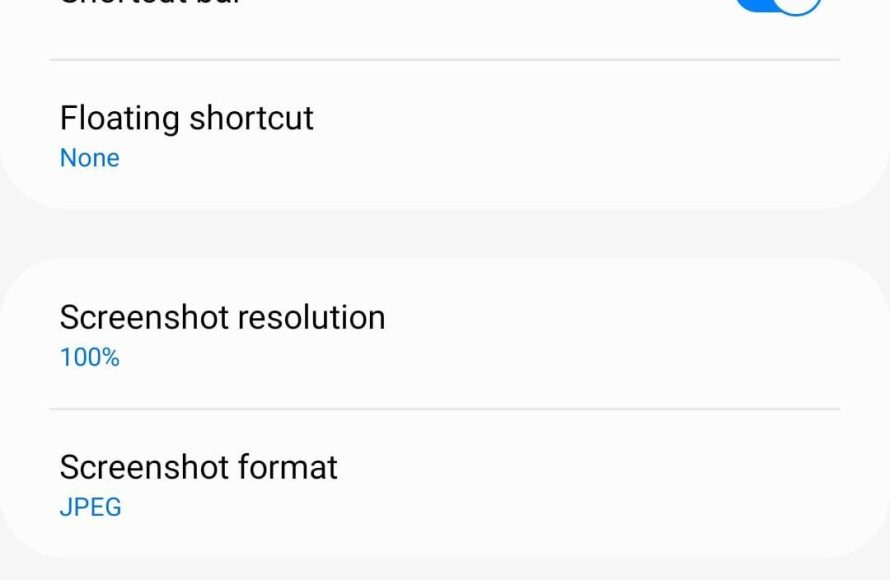
To turn off game booster, typically you navigate to your phone’s settings, find the ‘Game Booster’ or ‘Game Launcher’ section, and then toggle the feature off.
Have you ever felt that your gaming experience was being held back? Sometimes, that helpful ‘game booster’ feature can actually be more of a hindrance than a help. This might be due to conflicting settings or just a preference for the base performance of your phone.
If you find yourself in this situation and are wondering how to turn off game booster, you’ve come to the right place. We’ll guide you through the simple process, ensuring you regain full control over your device’s resources and performance during gameplay.

How to Turn Off Game Booster
Okay, so you’re ready to learn how to turn off that game booster, right? Maybe your games are running just fine without it, or perhaps you want to tweak some settings yourself. No problem! Game boosters are designed to help improve your gaming experience, but sometimes they can cause unexpected issues, or you simply might not need their help. Turning it off is usually quite simple, and we’re going to walk through all the ways you can do it. We’ll cover different types of game boosters, from the ones built into your phone to those you might have downloaded separately. Get ready to take control of your gaming!
Understanding Game Boosters
Before we jump into turning them off, let’s take a quick look at what game boosters actually do. Think of them as helpers for your games. They try to make your games run smoother by closing background apps, freeing up memory, and even tweaking your device’s settings. This can be helpful if you have an older phone or a lot of apps running. However, these changes aren’t always needed, especially on modern devices, and can sometimes interfere with how you want your device to run. There are two main types of game boosters you’ll encounter:
- Built-in Boosters: These are game boosters that come pre-installed on your phone by the company that made it. Many phone brands like Samsung, Xiaomi, ASUS ROG, and OnePlus have their own versions of these.
- Third-Party Boosters: These are apps you download from the app store that promise to boost your game performance. Some of them may be free, while others might ask you to pay.
Turning Off Built-in Game Boosters
Most of the time, built-in game boosters are integrated into your phone’s settings menu. The exact location of these settings might vary slightly between different phone brands, but the general idea is always the same. Here’s how to find and turn them off on some common brands:
Samsung Game Booster
Samsung devices have a feature called “Game Launcher” which includes game boosting capabilities. If you don’t use it, you may not realize it’s helping you in background. Here’s how to turn it off:
- Open the Settings app. You will find a gear-shaped icon on your phone’s app screen or in the notification panel.
- Scroll down to ‘Advanced Features’. This option might be under a different heading on some older devices.
- Find ‘Game Launcher’. Tap on it to open the Game Launcher settings.
- Toggle the switch. Look for a switch near ‘Game Launcher’ or ‘Game Booster’. If the switch is blue or green, tap on it to turn it grey and effectively turn off the function.
- Alternatively, look for game specific settings within Game Launcher. Here, you might find options to disable auto-boosting for all games or for individual game titles.
Xiaomi Game Turbo
Xiaomi phones use a feature called “Game Turbo” to boost gaming. Here’s how to disable it:
- Open the Settings app. It’s the same gear icon.
- Look for ‘Special features’ or a similar title. Sometimes it is under “Additional settings.”
- Select ‘Game Turbo’. Here you can control Game Turbo settings.
- Turn off the main Game Turbo toggle switch. This should disable Game Turbo across the whole phone.
- Look for specific app settings. You might also have options to disable Game Turbo for specific games in this menu.
OnePlus Game Mode
OnePlus phones use “Game mode” to manage gaming experience. Here is how to turn it off:
- Go to Settings. Open the settings application on your phone.
- Find ‘Utilities’. Tap on it, or you can also find it under ‘Gaming’ or other similar headings.
- Select ‘Game Mode’. You will see the game mode settings here.
- Turn off the main toggle. Tapping the switch turns it off.
ASUS ROG Phone Game Genie
ASUS ROG phones have a very robust system called Game Genie for boosting games, here is how to disable it.
- Open the Armoury Crate app. This app acts like a central hub for game management.
- Find the ‘Console’ tab. You can access many game related settings here.
- Locate and disable Game Genie. This option might be in console settings or in the game specific settings.
- Disable Game Genie on a per game basis. In game settings you can usually disable it for particular game you want.
Other Android Phones
For other Android phones, the process is similar. Look for a “Game Mode,” “Game Space,” or “Game Booster” setting in your phone’s Settings app. It might be located under sections like “Advanced Features,” “Utilities,” or “Special Features.” Once you find it, turn off the main toggle switch, or disable it in the individual app settings, as explained earlier.
Turning Off Third-Party Game Booster Apps
Third-party game booster apps can be a bit more varied, since they’re made by different developers. However, the principles for disabling them are quite similar. Here’s a breakdown:
Force Stopping the App
This is a quick way to stop the app from running in the background. This does not completely remove it, but it makes sure it’s not using your resources and boosting your game.
- Open your phone’s Settings app.
- Go to ‘Apps’ or ‘Application Manager’.
- Find your game booster app. Tap on it to open its app settings.
- Tap ‘Force Stop’. This will stop the app until you open it again.
Disabling the App in its Settings
Many booster apps have their own settings where you can disable the booster function. This is the more permanent way, compare to force stopping it.
- Open the booster app.
- Look for a settings icon. This usually looks like a gear or three dots.
- Find an option to turn off boosting. This could be labelled as ‘boost’, ‘optimization’, or ‘game mode’.
- Adjust other settings, if needed. Some apps might have options to disable auto-starting or notifications.
Uninstalling the App
If you don’t want the app at all, the best way to disable is completely removing it.
- Find the game booster app icon on your phone’s app screen.
- Press and hold on the app icon.
- Tap ‘Uninstall’. Confirm you want to remove it.
Why You Might Want to Turn Off Game Boosters
Now that you know how to turn off game boosters, let’s consider why you might want to do so. Here are some common reasons:
Improved Battery life
Game boosters run in the background to manage your device’s resources which might lead to increased battery consumption. Turning them off could extend the amount of time you can use your device without needing a recharge.
Unexpected issues
Sometimes, game boosters can interfere with other apps or even cause crashes or glitches. This can be especially frustrating, so turning them off can help identify if that is the issue.
Personal preference
You might simply prefer to manage your device settings yourself. Many modern phones are fast enough that they do not need the extra boost game boosters provide.
Resource management
A game booster usually tries to control your device’s resources like CPU, RAM, and data usage. In some cases, this could actually reduce performance for particular game. You can test this theory by turning off the game booster and observe the changes.
Not Needed
If your phone runs games smoothly already, you may not need the extra help. You can disable game boosters if you do not see any benefits.
Troubleshooting Tips
If you’re having trouble turning off a game booster, here are some tips:
- Restart your phone. Sometimes, a simple restart can help reset settings and allow you to disable the booster more easily.
- Look for app updates. Sometimes updating the game booster app to the latest version can fix bugs or make it easier to disable.
- Check for phone system updates. An outdated phone software can sometimes make it difficult to control certain features, including game booster options.
- Search online for specific instructions. There are many online resources and forums with solutions for disabling game boosters on your specific device and app.
- Consult device manual. Sometimes, your device manual has some information and instructions that can help.
In conclusion, knowing how to turn off game boosters gives you more control over how your phone handles games. It is not always necessary to leave these settings turned on, and sometimes they might actually create issues. By understanding how to disable them, you ensure you have the best possible gaming experience tailored to your own preferences.
How to disable Game booster in SAMSUNG. #viral
Final Thoughts
To stop game booster, navigate to your phone’s settings. Then, find the ‘apps’ section and locate the game booster app. Tap on the app and select ‘disable’ or ‘force stop’.
This action should effectively turn off game booster. Some devices may have a game booster toggle in the quick settings panel which you can use to turn it off as well. This covers how to turn off game booster.

