
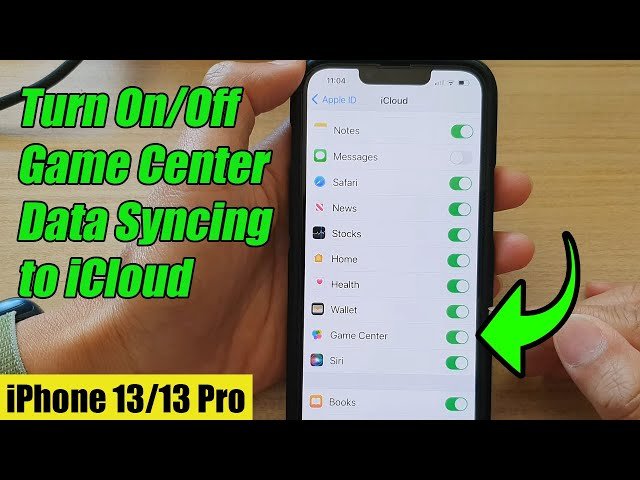
To turn off Game Center, navigate to your device’s Settings, find the ‘Game Center’ option, and then toggle the switch to the off position.
Tired of constant game notifications popping up? Maybe you want a bit of peace while focusing on other tasks. Many users wonder how to turn off Game Center, and thankfully, the process is quite simple. This guide will quickly show you exactly how to do it.
We’ll go through the steps to adjust your settings so that Game Center is no longer active. It’s a quick fix if you want to reduce gaming distractions, or if you just don’t use the service much.

How to Turn Off Game Center: A Complete Guide
Game Center can be a lot of fun, connecting you with friends and letting you compete in games. But sometimes, you might want to take a break from it. Maybe you’re tired of the notifications, or perhaps you just prefer playing games without all the social stuff. Whatever your reason, it’s totally understandable! Turning off Game Center is pretty easy, and this guide will show you exactly how to do it on your iPhone, iPad, and even your Mac.
Understanding Game Center and Its Features
Before we jump into turning it off, let’s quickly understand what Game Center actually does. It’s like a social network built just for gamers on Apple devices. Think of it as your gaming hub. Here’s what it allows you to do:
- Track Achievements: See what you’ve accomplished in different games, like getting to a certain level or winning a specific challenge.
- Compare Scores: Check how your scores compare to your friends and other players. You can see who’s the best at your favorite games.
- Play with Friends: Easily invite your friends to join you in multiplayer games.
- Discover New Games: Sometimes, Game Center will suggest new games based on what your friends are playing.
These features can be really engaging, but like any feature, they can become overwhelming at times, which is where our guide to turning it off comes in handy. Game Center uses your Apple ID to keep all your gaming progress and connections in one place. This way, you can switch between different Apple devices and keep your game info consistent. But, if you’d rather not use these features, you can easily disable Game Center.
Turning off Game Center on Your iPhone or iPad
The most common place people use Game Center is on their iPhone or iPad. If you’re ready to switch it off, here’s how to do it step by step:
Steps to Disable Game Center on iOS/iPadOS
- Open Settings: First, find the “Settings” app on your home screen. It looks like a gray gear icon.
- Scroll Down to Game Center: Once you are in the Settings app, scroll down until you see “Game Center.” It usually appears quite a bit lower in the list, close to other apps like “Music” and “TV.” Tap on it.
- Locate the Game Center Switch: Inside the Game Center settings, at the very top, you’ll see a green switch next to “Game Center”. This switch controls whether the service is active or not.
- Toggle the Switch to Off: Tap that green switch. It will turn gray, meaning Game Center is now turned off. This is all it takes to disable the main features!
By switching off Game Center, you will not receive further notifications related to gaming achievements, invitations, or friend suggestions. Your gaming progress will still be saved but not be shared, and you won’t be listed in leaderboards. It’s important to note that while you have disabled it, you can re-enable it anytime by simply toggling this switch back to green.
Additional Privacy Options within Game Center Settings
Even with Game Center turned off, there are other privacy settings you can look into if you still plan to use it sometimes but want more control. When Game Center is on, you can tweak the following options:
- Profile Privacy: You can set who can see your profile, your game progress, and your achievements. You might choose to allow only your friends or nobody at all. This option is listed as “Allow profile viewing.”
- Friends and Invites: Customize how you receive friend requests and invites to multiplayer games. For example, you could make it so that only people in your contacts can send friend requests. There’s an option for limiting what notifications you will get regarding friend requests or multiplayer game invitations.
- Nearby Players: If you don’t like your profile being discoverable by people who are physically close, you can turn off the “Nearby Players” feature. This will remove you from the lists of players in your area.
To access these privacy options, just navigate to the Game Center setting in the Settings app (the same way we did to turn it off) and you will find them located under the Game Center toggle switch.
Turning Off Game Center on Your Mac
Game Center isn’t just for iPhones and iPads; it’s also available on Macs. The process to turn it off is a little different than on iOS devices but equally straightforward. Here’s what you’ll need to do:
Steps to Disable Game Center on macOS
- Open System Settings: Start by clicking on the Apple logo at the top-left corner of your screen and then select “System Settings” (or “System Preferences” on older macOS versions).
- Locate Game Center: Once you are in the settings, scroll down the list of options until you find “Game Center”. It often sits within the list alongside other Apple-related service options. Click on it.
- Sign Out of Game Center: Now, on the Game Center panel, you won’t see an off switch exactly as you did on the iPhone or iPad. Instead, you’ll see the Apple ID that’s associated with it, and below that, a “Sign Out” button. To turn off Game Center completely, you must click on the “Sign Out” button.
- Confirm Sign Out: A pop-up window may ask you to confirm that you wish to sign out of Game Center. Click “Sign Out” again to confirm.
Once you have completed the process, the Game Center icon will disappear from the sidebar, and you’ll no longer receive Game Center related notifications. This action disconnects your Apple ID from the service on your Mac. To use Game Center again, you would just have to sign back in using the same steps you used to sign out; instead of “Sign Out” you would see “Sign In”.
Managing Individual Game Settings on Mac
Even if you’ve signed out of Game Center on your Mac, some games might have their own specific settings related to achievements and leaderboards. You’ll need to check these settings within individual games, if they exist, to ensure that no game data is being collected. Usually, you can locate these options in the game’s settings menu. It is typically found by clicking the “Settings” button or gear icon within the game itself. You’ll then have to look for a Game Center setting or a similar option. However, they often are dependent on your Game Center connection. So once you sign out of the Game Center, those settings may not be applicable anymore.
Specific Scenarios: Why You Might Want to Turn Off Game Center
There are many good reasons why someone might choose to disable Game Center. It all depends on your personal preferences and how you use your devices.
Privacy Concerns
If you are worried about how your gaming data is being used or who has access to your game profile, turning off Game Center might make you feel safer. With it off, your gaming data is not shared with others via the Game Center network.
Avoiding Distractions
Constant notifications about achievements, challenges, or friend requests can be distracting, especially if you’re trying to focus on work or school. Shutting off Game Center keeps those from popping up.
Preference for Single-Player Games
If you prefer playing games by yourself and don’t like any social interaction or leaderboards, then you probably won’t need Game Center active.
Conserving Battery
While Game Center is not a huge drain on battery, turning off unnecessary features can always help in prolonging the battery life of your device. Especially when you are not actively using any multiplayer games or need to stay connected to your social gaming network, it may be a way to conserve the power.
Troubleshooting
Sometimes Game Center might have bugs or issues that cause problems. If you’re experiencing these, turning off Game Center and then turning it back on can be a quick and easy way to potentially resolve the problem.
Re-enabling Game Center
Just because you’ve turned off Game Center doesn’t mean you can’t turn it back on when you want to use it again. The process of enabling it is as simple as disabling it. To enable Game Center on your iPhone or iPad, follow the same steps we used before to disable it, except now you will toggle the switch from grey to green. On your Mac, go to System Preferences/System Settings, select Game Center, and then choose the “Sign In” button and enter your Apple ID login information.
Summary of the Process
Let’s quickly recap how to turn off Game Center on each of your devices. On your iPhone or iPad, navigate to the settings, go to Game Center and toggle the switch to off. On Mac, open System Settings/System Preferences, choose Game Center, and select “Sign Out.” Then you won’t receive any notifications or connection to the social aspects of the Game Center services. Remember, you can re-enable Game Center whenever you like by simply following the same steps but choosing to turn it back on or sign back into your Apple ID within Game Center settings.
This guide covered all the basics of turning Game Center off on Apple devices. It also touched on why you may consider disabling Game Center and how to make it a conscious choice regarding your preferences.
How To Turn Off Game Center On iPhone (iOS 18)
Final Thoughts
To stop Game Center notifications and activity, you must go to your device’s settings. Find the “Game Center” option, usually within the main settings menu. Then, toggle the switch to the off position.
Disabling Game Center this way prevents the app from accessing your data. It will also halt its functionality across your Apple devices.
This process fully covers ‘how to turn off game center’. Now, you can enjoy your gaming experience without constant alerts.

