
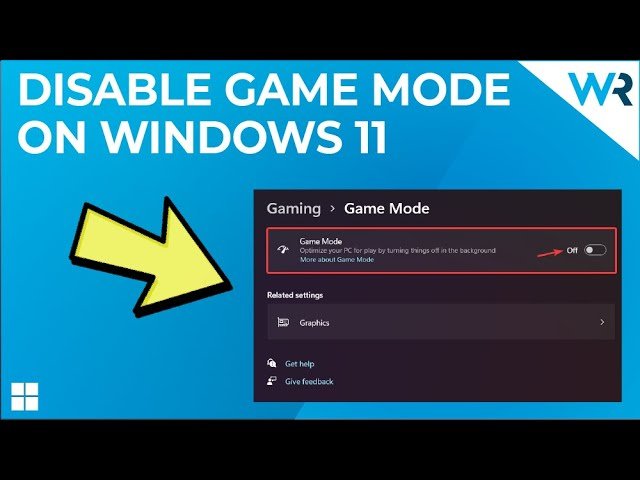
To turn off game mode, navigate to your device’s settings, find the ‘Gaming’ or ‘Game Mode’ section, and toggle the feature off.
Tired of game mode suddenly activating when you don’t need it? It can sometimes feel like it’s doing more harm than good. You’re not alone! Many people find it interferes with other apps or general device performance. Figuring out how to turn off game mode is actually quite simple.
We will guide you through the process on most common devices. So you can get back to using your device exactly the way you want. Let’s get started with the simple steps involved to disable this setting.

How to Turn Off Game Mode: A Detailed Guide
Game Mode, a feature designed to make your gaming experience smoother, isn’t always what you need. Sometimes, it can cause unexpected issues, or you might just prefer your system to run the way it normally does. Whether you’re on a Windows PC, a Mac, a console, or even your phone, turning off Game Mode is often a simple process, but the steps can be different depending on your device. Let’s dive into how you can disable this feature across various platforms.
Understanding Game Mode and Why You Might Turn It Off
Before we jump into how to turn it off, let’s quickly understand what Game Mode is and why you might want to switch it off. Game Mode is designed to prioritize your gaming experience. It does this in several ways. On PCs, it can limit background processes to free up resources for your game. On consoles, it might optimize the hardware for graphics performance. On smartphones, it can limit notifications and other interruptions during gaming sessions. While usually beneficial, sometimes these optimizations can conflict with other applications or even the game itself, leading to problems. For instance, some users have reported that Game Mode can sometimes lead to compatibility problems with certain software or even cause games to run worse rather than better. There are situations where you may want full access to your computer’s resources and features, outside of the gaming, so keeping game mode off in these circumstances is beneficial. You may also be working on graphics design and you would want the computer to run without the gaming feature affecting your experience.
Turning Off Game Mode on Windows 10 and 11
If you’re using a Windows PC, the steps to disable Game Mode are pretty straightforward, but they do vary slightly depending on whether you are using Windows 10 or Windows 11.
Turning off Game Mode on Windows 10
Here’s how to turn off game mode on Windows 10:
- Open the Settings App: Click on the Start button (the Windows logo in the bottom-left corner of your screen) and then click the gear icon to open Settings. You can also search for Settings in the Windows search bar.
- Go to Gaming: In the Settings window, find and click on the “Gaming” option. It should have an Xbox logo.
- Select Game Mode: On the left-hand side menu, click “Game Mode”.
- Toggle Game Mode Off: You will see a toggle switch under the “Game Mode” heading. Simply click the switch to turn it from the “On” position to the “Off” position. The switch will move to the left and the background color will change, typically to gray, confirming that game mode is disabled.
And there you have it! Game Mode is now disabled on your Windows 10 PC.
Turning off Game Mode on Windows 11
The process for Windows 11 is similar, but the interface is a bit different:
- Open the Settings App: Similar to Windows 10, click the Start button and then the gear icon, or search for “Settings” in the Windows search bar.
- Go to Gaming: In the Settings window, click on “Gaming” in the left-hand side menu.
- Select Game Mode: Now, on the right-hand side, click on “Game Mode”.
- Toggle Game Mode Off: You will see a toggle switch, usually next to the words “Game Mode”. Click the switch to the “Off” position. Again, the switch will move to the left and change color, confirming it is disabled.
After this quick change, Game Mode will be off on your Windows 11 computer.
Turning Off Game Mode on macOS
Game Mode on macOS is a bit different. It’s part of the system’s optimization features and often works automatically in the background. It’s not a setting that you can directly toggle on and off like on Windows. Instead, macOS manages resources dynamically. If you’re experiencing performance issues related to what you suspect is the “Game Mode”, the approach is slightly different. Since you cannot directly toggle the settings for Game Mode on MacOS, it’s mostly about disabling other features that might be affecting the performance and resources on your computer that the Game Mode utilizes.
Adjusting macOS Settings for Performance
Here are some steps you can take to try and achieve the effect of disabling game mode on your MacOS:
- Close Unnecessary Apps: Make sure that any application you are not using, is closed. Keeping applications open in the background can affect how a game performs.
- Turn Off Background Services: Check for any background services that may be running and turn them off. This is not the same as “Game Mode” but similar to the feature this will free up resources for your computer and potentially your games.
- Check Activity Monitor: Open Activity Monitor and see what process are running, if you find any processes that are using a lot of your CPU, Memory, or Disk, try to close these processes.
- Reduce Graphics Settings: Lowering graphic settings in the game itself can reduce the load on your system which may solve the issue.
While there’s no direct “Game Mode” toggle in macOS, these steps can help ensure your system is running smoothly for whatever application you want to use.
Turning Off Game Mode on Consoles
Game consoles like PlayStation and Xbox also have their versions of Game Mode, but they are often integrated into the system in a way that you don’t directly turn them off. The approach on consoles, like the MacOS, is a bit different compared to the Windows PC, where you can directly turn Game Mode off. The “game mode” feature in the consoles is usually tied to game optimization and the user experience.
Adjusting Game Mode Like Features on PlayStation
Here’s how to adjust performance settings that behave similar to game mode on your PlayStation:
- Settings: Go to the main settings menu of the PlayStation by clicking the gear icon.
- Screen and Video: Within the Settings, select “Screen and Video”.
- Video Output: Check the “Video Output” settings. In this section you can change display settings, including resolution and other settings. Adjusting these settings may improve your performance in game.
- Turn off HDR if needed: Sometimes turning HDR off can also improve performance for certain games. Try switching off HDR.
Adjusting Game Mode Like Features on Xbox
Here’s how to adjust the performance settings on your Xbox:
- Settings: Go to settings by pressing the Xbox button and going to settings.
- General: In settings, go to “General”.
- TV and Display Options: In “General” go to “TV and display options”.
- Adjust the Display: Here you can change the display settings. Change the resolution and make sure that the refresh rate is what you want. Experiment with different display settings to see which work best for you.
- Disable variable refresh rate(VRR): Turning off variable refresh rate may help with some performance issues on certain games.
Remember, like on macOS, you’re not directly turning off a “Game Mode,” but adjusting these settings should help you achieve a smoother experience.
Turning off Game Mode on Android Phones
Many Android phones have a Game Mode feature, often managed by the manufacturer (like Samsung, OnePlus, or Xiaomi). Here’s a general guide to how you might turn it off, but it may differ depending on your specific phone model and version of Android.
Disabling Game Mode on Android
Here are the most common ways to turn off game mode on Android phones:
- Open the Settings App: First, open the Settings app, usually found with a gear icon.
- Look for Gaming Options: In the Settings app, search for keywords like “Gaming,” “Game Mode,” or “Game Booster.” These may be located under “Advanced features,” “Utilities,” or a similar category.
- Toggle Game Mode Off: Once found, look for a toggle switch that turns game mode on and off. If the toggle is in the “on” or right position, slide it to the “off” position or to the left side. The switch should change color or the status should say it’s off.
- Disable Game Launcher: On some devices, Game Mode is managed by a separate app called Game Launcher. You may want to check this option to see if the game mode is enabled and can be disabled using the Game Launcher app.
If you have a specific brand or model, it might help to search online for the exact instructions.
Turning off Game Mode on iPhones
iPhones don’t have a dedicated “Game Mode” in the same way that other platforms do. However, iOS automatically optimizes for game performance in the background. Similar to the macOS and consoles, this means that you cannot directly toggle an on and off button for “Game Mode”. However, if you are experiencing performance issues when gaming, there are several things you can try to improve the performance:
Adjusting Performance Settings on iPhones
Here’s what you can do to try and improve performance:
- Close Unnecessary Apps: Swipe up from the bottom of your screen or double-press the home button to see open apps. Swipe up on any apps you’re not using to close them.
- Turn off Background App Refresh: Go to Settings > General > Background App Refresh and switch it off or select which applications you want to turn off from being active in the background.
- Reduce Graphics Settings: In your game’s settings, check for options to lower the graphics quality. This can help your phone run the game smoother.
- Turn off Low Power Mode: Low Power Mode reduces performance to save battery. If this mode is on while you’re gaming, try turning it off to see if there is an improvement in performance. You can turn this mode off in the Control Center or in the settings menu under “Battery”.
By doing these steps, you can often improve your gaming performance and get something very close to turning off a ‘game mode’ even though there is no toggle.
Troubleshooting Issues After Turning Off Game Mode
After turning off Game Mode, you might encounter some unexpected issues, or you may just want to ensure that everything is running smoothly. Here’s how to troubleshoot some common problems.
PC Troubleshooting
- Performance Issues: If you notice your games are running worse, make sure your drivers are up to date, and that there is no other process that is taking up your computer’s resources.
- Compatibility Problems: If you’re still having compatibility problems with an application, make sure that all applications and your computer’s operating system is up to date.
- Restart: If you are still having issues, a simple restart of your computer may solve it.
Mobile Troubleshooting
- Lag and Performance: If you’re still experiencing lag, check other settings like background processes or if you are in low power mode.
- App Issues: If an app is still not running properly, check to see if there is a new version of the app that needs updating.
- Restart: Similar to the PC, try restarting your device to see if the issue is resolved.
Console Troubleshooting
- Game Performance: If the game isn’t running well, try adjusting the display settings as discussed above.
- System Updates: Make sure that your console’s software is updated to the newest version.
- Restart: If there are still issues, try restarting your console.
By taking some time to check and troubleshoot, you can usually resolve any issues related to turning off Game Mode.
Turning off game mode is usually a simple process, but the exact steps vary from platform to platform. Understanding how to turn off Game Mode on your device, and knowing how to troubleshoot any potential issues, is crucial to ensure the best experience for your applications and games. Remember, Game Mode is designed to improve gaming, but sometimes turning it off is the better option.
How To Turn Off Game Mode on iOS 18
Final Thoughts
To disable game mode, navigate to your device’s settings. Find the gaming or system section. A toggle switch, often labeled game mode, controls the feature. Simply flip the switch to the off position.
This action will deactivate the optimized settings for gaming. You now know exactly how to turn off game mode. Remember to repeat these steps anytime you wish to disable the feature.

