
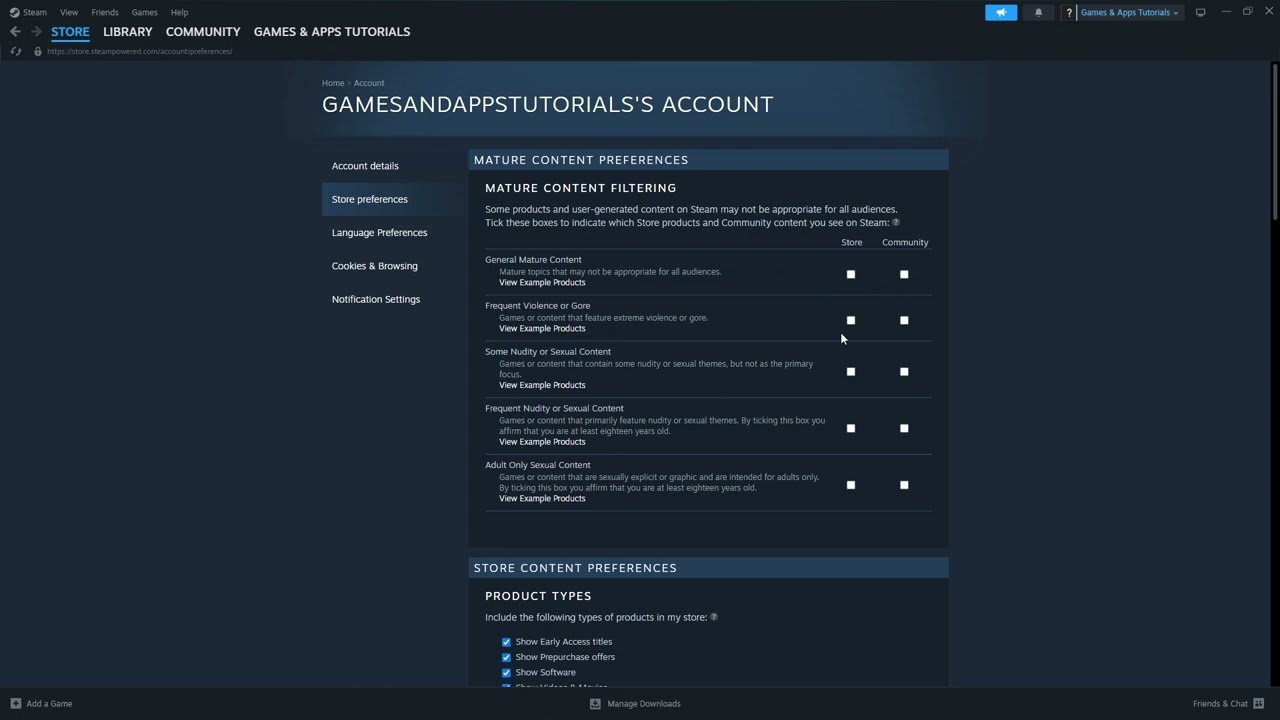
To turn off NSFW games on Steam, navigate to your account preferences, select ‘Content Preferences’, and then filter out mature content by unchecking the relevant boxes.
Want to control what you see on Steam? It’s easy to filter out content you’d rather not encounter. Many users want to learn how to turn off nsfw games on steam for a variety of reasons, and the platform allows you to do just that with a few clicks.
Steam provides parental controls, giving you the power to tailor your experience. This ensures the games displayed are suitable for your preferences.

How to Turn Off NSFW Games on Steam
Steam is an awesome place to play all sorts of video games. But sometimes, you might see games that aren’t really meant for everyone, especially kids. These are often called “NSFW” games, which stands for “Not Safe For Work.” This just means they have content that’s not suitable for younger audiences or when you’re around other people. Luckily, Steam has ways for you to hide or filter out these games, so you only see the kind of games you want.
Understanding Steam’s Content Filtering System
Steam doesn’t just randomly show you everything. It uses a smart system to help you control what you see. This system uses tags and filters. Think of tags as labels that tell you what a game is like, such as “action,” “adventure,” or even “mature content.” Filters let you decide what kind of tags you want to see and which ones you don’t.
What are Content Tags?
Content tags are like stickers that players put on games to describe them. When you’re looking at a game on Steam, you’ll often see these tags underneath the game’s title. They can say things like:
- Violence
- Gore
- Sexual Content
- Nudity
- Intense Themes
- Partial Nudity
These tags help both players and Steam understand what kind of content the game contains. Steam then uses these tags to help you hide games you don’t want to see.
How Filters Work
Filters use the information from those tags to decide what games appear on your Steam pages. You can change your filter settings in your account settings. By changing these settings, you control what Steam shows you when you browse the store, your discovery queue, or any other place games appear on Steam.
Step-by-Step Guide: Changing Your Content Preferences
Now, let’s look at how to actually turn off NSFW games. It’s a simple process once you know where to go! There are several ways to filter or block the content on your Steam account. You can do it by:
- Changing your Store preferences.
- Using the Mature Content setting.
- Filtering at the community hub.
- Using the Account Settings.
Let’s look at each step-by-step procedure.
Changing Your Store Preferences
This is the easiest way to get started. These settings control what you see when you browse the Steam store. Here’s how to do it:
- Open the Steam app on your computer or go to the Steam website.
- Click on “Store” at the top.
- Look for the “Your Store Preferences” link near the top-right of the page. (It might also say “Preferences”)
- On the Store Preferences page, you’ll see different sections. The one you want is called “Content You’d Rather Not See”.
- You’ll see checkboxes for “Games with Adult Themes,” “Games with Frequent Violence or Gore” and “Games with Explicit Sexual Content”. Check the boxes next to the kinds of content you want to avoid.
- Click the “Save” button at the bottom of the page.
After you save these settings, Steam will stop showing you games that match the content you’ve selected. Keep in mind that this will affect only games that are displayed in the store pages.
Using the Mature Content Setting
Steam has another setting designed especially for hiding mature content. This is slightly different than just your store preferences. Here’s how to change it:
- Click on your profile name at the top of the Steam client.
- From the drop-down menu, select “Account Details”.
- Look for “Preferences” near the top of the page.
- Click on “View Preferences”.
- In the “Content Preferences” section, you’ll see a list of checkboxes. You will see categories like “Sexual Content,” “Violence or Gore,” and “Non-Consensual Sexual Content.”
- Check the boxes next to categories that you want to hide.
- Scroll to the bottom and click the “Save” button.
This Mature Content setting is more thorough and works across the Steam platform, including community pages and game hubs.
Filtering at the Community Hub
Every game on Steam has a community hub, a place for players to discuss the game, share images, and more. Sometimes, the content posted in these hubs can also be NSFW. Steam allows you to filter this kind of content as well. Here’s how:
- Go to any game page that has a community hub.
- Click on the “Community Hub” tab in the game page.
- On the right-hand side of the hub page, you’ll see a section called “Settings”.
- Click on the “General” tab, where you will see the Mature content filter.
- Activate/Enable the “filter Mature Content” setting.
Enabling this filter will hide images, discussions, or any other content marked as mature.
Using Account Settings
The most comprehensive way to filter content is through the main Account Settings. Here, you can fine-tune everything. This is also where you can create exceptions, so you see certain games if you choose:
- Go to your Steam profile by clicking on your name at the top right of the Steam client.
- Select “Account Details”.
- Look for “Preferences,” then click on it.
- Scroll down to “Content Preferences”. Here, you’ll see a large list of content types.
- Check the boxes for all the categories you want to hide, such as “Sexual Content,” “Nudity,” “Violent Content,” etc.
- If you’re using “Account Details” for the first time, Steam might ask you to verify your identity using your phone or Email.
- Scroll to the bottom and click “Save”.
This method filters content from your store pages, community pages, game hubs, and all other areas of Steam. The changes here are the most thorough.
Additional Tips for Safer Browsing
Filtering is a great way to avoid seeing NSFW content, but here are a few other things you can do to make your Steam experience even safer:
Be Careful with Age Verification
Sometimes, when a game is very mature, Steam might ask you to confirm your age before you can view it. When you see a prompt asking for your date of birth, think before you type in your actual age. If you are younger, make sure that you are following the guidelines that your parents have made.
Use Steam’s Parental Controls
Steam has a special feature called “Steam Family View.” If you have kids or younger siblings, you can use this mode to further restrict access to games and community content. Parental controls will give you more flexibility and control over what the person who’s using Steam is allowed to view. To set up parental controls:
- Go to the Steam client and click on “Steam” at the top left.
- Select “Settings”
- Click on “Family”.
- Click on “Manage Family view”.
- You will be asked to create a PIN. After you do so, Steam will ask what features you want to include in the family view.
- You can select the options that fit your needs. You can restrict the store, library, community content and much more.
- After you select everything, hit “Next” and you will get a confirmation window. Click “Next” and “Finish” to enable the mode.
With Steam Family View active, you will need to use a specific PIN code to be able to access features you have restricted. This is very helpful for parents who want to ensure that their kids are only viewing appropriate content.
Regularly Check Your Settings
Steam’s interface can change over time, and so can its features. Every now and then, it’s a good idea to check your Content Preferences again. Make sure the settings are still what you want them to be.
Talk to a Grown-Up
If you see something on Steam that makes you uncomfortable or that you don’t understand, don’t be afraid to talk to a trusted adult about it. They can help you understand and find ways to block content that isn’t right for you.
Why Filtering is Important
Filtering NSFW games on Steam is not just about avoiding bad content. It’s about creating a positive and enjoyable gaming experience for everyone. Here are a few reasons why it’s so important:
For Younger Players
Kids and younger players need to be protected from mature content that could be confusing, scary, or just inappropriate. Filtering ensures that they only see games that are suitable for their age group.
For a More Comfortable Experience
Even for adults, not everyone wants to see certain kinds of content. Filtering allows you to customize Steam so you are only seeing games and materials that you enjoy.
For Safe Browsing
By filtering out mature games, you reduce the chance of accidentally stumbling upon something that might be disturbing or offensive. The filters help to have a safer browsing experience and ensures that Steam is a place you want to return to.
For Family Use
In families where different people use the same Steam account, filtering ensures that everyone has an experience that fits their preferences. It allows a lot of flexibility and adaptability.
Turning off NSFW content on Steam is a very good way to make sure that you and your family enjoy video games safely and comfortably. With these simple settings and tips, you have all the tools you need to keep your Steam experience friendly and fun.
How To Manage Mature Content Settings on Your Account on Steam 2025
Final Thoughts
To disable mature content, navigate to your Steam account preferences. Then, find the “Content Preferences” section. You will see a list of content restrictions there.
You can check the box to restrict adult games. This action will hide them from your store view. This is how to turn off nsfw games on steam. Remember to save your changes.
With these steps, your browsing experience is now adjusted. Enjoy a safer and preferred experience.

