
To stop seeing a Steam friend’s game activity, navigate to your friend’s list, right-click on their name, and select “Hide Game Activity.”
Ever get a little distracted by the constant updates of what your Steam friends are playing? It can be difficult to focus sometimes when you see your friends always playing, especially when you are trying to work. You might be asking, “how to turn off steam friend playing game,” and thankfully, it’s a straightforward process. We will guide you through the simple steps to keep your friend’s game activity from popping up in your feed.

How to Turn Off Steam Friend Playing Game Notifications
It can be really fun to see what your friends are playing on Steam. But sometimes, those little pop-up notifications can get a little… distracting. Maybe you’re trying to focus on your own game, watch a movie, or just get some peace and quiet. Whatever the reason, knowing how to manage those “friend playing game” messages is super helpful. This guide will show you all the ways you can quiet those notifications and play in peace! We will explore several different methods to help you turn off the notification when your steam friend start playing the game. Let’s get started!
Understanding Steam Notifications
Before we dive into the “how-to,” let’s understand a bit more about Steam notifications. Think of them like little announcements Steam sends you about what’s happening with your friends. These can be friend requests, messages, or, what we are focusing on today, game activity. By default, Steam sends a notification each time one of your friends starts playing a game. While this is helpful if you want to join them in game, or chat about it, it can become overwhelming if you have many friends or you’re simply not in a gaming mood. Steam gives you the ability to customize what notifications you receive. Knowing about these different options will empower you to choose the perfect balance for your gaming experience.
Method 1: Adjusting Steam Notification Settings
This method provides the most control over all your Steam notifications. You can choose exactly what you see and what you don’t see, from all your friends.
How to Access Steam Notification Settings
1. Open Steam: First, you need to launch the Steam application on your computer.
2. Go to Settings: Look at the top left of your Steam window and find the word “Steam”. Click on it. A drop-down menu will appear. Select “Settings” from this menu. It’s usually near the top.
3. Navigate to Notifications: In the new window that appears, you will see a list of options on the left side. Click on the word “Notifications”.
4. Find “Friends Playing Games”: You’ll see a list of different types of notifications. Look for the option that says something like “A friend is now playing a game” or “Friend Started Game”.
5. Uncheck the Box: Next to that option, you’ll find a check box. To turn the notifications off, simply click on the check box. Make sure the check mark disappears.
6. Click OK: Once you have unchecked the box, click the “OK” button at the bottom to save your changes.
What happens after turning it off
After turning off this particular notification, you won’t receive those pop-ups whenever your friends start playing a game. This helps you avoid distractions and keeps your Steam experience calm and focused. Remember that this will turn off all friend-playing-game notifications, not just for one particular friend. If you decide you want the notifications back, simply go back to these settings and check the box again.
Method 2: Changing Notification Settings In-Game
Sometimes, you might be playing a game, and those notifications appear right in the middle of your screen. Steam allows you to adjust settings within the game overlay as well.
How to access the In-Game overlay settings
1. Start a Game: Launch any game on Steam.
2. Open the Overlay: Once the game is running, press Shift + Tab on your keyboard. This will bring up the Steam overlay.
3. Look for Settings: At the bottom of the overlay screen, you should see a little gear icon for “Settings.” Click on this.
4. Go to Notifications Tab: Just like in regular Steam settings, look for a ‘Notifications’ section. It might be a tab at the top, or a menu item on the side.
5. Turn Off Game Launch Notifications: Find the option to disable “Friend is now playing a game” or a similar notification. Uncheck the relevant box and close settings.
Benefits of using in-game setting
This method is very useful because you can make changes without leaving your game. The in-game overlay settings provide a quick and easy way to manage notifications without minimizing your game. It is especially helpful if you don’t want to be interrupted while playing, and gives you a convenient method to adjust notification.
Method 3: Adjusting Notification Settings Per Friend
If you want to get notifications from most of your friends but want to silence a certain few, you can set those options individually. This offers more precise control over who will trigger notifications and who will not.
Steps to Adjust Per Friend Notifications
1. Open Your Friend List: Click on “Friends & Chat” at the bottom of the main Steam window.
2. Find the Friend: In your friends list, locate the specific friend you want to change notifications for.
3. Right-Click: Right-click on the friend’s name.
4. Choose Notification Options: A menu will appear. Look for an option that says something like “Manage” or “Notifications”. Hover your mouse over this option, and another menu will pop out.
5. Toggle “Friend Playing Game”: You’ll see a specific option to disable notifications for game launches from this particular friend. Uncheck that setting.
Advantages of Per Friend Setting
This method is perfect if you only want to suppress the notifications from a few friends who play frequently. Maybe you want to know when your closest friends are online but not everyone else. The option gives a lot of granular control and offers a personalized approach to your notification. This specific setting is helpful for keeping your social gaming experience enjoyable without being overly distracting. It is particularly useful when you want to stay updated on your favorite gaming buddies.
Method 4: Using “Do Not Disturb” Mode
Steam also has a mode called “Do Not Disturb” (DND). When enabled, it silences all notifications, including friend game launches. This is the easiest and most instant way of stopping all notifications.
How to Enable “Do Not Disturb”
1. Open Your Friends List: Just like with the per-friend notification setting, click on “Friends & Chat” at the bottom of the Steam window.
2. Find Your Profile Name: At the top of the Friends & Chat window, you’ll see your name.
3. Click the Arrow: To the right of your name, there is a downward pointing arrow. Click it.
4. Select “Do Not Disturb”: From the menu that appears, select the “Do Not Disturb” option.
What “Do Not Disturb” Mode Does
When DND is enabled, Steam will not show you any pop-up notifications. This is a simple way to mute everything without making any permanent settings changes. DND is especially useful when you need total focus, like when playing competitive games, or trying to get some work done on your computer. Just remember that it will suppress all alerts, so you might miss other important messages as well. This is a good option if you need a quick and easy solution for temporary silence. Don’t forget to disable it once you are done.
Method 5: Using Steam Mobile App Settings
If you use Steam on your phone or tablet through the Steam Mobile app, you can manage those notifications separately. It is very beneficial if you also use your phone for playing games, and don’t want the notifications on the phone screen.
Adjusting Mobile Notifications
1. Open the Steam Mobile App: Launch the Steam app on your mobile device.
2. Go to Menu: Look for a menu button, usually located in the top left corner of the app. Tap on it.
3. Select Settings: From the menu, find the “Settings” option and tap it.
4. Find “Notifications”: Within the settings, locate the “Notifications” section.
5. Find “Friend is now playing”: In the notification settings, you’ll likely see different categories of notifications. Find the option related to friend game launches and change its settings as preferred.
6. Toggle the Setting: You will be able to switch the setting to off, so you will stop getting notification about friends.
Benefits of Mobile Setting
Managing notifications via the Steam mobile app is great for when you are away from your computer but still want to control what notifications you receive. You have separate control over notifications on your phone, allowing you to manage which notifications are received on which device. This lets you be informed on your PC, but silent on your phone.
Method 6: Disabling Steam Overlay
While the overlay is very useful, it can also be the source of some of the notifications. If you are fine with not having the overlay in game, disabling it will also stop some notifications.
How to Disable Steam Overlay
1. Open Steam: Launch the Steam application on your computer.
2. Go to Settings: At the top left of your Steam window, find and click the word “Steam”. Select “Settings” from the dropdown menu.
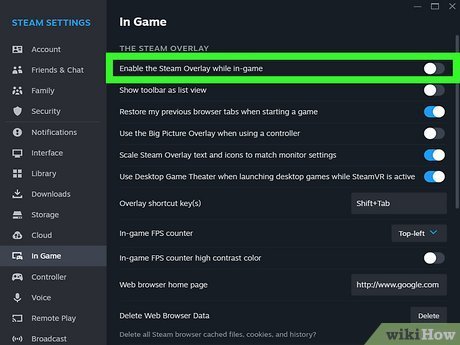
3. Navigate to “In-Game” Tab: On the left-hand side of the settings window, click “In-Game”.
4. Uncheck the “Enable Steam Overlay while in-game” box: Find the option that says “Enable the Steam Overlay while in-game.” Click the box next to it to remove the check mark.
5. Click OK: Once you’ve made the change, click the “OK” button at the bottom to save your setting.
Implications of Disabling Overlay
By disabling the Steam overlay, you not only stop notifications from appearing in game, but you also prevent other overlay features like the in-game browser from working. If you don’t use these features frequently, disabling the overlay might be a simple way to reduce distractions. Note that doing so might hinder some games that rely on the overlay to work properly. So you should only use this method if you are comfortable with losing the overlay functionality.
Choosing the Right Method For You
Now that you know the different methods to turn off “friend playing game” notifications, here is a brief recap and when to use each method:
Adjusting Global Settings: Good for completely turning off game launch notifications for everyone.
In-Game Overlay Setting: Very convenient when you are in game and want to make quick notification changes.
Per-Friend Settings: Useful if you only want to silence some friends.
Do Not Disturb Mode: Perfect when you want to silence all notifications quickly.
Mobile App Settings: Great for controlling notifications when you’re on your phone.
Disabling Steam Overlay: Useful if you want to disable all overlay features and associated notifications.
You should choose the method that suits your specific needs and how you want your Steam gaming experience to be. You may even choose to use multiple methods, to give you ultimate control over how Steam notifies you.
Knowing how to turn off these notifications can really improve your gaming experience by minimizing disruptions. Whether you prefer quiet gaming or you just need a focused environment, having control over what notifications you see is valuable. Using the methods described, you can customize the notification settings on Steam so that they do not interrupt your gaming, and make your gaming experience enjoyable. So take the time to explore the different options that work best for your style of gaming, and enjoy your games in peace!
STEAM: How To Turn off Friend playing game notification – How to turn off friend is now playing
Final Thoughts
To quickly stop seeing your friend’s game activity, adjust your Steam notification settings. Go to settings then choose “notifications”. Next, find the option to hide “when a friend starts playing a game”.
You can also manage individual friend notifications. Right-click on their name and select “manage.” Then disable the “game activity” option to stop the alerts. This easily controls how to turn off steam friend playing game.

