
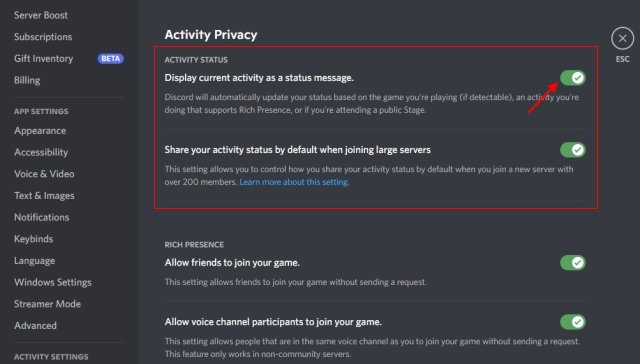
To turn off what game you’re playing on Discord, go to User Settings, then Activity Privacy, and disable “Display current activity as a status message”.
Have you ever wanted to keep your gaming sessions private on Discord? Sometimes, you might just prefer to game without your friends knowing exactly what you’re up to. This article will guide you on how to turn off what game you’re playing on Discord. It’s simpler than you might think and provides control over your online presence.
We will show you the steps to make your game activity hidden. This helps maintain your privacy and avoid unwanted interruptions. Follow along to learn how.

How to Turn Off What Game You’re Playing on Discord
Have you ever been in a Discord server and noticed that everyone can see what game you’re playing? It’s a cool feature, letting your friends know what you’re up to. But sometimes, you might want a little privacy. Maybe you’re playing a game you’re not ready to share, or perhaps you just want to keep your gaming activity to yourself. Luckily, Discord gives you easy ways to hide your gaming status. In this article, we’ll guide you through all the steps on how to turn off the “what game you’re playing” display on Discord so you can game in peace, whether on your computer or your phone.
Why Hide Your Game Activity?
Before we jump into the how-to, let’s talk about why you might want to hide your game status on Discord. There are a few good reasons. Maybe you:
- Want to keep your gaming sessions private from others in your server.
- Are testing out a new game and don’t want to announce it yet.
- Are playing a game you’d rather keep private.
- Simply want to have a little bit more control over your online presence.
Whatever your reason, hiding your game activity is a straightforward process that can provide some nice added privacy.
Turning Off Game Activity on Discord Desktop
The desktop version of Discord is where many people play games. Hiding your game activity here is simple. Here’s how you do it:
Step 1: Open Discord Settings
First, you need to open your Discord settings. Look for the little gear icon () at the bottom-left of the Discord window, next to your username. Click on it. This takes you to your User Settings.
Step 2: Navigate to Activity Privacy
Now, in the left-hand menu, find the “Activity Privacy” tab and click on it. It’s usually under the “App Settings” section. This is where you control how Discord displays information about your activities.
Step 3: Toggle off Display Current Activity as Status Message
On the right side, you’ll see an option labeled “Display current activity as a status message.” This is the setting that controls whether or not Discord shows which game you’re playing. To hide your game, simply click the toggle switch next to it to turn it off. When it’s grey, your game activity is hidden. When it’s green, your game activity is visible.
Step 4: Verify the Change
To make sure that this works, you can go back to any server where you are present. You should no longer see the game you are playing listed under your username. Now, you can play your favorite game in secret, without everyone in your server knowing!
This method hides your game activity from all Discord servers and friends. It’s a quick way to get your desired privacy.
Turning Off Registered Game Activity on Discord Desktop
Sometimes, Discord also shows “registered” games, these are games that Discord recognizes even if it is not automatically detecting your play. If you want to remove these too, follow these steps:
Step 1: Open Discord Settings Again
Just like before, click on the gear icon next to your username to open your User Settings.
Step 2: Navigate to Registered Games
This time, you’ll need to find the “Registered Games” tab in the left-hand menu. It’s usually located a little above Activity Privacy tab.
Step 3: Remove Games from the List
Here you will see a list of games that Discord has registered to your profile. These games are listed with a checkmark next to them. To remove these, click the small “X” next to each game that you do not want to display. By doing this, Discord will no longer detect these games. Now you have successfully managed your visibility when playing games.
Step 4: Test the Changes
After removing the games from the list, you can check if the games are not being detected and are not being displayed under your name while playing.
By completing these steps, you’ll ensure that no game activity appears on your profile.
Turning Off Game Activity on Discord Mobile App (Android and iOS)
Hiding game activity is also very simple on Discord’s mobile app. The steps are similar to the desktop version.
Step 1: Open the Discord App and Your Profile
Open the Discord app on your Android or iOS device. Tap your profile picture in the bottom-right corner. This will bring up your profile settings.
Step 2: Find Activity Privacy Settings
Scroll down in your profile settings until you see “Activity Privacy”. Tap on this option to enter the activity privacy page.
Step 3: Turn Off Display Current Activity as a Status Message
You’ll see a toggle switch labeled “Display current activity as a status message.” Tap this switch to turn it off. When the switch is grey, your game activity is hidden. When it’s blue or green, depending on your operating system theme, it is visible. You’re good to go!
Understanding Discord Status Indicators
Discord uses different indicators to show your current activity. These can be a little confusing, so let’s break them down:
- Playing: This is the most common status. It means that Discord has detected that you’re currently in a game, and it shows that game’s name under your username.
- Listening To: Discord shows this when you’re listening to music using a connected service, such as Spotify.
- Streaming: If you’re streaming a game using Discord, this will show as your current activity.
- Custom Status: You can set a custom status message. This will appear below your username, no matter what game you might be playing.
When you turn off the “Display current activity as a status message” setting, all your game-related statuses will be hidden. However, other statuses, like “Listening To” or a custom status, will still be visible if you have them active.
Specific Scenarios and How to Handle Them
Let’s look at some specific situations you might encounter and how to deal with them.
Scenario 1: Specific Games Always Displaying
If you find a game is always displaying even when the main switch is off, you’ll want to make use of the Registered Games section. Navigate to this section as explained earlier, and remove that specific game from the list. This will stop Discord from automatically detecting and displaying that game.
Scenario 2: Discord Detecting Wrong Games
Sometimes, Discord might detect the wrong application as a game. This can happen if an application uses similar processes to games. To fix this, you can manually turn off displaying your activity as described above, or remove any application mistakenly marked as a game in the registered game area.
Scenario 3: Temporary Hide for Specific Servers
Discord does not offer an option to hide your game activity only on specific servers. When you turn off “Display current activity as a status message,” it applies to all servers and your friend list. If you need to be selective, the best approach is to hide your activity completely and manually set a custom status that you’re offline for a specific server as needed. This can be a little more effort but will help you manage your presence.
Other Privacy Tips for Discord
While hiding your game activity is a great way to increase your privacy, there are a few other privacy settings you can adjust in Discord.
- Direct Messages: You can control who can send you direct messages. In the “Privacy & Safety” settings, you can set whether you allow direct messages from everyone, friends of friends, or only friends.
- Server Privacy: When joining new servers, be mindful of what information you are sharing. Some servers can be public, while others require an invite.
- Connected Accounts: Check the “Connections” tab in User Settings to review which apps and services are connected to your Discord account.
These tips will ensure that you can customize your experience as much as possible.
Troubleshooting Common Issues
Sometimes, you might encounter problems while trying to hide your game activity. Here are some common issues and how to solve them.
Issue 1: The Toggle Won’t Stay Off
If the “Display current activity as a status message” toggle keeps switching back to “on,” make sure you have clicked on it and it has switched to grey. You can also try restarting your Discord application, or even your device. Sometimes, small glitches can cause this issue.
Issue 2: Game Still Showing After Turning It Off
If you’ve turned off the main switch, and the game is still showing, navigate to “Registered Games” and remove the specific game from that list. This should stop it from appearing.
Issue 3: Game Not Being Detected at All
On the flip side, if you want a specific game to be shown, but Discord isn’t picking it up, try restarting both your game and Discord. If that doesn’t work, go to “Registered Games” and add your desired game to the list, so Discord can always detect your gameplay.
By checking these common issues, most people should have no problem controlling their visibility on Discord.
Hiding your game activity on Discord is a quick and simple process that gives you more control over your online presence. By going to your settings, you can easily turn off the “Display current activity as a status message” toggle and enjoy your gaming experience privately. Remember, keeping your online experience safe and enjoyable is always a great idea. With these steps, you have full control over what game is displayed, or not displayed, to your friends and server mates.
How To Hide Game Activity On Discord | Turn Off Game Activity Discord
Final Thoughts
You can quickly disable game activity display in Discord’s settings. Go to User Settings then select Activity Privacy. Toggle the “Display current activity as a status message” switch off. This immediately hides what game you are playing from others.
By toggling off that setting, you ensure your game is private. Following these steps allows complete control. Remember, how to turn off what game your playing on discord is simple and directly managed.

