
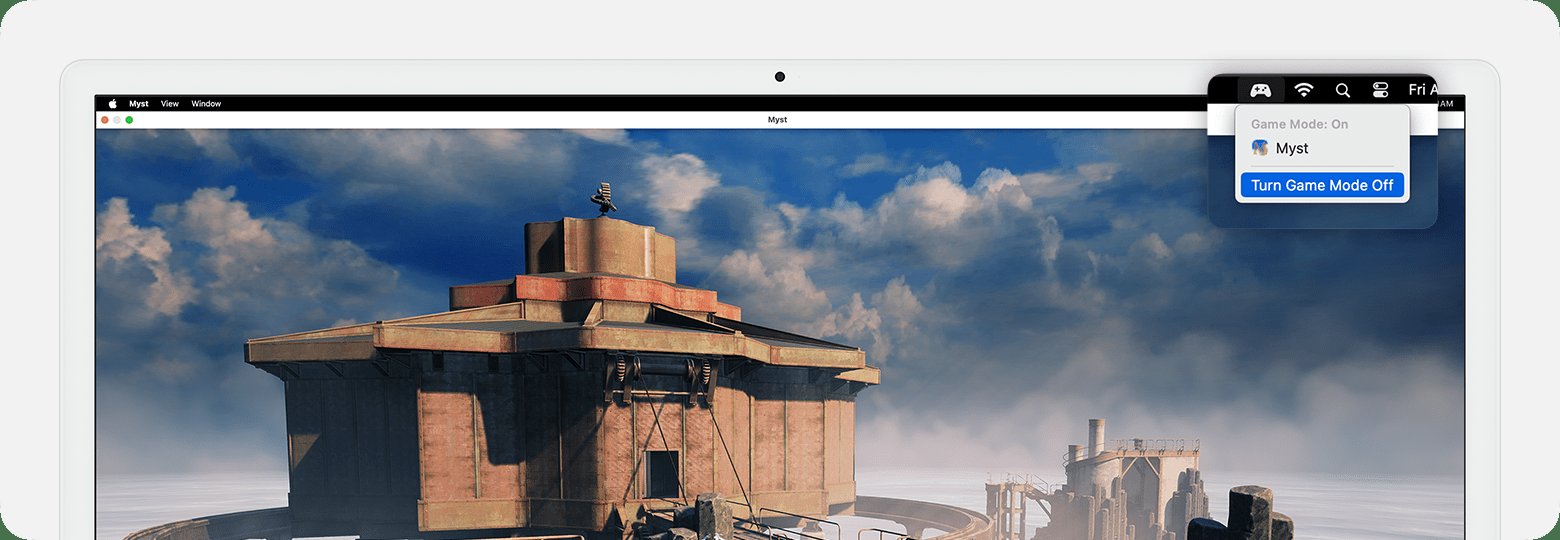
To turn on Game Mode on your Mac, activate it through the Game Mode settings within the Control Center when playing a supported game.
Want better gaming performance on your Mac? Many players want to know how to turn on game mode mac. It’s a useful feature that can prioritize your game, offering a smoother experience by reducing background tasks.
This setting helps ensure your games receive the needed resources, leading to improved frame rates and responsiveness. So, next time you’re ready to game, make sure it’s on.

How to Turn On Game Mode Mac
Alright, let’s talk about getting your Mac ready for some serious gaming! You might have heard about “Game Mode” on Macs, and you might be wondering how to use it. It’s a cool feature that helps your computer focus on your game, making it run smoother. Think of it like telling your Mac, “Hey, I’m playing a game now, so let’s make sure everything goes to that game!” But it is not an automatic option that switches on when you start a game. You have to turn it on for it to do its thing.
What is Game Mode on Mac?
Before we jump into the “how,” let’s understand what Game Mode actually does. When you turn on Game Mode, your Mac does a few important things to make your gaming experience better. It gives your game more of the computer’s power, making things run smoother and faster. It also tries to limit any background apps that might slow things down. This means your game gets more “attention” from your Mac. This feature is part of a larger system update from Apple, so it is a pretty new addition to the MacOS experience.
Key benefits of using game mode
- Improved Performance: Games run smoother with less lag or stuttering, providing a better playing experience. This is because the Mac is dedicating more of its processing power to the game.
- Reduced Background Activity: Game mode reduces background activity, meaning other programs are less likely to interfere with your gameplay.
- Consistent Frame Rates: By prioritizing the game, Game Mode helps maintain more consistent frame rates, which makes the game look better and more responsive.
Is Your Mac Compatible with Game Mode?
Not all Macs have Game Mode. It is a newer feature, so you need to make sure your Mac can use it. Generally, you need to be using MacOS Sonoma or later to access this feature.
Checking your MacOS Version:
Here’s how you can check to see if you have the right version:
- Click the Apple logo at the very top-left of your screen.
- Choose “About This Mac.”
- A window will pop up showing information about your Mac. Look for the “macOS” section, and it should tell you which version you have.
If it says “macOS Sonoma” or a newer version, you are good to go. If not, you may need to update your system. Be sure to back up your files first before updating the MacOS to avoid any issues with data loss.
How to Turn on Game Mode
Okay, now for the fun part – turning on Game Mode! It’s not hard, but it does require a bit of setup. Let’s go through the steps:
Using the Game Mode API
Here’s the crucial point: Game Mode is not a switch you toggle on in the Settings. It works differently. It is activated by the game you are playing. The game itself has to be built to communicate with the Mac’s Game Mode API (Application Programming Interface). Think of the API as a special language that the game and your Mac use to talk to each other. So, if you want to use game mode, you need to play games that are specifically designed to work with the game mode API.
How can you tell if a game supports Game Mode?
- Check the game’s page: Many game developers will tell you on the page of the game itself.
- Look for settings: Some games might have the option in their settings menus. You may have to look for it.
- Try the game: If you don’t see it in settings or in the game’s description, just try starting the game and see if Game Mode activates. This is often the best way to be sure.
Identifying When Game Mode is Active
So, once you start a game that uses the Game Mode API, how can you know if it’s working? Your Mac will show you a notification so you can be sure that Game Mode is working.
- Notification Banner: When the game first starts, you should see a small notification pop up in the top-right corner of your screen. This notification will tell you that Game Mode is now on.
- Menu Bar Icon: When Game Mode is active, you can also see it in the menu bar (the top bar of your screen). You might see a little gaming controller icon. You can click on the icon to see more details, such as game name, or if the game supports reduced motion.
- The game itself: You may also see the game take advantage of Game Mode. Look for smoother animations, or better visuals.
What if Game Mode Doesn’t Turn On?
Sometimes things don’t work perfectly the first time. If Game Mode is not turning on when you play a game, here are a few reasons why and some ideas about what to do:
Game Doesn’t Support Game Mode
Like we talked about earlier, not all games work with the Game Mode API. The most common reason is that the game is not made to use Game Mode.
- Check game documentation: If the game does not have any information or settings for game mode, it probably does not support it yet.
- Look for updates: Sometimes a game might get an update that makes it support Game Mode. Make sure you are running the latest version of the game.
- Contact developer support: if you are not sure if a game has game mode, then reach out to the developers and see if the game supports it.
MacOS Version Issues
Make sure that your Mac is running the proper version of MacOS, which is Sonoma or later. If not, the feature will not work.
Other Apps Interfering
It is also possible that another application on your computer could cause Game Mode to not work, or not work as well. If you are having an issue with Game Mode, then try closing all of your other applications and see if that fixes your problem.
Restart Your Computer
Sometimes, simply restarting your Mac can fix many issues. It can clear out any temporary problems and get your computer running more smoothly, including the Game Mode feature. Turn your computer completely off, then wait a moment and restart it. This can clear out temporary issues that may be interfering with the feature.
Game Mode Settings
Game Mode settings are pretty simple. There is not a big dedicated menu for it. You mostly manage Game Mode by controlling which games you use, or any settings within the game itself. Here are some options you will see.
Reduced Motion
Some games will give you an option to turn on “reduced motion”. This can be a big help if you get motion sickness while playing games with fast movement, or if the animation is too distracting. The game may make animations less intense when you enable this. This feature is found in the Game Mode settings accessible from the menu bar, or in the game’s settings menu.
Game Controllers
Game Mode can also help with controllers. If you use a controller, Game Mode is designed to make the input from the controller more responsive. Game Mode makes sure the controller is communicating properly with your game.
Tips For Getting the Best Gaming Experience on Your Mac
Game Mode is great, but it is only one thing that can help you have a good gaming experience on your Mac. Here are some additional suggestions.
Close Unneeded Applications
Before you start a game, close any apps you’re not using. Having too many apps open at once can slow your computer down. This can also help prevent other applications from interfering with the performance of your game.
Make Sure Your Mac has Enough Storage
Make sure you have enough storage space on your Mac for your game to run properly. If your computer is nearly full, the game may not work as well, or even at all. You can delete old files and clear the recycle bin to make sure your Mac has enough storage space for games to run well.
Update Your Mac and Games
Always make sure that you have the latest MacOS and that you have the latest game updates. These can include important fixes that help games run better on your computer. Outdated software can run less well, so keeping things up to date is a good idea.
Optimize Graphics Settings
Games can have different graphic settings that will improve game performance. Sometimes, the default settings will not always be the best for your computer. Try changing some of the game settings to see if you can improve your game’s performance. You might need to turn the graphics settings down a little, but this can make games smoother and easier to play. Be sure to adjust the graphics to fit the capabilities of your computer.
Keep Your Mac Cool
Games use a lot of your Mac’s resources. If your computer gets too hot, it can start to slow down or make the game crash. Make sure your Mac has plenty of air to keep it cool, and avoid playing games in direct sunlight. Also, be sure to check that the vents on your computer are not covered, as this can make the computer get too hot. Consider getting a cooling pad if you play games often on your computer.
Game Mode is an awesome way to get the most out of your Mac while gaming. By understanding how it works, you can make sure your games are running as smooth as possible. Remember, Game Mode is not a magical on/off switch you can turn on for every game. It needs to be built into the game itself. But when it’s there, you will notice the improvement!
How to Turn On Game Mode on Mac
Final Thoughts
To enable game mode on your Mac, you simply need to activate it from the Game Center settings. It is typically found within the Apple menu. Game mode improves gaming performance by optimizing system resources.
This feature prioritizes the game, which may result in smoother gameplay. You will generally find the option within the Gaming settings. Remember, this improves the user experience.
Now, you know how to turn on game mode mac. Using this built-in option optimizes your Mac for gaming. It’s a simple way to get better performance.

