
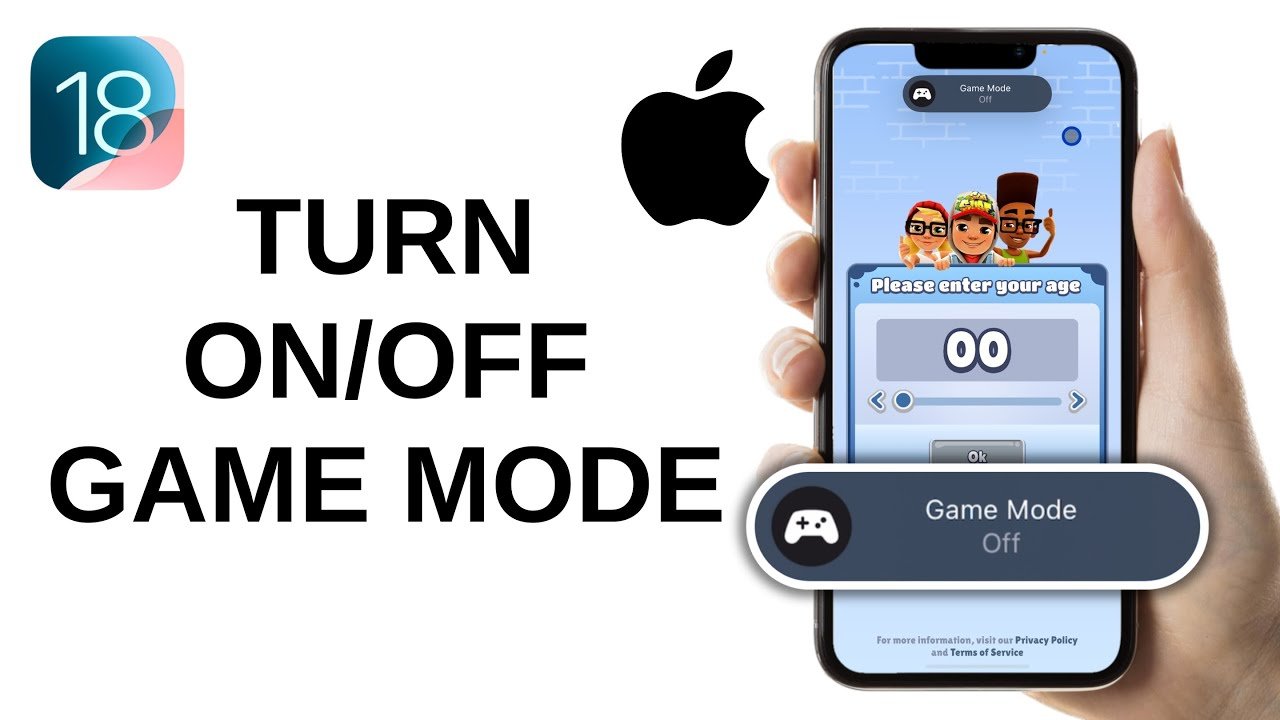
To activate Game Mode on your iPhone, go to Settings, then tap ‘Focus’. Next, choose ‘Gaming’ or create a new Focus mode and ensure it’s turned on when gaming.
Ever get interrupted mid-game by pesky notifications? It’s super annoying, right? This guide will explain exactly how to turn on game mode on iphone, so you can have a distraction-free experience.
You can create a custom ‘Gaming’ Focus that silences calls and alerts while you are in the zone. Setting this up is simple. This way, you can finally focus on achieving those high scores.

How to Turn On Game Mode on iPhone
Okay, so you’re ready to level up your iPhone gaming! Maybe you’ve heard whispers about a special “Game Mode” that makes everything smoother and more responsive. Well, you’re in the right place! While iPhones don’t have a dedicated, single “Game Mode” button like some other devices, they offer a bunch of cool features that work together to create an awesome gaming experience. Let’s explore how to get your iPhone ready for serious play.
Understanding iPhone Gaming Optimization
Before we dive into the “how-to,” it’s important to understand what makes an iPhone a good gaming device and how Apple helps optimize it for play. Instead of one magical switch, several settings and features work together to provide enhanced performance during games. Think of it like assembling a team of superheroes each doing their part to make you victorious!
Focus Modes and Do Not Disturb
One of the biggest distractions while gaming is getting notifications. Imagine trying to beat a boss when your phone keeps buzzing with messages and emails. That’s where Focus Modes come in! These modes allow you to silence notifications during specific times or activities, like playing games.
Setting Up a Gaming Focus Mode
Let’s set up a Focus Mode just for gaming. This is a really simple process:
- Open the Settings app on your iPhone.
- Tap on Focus.
- You’ll see a list of default Focus Modes, like “Do Not Disturb.” Tap the plus (+) button at the top right to add a new one.
- Select Custom.
- Give your Focus Mode a name, such as “Gaming” or “Game Time.” Pick a color and an icon if you want to personalize it further. Tap Next.
- Now, you can choose who you want to receive notifications from even while in this mode. If you want to be completely undisturbed, tap Allow None. If you want some people to be able to contact you, tap Allow Notifications From and add them to the list.
- You can also choose whether you want to receive notification from apps. If you want to be completely undisturbed, tap Allow None. If you want some apps to be able to contact you, tap Allow Notifications From and add them to the list.
- Tap Done.
- Now you’ll see your new ‘Gaming’ focus mode. You can toggle it on and off here, or add it to Control Center for easy access (see instructions on this in a section below).
Now, when you turn on the “Gaming” Focus Mode, your iPhone will keep distractions at bay, letting you focus solely on the game.
Do Not Disturb: You could also use the existing “Do Not Disturb” mode in a pinch, but creating a custom one is better since you can tailor it to your needs.
Low Power Mode: A Balancing Act
Low Power Mode is another iPhone feature that affects performance, and it’s important to understand how it interacts with gaming. When you turn on Low Power Mode, your iPhone conserves battery by reducing things like background activity, screen brightness and other power-consuming features. While this can help your battery last longer, it may also slightly affect your game’s performance. So, consider turning it off for the best experience.
Turning Off Low Power Mode For Gaming
Here’s how to turn off Low Power Mode, if it’s active:
- Open the Settings app.
- Scroll down and tap on Battery.
- If Low Power Mode is toggled on (green), tap the switch to turn it off (grey).
If you have enough battery, turning off Low Power Mode can allow your game to run smoother and faster. However, if you’re running low on juice, keeping it on can allow you to play a little longer even if the performance isn’t at its absolute best. It’s a matter of finding the best balance for your situation.
Optimizing Game Settings
Next, let’s go over settings specific to certain games. Most games offer their own set of graphical and performance settings that you can adjust. These settings can make a big difference in how well a game runs on your iPhone.
Adjusting Graphics Settings
Many games let you choose graphics quality level. Here’s what you can consider:
- Lower graphics: If your game feels a bit slow or choppy, especially if you have an older phone, try lowering graphics settings. This will ease the workload on your phone’s processor, allowing for smoother gameplay. Look for options like “Low,” “Medium,” or “High” under “Graphics Quality.”
- Higher graphics: If your iPhone can handle it, feel free to crank those settings to max for the best visuals. Just keep an eye on your battery level, as playing games with the highest graphics will consume more power.
- Frame rate: Some games allow you to adjust frame rate (how many frames are shown per second), often measured in FPS. Higher FPS makes the game appear smoother. If you’re experiencing slow downs try lowering the frame rate.
Control Settings
Don’t forget about control settings, too! Many games give you the flexibility to change controls for a comfortable experience:
- Sensitivity: Adjust the sensitivity of on-screen buttons or movement to match your preference.
- Button layout: Change the placement and size of buttons.
- Additional settings: Explore other settings, like camera sensitivity or accessibility options.
Hardware Considerations
Now let’s talk about your iPhone itself. Certain aspects of your phone’s hardware affect how games perform.
iPhone Model and Performance
The model of your iPhone will play a big part in how well it can run games. Newer iPhones will generally handle games with complex graphics and processing more smoothly than older ones. So, if you’re trying to play the newest games on an older iPhone you might experience issues. If you’re thinking about upgrading and gaming is important to you, then a newer iPhone will give you a noticeably better experience.
Storage Space and Performance
Running out of storage space can also cause problems with your game. A full storage might make your iPhone run slower, and it also doesn’t give much space for the game to save data. Make sure you have enough free space by:
- Checking in Settings > General > iPhone Storage.
- Deleting old photos, videos, apps or anything else you don’t need if storage is running low.
Utilizing Control Center for Quick Access
Control Center is a super handy way to quickly turn on your Focus modes and change other things while you’re playing a game.
Adding Focus to Control Center
To add your new “Gaming” Focus mode to Control Center, follow these steps:
- Open the Settings app on your iPhone.
- Tap on Control Center.
- Scroll down to the “More Controls” section, locate “Focus,” and tap the + button next to it.
- Now, “Focus” will appear in the “Included Controls” section.
Now you can quickly access your Gaming Focus mode. While you’re playing, swipe down from the upper right corner of your screen to open the Control Center. Tap on the “Focus” button, and you can choose from different focus modes like Do Not Disturb, Driving, or your new Gaming Focus.
Tips for a Better Gaming Experience
Let’s explore some additional tips for the best possible mobile gaming experience.
Close Background Apps
If you have lots of apps running in the background, they can take away from your game performance. Close the background apps to give the game all the resources. To do this:
- Swipe up from the bottom of your screen (or double-click the home button on older iPhones).
- Swipe up on each app preview to close them.
Keep Your iPhone Updated
Apple often releases iOS updates that fix bugs and improve performance, including gaming. Keeping your iPhone updated is one more step you can take to make sure your device is optimized. To check for updates:
- Open the Settings app.
- Tap on General.
- Tap on Software Update.
- If an update is available, tap Download and Install.
Clean Your Screen
Yes, that’s right, a dirty screen can also hinder your gaming! Smudges and fingerprints can make it harder to see the screen clearly, especially during fast-paced games. Clean your screen with a soft, microfiber cloth to keep it spotless.
Use Headphones
Using headphones or earbuds can give a fully immersive gaming experience. It allows you to focus more on the game and hear all the details, such as footsteps or background music, and that can help you react faster during the game. Also, using headphones keeps the game sound from annoying people around you.
Try a Gaming Controller
If you play more intense games, consider using a dedicated gaming controller that is compatible with your iPhone. This can greatly improve your precision and give you a more traditional gaming feel. Many modern games support Bluetooth controllers, and it might be worth investing in one if you want to enhance your gaming.
Adjust Brightness and Reduce Eye Strain
Playing for long periods of time can cause eye strain. Try adjusting the brightness to a comfortable level to make sure you can play without causing discomfort. You can also enable the “Night Shift” feature in your iPhone’s settings that automatically adjusts your screen colors to warmer tones in the evening to reduce eye strain.
Take Breaks
This one’s really important! Remember to take breaks while you’re gaming. Sitting in one place for too long can be tiring. Take a break every so often to stretch, walk around, and give your eyes a rest.
By utilizing these tips and tricks, you will see a noticeable improvement in your gaming experience on your iPhone. Remember, while there isn’t a single ‘game mode’ button, there are a multitude of settings and ways to optimize your device for performance. Use these tips and enjoy gaming like a pro!
How To Turn On Game Mode on iPhone (iOS 18)?
Final Thoughts
To activate Game Mode on your iPhone, go into Settings, then focus. Select “Gaming” to set it up, or create a new focus mode. This will optimize your device while playing.
You can enable or disable the game mode from control center as well. Simply swipe down from the top-right and tap the focus icon.
Remember, setting up and using this feature is straightforward. To answer simply, how to turn on game mode on iphone, you adjust it in Focus settings.

