
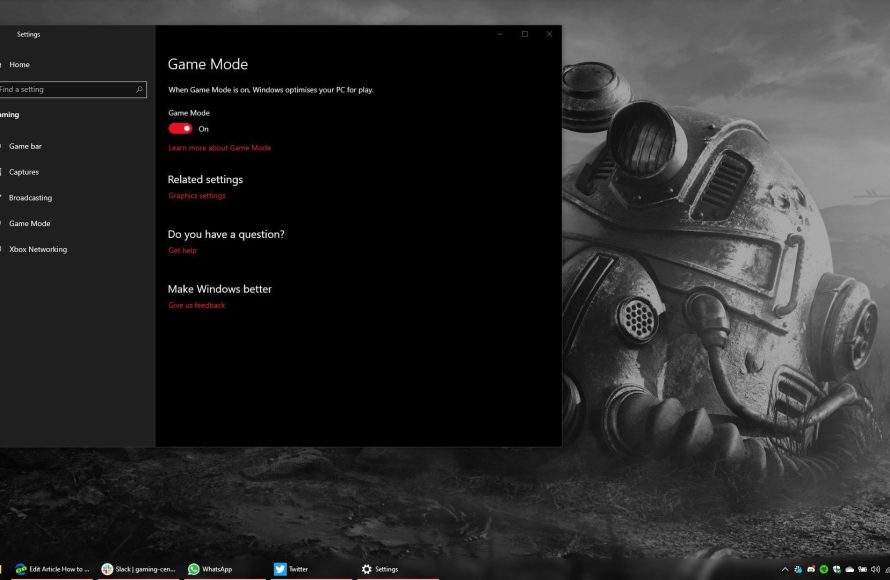
To turn on Windows 10 game mode, go to Settings > Gaming > Game Mode and toggle it to ‘On’.
Want better performance while gaming on your PC? It’s actually quite simple! Many people wonder how to turn on Windows 10 game mode. This feature can help optimize your system for smoother gameplay.
By enabling game mode, Windows prioritizes resources for your game, which helps reduce background activity. This leads to a more consistent and responsive gaming experience. Learn how easy it is to do in the guide below!

How to Turn On Windows 10 Game Mode
Okay, gamers, let’s talk about getting the most out of your Windows 10 computer when you’re playing your favorite games. Have you heard of Game Mode? It’s like giving your games a special boost. It helps them run smoother and faster by focusing your computer’s power on the game you’re playing. In this article, we’re going to walk you through exactly how to turn on Windows 10 Game Mode and make your gaming experience even better. It’s super easy, and we’ll cover everything step by step, so you’ll become a Game Mode expert in no time.
Understanding Windows 10 Game Mode
Before we dive into the “how,” let’s understand the “what” and “why.” Windows 10 Game Mode is a feature Microsoft designed specifically for gamers. When you turn it on, it does a few key things to improve your game performance. Think of it like having a dedicated pit crew for your computer, making sure all resources go where they’re needed most – your game.
What Does Game Mode Actually Do?
Game Mode works behind the scenes to optimize your system. It does this by:
- Prioritizing Game Resources: Game Mode makes sure your game gets the most attention from your CPU and GPU. It’s like telling your computer, “Hey, this game is important! Focus on it!”
- Reducing Background Processes: When you’re not gaming, your computer runs lots of things in the background. Game Mode quiets many of these down, so they don’t steal power away from your game. It helps your game run without annoying hiccups or stutters.
- Optimized Update Behavior: Windows update can sometimes start in the background and can make your game laggy, Game mode prevent update to perform on back end, unless you want the update.
- Stable Frame Rates: These are how smoothly the game moves on your screen. Game Mode aims to keep the frame rates consistent, which makes your game look and feel better.
Why Should You Use Game Mode?
Using Game Mode can make a big difference, especially if you have an older computer or one that doesn’t have top-of-the-line parts. Here are a few good reasons to use Game Mode:
- Smoother Gameplay: If you’ve ever had your game freeze up in the middle of a big moment, Game Mode can help prevent that. It minimizes those frustrating lags.
- Better Frame Rates: With smoother frame rates, the game feels much more responsive, and it looks better.
- More Consistent Performance: Games won’t suddenly get slow or choppy when a background process kicks in. Game mode keeps the playing experience steady.
- Improved Overall Experience: If you are serious about gaming then you need to focus on the game, game mode minimizes the notification so that you can enjoy the game without any distraction.
Accessing Game Mode Settings
Alright, let’s get into the nitty-gritty of actually turning on Game Mode. The settings are very easy to find in Windows 10. Follow the steps below, and you will be a pro.
Step-by-Step Guide to Enabling Game Mode
Here’s a simple guide to enabling Game Mode on your Windows 10 computer:
- Open the Settings App: First, you need to find your settings. Click on the little Windows logo at the bottom-left of your screen (the Start button). Then click on the gear icon. This will open the settings window.
- Go to Gaming: In the Settings window, you’ll see a bunch of options. Look for the one that says “Gaming” and click on it.
- Select Game Mode: On the left side of the “Gaming” screen, you will see a list, locate and click on “Game Mode”.
- Turn Game Mode On: Finally, you’ll see a toggle button labeled “Game Mode.” Click it to switch it to the “On” position. It will change color when it is turned on.
Congratulations, you have now turned Game Mode on! It’s that simple. Once Game Mode is on, your computer will automatically apply its optimizations when you start playing a game.
Configuring Game Mode Settings
Turning Game Mode on is fantastic, but there are a couple more settings you might want to check to ensure you’re getting the most out of it. These settings let you further customize the game experience. We will discuss this in detail below.
Game Bar and Game Captures
Game Mode also has a feature called the “Game Bar.” This bar helps you take screenshots, record your game play, and even do other things while you’re playing. Here’s how to manage it:
- Open the Gaming Settings Again: Go back to the Settings app, find the “Gaming” settings as described above.
- Click on “Game Bar”: On the left side, you’ll see “Game Bar” near the top. Click on it.
- Turn Game Bar On or Off: You can choose whether to use the Game Bar or not. If you like taking screenshots or recording your gameplay, leave it on. Otherwise, turn it off to free up even more resources.
- Customize Shortcuts: Below the main on/off switch, you can see the keyboard shortcuts for the game bar. If you use this feature often, customize the keyboard short cuts as per your ease.
Capture Settings
If you chose to use the Game Bar, you might also want to check your capture settings. It’s the part where you record your game play and take screenshots. Here’s how:
- Return to the Gaming Settings: Again, go back to the “Gaming” options in the Settings app.
- Select “Captures”: On the left side of the “Gaming” screen, find and click on “Captures”.
- Choose Your Capture Settings: Here, you can choose where your recordings and screenshots are saved. You can change the quality of the recordings and the duration of the recordings. Choose the capture setting as per your preferences.
Game Mode Compatibility
Now, you might be wondering, “Does Game Mode work with all games?” The short answer is: mostly yes! But let’s take a look at how it generally works and what you need to know.
Does Game Mode Work with Every Game?
Game Mode is designed to work with most games that run on Windows 10. However, It does not guarantee game performance enhancement. Most games benefit from it. Game Mode is smart enough to detect when a game is running and automatically apply its magic. It should activate for games that are run in full-screen mode.
Games That Benefit Most from Game Mode
While Game Mode tries to help all games, some games see a bigger improvement than others. Typically, you will see most improvement in:
- Graphically Intensive Games: Games with lots of details and fast action that push your computer’s graphics card to its limits usually see a noticeable boost with Game Mode.
- CPU-Heavy Games: Games that require a lot of processing power from your computer’s brain (the CPU) tend to benefit a lot from Game Mode.
- Older Games: Games that were made for older computers often run more smoothly with Game Mode on.
- Games with Performance Issues: If you have games that frequently lag or stutter, Game Mode can often help make them more playable.
If Game Mode Does Not Seem To Work
While rare, sometimes you might encounter a game where Game Mode doesn’t seem to make much of a difference. If this happens:
- Make Sure Game Mode is Actually On: double check you have turned it on.
- Update Graphics Card Drivers: Old drivers for your graphics card can make games run poorly. Try updating to the newest drivers to see if that helps.
- Close Unnecessary Programs: Even with Game Mode, having a lot of other programs running at the same time can slow your system down. Close any programs you aren’t using.
- Check Game Settings: Try lowering the graphic settings inside the game if you still face performance issues.
Troubleshooting Game Mode Issues
Sometimes, despite our best efforts, things can go a little sideways. If you run into any problems with Game Mode, don’t worry. Here are some common issues and how to solve them.
Game Mode Not Activating
Sometimes, Game Mode might not seem to start. Here are some things to try:
- Make Sure It’s Really On: Just to be sure, go back to the settings and ensure the switch is flipped on.
- Restart Your Computer: Restart your computer and check again if Game Mode is turned on and is it working properly.
- Update Windows: Sometimes, outdated versions of windows can cause issue with game mode, so ensure you have updated your windows to latest version.
Game Performance Not Improved
If turning on Game Mode doesn’t seem to make a difference:
- Check Other Settings: Look to see if the other game settings are set appropriately for your system. Sometimes, if game graphic settings are too high for the PC then, the game may not run smoothly.
- Close Background Applications: While Game Mode tries to stop background apps, sometimes it misses one. Be sure to close any resource-intensive program running.
- Update Drivers: Keep the graphics card drivers updated, this can help in game performance.
- Check System Requirements: See if your computer meets the minimum system requirements of the games. If your PC is too old to handle the game then game mode may not be of much help.
Game Mode is Causing Problems
In rare cases, Game Mode may cause issues for a few games. If this happens:
- Turn Game Mode Off Temporarily: You can turn off Game Mode for particular games and play. Check if turning off the game mode is fixing the issue.
- Look for Updates: Check for Windows updates and also game updates. Usually, these bugs are resolved in next update.
- Check Compatibility: See if there is any reported issue with game and game mode online, if other users are also experiencing the same then the issue may not be in your PC.
Other Tips to Improve Game Performance
Game Mode is a great tool, but it’s not the only thing that can improve your gaming. There are other things you can do to boost performance.
Updating Graphics Drivers
Graphics card drivers are like software updates for your graphics card, and they can make a big difference in how well your games run. Here’s how to update them:
- Find Your Graphics Card: You will need to know what is the name of your graphic card. Usually, it is from NVIDIA, AMD, or Intel.
- Visit the Website: Go to the website of your graphic card maker (NVIDIA, AMD, or Intel).
- Find the Driver Section: Look for the “Drivers” or “Support” section of the website.
- Choose Your Card: Find your specific card (make sure you select the exact correct card). Download the appropriate driver for your system.
- Install the Driver: After downloading, run the installer to update the driver.
- Restart Your Computer: Usually, after updating a graphic driver, a PC restart is required.
Closing Unnecessary Programs
If you have lots of programs open while you game, they can take up computer power. Close any program that is not necessary for game to run.
Adjusting Game Settings
Many games let you adjust their graphic settings. You can change things like the quality of the images, the shadows, and other effects to make the game run smoother. Here’s what to do:
- Open the Game: Start the game.
- Find the Graphics Settings: Look for “Settings,” “Options,” or “Graphics” menu inside the game.
- Lower Settings: Start by trying to lower the graphic quality, shadows and other resource intensive settings.
- Test the Game: After lowering graphic settings, play the game and see if the game is running better or not. If not, try further lowering the graphic quality.
Upgrading Your Hardware
Sometimes, no matter how much you optimize your computer, older hardware can limit your gaming experience. If you continue to have issues, consider upgrading these parts.
- Graphics Card: It is most important component for the games, a better graphic card helps in game performance.
- RAM: Random access memory also plays an important role in smooth game performance.
- SSD: Upgrading to a Solid State Drive (SSD) can make a big difference in how quickly games load.
By now, you’re practically a pro at turning on and using Windows 10 Game Mode. Remember, it is a tool to help, but it is not magic. Keep your drivers updated and adjust the game settings. You may need to experiment to find the best settings for your PC. Happy Gaming!
How To Turn On Game Mode In Windows 10
Final Thoughts
To quickly turn on Windows 10 game mode, access the Settings app. Go to the “Gaming” section. Then, enable the Game Mode toggle to improve performance during gameplay.
You can also enable game mode from the game bar during gameplay. Press Windows key + G to view the bar, and toggle game mode there. This straightforward process shows you how to turn on windows 10 game mode. Remember that enabling this setting could improve your gaming experience.

