
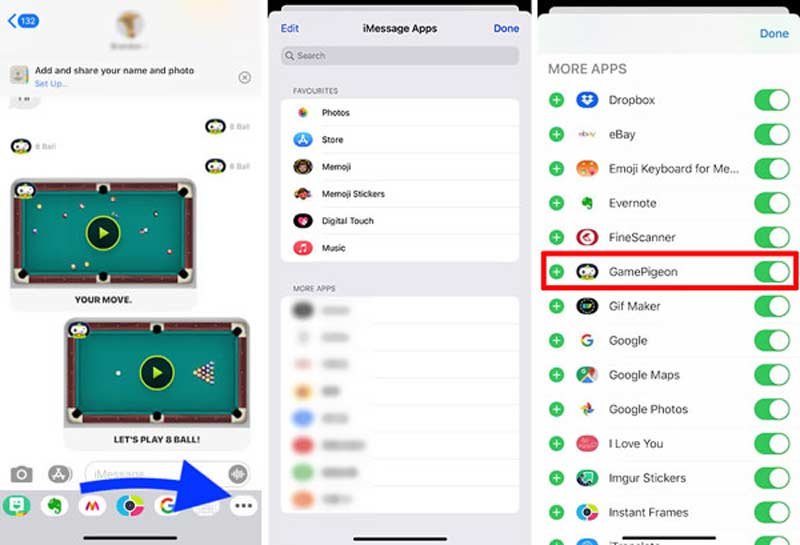
To undownload Game Pigeon, you must delete the iMessage app from your Messages app drawer.
Ever felt the need to reclaim some digital space or simply remove that little pigeon from your messaging life? Many users find themselves pondering how to undownload game pigeon, and it’s actually simpler than you might think. It’s not a standalone app, making the process slightly different.
The deletion process involves dealing directly with the Messages app and its integrated apps. You’ll be pleased to find that the method is quick and effective. So, if you are ready for a clutter free message app then keep reading.

How to Undownload Game Pigeon
Okay, so you’ve decided you’re ready to say goodbye to Game Pigeon. Maybe you’re not feeling the mini-games anymore, or perhaps you want to free up some space on your phone. Whatever your reason, it’s totally doable to remove Game Pigeon, and it’s not as tricky as you might think. This guide will walk you through the steps, making it super easy for you to understand and follow. We’ll cover everything from the basic uninstall to some extra tips, so let’s get started!
Understanding Game Pigeon and Its Integration
Before we jump into uninstalling, let’s briefly chat about what Game Pigeon actually is. Game Pigeon isn’t a regular app you find on your home screen. Instead, it’s an iMessage extension. This means it lives inside your Messages app. When you want to play a game, you don’t open a separate app; you launch it right within an iMessage conversation. This integration is what makes it unique, but it also means uninstalling is a bit different than getting rid of, say, a calculator app.
Why Uninstall Game Pigeon?
There can be many reasons why you might want to remove Game Pigeon. Here are a few common ones:
- You don’t play it anymore: Maybe you had a phase where you loved it, but now it’s just taking up space.
- Too many notifications: Sometimes, game notifications can get annoying.
- Freeing up space: Every little bit of storage helps!
- You want a simpler Messages experience: Sometimes less is more, and you might want a cleaner chat experience.
- Personal preference: Maybe you just don’t like the app anymore. That’s totally fine!
The Basic Steps: Removing Game Pigeon
The good news is, removing Game Pigeon is a straightforward process. You don’t need to be a tech wizard to do it. Here’s how you can do it:
Step 1: Open the Messages App
First, you need to open the Messages app on your iPhone or iPad. This is where Game Pigeon lives, so it’s the place to start.
Step 2: Open a Conversation
Choose any conversation – it doesn’t matter who it’s with. Just select any chat thread. We need to get into the iMessage app drawer, and any conversation will do.
Step 3: Access the App Drawer
Look for the App Store icon (it looks like a blue “A” inside a circle) next to the text input box. Tap on this icon to open the iMessage app drawer. Here you will see any available iMessage apps and it is where Game Pigeon resides.
Step 4: Find the Game Pigeon App Icon
Now, scroll through the app icons until you find the Game Pigeon icon. It’s usually a white pigeon on a blue background. Once you find it, tap and hold on the Game Pigeon icon.
Step 5: Delete Game Pigeon (First Method)
After a long press (tap and holding down), you will see a popup appear. Some users will see a “Delete” or “Remove” option right away. If you see that, tap on the “Delete” or “Remove” button. Congratulations, you have uninstalled Game Pigeon!
If this option does not appear continue to the next step.
Step 5: Manage Apps (Second Method)
If you do not see the “delete” option after the long press, then you need to tap on the “More” button, This is the three dots icon ( … ) located at the bottom of the app drawer menu. This will take you to a new menu where you will see all installed iMessage apps.
Locate Game Pigeon again. Then, slide the toggle button next to it to the left. This toggle is usually green when the app is turned on and will become white when toggled off. This turns off the app but it is still installed on your device. You can remove it using the next step.
Now, tap “Done”, located at the top-right of your screen. You will be back in the message conversation. Repeat steps 3 and 4.
Now when you long press on the Game Pigeon icon, you should see the delete option. Tap on “Delete”.
Step 6: Confirmation
A confirmation message might pop up asking if you’re sure you want to remove the app. Just tap “Delete” (or confirm, or yes) to finish the process. And that’s it – you’ve successfully uninstalled Game Pigeon!
What Happens When You Uninstall Game Pigeon?
So, what exactly happens when you uninstall Game Pigeon? Let’s clear up a few things.
- It’s gone from your iMessage app drawer: You won’t see the Game Pigeon icon anymore when you open your app drawer in Messages.
- You can’t start new games: If you try to open Game Pigeon in the app drawer, it won’t be there. You can not start any new games with it.
- Ongoing games might be affected: If you have any unfinished games, it can impact them. Sometimes the game data is stored on your device, and removing the app will remove that data. This means your in-progress games will be reset, and some will no longer work.
Reinstalling Game Pigeon if You Change Your Mind
Decided you miss the thrill of battling it out in 8-ball or Anagrams? Don’t worry, it’s easy to reinstall Game Pigeon if you ever change your mind. Here’s how:
Step 1: Open the Messages App
Just like when uninstalling, you’ll need to start by opening the Messages app.
Step 2: Access the App Drawer
Again, open any conversation, and then tap the App Store icon next to the text input box to open the iMessage app drawer.
Step 3: Visit the App Store Icon
At the bottom of the app drawer, look for the store icon. It’s a blue icon with an “A”. Tap on it.
Step 4: Search for Game Pigeon
This will bring up the iMessage App Store. Tap the “search” box at the top and type in “Game Pigeon.”
Step 5: Reinstall Game Pigeon
Game Pigeon should pop up as a result. Tap the “Get” button (it may be a cloud icon with a downward arrow) to download and install it again. The app will start re-installing, and once it’s done it will be ready to use. You will have to start all your old games over from scratch, as the data was deleted when you uninstalled the app.
Troubleshooting: Common Issues
Sometimes, things don’t go exactly as planned. Here are some common issues you might run into and how to solve them:
Issue: Game Pigeon Icon Won’t Disappear
Problem: Even after following the steps, the Game Pigeon icon is still visible in the app drawer.
Solution:
- Try restarting your Messages app. Close the Messages app completely and re-open it.
- Restart your iPhone or iPad. Sometimes, a quick restart can clear up any software glitches.
- Ensure you have the latest iOS version. Outdated software can cause conflicts.
Issue: Cannot Delete Game Pigeon
Problem: The “Delete” or “Remove” option does not appear after the long press.
Solution:
- Make sure you are tapping and holding the Game Pigeon Icon. Tapping the icon will start the app and not get the menu to remove it.
- Make sure you are in a message conversation when performing this action. It will not work from the home screen of your phone.
- Make sure you use the method described earlier in the article. Tap “More” and turn the app off before deleting the app.
Issue: Games Still Appearing In Conversations
Problem: You have removed the app, but when you see old text conversations you can still see the game in that old conversation.
Solution:
- This is normal. Old conversations will not change just because you have removed the app.
- The only way to remove them is to manually delete the conversation they are in.
Tips and Tricks for Managing iMessage Apps
Here are some extra tips to help you manage your iMessage apps:
Regularly Review Your iMessage Apps
Just like your home screen apps, it’s a good idea to review your iMessage apps from time to time. Get rid of the ones you don’t use to keep things tidy and avoid app clutter.
Manage Notifications
If you’re getting too many notifications from iMessage apps, you can manage them in your settings:
- Open the “Settings” app.
- Tap “Notifications”.
- Scroll down and tap “Messages”.
- Customize the notifications settings as you like.
Stay Updated
Always ensure your iPhone or iPad software is updated to the latest version. This can help prevent any conflicts with iMessage apps and make sure everything runs smoothly.
Alternative Gaming Options
If you’re looking for other fun ways to play games with your friends or family, there are plenty of alternatives to Game Pigeon. Here are a few to check out:
- Dedicated Mobile Games: Many games on the App Store allow you to play with others online. Check them out by going to the app store.
- Social Media Games: Some social media apps offer built-in games you can play with your contacts.
- Board Game Apps: There are plenty of board game apps you can play with others.
Removing Game Pigeon from your iPhone or iPad is an easy process that only takes a few minutes. Whether you want to free up storage, reduce notifications, or simply don’t use the app, you have the information to do so. And if you ever decide to return, you now know that it’s just as easy to reinstall. Remember to review your iMessage apps from time to time, manage your notifications and keep your iOS updated. This ensures you always have a clean and smooth gaming experience.
How to Delete Game Pigeon on iPhone – Uninstall Game Pigeon in iPhone
Final Thoughts
To remove Game Pigeon, simply delete it like any other app. This action will effectively undownload it from your device. You can achieve this through the app’s long press option or within the storage settings.
If you wish to cease using this iMessage extension, find it in your app list and delete it. This process illustrates how to undownload game pigeon, it’s actually very straightforward. It eliminates the app entirely from your phone.

