
To uninstall the Epic Games Launcher, navigate to your computer’s settings, find ‘Apps,’ select ‘Epic Games Launcher,’ and click ‘Uninstall.’
Need to clear up space or simply not using it anymore? Many gamers find themselves needing to know how to uninstall Epic Game Launcher. It’s a common question as people’s needs shift. We’ll walk you through a quick way to get it done. Let’s get the launcher off your machine without any hassle.

How to Uninstall Epic Games Launcher
Okay, so you’ve decided to say goodbye to the Epic Games Launcher. Maybe you’re cleaning up your computer, or maybe you just aren’t using it anymore. Whatever the reason, uninstalling the launcher is a pretty straightforward process. But sometimes, things can get a little tricky, so we’re going to walk you through it step-by-step. We’ll cover everything from the standard uninstall to what to do if you run into problems. Let’s get started!
Standard Uninstall Process: The Easy Way
Most of the time, uninstalling the Epic Games Launcher is as easy as uninstalling any other program on your computer. Here’s how to do it the standard way:
Uninstalling on Windows
If you use a Windows computer, here are the steps to follow:
- First, close the Epic Games Launcher. Make sure it’s not running in the background. You can usually find the icon in your system tray (that’s the little area near the clock), right-click on it, and select “Exit.”
- Next, click on the Windows start button (it looks like a Windows logo).
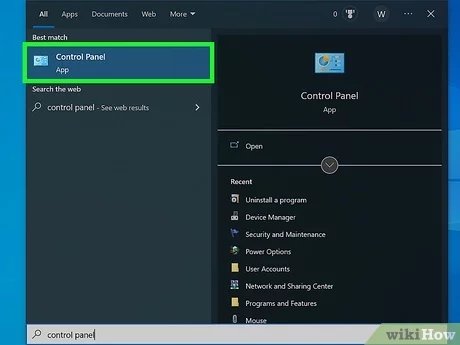
- Type in “Control Panel” and click on it when it appears.
- In the Control Panel, find “Programs” or “Programs and Features.” The specific wording can depend on how you have your view set up.
- Click on “Uninstall a program.” This will show you a list of all the programs installed on your computer.
- Scroll through the list until you find “Epic Games Launcher.”
- Click on “Epic Games Launcher” and then click the “Uninstall” button that appears at the top of the list.
- Your computer might ask you to confirm you want to uninstall, click “yes” or “uninstall”.
- The uninstaller will start, follow any on screen prompts. It might take a few moments.
- Once the uninstaller is done, the Epic Games Launcher should be gone.
Uninstalling on macOS
If you are a Mac user, you would follow these steps:
- Make sure the Epic Games Launcher is completely closed. Look for the icon in your Dock and if it has a dot below it, right click and select “quit”.
- Open “Finder,” which is the icon in your dock that looks like a two-toned face.
- On the sidebar, click “Applications.”
- Find the “Epic Games Launcher” icon.
- Drag the Epic Games Launcher icon to the Trash Can, which is at the bottom of the Dock.
- Empty the Trash Can, this will completely delete the Epic Games Launcher.
Dealing With Stubborn Uninstall Issues
Sometimes, the standard way of uninstalling doesn’t work perfectly, and you might face some issues. Don’t worry! We’ll explore some common problems and how to fix them.
The Uninstaller Gets Stuck or Frozen
If the uninstaller gets stuck or frozen, you can try a few things:
- Restart Your Computer: Sometimes, simply restarting your computer can fix the problem. Try restarting and then try uninstalling again.
- End the Process: On Windows, you can press Ctrl + Shift + Esc to open Task Manager. Find any processes related to Epic Games Launcher, right-click on them, and select “End task”. Then, try to uninstall again. On Mac, you can use Activity Monitor (found in Applications > Utilities) to do the same thing.
- Use a Third-Party Uninstaller: If the normal methods fail, you could try a third-party uninstall program. These programs are designed to remove programs completely, including any left-over files and registry entries. There are many free and paid options available, research which one best suits your requirements and system.
Error Messages During Uninstall
Error messages can be confusing, but they often point to the problem. Here are some common error messages and what you can do:
- “The program is still running”: This means some part of the launcher is still open. Close everything related to the Epic Games Launcher, including any background processes. Use Task Manager (Windows) or Activity Monitor (Mac) to help.
- “Access Denied”: This might mean that the launcher files are locked. Try running the uninstaller as an administrator (right-click on the uninstaller and select “Run as administrator” on Windows). On Mac you will need to use your admin user credentials.
- “Missing Files”: If files are missing, the uninstaller can have problems. You may need to re-install the program and then try uninstalling again or use a third party uninstaller program.
Removing Leftover Files
Even after uninstalling, some files might be left behind. These leftover files can sometimes cause problems in the future or just take up space. Here’s how to remove them:
Windows: Cleaning Up Leftover Files
After you uninstall, you will need to manually check the following locations:
- Program Files Folder: Go to your hard drive where you install programs, usually C:\Program Files and C:\Program Files (x86). Look for any folders related to Epic Games or the launcher and delete them.
- Appdata Folder: Press Windows Key + R to open the run dialogue box, and then type %appdata% and press enter. Then look for a folder named Epic or Epic Games and delete them. Also check the Local Folder which you will find at C:\Users\[YourUserName]\AppData\Local, and delete any Epic Games Folders.
- Registry Editor: (Be careful when using this, as you can break your computer). Type “regedit” in the Windows search bar and open Registry Editor. Look for keys related to Epic Games under HKEY_CURRENT_USER\Software and HKEY_LOCAL_MACHINE\SOFTWARE. You can delete these keys, but again, be careful and back up your registry before making any changes.
macOS: Removing Remaining Files
On a Mac, leftover files are usually found in these folders:
- Applications Folder: Double check the applications folder (/Applications) for any left over files.
- Library Folder: Open Finder, and select “go”, while holding the “option” key you will see “Library” appear as a option, click it. Check these folders for any leftovers:
- ~/Library/Application Support
- ~/Library/Caches
- ~/Library/Preferences
Look for files and folders related to the Epic Games Launcher. You can then delete them.
Why Uninstall Epic Games Launcher?
People uninstall the Epic Games Launcher for various reasons. Here are a few common ones:
- Freeing up Space: You might uninstall if you need to free up space on your hard drive. Sometimes you download lots of games, and some take a lot of space.
- Performance Issues: Sometimes, the launcher can slow down your computer, especially older systems.
- Not Using It: Maybe you aren’t playing games on Epic Games anymore and no longer need it.
- Switching Platforms: Maybe you have decided to switch to another gaming platform and no longer require the launcher.
- Trying another launcher or game store: With so many other launchers out there, you might want to try a different service.
Reinstalling the Epic Games Launcher
If you change your mind and want to use the Epic Games Launcher again, it’s easy to reinstall it.
Downloading and Installing
Here’s how to get the launcher back on your computer:
- Go to the official Epic Games website.
- Find the download button for the launcher.
- Download the installer file.
- Once the download is complete, run the installer.
- Follow the instructions to install the launcher.
- Log in with your Epic Games account.
That’s it! You’re back in the game.
Keeping Your System Clean
Regularly cleaning up your computer and removing programs you don’t need can keep it running smoothly. It’s a good practice to periodically check programs you don’t use and uninstall them.
Uninstalling the Epic Games Launcher is usually simple, but sometimes you need to try some extra things to make sure it’s completely gone. By following the steps outlined here, you should be able to manage the process without any issues. Keep your computer healthy and happy!
How To Delete Epic Games Launcher (Full Guide) – Uninstall Epic Games Launcher
Final Thoughts
To uninstall the Epic Games Launcher, first close the application completely. Then, navigate to your computer’s settings and find the apps or programs section.
Locate the Epic Games Launcher within the list of installed programs. Select the launcher and click on the uninstall option.
Follow the on-screen prompts to complete the removal process, ensuring all related files are deleted. This is ‘how to uninstall epic game launcher’ effectively.

