
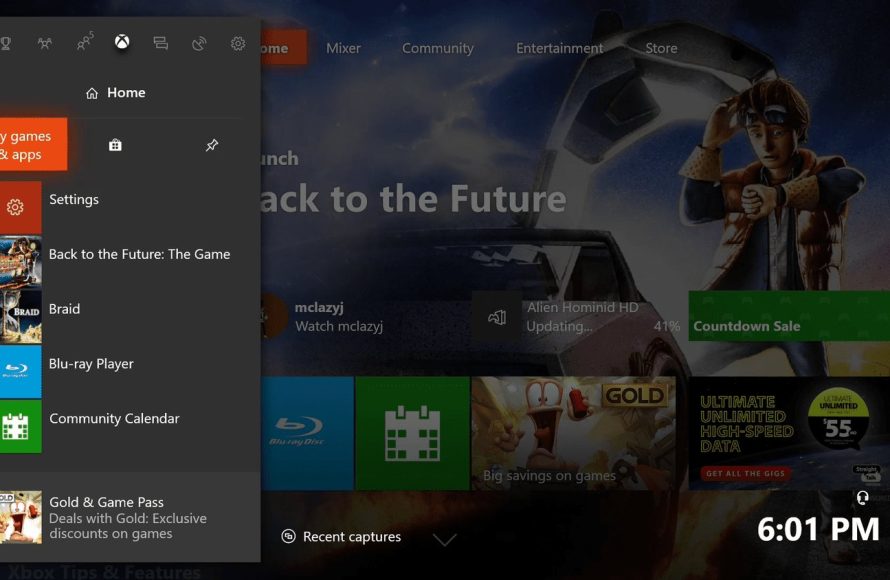
To uninstall games in Xbox One, navigate to ‘My games & apps,’ select the game, press the menu button, and choose ‘Uninstall.’
Running out of space on your Xbox One can be frustrating. You need room for new titles, updates, and even game captures. The good news is that managing your storage is quite simple; you can easily learn how to uninstall games in xbox one.
It’s a quick process that allows you to free up valuable space and keep your console running smoothly. This ensures that your gaming experience remains seamless and enjoyable. Follow the simple steps and you are good to go.

How to Uninstall Games on Your Xbox One
Running out of space on your Xbox One? It’s a common problem! We all love to download and play lots of games, but sometimes that means you need to make room for new ones. Thankfully, uninstalling games on your Xbox One is easy to do. This article will walk you through everything you need to know, step-by-step, and make sure you’re a pro at managing your game library.
Why Uninstall Games?
Before we jump into the “how,” let’s talk a little bit about “why” you might want to uninstall games. The most obvious reason is lack of storage space. Xbox One consoles come with a certain amount of space for storing games and other data. Over time, this space fills up. When you’re out of space, you can’t download new games, updates, or even save progress in some games. Think of it like a closet—if it’s full, you can’t fit more clothes in there. Uninstalling games is like cleaning out your closet to make room for new things. There are more reasons why you might want to remove a game. Maybe you don’t play it anymore, or you want to free up some space for an update to another game. Whatever the reason, knowing how to uninstall games is a handy skill to have.
Different Ways to Uninstall Games
Your Xbox One gives you a couple of different ways to get rid of those games you no longer need. You can remove games directly from your dashboard or go into the game and app section, and we will discuss both methods, to make sure you are comfortable with every approach to uninstalling a game. Don’t worry, neither way is complicated.
Uninstalling Games from the Xbox Dashboard
The dashboard is the main screen you see when you turn on your Xbox One. It’s your jumping-off point for all things Xbox. This way to uninstall a game is very straightforward and easy to do. Here’s how to do it:
- Turn on your Xbox One: First, make sure your console is on and you are signed into your Xbox profile.
- Go to “My Games & Apps”: Use your controller to navigate to the “My Games & Apps” section on the dashboard. You’ll usually find it on the far right of the screen.
- Select “See all”: On the top-right corner of “My Games and Apps” section, you will see “See all” option. Select it.
- Highlight the Game: Now, you will see all of your games and apps. Use the D-pad or the left thumbstick to move the cursor over the game you want to uninstall.
- Press the Menu Button: With the game highlighted, press the Menu button on your controller. It’s the small button with three horizontal lines. This will open a menu with different options.
- Select “Uninstall”: In the menu that pops up, you’ll see an option that says “Uninstall”. Select this option by pressing the “A” button on your controller.
- Confirm the Uninstall: A confirmation message will appear asking if you are sure you want to remove the game. Select “Uninstall” again to confirm your decision.
- Wait for Uninstall to Complete: The console will now remove the game from your storage. This might take a few moments, depending on the size of the game. You can see the progress on the screen.
That’s it! The game is now uninstalled from your Xbox One. You can repeat these steps for other games you want to remove. Let’s move on to the next method.
Uninstalling Games from the Games & Apps Section
Another way to uninstall games is directly from the “Games & Apps” section. This method is similar to the first one, but it lets you view the file sizes of each game, so you can see which ones are using up the most space. Here’s how it’s done:
- Turn on your Xbox One and Go to “My Games & Apps”: As before, first, make sure your Xbox One is on. Go to the “My games & apps” option in the dashboard.
- Select “See all”: On the top-right corner of “My Games and Apps” section, you will see “See all” option. Select it.
- Navigate to the “Games” Tab: The “Games & Apps” screen will have multiple tabs across the top, look for the one labeled “Games” and make sure it’s highlighted.
- Highlight the Game: Look at the list of all games and highlight the one you want to delete using the D-pad or the left thumbstick.
- Press the Menu Button: Once the game is highlighted, press the Menu button on your controller to open the menu.
- Select “Manage Game”: In the menu, you’ll see a “Manage Game” option, select it using the A button.
- Select “Uninstall”: On the screen that appears you will see the “uninstall” option on the right side of the screen with the name and size of the game on the left. Select “uninstall” using the A button.
- Confirm Uninstall: Just like before, a message will pop up to confirm. Select “Uninstall” again to remove the game.
- Wait for the Uninstall to Finish: Let your Xbox One do its thing, while it’s deleting the game.
Just like that, the game is gone! Both methods are quick and simple, and now you have two ways to clean up your game storage on your Xbox One.
Understanding Game Data
When you uninstall a game, it’s important to understand what exactly is being removed. You are primarily removing the main game files from your Xbox One’s hard drive, making space on your storage. But, don’t worry, your game saves are usually kept separate, often stored in the cloud (Xbox’s servers). This means you can reinstall the game later and still pick up where you left off, most of the time. Also, game updates are also removed when you uninstall the game, just be aware of that. You’ll have to download these updates again if you decide to reinstall the game later.
What Happens to Game Saves When You Uninstall?
A very common concern is, what happens to your progress in the game when you uninstall it? The good news is, generally, your save data is safe. Xbox One saves your progress in the cloud, so it’s not deleted when you uninstall the game. Think of cloud saves as an online backup. So, if you decide to reinstall the game, your progress will be there, waiting for you. However, it’s very important to make sure that your console is connected to the internet when you play games, because your saves are only backed up if you’re online. Sometimes some game saves are stored locally in your Xbox One. These saves will be removed once you uninstall the game. To avoid losing any progress, make sure your Xbox One is connected to the internet, that way most game saves will be stored in the cloud.
Managing Multiple Storage Devices
Some Xbox One users might have extra storage devices. If you have connected an external hard drive, the uninstall process works the same for games stored on it. You might want to look at where a game is installed before uninstalling. Here’s how to see where games are stored:
- Go to “My Games & Apps.”
- Select “See all” option.
- Highlight the game you want to check.
- Press the Menu button on your controller.
- Select “Manage game & add-ons.”
- Look at the top-left of the screen. It will tell you where the game is installed.
This way, you can manage your games better across different storage devices. Also, if you are going to uninstall a game, make sure that you select the correct storage, where that game is installed.
Reinstalling Games
Want to play a game you removed? Reinstalling is easy! Games you’ve purchased will always be available for you to download again from the Xbox store. Here’s a quick guide:
- Go to “My Games & Apps”: Use your controller to navigate to the “My Games & Apps” section on the dashboard.
- Select “See all”: On the top-right corner of “My Games and Apps” section, you will see “See all” option. Select it.
- Select the “Ready to install” Tab: Now, on the top of your screen, navigate to the “Ready to install” tab. You’ll see a list of all the games you own but haven’t installed on your console.
- Choose the Game: Select the game you want to reinstall from the list.
- Select “Install”: Select the “Install” option and the download process will start.
- Wait for the Install: How long it takes depends on the game size and internet speed.
Once it’s done, your game is ready to play again! And your save data should still be there, waiting for you.
Using the Xbox Mobile App
Did you know you can also manage your game library from the Xbox mobile app? If you have the app installed on your phone or tablet, you can start game uninstalls remotely. This is super handy if you’re away from your console, or if you have a lot of games to uninstall.
Here’s how you can use it:
- Open the Xbox App: Make sure you are signed into the app using the same Microsoft account that you use on your Xbox One.
- Go to Your Library: Look for your library, where you can see your purchased games and apps.
- Select the Game You Want to Uninstall: Find the game you want to remove.
- Tap the Three Dots: Tap the three dots beside the game you want to uninstall.
- Select “Uninstall”: You should see an option to uninstall. Choose it.
- Confirm the Uninstall: Confirm you wish to uninstall the game.
The game will then be uninstalled from your console. Using the Xbox app makes managing your games even easier!
Keeping Your Xbox Organized
Regularly managing your games is a great habit. It keeps your console running efficiently and gives you space for new content. It’s like cleaning up your room; it makes everything feel more organized and enjoyable. Uninstalling games is a key part of that upkeep. Here are a few tips to help keep your Xbox One tidy:
- Regularly Review: Every once in a while, look at the games you have installed and think about what you really play.
- Uninstall Games You Don’t Play: Don’t hold on to games you haven’t touched in months or years. There’s always room for something new.
- Use External Storage: If you have a lot of games, think about using an external hard drive for extra space.
- Check for Updates: Keep your games updated. They often use less space after updates.
Keeping your Xbox One’s storage organized will make your gaming experience much more smooth and more convenient.
Troubleshooting Common Issues
Sometimes, things don’t go perfectly. You might have some trouble uninstalling a game. If you have some issues with deleting your games from your console, here are some ideas to try:
If the Uninstall Process is Taking a Long Time
Sometimes, uninstalling can be a bit slow, especially for large games. First of all, make sure that you are not downloading another game, or some kind of update, while uninstalling, that will slow the uninstalling process. And don’t use the console for anything else while uninstalling your game. Here’s what you can do if it is taking too long:
- Check your internet connection: A slow connection can impact uninstall speeds. Make sure your connection is stable and working properly.
- Restart your console: Sometimes, just turning your Xbox One off and then back on can fix problems. Try restarting your console and then try uninstalling again.
- Make sure there is enough space: You also need some free storage space on your hard drive, even for uninstalling a game.
If the Uninstall is Not Working
If the game doesn’t uninstall, here are some steps you can take:
- Restart Your Xbox One: Do the basic troubleshooting step and restart your console.
- Try again: See if the uninstalling now works.
- Clear the Xbox cache: Sometimes, a full cache can cause problems. Go into settings and clear it.
- Factory Reset: As a last resort, you can factory reset your Xbox One. Be sure to save your important information first, as this process will delete all your data on the console.
If these don’t work, it might be good to reach out to Xbox Support for more help.
Now you know how to uninstall games on your Xbox One. This is an important skill that will help you enjoy your gaming life without running out of storage space. So, go ahead, clear some space, and try out some new games!
How to DELETE GAMES on XBOX ONE & Uninstall APPS (Easy Method!)
Final Thoughts
To uninstall games on your Xbox One, navigate to “My games & apps.” Select the game, press the menu button, then pick “Manage game.” Choose “Uninstall all” or select specific components to remove. This process frees up storage.
Remember, deleting games doesn’t erase your save data; that resides in the cloud. You can reinstall games later without losing progress. Knowing how to uninstall games in xbox one is beneficial for managing space.

