
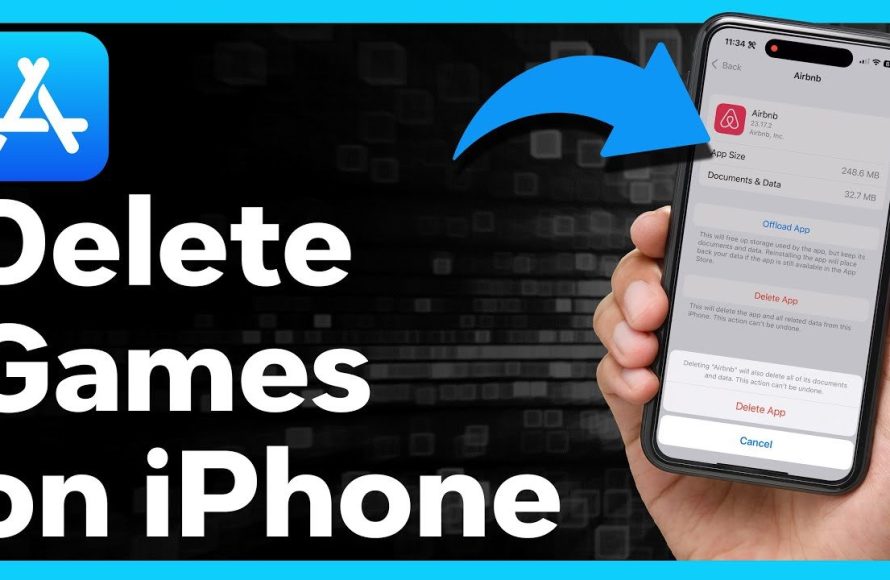
To uninstall games on phone, you can typically do so through the app settings, the phone’s application manager, or by long-pressing the game icon and selecting uninstall.
Ever found your phone’s storage filling up quickly with games you no longer play? It can be frustrating to see those fun titles just taking up precious space. Learning how to uninstall games on phone is a simple yet essential skill for managing your device effectively.
This isn’t just about reclaiming storage; it’s about keeping your phone running smoothly. We will show you multiple methods you can use, making the process easy no matter your phone model. Get ready to clean up that app clutter!

How to Uninstall Games on Your Phone
Have you ever downloaded a game on your phone, played it for a while, and then thought, “Okay, I’m done with this”? It happens to everyone! Maybe you’re running out of space, or maybe you just aren’t having fun with it anymore. Whatever the reason, it’s important to know how to uninstall games on your phone so you can keep your device running smoothly and efficiently. It’s like cleaning out your toy box; you get rid of the old stuff you don’t play with to make room for new things. This article will show you easy ways to do that, whether you have an iPhone or an Android phone.
Why Uninstall Games?
Before we dive into the how-to, let’s talk about why you might want to uninstall games in the first place. There are several good reasons:
- Free Up Space: Games, especially those with amazing graphics and detailed worlds, can take up a lot of space on your phone. Uninstalling them helps you get back that storage for photos, videos, and other apps.
- Improve Phone Performance: Sometimes, having too many apps, especially games that run in the background, can make your phone slow down. Getting rid of games you don’t play can speed things up!
- Save Battery: Games can drain your battery really fast. If you’re not playing a game, it’s still good to remove it to save your precious battery life.
- Clutter Control: Just like your room, your phone can get cluttered with apps. Uninstalling games you don’t use helps keep things tidy and easier to navigate.
- Reduce Distractions: If you are trying to focus on schoolwork or important tasks, it might be best to get rid of the games that are constantly tempting you to play.
Uninstalling Games on an iPhone
If you have an iPhone, Apple makes it fairly easy to remove games. There are a few different ways you can do it, so let’s go over them.
Method 1: From the Home Screen
This is probably the most common method, and it’s super quick.
- Find the Game: Go to your home screen and locate the game you want to remove.
- Long Press: Tap and hold your finger on the game’s icon for a second or two.
- Tap “Remove App”: A menu will pop up. Tap the “Remove App” option.
- Confirm Deletion: A message will appear asking if you are sure you want to delete the game. Tap “Delete App” to complete the uninstallation.
Method 2: From the App Library
If you have too many home screens or have hidden the game, you can remove it from the App Library.
- Go to App Library: Swipe left all the way until you reach the App Library (the very last screen).
- Search or Find the Game: You can either search for the game by typing its name into the search bar at the top or look for it within the grouped folders.
- Long Press: Once you find the game, tap and hold your finger on its icon.
- Tap “Delete”: A menu will appear. Tap the “Delete” option, then confirm “Delete” again in the popup.
Method 3: From Settings
This is another way to get rid of a game, which can be helpful if you want to see how much space a game is taking up.
- Open Settings: Find and tap the “Settings” app on your home screen.
- Go to “General”: Scroll down and tap on “General.”
- Tap “iPhone Storage”: In the General menu, tap “iPhone Storage”.
- Find the Game: Scroll down until you locate the game you want to uninstall from the list of applications.
- Tap the Game: Tap on the game’s name.
- Tap “Delete App”: Tap the “Delete App” button. A pop up window will come, confirm the deletion again by tapping “Delete App”.
Uninstalling Games on an Android Phone
Android phones are very popular and offer multiple ways to uninstall games. Let’s check out the different options.
Method 1: From the Home Screen or App Drawer
This method is similar to how you uninstall apps on an iPhone and is the fastest method.
- Find the Game: Go to your home screen or app drawer (where all your apps are) and find the game you want to uninstall.
- Long Press: Tap and hold your finger on the game’s icon for a couple of seconds.
- Drag to Uninstall/Trash: You might see a trash can icon or the word “Uninstall” appear at the top or bottom of the screen. Drag the app to this icon.
- Confirm Deletion: A message will appear asking if you are sure you want to uninstall the game. Tap “OK” to complete the process.
Method 2: From the Google Play Store
Another common and straightforward way to get rid of a game is through Google Play Store.
- Open Google Play Store: Find and tap the Play Store app on your phone.
- Search for the Game: Tap the search bar at the top and type in the name of the game.
- Go to the Game Page: Tap the game in the search results.
- Tap Uninstall: Tap the “Uninstall” button located beside the ‘Open’ button.
- Confirm Deletion: A message will pop up asking if you are sure you want to uninstall the game. Tap “OK” to confirm.
Method 3: From Settings
Just like with iPhones, Android also allows you to remove games from settings.
- Open Settings: Find and tap the “Settings” app on your phone.
- Go to “Apps” or “Apps & Notifications”: Look for “Apps” or “Apps & Notifications.” This may vary slightly depending on your Android phone.
- Find the Game: Scroll down or search for the game you want to uninstall from the list of apps.
- Tap the Game: Tap the game’s name.
- Tap “Uninstall”: Tap the “Uninstall” button.
- Confirm Deletion: Tap “OK” or “Uninstall” to confirm.
What Happens When You Uninstall a Game?
When you uninstall a game, it is removed from your phone, and you can’t play it anymore. But, what about your progress? Here’s what usually happens:
- Game Data: Most of the time, your game progress and settings are stored online, either with the game developer or linked to your account (like Google Play Games or Game Center on iOS). This means if you reinstall the game, you might be able to pick up where you left off. However, some games may store data only on your phone, so uninstalling will delete it.
- Local Files: All the files that make the game work (images, sounds, code) are deleted from your phone, freeing up that space.
- Icons & Shortcuts: The app icon is gone from your home screen, app library, or app drawer.
It’s a good idea to check the game’s settings or help section if you are unsure about whether your progress is linked to an online account or stored locally. This can help you avoid losing any progress you may want to pick up later.
Tips for Managing Games
Here are some extra tips to help you keep your games under control and your phone happy:
- Regular Check-ups: Try to look through your phone’s game collection every few weeks or months. This will help you remember games you’re not playing and that you can uninstall.
- Use Folders: If you have many games, it is a great idea to use folders on your home screen or app drawer to keep things organized. This makes it easier to find the games you’re actually playing.
- Turn Off Notifications: If you’re not playing a game but still have it installed, make sure to turn off its notifications. This can prevent distractions and save battery life. You can manage notifications in your phone’s settings.
- Cloud Backups: Make sure your phone backups are on. If you delete a game accidentally and want to get it back, you can easily restore the data using the cloud backups.
- Use Parental Controls: If your kids are using your device for games, you can manage the games they are allowed to install using parental controls available in both android and ios.
When a Game Won’t Uninstall
Sometimes you might run into a situation where you try to uninstall a game, and it just won’t go away. This can be frustrating, but here are a few things to try:
- Restart Your Phone: A simple restart can sometimes fix small glitches that might be preventing the uninstall.
- Check Device Admin Settings (Android): If the game is a device admin app, you’ll need to remove those permissions first in the settings.
- Update the Game: Sometimes, if there is an update available for the app, the uninstallation will not work, so update the game and try uninstalling again.
- Check Storage Permissions: Occasionally, games require certain permissions, especially storage. Check the game’s permissions in the settings and revoke any unnecessary ones.
- Clear the Cache: Try clearing the game’s cache from the app settings. This can sometimes help if the app is glitching.
- Use a Third-Party Uninstaller App: If nothing else works, there are third-party apps available that can help remove problematic games from your phone. Use these with caution and make sure they are from trusted sources.
Uninstalling games on your phone is a simple process that can help you keep your device running smoothly. Whether you have an iPhone or an Android, you have several options to remove those games you no longer play. By following the tips in this guide, you can easily manage the games on your device and get the most out of your phone. Remember to regularly check and clean up your games, just like you do in your own room! This practice helps you keep space on your phone, keep it running faster and save battery, so that you can enjoy new games and other apps you love.
How To Delete Apps On iPhone – Full Guide
Final Thoughts
To uninstall games on phone, you can typically find the app icon on your home screen or app drawer. Tap and hold the icon, then choose the “Uninstall” option. Alternatively, go to your phone’s settings, find “Apps”, and select the game you wish to remove.
Confirm your decision and the game will be deleted from your device. These simple steps help you to manage storage. Therefore, these are the direct ways on how to uninstall games on phone.

