
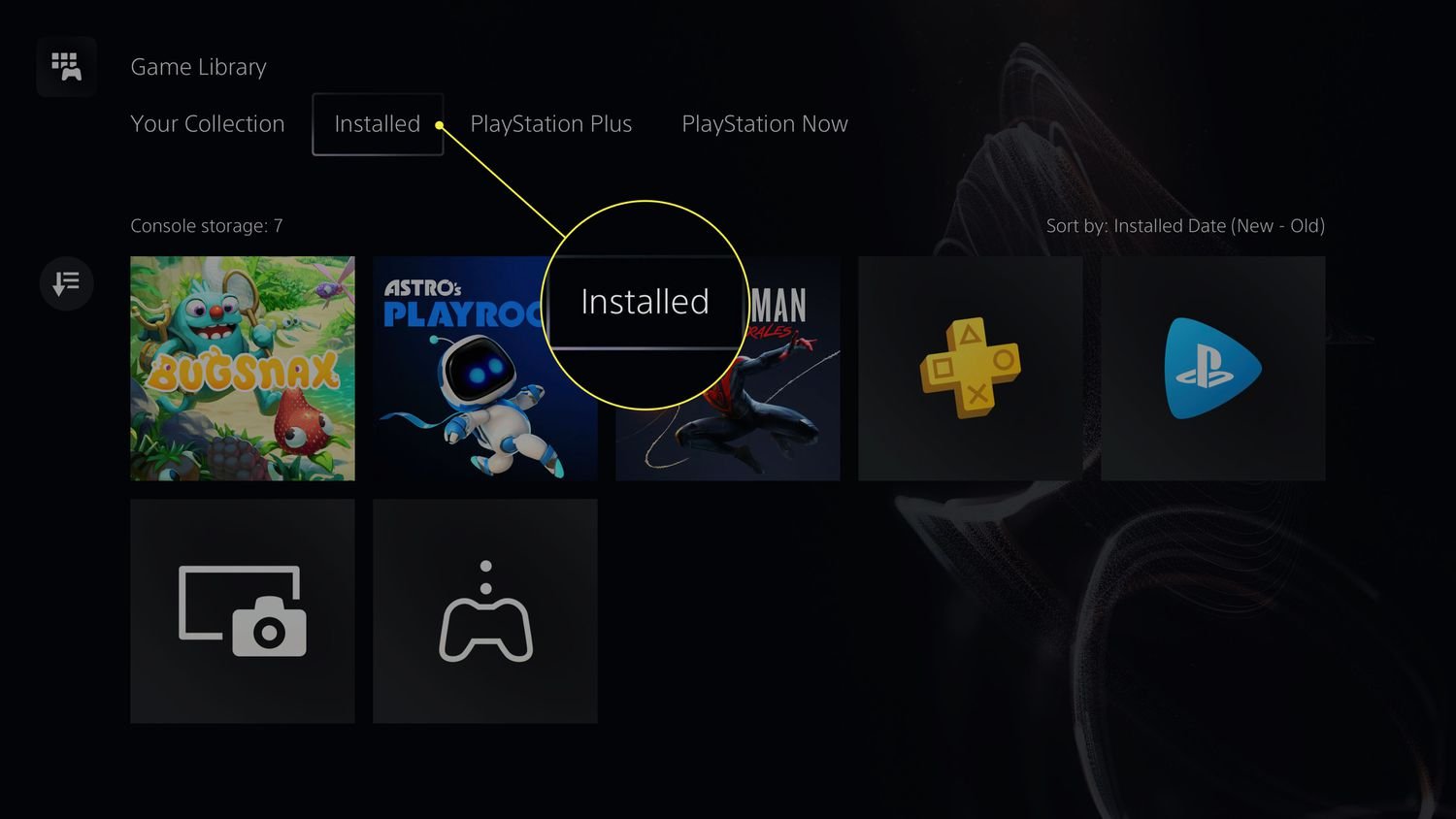
Uninstalling games on PS5 does not delete your saved data. Saved data remains separate, so you can safely remove the game application and reinstall it later without losing progress.
Running out of space on your PlayStation 5 can be frustrating, especially when you want to download new titles. You might worry about losing game progress if you remove games. Thankfully, it’s quite simple to uninstall games on PS5 without losing data. The good news is your save files remain untouched even when you delete the application itself. This makes managing your storage easy.

How to Uninstall Games on PS5 Without Losing Data
Running out of space on your PlayStation 5? It happens to the best of us! Those awesome games take up a lot of room, and sometimes you need to make space for new adventures. The good news is, you can uninstall games on your PS5 without losing your precious saved game data. This means you can pick right back up where you left off when you reinstall the game. Let’s explore how to do it safely and easily.
Understanding Game Data and Storage on PS5
Before we dive into the steps, let’s get a basic understanding of how the PS5 handles game data and storage. Your PS5 has two main types of storage: console storage and external storage. Console storage is built right into the system, and that’s where most of your installed games and save data live. External storage can be added using a USB drive or an NVMe SSD to give you even more space. Game data, like your progress, settings, and characters, are typically saved separately from the actual game files. This is important because it means you can remove the game files without touching your progress.
Where is My Game Data Stored?
Game save data is typically stored on the PS5’s console storage, regardless of where you installed the game. This is important to remember. When you uninstall a game, only the game files are removed, and the save data stays behind. This ensures you won’t have to start from scratch if you reinstall the game later.
PS5 Storage Options
- Console Storage: This is the internal storage of the PS5. It’s faster than external storage and is where games are ideally installed.
- External USB Storage: You can use a USB hard drive or SSD to store and play PS4 games, and also store PS5 games (PS5 games cannot directly be played from external USB Storage).
- Internal NVMe SSD Expansion: If you want more ultra-fast storage, you can install an NVMe SSD directly into your PS5. This is ideal for playing PS5 games.
Steps to Uninstall Games on PS5
Now that you know where your data is stored, let’s get to uninstalling games. The process is simple and straightforward. Here are the steps to follow:
Uninstalling Games from the Home Screen
This is the most common method and the easiest way to remove games from your console.
- Go to the Game Library: Turn on your PS5 and go to the home screen. Find the “Game Library” icon – it looks like a collection of game discs.
- Select the Game: Scroll through your games until you find the one you want to uninstall.
- Press the Options Button: Once you have selected the game, press the “Options” button on your controller. This button is located to the right of the touchpad.
- Choose Delete: From the menu that pops up, select the “Delete” option.
- Confirm: A message will appear asking you to confirm. Select “OK” to proceed. The game will then be uninstalled.
It’s as simple as that! The game files will be removed from your storage, but your save data will remain safe.
Uninstalling Games from the Storage Settings
Another way to remove games is through your console’s storage settings. This method is helpful when you want to see all of your installed games and other content on one page.
- Go to Settings: From the PS5 home screen, select the gear icon in the top right corner. This will take you to the system settings.
- Navigate to Storage: In the settings menu, go down to “Storage”.
- Select Console Storage or External Storage: Now, choose the storage location where the game is installed. If it’s on the PS5 itself choose “Console Storage,” or if the game is installed on a USB drive, choose “Extended Storage.”
- Go to Games and Apps: Select the “Games and Apps” option.
- Find the Game: You will see a list of all the games installed on the selected storage location. Find the game that you wish to uninstall.
- Choose Delete: Select the game, then press the “Delete” button. A confirmation message will appear.
- Confirm: Select “OK” to confirm the game’s removal.
Using the storage setting offers a great overview of your storage usage, allowing you to manage your data and games more efficiently.
Keeping Your Save Data Safe: Best Practices
While your PS5 keeps your game saves separate from game files, it’s always a good idea to double-check that your precious progress is safe. Here’s what you can do:
Manual Cloud Saves via PS Plus
If you have a PlayStation Plus subscription, your game saves are usually backed up to the cloud automatically. But you can also manually upload your saved data to the cloud for extra peace of mind.
- Go to Settings: From the home screen go to the settings (gear icon) menu.
- Select Saved Data and Game/App Settings: Choose “Saved Data and Game/App Settings”.
- Choose Saved Data (PS5): Select “Saved Data (PS5)”
- Choose Console Storage: Choose “Console Storage” here.
- Select Cloud Storage: Select “Upload to Cloud Storage”.
- Select Your Game: You’ll see a list of your games. Choose the game that you want to back up.
- Choose Upload: Now you need to click on “Upload All” to upload all your saves, or select the individual saves that you would like to save and hit the upload button.
This will create a backup of your game saves, so you won’t lose any progress in case anything happens on your system, like if you needed to completely reset it.
Manual Backup to USB Drive
If you don’t have a PlayStation Plus subscription, you can back up your save data to a USB drive. This is another secure way to keep your game progress safe.
- Plug in your USB Drive: Connect your USB drive to one of the USB ports on your PS5.
- Go to Settings: From the home screen go to the settings (gear icon) menu.
- Select Saved Data and Game/App Settings: Choose “Saved Data and Game/App Settings”.
- Choose Saved Data (PS5): Select “Saved Data (PS5)”
- Choose Console Storage: Select “Console Storage”.
- Select Copy to USB Drive: Select the “Copy to USB Drive” option.
- Select Your Game: Choose the game you want to back up.
- Choose Copy: Now you need to click on “Copy” to copy the selected saves to your USB drive.
This will save all your current progress onto the USB drive, making it easy to restore at any time. Remember to keep your USB drive in a safe place!
Important Considerations Before Uninstalling Games
Before uninstalling a game, take a few moments to consider these points:
Game Patches and Updates
When you uninstall a game, the system also removes all associated patches and updates. If you reinstall the game, you may have to re-download these updates. Keep this in mind, particularly if your internet connection has data caps. Check the file size before downloading these updates.
Game Install Location
Be sure of where the game is installed before deleting it. You can check in the Storage menu before uninstalling. This way you don’t accidentally delete a game you wanted to keep.
Multiplayer Games
If you’re in the middle of a multiplayer game or a particularly important part of a game that requires an internet connection to save, make sure you complete the match or save your progress before uninstalling. You want to avoid losing important progress.
Reinstalling Uninstalled Games
So, you’ve uninstalled a game and want to play again. The good news is that your saved data is still there waiting for you. To reinstall a game, here’s what you need to do.
Reinstalling Games from the Game Library
Reinstalling a game is just as easy as uninstalling it. Here are the steps to do it from your Game Library:
- Go to Game Library: Select the “Game Library” from your home screen.
- Select Purchased Games: Go to the “Your Collection” tab and choose “Purchased Games”.
- Find the Game: Find the game you uninstalled in the list of your games.
- Download the Game: Click on the game and select “Download”. The game will begin downloading.
Once the download is complete, you can start playing again. Because your save data was kept, your progress will pick up from exactly where you left off.
Reinstalling Games from the PlayStation Store
If you can’t find the game in your Game Library you can go to the store to download the game again.
- Go to PlayStation Store: From the home screen, select the PlayStation Store icon.
- Search for Game: Search for the game you want to reinstall.
- Download the Game: On the game’s page select “Download”. The game will then begin installing on your console.
Once the download is complete, start the game and enjoy your old saves again!
Managing Storage Effectively on Your PS5
Now that you know how to uninstall and reinstall games without losing data, let’s talk about how to manage your storage so you don’t have to do it all that often. Here are some helpful tips for effective storage management:
Prioritizing Your Games
Consider which games you play the most and which ones are on the “maybe later” list. Keep the games that you are playing often installed on the console storage and delete any games that you haven’t played in a long time and don’t plan to anytime soon.
Utilizing External Storage
For PS4 games and also to store PS5 games, use an external USB drive or SSD. This can free up valuable space on your PS5’s internal drive for the games you are playing most. PS5 games can be moved to external storage, but cannot be directly played from there, you will need to copy them back to console storage to play them.
Deleting Unnecessary Captures
Your PS5 automatically records videos and takes screenshots, especially when you earn trophies. These can take up valuable space on your console. Review and delete captures that you don’t need. Go to your game capture gallery and delete anything that is no longer needed.
Moving Games Between Storages
You can move games between your PS5 internal storage and external storage. This can be helpful to quickly open space for a new game you are about to play, or to move a game you don’t play often to external storage. Just remember that PS5 games cannot be played from external USB storage.
To move games from the Settings menu, go to “Storage” then “Console Storage” or “Extended Storage” and choose “Games and Apps.” Select “Move,” and then select the games you want to move to either storage. Select the “Move” button and confirm your decision.
By using these tips, you can keep your PS5 running smoothly and avoid the dreaded “out of space” error messages.
Uninstalling games on your PS5 doesn’t need to be a scary process. As long as you remember the difference between game files and saved data, you can easily make space without losing any progress. With a little planning and management, your PS5 will continue to be a fun entertainment source for many years. Now, go on and make some room for new gaming adventures!
How to Uninstall Games on PS5! PS5 Uninstall/Delete Games & Free Up Space (Easy Guide!)
Final Thoughts
To uninstall games on PS5 without losing data, you must delete the game itself from the console storage. The console keeps save files separately. Ensure you back up your data to the cloud or a USB drive for safety.
You will find that this method allows you to free up space without losing game progress. This is important when managing limited storage. Knowing how to uninstall games on PS5 without losing data is really helpful.

