
To unlink your Epic Games account from your PS5, you need to do it via the Epic Games website, not through your PlayStation console.
Have you ever linked your Epic Games account to your PS5 and now want to separate them? It’s a common situation, perhaps you want to use a different Epic account or start fresh. Knowing how to unlink epic games account from ps5 is important, and surprisingly, the process isn’t handled directly on your PlayStation. You must use another device for this. We’ll walk you through the simple steps needed to break that link and regain control of your account associations. This guide will help you complete the separation.

How to Unlink Epic Games Account From PS5
Okay, so you’ve got your Epic Games account all cozy with your PlayStation 5. Maybe you want to switch to a different account, or perhaps you just want to keep things separate. Whatever the reason, unlinking your Epic Games account from your PS5 is totally doable! It might seem a little tricky at first, but trust me, it’s a pretty straightforward process once you know the steps. This guide will walk you through everything you need to know, step-by-step, and explain some things you should think about before you start.
Why Would You Want to Unlink Your Accounts?
Before we dive into the “how,” let’s talk about the “why.” There are several good reasons why you might want to unlink your Epic Games account from your PS5. Knowing the reasons can help you decide if unlinking is really the right move for you.
- Switching Accounts: Maybe you have a new Epic Games account you want to use, or you need to use a different one for a family member. You might want to play with a different group of friends or access content available on another account.
- Privacy Concerns: Some players feel more secure keeping their gaming accounts separate. If you’re worried about sharing data across platforms, unlinking can give you extra peace of mind.
- Technical Issues: Sometimes, linking accounts can cause problems with games, like not being able to access your progress or purchased items. Unlinking and then relinking can help fix these kinds of problems.
- Simply Starting Fresh: Sometimes, you might just want to start over with a completely fresh account for a particular game or set of games, and unlinking allows this.
Think about these reasons and see if any of them fit why you’re looking to unlink. If you’re still not sure, you can always ask a grown-up or a friend for their opinion.
Things to Consider Before Unlinking
Unlinking your accounts isn’t something to jump into without thinking. There are a few important points to keep in mind. It is very important to understand what is going to happen after unlinking accounts, so before you try it, think about all of these point that will be mentioned below:
Game Progress and Purchases
This is probably the most crucial part: your game progress, skins, items, and purchases are usually tied to your Epic Games account. If you unlink the account, these things could become inaccessible on your PlayStation 5 if you don’t use same Epic Games account again, unless your game also uses cloud saves separate from Epic’s system. When you link a new Epic Games account, you will be starting from scratch with that new account, in most cases, unless your new account also have previous saves of the games. Some games might have cross-progression but it’s always better to be careful.
Here’s a quick checklist:
- Make sure you know which Epic Games account is currently linked to your PS5. It will help to avoid any possible confusions.
- Double-check that you have access to the email address and password of this Epic Games account, because after unlinking, you would need to use it again to recover your progress.
- Take a moment to decide if you’re really okay with potentially losing access to your progress or any in-game purchases you’ve made. It is very important to make a proper decisions, not doing without thinking properly.
Future Linking
After you unlink, remember that you can always link a new Epic Games account to your PS5 later. However, be careful about linking the wrong account. Be sure of the new account details, so that you do not have to worry about losing your previous game progress.
Account Security
Keeping your accounts secure is essential. Before unlinking, make sure you have strong passwords and two-factor authentication enabled on both your Epic Games and PlayStation Network accounts. It’s a good habit to have it enabled all time.
The Step-by-Step Guide to Unlinking
Alright, let’s get to the main event! Here are the steps you need to follow to unlink your Epic Games account from your PS5. Remember, it’s not done directly on your PS5. You’ll need a computer or a phone with internet access.
Step 1: Access the Epic Games Website
First, go to the official Epic Games website using your computer, phone, or tablet. Open your web browser and type in www.epicgames.com and press Enter. This takes you to the main page of Epic Games.
Step 2: Log into Your Epic Games Account
Once you’re on the Epic Games website, find the “Sign In” button. It’s usually in the top-right corner of the screen. Click on this button to log in. If you are already logged in, you will find a Profile icon instead of Sign in Button, and you can click on that. This will lead you to another page, where you will see an option that says Account. Click on that as well.
Enter the email address and password associated with your Epic Games account. Make sure this is the account currently connected to your PlayStation 5. If you have two-factor authentication turned on, you’ll also need to enter the code you receive on your authenticator or device. Click the sign-in button after entering the email, password and the two-factor code.
Step 3: Navigate to Account Settings
After you log in, look for your profile name or icon, usually at the top right of the page. Click on it, and a menu will appear. Find the option that says “Account” or “Account Settings” and click it. You will now enter another page.
Step 4: Locate the “Connections” Section
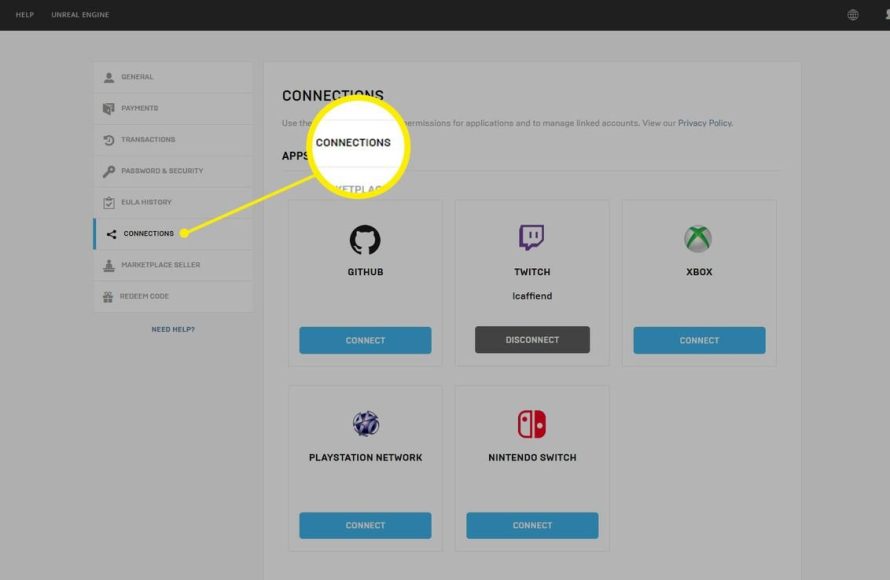
In the Account Settings page, you’ll see a menu on the left side. This menu might be called “Account Settings”, or “General”, or may have different name depending upon Epic’s website updates. Look for something that says “Connections” or something similar. Click on “Connections” to see all the linked platforms with your Epic Games Account.
You will now see all the platforms connected with your Epic Games account on the right side of the screen, after clicking on connections. The different platforms will appear in different sections. One section will be named as “Apps”, and another one would be called “Accounts”. Make sure you read carefully all the available sections.
Step 5: Find Your PlayStation Network Connection
In the “Accounts” sections, or where ever the console’s connections show up on the page, you will find the “PlayStation Network” option. Look for the PlayStation logo or the words “PlayStation Network” or “PSN” on the list of connected accounts.
Step 6: Unlink Your PlayStation Network Account
Beside the “PlayStation Network” connection, you’ll see a button that says “Remove” or “Unlink”. This might be in a different place based on different Epic Games website updates, but make sure to find such button. Click this button to start the unlinking process.
Epic Games will usually ask you to confirm that you want to unlink the accounts. It’s a good idea to read this confirmation message carefully to be absolutely sure you understand what’s going to happen. Once you are ready, confirm your decision to unlink the accounts by clicking on the confirm or unlink button.
You will now see a message confirming that the two accounts are no longer linked. The PlayStation logo should now disappear from your connected accounts on the connections page. You have successfully unlinked your Epic Games account from your PS5.
Step 7: Confirm the Unlinking on Your PS5
While the actual unlinking happens on the website, it’s a good idea to check the connection on your PS5 to ensure everything is unlinked correctly. Here’s how:
- Turn on your PS5.
- Go to the main menu or the games library.
- Open any game that you play using the Epic Games account. If the connection is no longer active, the game might ask you to log in with an Epic Games account. You can try logging in with new account to confirm if the unlinking is successful.
If you successfully sign in with the new account and are starting from scratch, you’ve unlinked everything perfectly!
Dealing with Common Issues
Sometimes things don’t go as planned. Here are a few common problems that can happen and how to deal with them:
Can’t Find the “Unlink” Button
If you can’t find the “Unlink” button, double-check that you’re in the correct section of the Epic Games website. Make sure you are logged in to the correct Epic Games account that is linked with your PSN account. Sometimes, website layouts change, so look carefully for phrases like “Connections,” “Linked Accounts,” or “Connected Platforms.” If you’re still having problems, it could be a good idea to use the Epic Games official support page for additional help.
“Account Already Linked” Error
If you see an “account already linked” error when trying to link a new account, this could mean that your PSN account is already linked to a different Epic Games account. You might have forgotten about a previous account, or it may have been linked by someone else using your console. Try logging into your email account, or any other email accounts you have access to, and search for an email regarding Epic Games account linking with PSN. Try to use that account instead of a new one.
Problems With Game Progress
If you’re having trouble accessing your game progress after unlinking, make sure you linked to the same Epic Games account you used before. If you linked to a new account, then you will have to start from scratch. Check if your game has cross-progression that could help transfer your data. If you’re still not able to find the previous progress, Epic Games official website might be the place to ask for additional help. Check their support page for more help on the matter.
Too Many Unlinks
Epic Games may have a limit on how often you can unlink and relink accounts in a short time. If you’re doing this often, they might put a temporary block on your account to prevent abuse. Be sure to unlink and relink only when you are very sure of it, as doing it frequently could result in temporary account restrictions. Be sure to read through Epic Games terms of service to be aware of such limitations.
What Happens After You Unlink?
So, you’ve successfully unlinked your Epic Games account from your PS5. What happens next? Here’s what you can expect:
- No More Automatic Login: You will not automatically log into your Epic Games account when you start a game on your PS5. You’ll have to manually log in each time, or link a new account.
- Potential Loss of Progress: As mentioned before, if your progress was stored only on the Epic Games side, you might lose your game progress. Make sure you understand which is your main account, and make sure to link to the same account after unlinking.
- Ability to Link a New Account: You can now link a different Epic Games account to your PS5 if you want. This is helpful for using different accounts for different purposes.
- No Change to PSN Account: Your PlayStation Network account remains the same and is unaffected by this process. Your PSN friends list and other PSN specific details are not affected.
Think about these points when deciding if unlinking is really what you need. If you’re still not sure, ask a friend or a family member for their opinion.
Unlinking your Epic Games account from your PS5 might seem confusing, but it’s a manageable process if you follow the steps carefully. Remember to consider the implications for your game progress and purchases. Always double-check everything before making changes, and you’ll be back to gaming in no time!
How to Unlink Epic Games Account From PS4, PS5, Xbox, Switch, & PC
Final Thoughts
To unlink your Epic Games account from your PS5, you must go through the Epic Games website. Navigate to your account settings and find the connections option. Choose the Playstation Network option and select the unlink option.
This process completely disconnects your Epic Games profile from your Playstation Network account. Be mindful that you might lose access to content tied to your linked profile. Remember to carefully follow the steps to ensure you’re completing ‘how to unlink epic games account from ps5’ properly.

