
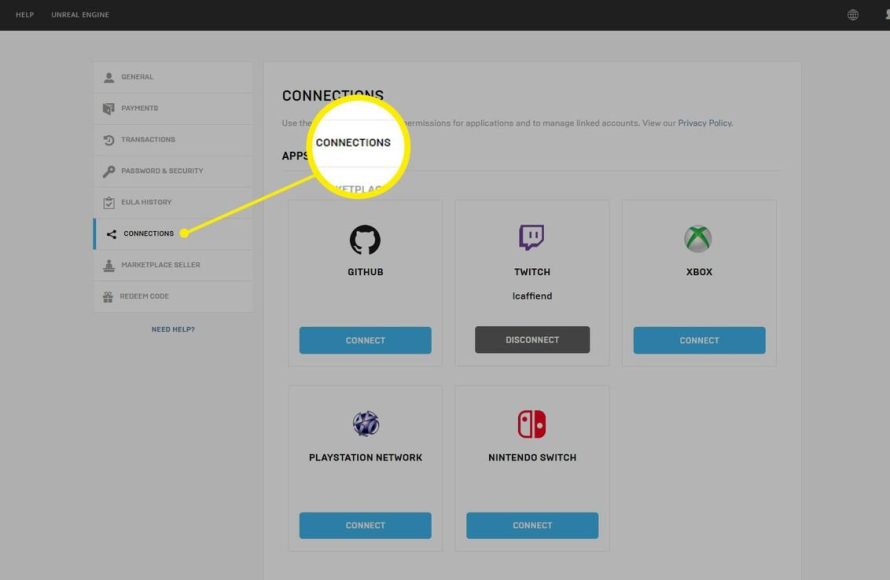
You can unlink your PlayStation account from Epic Games by accessing your Epic Games account settings online, navigating to the connections tab, and selecting ‘disconnect’ next to your PlayStation Network ID.
Ever found yourself needing to manage connected accounts? Specifically, figuring out how to unlink PlayStation account from Epic Games can be a little tricky. It’s a common issue, especially if you’ve linked the wrong account or simply need to make a change.
Don’t worry, the process is fairly straightforward. This guide will help you navigate the steps, so you can regain control over your linked accounts. We aim to make the process clear and simple for you.

How to Unlink PlayStation Account From Epic Games
Okay, so you’ve decided you want to disconnect your PlayStation account from your Epic Games account. Maybe you want to link it to a different Epic Games account, or maybe you just don’t want them linked anymore. Whatever your reason, it’s totally doable, and we’re here to guide you through it step-by-step. It’s like untangling a video game controller wire – a little patience and the right moves get the job done!
Understanding the Link: Why Are They Connected?
Before we jump into the “how,” let’s quickly talk about “why.” When you play games like Fortnite, Rocket League, or Fall Guys on your PlayStation, and you also play on other devices like a PC, or a Switch or Xbox, having your accounts linked means all your progress, skins, and other goodies follow you between systems. This connection makes gaming way more convenient, so you can keep playing wherever you are. It’s like having one big game account across different consoles! But sometimes, you need to separate things.
The Benefits of Linking
- Shared Progress: Keep all your game progress, level, and stats across PlayStation and other devices.
- Shared Items: Access your purchased outfits, emotes, and other in-game items on all linked platforms.
- Convenience: Play seamlessly between systems without starting over.
Reasons to Unlink
Even with all the benefits, there are times when unlinking is necessary. Some common reasons include:
- Linking to the Wrong Account: Accidentally linking your PlayStation account to the wrong Epic Games account.
- Switching Epic Accounts: You might want to use a different Epic Games account, and therefore need to unlink the current one.
- Privacy Concerns: Some users prefer to keep their accounts separate for privacy or security.
- Troubleshooting Issues: Unlinking and relinking can sometimes help fix problems with game progress or item access.
No matter the reason, unlinking your accounts is straightforward process that we will explain below.
Step-by-Step Guide to Unlinking Your Accounts
Now, let’s get to the main event! Here’s how to unlink your PlayStation account from your Epic Games account:
Accessing the Epic Games Website
First things first, you’ll need to head over to the Epic Games website. This is where you will manage your connected accounts. Here’s how:
- Open Your Web Browser: Use your computer or your phone to open a web browser like Chrome, Safari, or Firefox.
- Go to the Epic Games Website: Type epicgames.com into the address bar and hit enter.
- Sign In: If you’re not already signed in, click the “Sign In” button in the top right corner of the page.
- Use Your Epic Games Account Details: Enter the email address and password associated with your Epic Games account and sign in.
Make sure you sign in to the right Epic Games account that you wish to unlink from your PlayStation account.
Navigating to Account Settings
Once you’re logged in, you need to find your account settings, here are steps to do so:
- Click on Your Account Name: In the top right corner, you’ll see your account name. Click on it.
- Select Account: A drop-down menu will appear, find “Account” and click on it.
- Locate the Connected Accounts Section: This will take you to your account settings page. On the left side of the screen, look for “Connections” or “Connected Accounts.” Click on it.
Finding Your PlayStation Account
On the Connections page, you will see a list of all the accounts you’ve linked to your Epic Games account. Find your PlayStation account in the list:
- Identify PlayStation Network: The PlayStation account will usually be labeled as “PlayStation Network,” or something similar.
- Look for the Disconnect Option: Next to your PlayStation account, you should see an option like “Remove,” “Disconnect,” or a small “X” icon. This is the button you will use to unlink the account.
Unlinking Your Account
Here’s the important step – actually unlinking the accounts:
- Click the Disconnect Button: Click the “Remove” or “Disconnect” option next to your PlayStation account.
- Confirm Your Decision: A popup will appear asking you to confirm your decision to unlink. Read it carefully, because it will probably tell you about the consequences of unlinking the account.
- Final Confirmation: If you’re sure you want to proceed, click “Confirm” or the appropriate button to finalize the unlinking process.
After completing these steps, your PlayStation account should now be unlinked from your Epic Games account.
What Happens After Unlinking?
So, you’ve unlinked your accounts. What now? It’s important to understand what changes after you separate the accounts.
Game Progress
First thing to know, your progress may be affected. Here is what may happen.
- Separate Progress: Any progress you make on your PlayStation after unlinking will be kept separately from your Epic Games account progress.
- No Syncing: Your game saves will no longer sync across platforms. This means if you make progress on PlayStation, it won’t show up on PC, and vice-versa.
In-Game Items
What about all your cool items?
- Item Separation: Items you own, like skins and emotes, might not transfer between your accounts. Usually, items are tied to the specific platform where they were earned or purchased.
- Potential Loss: In some cases, especially if you have linked an account in the past to a different account, you might lose access to some of your content, so be extra careful.
Access to Games
You won’t lose access to the games you have on the Epic Store, but you may need to log in separately on each system.
- No Auto Log In: You’ll need to enter your login details separately on both platforms.
- Potential Need to Relink for Some Games: Some games may require your accounts to be linked for online gameplay. If this is the case, you may need to link the correct account before playing again.
Potential Issues and Troubleshooting
Sometimes things don’t go as smoothly as we hope. Here are some things that might happen and how to handle them:
Error Messages
- Problem: You get an error message while trying to unlink your account.
- Solution: Make sure you are logged into the correct Epic Games account, refresh the page and try again. Also, check the Epic Games server status, they might be doing maintenance or some other work.
Stuck Unlinking
- Problem: The disconnection process seems to get stuck.
- Solution: Clear your browser’s cache and cookies, restart your browser or try using a different browser and try again.
Items or Progress Missing
- Problem: You lose access to your items or game progress after unlinking.
- Solution: As said earlier, that is common if you have switched linked accounts before. Contact Epic Games support for help. They will be able to investigate your situation and see what can be done.
Can’t Link to a New Account
- Problem: You’re trying to link your PlayStation account to a new Epic Games account, but it won’t work.
- Solution: Make absolutely sure that the PlayStation account is unlinked from any old accounts. Wait for a short time and try again. Contact Epic Support for further assistance if the problem persists.
Things to Consider Before Unlinking
Before you hit that “Disconnect” button, take a moment to think about these important factors:
Consequences of Unlinking
Make sure you fully understand what happens when you unlink your accounts. Double check that you really want to disconnect your accounts.
- Progress and Items: Think if you want your progress and items separated.
- Account Management: You’ll have to manage two accounts separately.
Alternative Options
Instead of unlinking, is there any other option that you may want to try?
- Switching Linked Account: If you just want to link a different account, you might want to first try to unlink and then relink to the right account.
- Contact Support: If you have any doubt, try to contact the Epic Games support first, to see if they can help you find another solution.
Double-Check Your Decision
Before you confirm, take a deep breath and ask yourself if you have considered every potential consequence.
- Review Everything: Have you looked at the potential consequences?
- Make Sure: Are you absolutely sure you want to unlink your account?
Unlinking your PlayStation account from Epic Games can be useful, whether you need to change linked accounts or you want to manage your game progress differently. Be careful to understand all the consequences of disconnecting your accounts. Remember, if you encounter any issues, the Epic Games support team is always ready to provide guidance. With careful consideration and the right steps, you can manage your accounts the way you like.
How to Unlink Epic Games Account From PS4, PS5, Xbox, Switch, & PC
Final Thoughts
To unlink your PlayStation account from Epic Games, visit the Epic Games website. Navigate to the “Connected Accounts” section in your profile settings. Find your PlayStation Network account there.
Click the “Remove” option. This action will sever the connection. Remember you must have another primary account linked first. This is how to unlink playstation account from epic games.

