
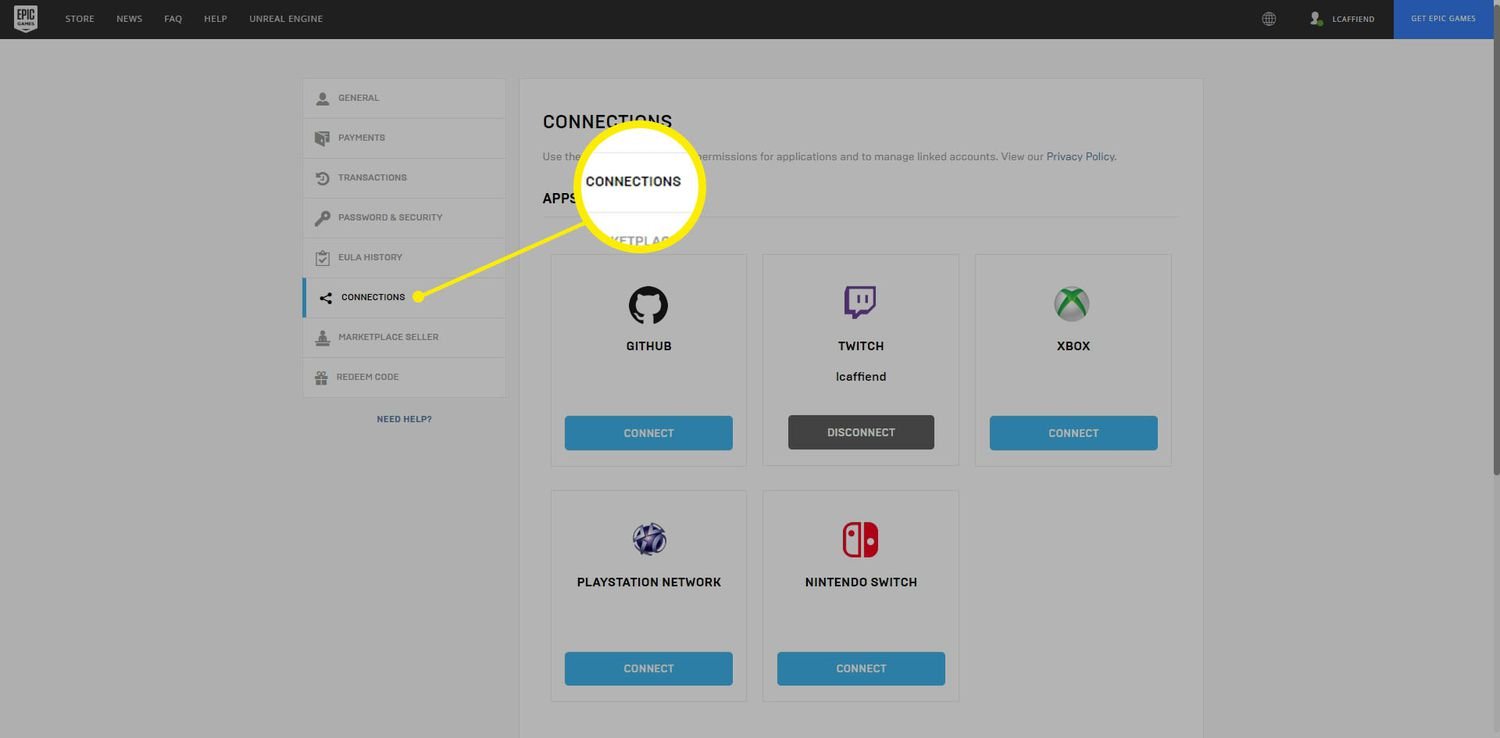
You can unlink your PSN account from Epic Games through the Epic Games website’s “Connections” settings.
Ever found yourself needing to separate your PlayStation Network and Epic Games accounts? Maybe you’re switching platforms or just want a fresh start. Many gamers encounter this situation and search for how to unlink PSN account from epic games.
It’s a common concern, thankfully, the process isn’t overly complicated. We’ll guide you through the steps to help you manage your linked accounts effectively and easily. This allows you to regain full control of your gaming profiles.

How to Unlink PSN Account from Epic Games
It can be a little tricky sometimes when you have linked your PlayStation Network (PSN) account to your Epic Games account, and you want to separate them. Maybe you want to use a different PSN account, or perhaps you’re just trying to tidy things up. Whatever the reason, unlinking these accounts is totally possible, and we’re going to show you exactly how to do it. This guide is made to be easy to understand, so even if you’re not a tech expert, you’ll be able to follow along with no problems.
Why You Might Want to Unlink Your Accounts
Before we dive into the “how,” let’s talk about “why.” There are several good reasons why you might need to break the connection between your PSN account and your Epic Games account. Here are some common scenarios:
- Starting Fresh: Perhaps you have created a new PSN account and would like to link it to your existing Epic Games account. This could be for a new gaming profile or to separate game progress.
- Account Mix-Ups: Maybe you mistakenly linked the wrong PSN account to your Epic Games account and want to correct the error. We all make mistakes!
- Account Sharing Issues: If you were sharing an account and now want to have your separate gaming profiles, unlinking is a crucial step.
- Security Concerns: If you suspect unauthorized access to your accounts, unlinking might help to secure your accounts.
- Moving to Another Platform: If you decide you will no longer use a PlayStation and want to use your Epic Games account on a different system, it is better to unlink your PSN account.
These are just a few examples, but the core reason is usually about managing your digital gaming presence in the way that works best for you. Knowing why you need to do it is just as important as knowing how to do it. Now, let’s jump into the details of how to unlink!
Understanding the Process of Unlinking PSN from Epic Games
Unlinking your PSN account from your Epic Games account is not as simple as clicking a single button; it’s a process that requires a little bit of navigation on the Epic Games website. You’ll need to log in to your Epic Games account through their website and then find the connections area. It is all done through your web browser, not through the PlayStation console itself. The good news is that it’s quite manageable when you know where to look.
What to Expect After Unlinking
Before you move ahead, it’s very important to know what happens when you unlink the accounts.
- Game Progress: Any progress you have made in Epic Games games using your PSN account will still be linked to your Epic Games account and will not be lost. The link between the accounts is only for playing and account management.
- Linked Accounts: Once unlinked, you will need to log in through alternative methods, such as your primary email address, or other platform accounts you may have linked to Epic Games.
- Future Linking: You can always link a new PSN account after unlinking the old one, if you like. This makes switching things up much more manageable.
Now, with these expectations set, let’s get down to the step-by-step instructions.
Step-by-Step Guide: Unlinking PSN Account from Epic Games
Here’s the detailed process you’ll need to follow:
Step 1: Go to the Epic Games Website
First, you need to open your web browser on your computer, tablet, or phone. Then, go to the official Epic Games website (epicgames.com). Make sure you’re on the correct site to avoid any security issues.
Step 2: Log In to Your Epic Games Account
Once you are on the website, find the “Sign In” or “Log In” button. It’s often at the top right corner of the page. Log in using your Epic Games account details. This could be your email address and password or any other sign-in method you may have selected previously. Ensure you are logging into the specific Epic Games account that is linked to the PSN account you want to unlink.
Step 3: Navigate to Account Settings
After successfully logging in, hover over your display name in the top right corner. A drop-down menu will appear. From this menu, click on “Account.” This will take you to your account settings page where you can manage all your account details.
Step 4: Find the “Connections” Section
On the Account Settings page, there is usually a menu or set of tabs on the left side. Look for “Connections” and click on it. This will bring up all the different accounts linked to your Epic Games account, including your PSN account.
Step 5: Unlink the PlayStation Network (PSN) Account
Now that you are in the Connections section, you will see your PSN account listed. Find the PSN account you want to unlink. Next to the PSN account, you should see an “Unlink” or “Remove” button. Click on this button. Epic Games will probably ask you to confirm that you want to unlink the account. Be sure to read the confirmation carefully. Click confirm if you are certain about your decision to unlink. Remember, any game progress will not be lost.
Step 6: Confirmation and Completion
After confirming, the page will update, and the PSN account will no longer be connected to your Epic Games account. You have successfully completed the unlinking process! Now you are ready to link a different PSN account or continue without your PSN account connected.
What if You Have Problems Unlinking Your Accounts?
Sometimes, the process does not go exactly as planned, and you might experience some issues. Let’s look at common problems and how you can solve them:
Problem: Not Seeing the “Unlink” Button
Solution:
- Make sure you are logged into the correct Epic Games account. If you have multiple accounts, you may be looking at the wrong one.
- Refresh the page. Sometimes, the website might need a refresh to show all the correct options.
- If the problem continues, try using a different web browser. Sometimes, there can be compatibility issues with certain browsers.
Problem: Getting Error Messages
Solution:
- Read the error message carefully. Error messages often provide hints about what is going wrong.
- Check your internet connection. Unstable connections can cause issues with the website.
- Try again after some time. Sometimes, there are server issues on Epic Games’ end.
Problem: Having Trouble Logging In
Solution:
- Double-check your email address and password for typos.
- Use the “Forgot Password” feature if you cannot remember your password.
- If you have two-factor authentication set up, make sure you have access to the authentication method.
Problem: The Unlinking process is not happening
Solution:
- You may have to check your network or server settings.
- Clear your browser cache and cookies. Sometimes, old data can interfere with website functions.
- Contact Epic Games support if none of the above solutions work.
Reaching Out to Epic Games Support
If you have tried all the troubleshooting steps and you’re still facing issues, don’t panic! Epic Games has a great support team that can help you. Here’s how to contact them:
- Visit the Epic Games Support page on their website.
- Look for the “Contact Us” button.
- Choose the appropriate category for your issue.
- Provide as much detail as possible about the problem you are experiencing.
- They’ll reach out to you and help resolve the problem.
Tips for a Smooth Unlinking Process
Let’s make the unlinking process even smoother with these additional tips:
Double Check Your Accounts
Before you start the unlinking process, make sure you are logged into the correct Epic Games account. Also, verify that the PSN account is indeed the one you wish to unlink.
Take Screenshots
Taking screenshots of each step can be helpful, just in case something goes wrong. It can help the support team if you need their help.
Be Patient
Sometimes, it might take a little bit for the changes to take effect. If the accounts aren’t immediately unlinked, be patient and try again after a few minutes or hours.
Plan Ahead
If you’re planning to link a new PSN account after unlinking, have the new account ready. This will make the process more efficient.
Keep Your Login Information Safe
When dealing with account details, ensure you’re using a secure and private device. Never share your login information with anyone you do not trust.
Relinking Accounts: What to Do After Unlinking
After you have unlinked your accounts, you might want to link a different PSN account. This process is quite similar to the unlinking process, but you’ll be clicking a “Link” button instead of the “Unlink” button. Simply follow these steps:
- Go to the “Connections” section of your Epic Games account settings.
- Find the PlayStation Network option.
- Click the “Link” button.
- Follow the prompts to log into the desired PSN account.
- Once linked, you’re good to go!
Unlinking and linking accounts on Epic Games is a feature to give you more control over your gaming experiences. It’s all about personalizing your way to play.
The capability to unlink your PSN account from your Epic Games account is very helpful if you need to switch things around, whether you are using a different PSN account or are on another platform, it is good to have control over your gaming profiles. With the steps detailed in this guide, you should be well-equipped to handle any account linking or unlinking needs. Always remember to handle your account details with caution, and to keep your information safe. Happy gaming!
How to Unlink Epic Games Account From PS4, PS5, Xbox, Switch, & PC
Final Thoughts
To unlink your PSN account from Epic Games, first, go to the Epic Games website. Then, sign in to your Epic Games account. Locate and navigate to the ‘Connections’ section within your account settings.
You will find a list of linked accounts. Choose PlayStation Network (PSN). You’ll then see the option to unlink your PSN account. Confirm the unlinking action. This process details how to unlink psn account from epic games.

