
To unlink your Xbox account from Epic Games, you must go to the Epic Games website, log in, access your connected accounts settings, and then choose to disconnect your Xbox account.
Ever accidentally linked your Xbox account to your Epic Games account and now want them separate? It happens! Maybe you created an alternate account or simply want to manage your connections differently. Don’t worry, it is a simple fix.
Many players find they need to know how to unlink xbox from epic games for various reasons. This guide will show you the exact steps to sever this link. You can take control of your account management and get the set up you want.

How to Unlink Xbox from Epic Games
So, you want to disconnect your Xbox account from your Epic Games account? Maybe you accidentally linked the wrong accounts, or perhaps you have a new Xbox and want to start fresh. Don’t worry; it’s a pretty common thing, and it’s something you can do yourself. This guide will show you exactly how to unlink your Xbox account from your Epic Games account, step by step.
Why Would You Want to Unlink?
Before we jump into the “how,” let’s quickly talk about “why” someone might want to do this. There are several good reasons:
- Accidental Linking: You may have linked the wrong Xbox account to your Epic Games account by mistake. This happens, especially when you’re setting up new accounts quickly.
- Multiple Accounts: You might have multiple Xbox accounts and want to use a different one with your Epic Games.
- Starting Fresh: Sometimes, people prefer a clean slate, especially if they’ve changed their Epic Games account details or want to manage their game profiles separately.
- Troubleshooting Issues: If you’re having problems with games recognizing your account, unlinking and relinking can sometimes fix the problem.
- Account Security: In some situations, you might suspect a security issue and want to break the connection as a precaution.
Understanding the Process
It’s really important to know that unlinking your Xbox account from Epic Games doesn’t delete your data or game progress. The link between your Xbox and Epic Games account will break, and your Xbox profile can be then linked to another Epic account, or the previously unlinked account linked back to the same profile. Also, it is possible to play games which you have purchased on an Epic account on a new Xbox profile that is linked to your Epic account.
Now, let’s get into how you actually unlink your accounts. The process is all done through the Epic Games website; you don’t have to do anything on your Xbox.
Steps to Unlink Your Xbox Account
Ready? Let’s go through the steps to disconnect your Xbox account from Epic Games.
Step 1: Go to the Epic Games Website
First, you need to go to the Epic Games website. Open your internet browser (like Chrome, Firefox, or Safari) on your computer, phone, or tablet and go to www.epicgames.com.
Step 2: Sign In to Your Epic Games Account
Once you are on the Epic Games website, you need to sign in to your Epic Games account. Click on the “Sign In” button that you’ll find in the top right corner of the screen.
Now, you have to enter your email address and password that you use for your Epic Games account. If you use a social media account to login, you might have to use its sign-in method.
Step 3: Access Your Account Settings
After signing in, hover your mouse over your profile name, which should be at the top right of the screen, and a menu will appear. In that menu, click on “Account.” This takes you to your Epic Games account settings page.
Step 4: Locate Connected Accounts
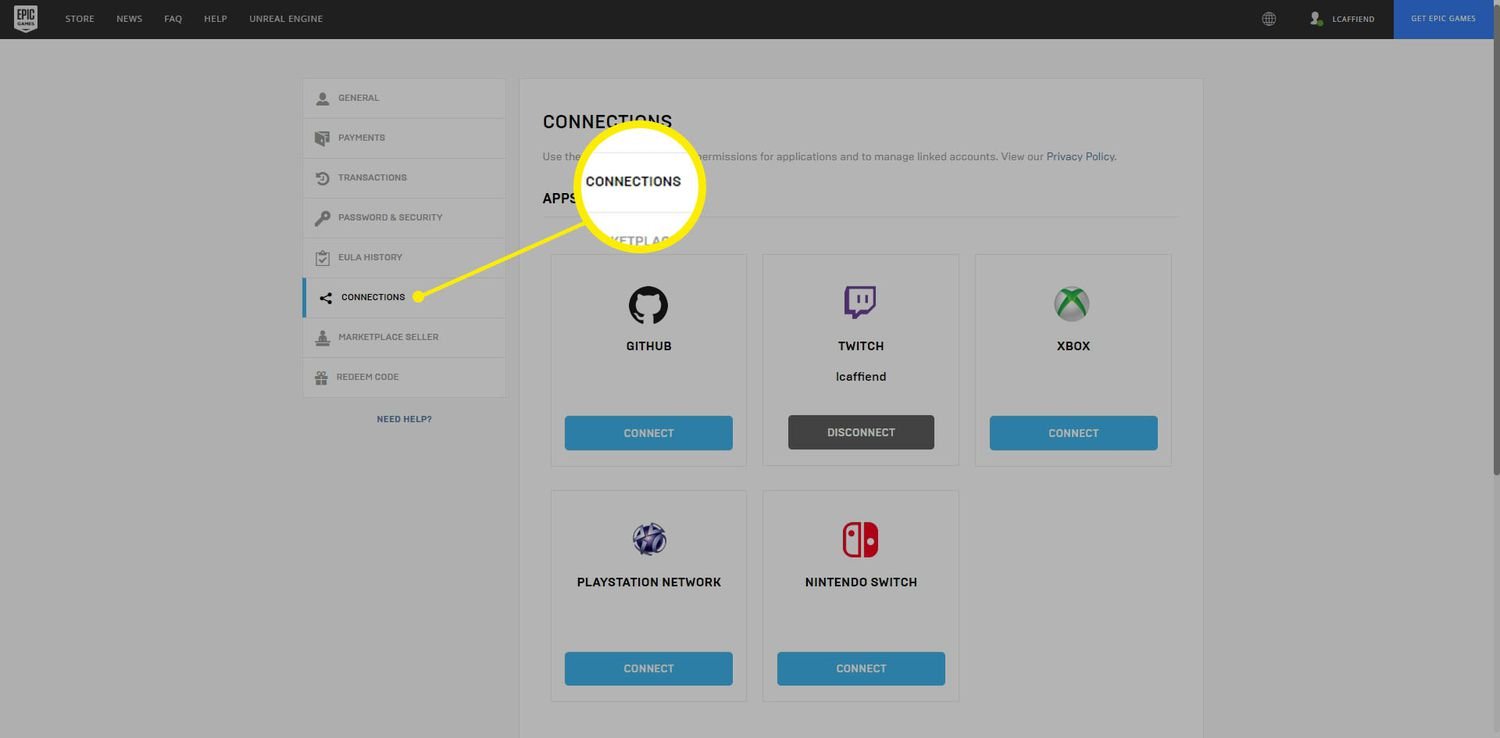
Now you’re on your account settings page, and you need to find where your connected accounts are listed. Look for a tab or a section labeled “Connections” or “Connected Accounts”. Click on that to see all accounts that are connected to your Epic Games account.
Step 5: Find Your Xbox Account
You should now see a list of all connected accounts. Look for the one that says “Xbox”. This is the account you want to disconnect.
Step 6: Unlink the Account
Beside the Xbox account, there should be a button or link that says “Remove,” “Disconnect,” or something similar. Click this button. This tells Epic Games that you want to break the link with your Xbox account.
Important: Before you click that button, make sure that you are 100% sure you want to disconnect the account. Unlinking will affect how you play games and access game data, and this change can be a bit inconvenient if not thought through.
Step 7: Confirm the Unlink
After clicking the button, Epic Games might ask you to confirm your decision. They might pop up a message to make sure you know what you’re doing. Read the message carefully and if you are sure, confirm that you want to unlink your Xbox account.
Step 8: Acknowledge the Consequences
Epic might also display a message that explains the effects of unlinking your account. It could be related to game progress, or access to certain content. Read this carefully and proceed with the disconnection process. You may lose access to certain things if you are not using the correct accounts, but this will not cause any data deletion as we explained before. Click the button to proceed with unlinking.
Step 9: Verify Account Status
After confirming, the Xbox account will disappear from the list of connected accounts. If it is no longer there, then congratulations! you’ve successfully unlinked the account. You can check your connected accounts list to ensure that the Xbox is no longer listed. This way you will know that your Xbox account is now disconnected from your Epic Games account.
What Happens After Unlinking?
Once you have unlinked your Xbox from Epic Games, you will not be able to sign in with your Xbox login details on Epic Games account, or you will not be able to access your purchased content with your Xbox account, if you are not logged into the correct Epic Games account.
Here’s what happens:
- Game Progress: Your game progress and other data are safe, as this is connected to Epic account and not the Xbox account. This data is tied to your Epic Games account. If you have saved your game progress in the cloud with the correct linked accounts, then you will be able to access it from any linked device that is logged into the same Epic account.
- Accessing Games: To play games you have purchased on your Epic Games account on your Xbox, your Xbox profile must be linked with the same Epic Games profile.
- Linking a New Account: You can now link a different Xbox account to your Epic Games account if you want. Or you can re-link your old Xbox account. The process will be the same, it just means that you will be signing in with the new account details.
- Troubleshooting: Sometimes unlinking and relinking solves problems with game recognition or if the games are not loading.
Relinking Your Xbox Account (If Needed)
If you decide you want to link your Xbox and Epic Games accounts again, it’s simple. Here’s how:
Step 1: Go to the Epic Games Website and Account Settings
Follow steps 1 to 3 from the unlinking section above to get back to your Account Settings.
Step 2: Locate Connections and Select Xbox
Go to the “Connections” or “Connected Accounts” section, just like you did before. Instead of seeing the Xbox account already there, you’ll see the option to connect a new account.
Step 3: Sign in with Your Xbox Account
Click the “Connect” button next to the Xbox logo. This will open a window where you need to sign in using your Microsoft account details, the one you use to sign in to your Xbox.
Step 4: Confirm the Connection
After you sign in to your Microsoft account, Epic Games will ask you to allow it to connect to your Xbox profile. Click the button to confirm and connect your account.
Step 5: Verify the Connection
Go back to your “Connections” or “Connected Accounts” page and you should see your Xbox account listed as connected. You can now use this Xbox account to access your games purchased via your Epic Games account.
Things to Keep in Mind
Here are some important things to remember when unlinking or relinking your accounts:
- Account Safety: Always use secure passwords and two-factor authentication to protect your accounts.
- Double Check Accounts: Make sure you’re linking or unlinking the correct accounts, especially if you have multiple profiles.
- Customer Support: If you have any problems during unlinking process, Epic Games support is ready to assist you.
- Game Updates: After unlinking or relinking, make sure to update your games so that the games know about the new connection or changes.
What if You Have Trouble Unlinking?
If for some reason you are not able to unlink your Xbox account, or if you are experiencing problems with your accounts, it’s time to get some help from Epic Games Support. They are there to help and here’s how to contact them.
Step 1: Go to the Epic Games Support Website
Go to the Epic Games website, and scroll down to the bottom of any page. You will see the “Support” link, click on this link, and this will take you to the Epic Games Support website.
Step 2: Look for Account Issues
On the Support website, you will see different topics about the most common issues. Look for a category that is related to “Account” or “Account Linking”.
Step 3: Find the “Contact Us” Button
Once you have chosen an appropriate category that covers your issue, look for a “Contact Us” button or link. This will take you to a page where you can submit a request to the Epic Games support team.
Step 4: Explain Your Problem
Fill out the required fields, such as your name, email address, and a detailed description of the problem you are experiencing. The more information you provide, the easier it will be for the support team to help you. Be sure to mention you’re having issues unlinking your Xbox account from Epic Games.
Step 5: Wait for Their Response
After you have sent a request, a customer support team member will contact you with the steps for how to resolve your issue. Check the email address that you have used in your request regularly, so you can respond to the instructions provided.
Unlinking your Xbox from your Epic Games account is a very straightforward process that you can do by yourself without getting help from anyone. Just remember that all the process is done through Epic website and not directly on your Xbox console. By following the easy steps in this guide you should have no problems with unlinking your accounts.
How To Unlink Your Xbox Account From Epic Games
Final Thoughts
To unlink your Xbox account from Epic Games, visit the Epic Games website and navigate to the ‘Connected Accounts’ section in your profile settings. You will then see the option to disconnect your Xbox account from Epic Games.
Ensure you understand any potential consequences before proceeding with the unlinking process. Consider if you will lose any game progress or items linked to that specific platform before you finalize.
This quick guide showed you how to unlink xbox from epic games. Remember, carefully read through each step on the official Epic Games website to prevent any complications.

