
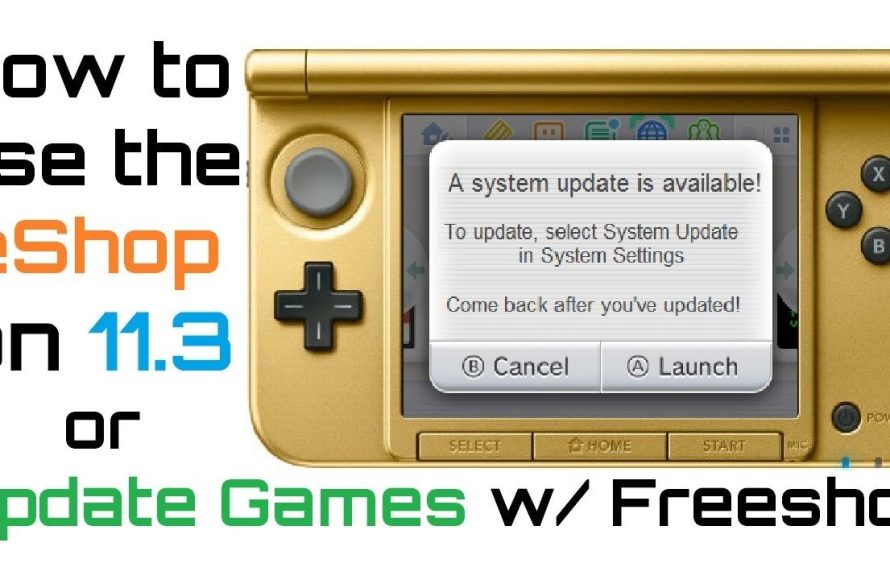
To update 3DS games, connect your 3DS to the internet, go to the HOME Menu, select the game icon, and then tap “Update Data” if available.
Have you been trying to figure out how to update 3DS games lately? It can be a bit confusing if you’re new to the system, or haven’t done it in a while. Don’t worry, the process is quite simple once you know the steps.
This guide will provide a quick rundown of how to update 3DS games easily. With a stable internet connection, you will be enjoying the latest versions of your favorite games in no time.

How to Update 3DS Games
Keeping your 3DS games up-to-date is super important! Just like your phone or computer needs updates, your games do too. These updates can fix problems, add new features, or even make the game run smoother. Imagine your favorite game suddenly getting a cool new level – that’s often thanks to an update! This article will help you understand why updates are important and how to get them.
Why Update Your 3DS Games?
You might wonder, “Why bother updating my 3DS games?” Well, there are several really good reasons! Let’s check them out:
Fixing Bugs and Glitches
Sometimes, game creators find little mistakes or glitches after they release a game. These errors can cause your game to freeze, crash, or have other problems. Game updates often include fixes that take care of these pesky issues, making your gaming experience much better. For example, imagine you’re playing a racing game, and a glitch makes your car fly off the track – an update can fix that!
Adding New Features and Content
Game updates aren’t always about fixing problems; sometimes, they add cool new stuff! This could be a new level, new characters, new items, or even a whole new game mode. It’s like getting a surprise gift for a game you already love! These additions can make playing the game more exciting and keep you interested for longer. Think of a puzzle game getting a brand new pack of puzzles to solve – that’s the kind of fun updates can provide.
Improving Game Performance
Updates can sometimes make the game run better, faster, and smoother. This means fewer loading screens, better graphics, and less lag during gameplay. Imagine playing a game and noticing it’s a little choppy; an update might improve performance so it looks great and is very smooth to play. Game developers are always looking to make their games work the best they can, and updates help them with that.
Ensuring Compatibility
Occasionally, updates help ensure that a game is compatible with other features of the 3DS system. This can involve how a game interacts with the system’s online capabilities or how it functions with other software. This is important to have a consistently pleasant experience across all aspects of gaming. Think of it like making sure all the pieces of a puzzle fit together perfectly.
How to Check for 3DS Game Updates
Okay, so now you know why game updates are important, let’s learn how to actually check for them on your Nintendo 3DS. Don’t worry; it’s easy!
Using the Nintendo eShop
The main way to update 3DS games is through the Nintendo eShop. The eShop is like an online store for 3DS games. Here’s how to do it:
- Turn on your Nintendo 3DS: Make sure your system is connected to the internet.
- Go to the eShop: Find the orange shopping bag icon on your home screen. Tap it to open the eShop.
- Navigate to the Menu: Once inside the eShop, look for the menu button. It’s usually located at the top left corner.
- Select “Settings / Other”: In the menu, choose the “Settings / Other” option.
- Choose “Updates”: In settings, look for the “Updates” option and tap on it.
- Select the game that you wish to update: If there is an update available for any game, a notification or new version will be present right next to the game’s name. Choose the game you want to update.
- Download the update: Finally, tap on the download option that’s presented, and the update will start to download. Be patient and don’t turn off your 3DS while it’s downloading.
Once the download is complete, your game will be updated to the latest version. Some updates may ask you to restart your 3DS before you play again. If this happens, just follow the instructions on the screen.
Updating Through the Game Menu (If Available)
Some 3DS games offer the option to update directly from their main menu. This method is less common than updating through the eShop, but it is convenient when available. Here’s what to do:
- Start the Game: Open the game that you want to update.
- Look for an Update Option: Check the game’s main menu for an option like “Update,” “Download,” “Check for Updates,” or something similar. It’s usually in the settings, options or a place where you see game-related choices.
- Follow the Instructions: If you find an update option, tap it and the game will walk you through the download process. Make sure you have an internet connection, as the update needs to download.
If the game does have its own update function, it’s a nice shortcut! If there isn’t an option like this, or your not sure, the eShop method is always a great way to check.
Troubleshooting Common Update Issues
Sometimes, updating your 3DS games might not go as planned. Don’t worry, we can figure out what’s wrong and find a fix! Let’s look at some common issues and their solutions.
Internet Connection Problems
A stable internet connection is very important for updating your games. If you have a weak or unstable Wi-Fi signal, the update may fail or take much too long to download. If you’re having issues with your internet connection, here are the checks you can perform:
- Check Your Wi-Fi Connection: Make sure your 3DS is connected to your Wi-Fi network. Go to the settings on your 3DS and check for your Wi-Fi connection details.
- Restart Your Router: Sometimes, simply restarting your Wi-Fi router can help fix connection issues. Turn the router off, wait a few seconds, and turn it back on.
- Move Closer to the Router: The further you are from the router, the weaker the signal will be. Move closer to it while downloading an update to see if that helps.
- Try a Different Network: If possible, try connecting to a different Wi-Fi network to see if the problem is with your router.
Not Enough Storage Space
Your 3DS needs enough free space to download and install game updates. If your system doesn’t have enough room, the update will not work. If you’re facing a situation like this, consider these solutions:
- Delete Unused Games or Software: Look at the software you have on your 3DS. You can delete older games or things you don’t use anymore.
- Transfer Data to an SD Card: You can move some of the downloaded software you have installed onto a removable SD card. This will free up some space on your system.
- Manage your game saves: You can consider removing some of your oldest game saves to free up a small amount of space for the update.
Once you’ve removed data you don’t need, try downloading the game update again.
eShop Errors
The Nintendo eShop might occasionally have problems, which may prevent you from downloading updates. Here’s what to do if you get an error:
- Check Nintendo’s Server Status: Visit Nintendo’s official website to see if there are any eShop maintenance announcements. Sometimes the service is temporarily unavailable due to planned server maintenance.
- Try Again Later: If the servers are busy, wait a while and try downloading the update again.
- Restart Your 3DS: Try closing and reopening the eShop. In some cases, this may fix the problem.
- Make sure you have the latest version of the 3ds system software: If all else fails, make sure you have the latest version of the 3ds system software. Often times an eShop error is due to outdated system software.
Game Update Failures
If the game update fails, it could be caused by several factors. Here are a few things you can try:
- Restart the System: Sometimes a simple reboot can do the trick. Turn your 3DS off, then turn it back on, and try downloading the update again.
- Check for Game Specific Problems: Search online to see if other people are experiencing similar issues. There may be a known fix or a possible workaround to try.
- Contact Nintendo Support: If you still can’t get the update to work, it might be time to contact Nintendo’s support team. They can provide expert help specific to your problem.
Be patient, and don’t worry; with a little effort, you can usually get those game updates downloaded successfully.
Tips for Smooth 3DS Game Updates
Now that you know how to update your 3DS games and what to do if things go wrong, let’s explore some tips that can make the whole process much easier.
Always Check for Updates Regularly
Don’t wait until a game starts acting up to check for an update. Make it a habit to check the eShop regularly for updates to your games. By regularly looking for updates, you’ll ensure your games have the latest improvements and fixes. You can set a reminder, maybe once a month, to do this quick check.
Have Enough Battery Charge
Before you start a game update, make sure your 3DS has enough battery charge. You don’t want the system to shut down in the middle of an update because the battery died. It’s always a good idea to start updating while plugged in or with a fully charged battery.
Keep Your System Software Updated
Just like your games, your 3DS system software needs updates too! These updates provide important security patches, general fixes, and improve system functionality. Go to “System Settings” and choose “Other Settings”, then select “System Update” to update your system software. Regularly updating your system will help ensure your updates install correctly.
Be Patient and Avoid Interruptions
When downloading and installing an update, it’s very important to be patient. Don’t turn off your 3DS or close the system while it’s updating. Wait until the update is fully complete. Interruptions during the update can cause problems. It’s best to let the process complete without any interference.
Back up Your Game Data
Before performing an update, consider creating a backup of your saved game data. This is a good safety measure. If anything goes wrong during the update you’ll have a copy of your important game saves. You can back up save data using the 3DS’ system settings.
By following these tips, you can keep your 3DS games in great condition. Enjoy playing!
Updating your 3DS games is a simple process, but it is an important one. It ensures that you are having the best gaming experience possible. By regularly checking for updates and following the steps outlined above, you can keep your games running smoothly. Remember that having the latest updates means that your games will have the most fixes, the best performance, and all of the new content the developers have created. If you encounter any issues, don’t hesitate to troubleshoot or seek assistance from Nintendo’s support team. Now you’re equipped with the knowledge you need to maintain your collection of 3DS games.
DON’T Update Your 3DS Without Doing THIS!
Final Thoughts
Updating your 3DS games is usually straightforward. Simply connect your 3DS to the internet and start the game. Most games will prompt you to download any available updates.
The system itself might also need an update. Go into system settings and find ‘system update’ option. This process ensures you have the latest game patches.
In summary, you update 3DS games by connecting online and letting the game download its update. You also need to update the system software for best compatibility. Remember, ‘how to update 3DS games’ is a simple process.

