
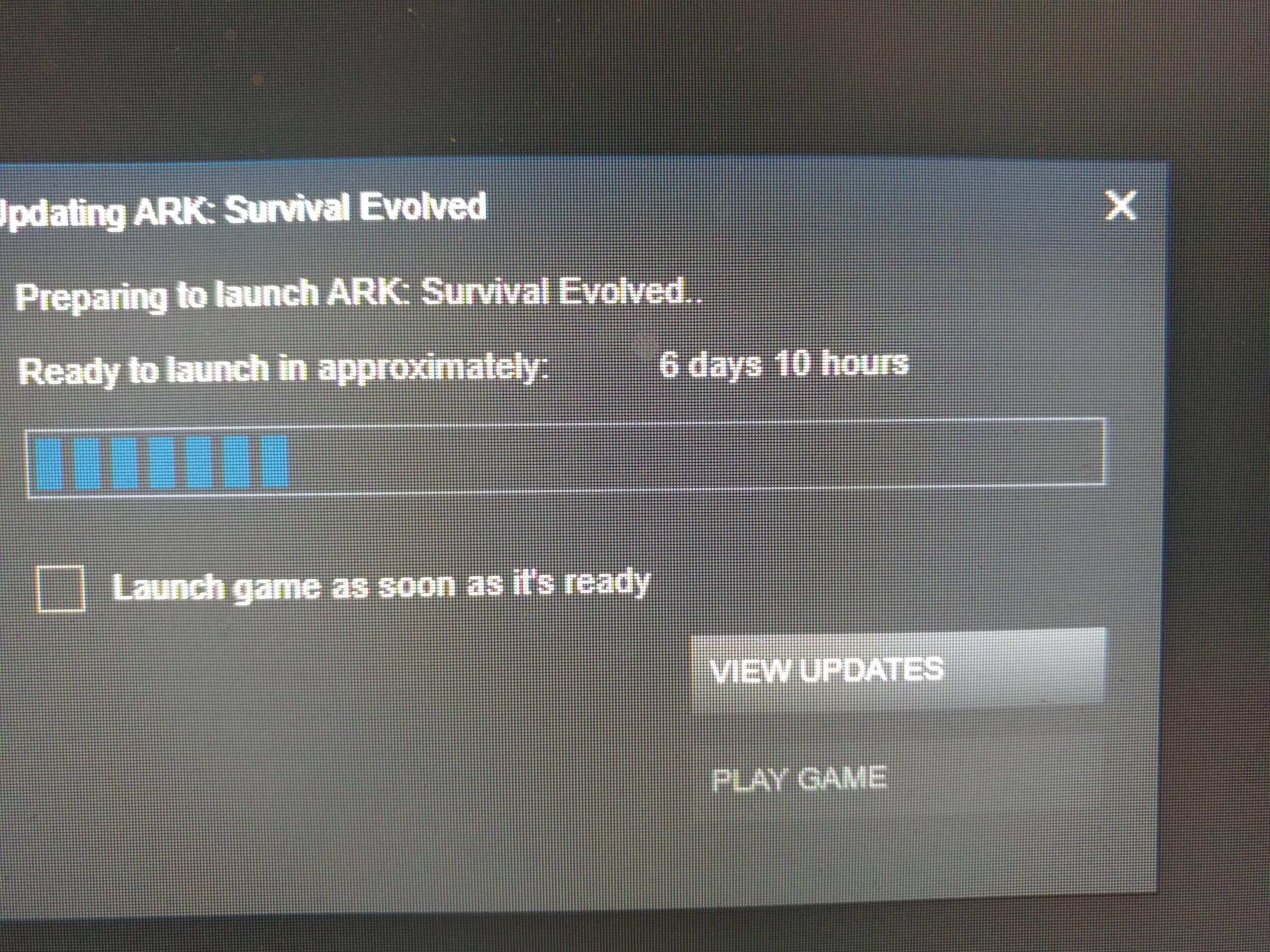
Updating a game on an SSD is the same process as updating it on a traditional hard drive; the game client handles the update process, utilizing the SSD’s faster speeds for quicker downloads and installations.
Got a new solid-state drive and want to know how to update a game on ssd? It’s a common question! You might be thinking that there is a special process involved. The good news is you don’t need to do anything extra. Game updates work the same way as always.

How to Update a Game on SSD
So, you’ve got a speedy SSD (Solid State Drive), and your games are loading super fast! That’s awesome! But sometimes, game updates come along, and things might not seem as quick as they were before. Don’t worry, this happens to everyone. Updating your games on an SSD is usually pretty straightforward, but let’s dive deep into how it works and what you need to know to make sure those updates go smoothly and don’t slow you down.
Understanding Game Updates on SSDs
Before we get into the “how-to” part, let’s chat about what happens when a game updates. Game updates are like mini-packages of new content, bug fixes, or improvements that game developers send out. These updates are often very large, sometimes even bigger than the original game itself!
Why Do Games Need Updates?
Games need updates for a bunch of reasons. Here are a few:
- Fixing Bugs: Sometimes, games have little mistakes called bugs. Updates fix these so the game runs better.
- Adding New Stuff: Game developers often add new characters, levels, or items to make the game more fun.
- Making the Game Run Better: Updates can make the game faster and less likely to crash.
- Security: Updates can also protect your game from people trying to cheat or cause problems.
How Updates Affect Your SSD
When you update a game on an SSD, your computer is doing a lot of work. It’s downloading the new files, reading the old ones, changing what needs changing, and putting everything back in its place on your SSD. An SSD is much faster than a traditional hard drive, so this process is generally quicker. But if something goes wrong, the update can take a long time.
The Steps for Updating Your Game
The exact steps for updating a game on an SSD can depend on where you got your game. Let’s look at some common places and what you might need to do:
Updating Games Through Steam
Steam is a very popular place to buy and play games on a computer. Here is how updates happen on Steam:
- Automatic Updates: Steam usually updates your games automatically. When a new update is available, Steam will download it in the background while your computer is on.
- Checking for Updates: If you want to check for an update yourself, you can do this easily. Just open your Steam library, right-click the game, and choose “Properties.” Then, select “Updates,” and you’ll see options for managing updates. You can make sure your game is always up to date, or choose to update only when you tell it to.
- Handling Updates During Gameplay: If an update comes while you’re playing a game, Steam will usually pause the game and start the update process. You might need to restart the game after the update is done.
Updating Games Through Other Game Launchers
Many game developers have their own game launchers, like the Epic Games Launcher, or the EA app. These launchers work a lot like Steam in terms of updating games. Here’s generally what you should expect:
- Automatic Updates: Most game launchers will try to update your games automatically while you are not playing, or before you try to start a game.
- Checking for Updates Manually: Usually you can check for updates within the launcher’s library section. Look for options to manage or check for updates on a per-game basis.
- Restarting Games: Like with Steam, it is often necessary to restart a game after an update. The launcher may prompt you to do so.
Updating Games on Consoles
If you play games on a console like PlayStation, Xbox, or Nintendo Switch, updates also happen over the internet. Here’s a quick rundown:
- Automatic Updates: Consoles are often set to download and install updates in the background while your console is in rest mode or turned off.
- Manual Checks: You can usually go into your system’s settings and check for updates. This is useful if you think your console might not have updated automatically.
- Game-Specific Updates: Game updates for consoles also happen like PC game updates. Some games may even download updates directly as you play them.
Things That Might Slow Down Updates on an SSD
Even though SSDs are fast, there are some things that can slow down your update process. Knowing these can help you troubleshoot if an update is taking longer than usual.
Internet Connection
The speed of your internet connection is very important. If your internet is slow, the game will take a long time to download the update.
What You Can Do:
- Make sure other people on your network are not streaming videos or downloading large files at the same time you are.
- Try restarting your router. Sometimes that can make your internet work better.
SSD Space
If your SSD is almost full, updates will take longer. Your computer needs some free space on the SSD to update the game files. The update process often involves creating temporary files and may require more free space than the update itself takes up once installed.
What You Can Do:
- Delete files and programs you don’t use anymore.
- Move large files to a different hard drive, such as a hard disk drive (HDD), if you have one.
Background Processes
If your computer is doing other things at the same time as the update, it will make the update slower. This could be antivirus scans, other downloads, or programs that are running in the background.
What You Can Do:
- Close all programs you are not using while the game is updating.
- Restart your computer. This can stop processes you might not know are running.
Outdated Drivers
Sometimes, old drivers for your computer’s hardware can make updates slower or cause problems. Game updates sometimes need newer drivers to work well.
What You Can Do:
- Make sure you have the latest drivers for your graphics card and other hardware. You can get these from the manufacturer’s website, or through your Windows settings.
- Your gaming software might be able to update these for you as well.
Corrupted Game Files
Occasionally, some game files on your SSD might be corrupted or damaged. This will slow down or interfere with the update process.
What You Can Do:
- Most game launchers have a way of verifying the game files. This means the launcher checks the files and downloads any missing ones. Look for options like “Verify Integrity” or “Repair.”
Tips for Faster Game Updates
Want to make your game updates as quick as possible on your SSD? Here are a few tips and tricks:
- Close other programs: As mentioned before, close unnecessary programs to free up resources.
- Update your drivers: Keep your graphics card and other drivers up to date to make sure your computer is running well.
- Free up space on your SSD: Make sure your SSD has enough free space to handle the update.
- Use a wired connection: If possible, connect your computer or console to the internet with a cable instead of Wi-Fi. Wired connections are often faster and more stable.
- Update at off-peak hours: If possible, try updating games when fewer people are using the internet. The internet can be slower when lots of people are using it at the same time.
Understanding SSD Health and Game Updates
SSDs are very reliable, but they do have a limited lifespan. Each time you write data to an SSD, you use a small amount of its life. Game updates involve writing a lot of data, which may raise concerns about SSD wear over time. Here’s a look at this issue.
How Game Updates Affect SSD Lifespan
Modern SSDs are built to handle a lot of writes, so you don’t have to worry too much about updates wearing them out quickly. But it’s good to know what to expect:
- Wear Leveling: SSDs use a technique called wear leveling that distributes the writes evenly across the drive, this makes all the cells of the SSD wear out at about the same rate.
- TBW Ratings: SSD manufacturers give each drive a TBW (Terabytes Written) rating. This tells you how much data you can write to the SSD before it might start to have problems. A typical SSD has a TBW rating that is very high and it would take a long time to reach that rating with normal usage, so you should not have to worry.
Checking Your SSD Health
It’s a good idea to check the health of your SSD every now and then. Here’s how:
- Use Software: There are free tools you can download that can check the health of your SSD and tell you how much life it has left. For example, “CrystalDiskInfo” is a free program that can display information like SSD temperatures, power on hours, and how much life it has left.
- Check Your OS: Sometimes your operating system, like Windows, has built-in tools that can help with checking your SSD’s status.
- Monitor its Performance: If your SSD starts to slow down, that may be a sign that it’s getting old and might need to be replaced.
Troubleshooting Common Update Problems
Even with the fastest SSD and a great connection, sometimes you might still have problems updating a game. Here are some common issues and things you can try:
- Update Gets Stuck: If an update seems to get stuck partway through, try pausing and restarting it. Restarting your game launcher or even your computer might also help.
- Error Messages: Look closely at the error message if you receive one. This can often give you a clue about what’s wrong. A quick internet search of the specific error might help.
- Insufficient Space: If you are getting an “insufficient space” error, you need to free up space on your SSD as we discussed before.
- Game Won’t Launch After Update: If your game won’t start after an update, try verifying the game files. You can also try reinstalling the game completely as a last resort.
Updating games on an SSD is a pretty smooth process most of the time. Knowing what to expect and how to deal with potential problems means you can keep playing your favorite games without much hassle. Your SSD is fast, but some care and attention to your system and internet connection will make sure that game updates are quick and easy.
How To Install Games On Your Secondary Hard Drive – Updated Version
Final Thoughts
To update a game on ssd, start by ensuring you have sufficient drive space. Then, check the game platform or launcher for available updates. initiate the download and installation process.
The process for how to update a game on ssd is similar to updating on a traditional drive. The main difference is the speed; an ssd drastically reduces download and install times. This offers a faster game experience.

