
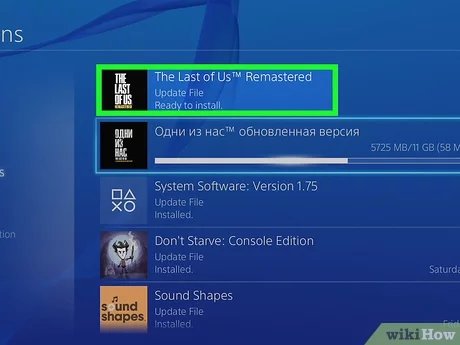
To update a game on your PS4, ensure your console is connected to the internet and select the game from your home screen. Press the options button on your controller and choose “Check for Update”. If an update is available, it will download and install automatically.
Have you ever been ready for some serious gaming, only to be met with a prompt for an update? It’s a common experience for all PS4 players. Knowing how to update a game ps4 is crucial to ensure you’re enjoying the latest features, bug fixes, and performance improvements.
Getting those updates running correctly can often feel like a mystery. No worries, it’s actually pretty simple. This short guide will walk you through the steps so you can get back to your adventures quickly.

How to Update a Game on Your PS4
Keeping your games updated on your PlayStation 4 (PS4) is super important. Game updates often include new features, fix problems, and make games run smoother. Imagine playing your favorite game and suddenly a new character shows up, or a tricky level is now easier to pass – that’s what updates do! They make your gaming experience better. It’s like giving your game a power-up! This article will guide you through everything you need to know about updating your games on your PS4.
Why Are Game Updates Important?
Game updates are not just for fun; they’re a necessity for a great playing experience. Here’s why:
- Bug Fixes: Sometimes games have little mistakes or “bugs” that can cause problems. Updates get rid of these bugs, making the game less glitchy.
- New Content: Developers often add new things to the game, like characters, maps, or items. These additions make the game more exciting and offer fresh challenges.
- Performance Improvements: Updates can help games run better, making them faster and less likely to freeze. This is especially important for big, complex games.
- Security Patches: Updates also protect your console and game data from potential security issues.
- Compatibility: Updates ensure your game works correctly with the latest software on your PS4. This is important because if your game is old and outdated, it might not work well with your ps4’s current system version.
Automatic Game Updates
The PS4 is designed to make updating games very easy. It can automatically download and install updates when your console is turned on or in rest mode. This means you usually don’t have to worry about it too much. Here’s how to make sure automatic updates are enabled:
Enabling Automatic Downloads
- Go to Settings: Start at your PS4’s main menu (the home screen). Then, scroll up and find the “Settings” icon, which looks like a toolbox. Click on this icon.
- Find System: In the Settings menu, scroll down and select “System.”
- Automatic Downloads: Next, look for “Automatic Downloads” and select it.
- Select Automatic Updates: In this menu, check the boxes that say “Application Update Files” and “System Software Update Files.” This tells your PS4 to download updates automatically when available.
- Rest Mode Settings: For updates to download when your console isn’t in use, make sure your PS4 is in rest mode. You can do this by selecting the “Power Save Settings” menu in System, then choosing “Set Features Available in Rest Mode,” and then ticking the box next to “Stay Connected to the Internet.”
With these settings enabled, your PS4 will take care of most of the updating for you. Just make sure your console is connected to the internet!
Manual Game Updates
Sometimes, you might want to start an update yourself. This is useful if you’ve just bought a game, or if you suspect an update is available but hasn’t downloaded automatically. Here’s how you can manually check for and install updates:
Checking for Game Updates
- Go to Your Games Library: Start at the PS4 home screen and go to “Library” which is located on the right side of your screen. You can use the controller directional pad to navigate left and right.
- Select Your Game: Find the game you want to check for updates for. Click on the game to select it.
- Press Options Button: Press the “Options” button on your controller. It’s usually located to the right of the touchpad. A menu should appear on the right side of your screen.
- Check for Update: In the menu, select “Check for Update.” This will make your PS4 look for available updates for your game.
- Download and Install: If an update is found, your PS4 will start downloading it. After downloading, the update will usually install automatically. You may need to confirm the installation or restart the game.
The game update process is pretty simple, but understanding this process allows you to have more control.
Troubleshooting Game Update Issues
Sometimes, things don’t go as smoothly as planned. Here are some common problems you might face and how to deal with them:
Common Problems and Solutions
- “Cannot Download” Error: If your PS4 says it can’t download an update, first, make sure you are connected to the internet. Go to Settings, then Network, then Test Internet Connection. If your internet is working well, try restarting your PS4. Sometimes a simple restart can fix the problem.
- Slow Download Speeds: If your updates are downloading very slowly, check your internet connection speed. You can also try closing other apps and games running on your PS4. A wired internet connection (with an ethernet cable) might be faster than a wireless (Wi-Fi) connection for large downloads.
- Update Gets Stuck: If the update process seems to stop or gets stuck at a certain point, try canceling the update and restarting your PS4, then try downloading the update again. Sometimes, you need to delete the game and re-install it. Your game saves will be kept, but make sure you’ve backed up your game progress.
- Not Enough Storage Space: Game updates can sometimes be large, especially for big games. Make sure you have enough space on your hard drive. You might need to delete some old games or media to make room for the update. You can check your storage space in the “Settings” menu by going to “Storage.”
- Game Won’t Start After Update: If the game refuses to launch after an update, check for more updates. Sometimes you need to do a system update. If the issue persists, you might need to delete the game and reinstall it.
These are some common problems that users experience. However, if you still experience issues after trying these steps, you can contact Playstation’s support team. They will help you with your situation and help you get back to playing your games.
Managing Updates
You can do some things to manage game updates effectively and make sure they don’t bother you too much while you’re gaming:
Tips for Effective Update Management
- Update During Off Hours: If you have fast internet, let your PS4 do updates in rest mode overnight. This will make sure the updates are downloaded and installed when you’re not using the console.
- Check for Updates Periodically: Even if you use automatic updates, it’s a good habit to check for updates manually once in a while. This can help you make sure you’re not missing any critical updates.
- Prioritize Downloads: If you’re downloading multiple updates, you might want to pause some to make sure your game is quickly updated if you really want to play it. You can do this from the downloads screen in Notifications menu.
- Clean Up Storage Regularly: Make it a habit to delete old game data or game saves that are not needed. This will help you keep storage free for updates.
- Back-Up Game Saves: Before every major update, consider backing up your game saves to an external USB device. That way, you’ll not lose your progress if something goes wrong with the update. You can back up your game saves in Settings menu.
These tips can make it easier to manage game updates and make sure you keep playing your games without much of an interruption. It’s a good habit to stay on top of these things.
In short, updating your games on PS4 is straightforward, whether you’re relying on automatic updates or checking for them manually. Game updates enhance your gameplay and help keep your console secure. By following these simple steps, you can always make sure your favorite games are running great and have the latest features, this is important for enjoyable play.
How to UPDATE GAMES on your PS4 & Keep them UPDATED (Easy Method)
Final Thoughts
To update a game PS4, ensure your console connects to the internet. Select the game and press the ‘Options’ button. Choose ‘Check for Update’ and install available updates.
If updates do not start automatically, manually checking is a must. The process ensures that you have the latest features and bug fixes. Follow these steps to keep your game current.

