
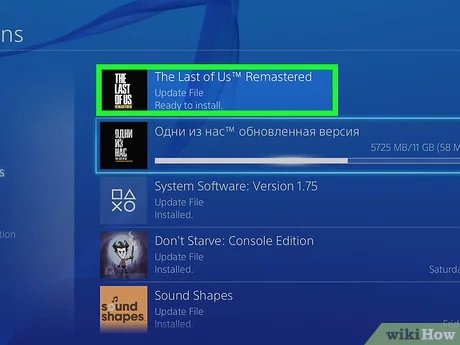
Updating a game typically involves downloading and installing the latest version provided by the game’s platform or developer.
Ever found yourself itching to play a game, only to be met with a prompt for an update? It happens to everyone. Figuring out exactly how to update a game can feel a bit frustrating if you are unsure of the process.
The good news is, it’s usually pretty straightforward. Most platforms handle these updates automatically, making your gaming experience better. Let’s walk through the steps so you can jump back into the action quickly.

How to Update a Game: A Simple Guide
So, you’re ready to play your favorite game, but wait! It says there’s an update available. What does that even mean, and how do you do it? Don’t worry; updating a game isn’t as tricky as it might seem. Think of it like giving your game a little tune-up, making it run better, adding new stuff, or fixing any problems it might have. This guide will walk you through the different ways you can update your games, no matter what kind of device you’re using.
Why Games Need Updates
Games aren’t perfect when they first come out. Sometimes, game makers find glitches (little errors) that can make the game not work right. Other times, they want to add new levels, characters, or items to keep the game fun and interesting. These updates make sure you have the best possible experience. Here are some common reasons why games get updated:
- Bug Fixes: These updates fix those annoying glitches that can cause the game to freeze or crash. Imagine a puzzle piece that doesn’t fit; bug fixes make sure all the pieces work together.
- New Content: Sometimes, game developers add exciting new things like new maps, characters, or storylines. It’s like getting a surprise package in your game!
- Improved Performance: Updates can make the game run faster and smoother on your device. This means fewer loading screens and less lag.
- Balancing Changes: If something in the game is too easy or too hard, updates can tweak it so that it’s just right. It ensures fair play for everyone.
- Security Patches: Updates can also protect your game and device from security risks. This is like putting a lock on your game to keep it safe.
Updating Games on Different Platforms
The way you update a game depends on where you’re playing it. Let’s check out the most common gaming platforms.
Updating on Computers (PC)
If you play games on a computer, most of your updates will come from the game launcher or store you use. Here’s a breakdown:
Using Steam
Steam is a popular place to buy and play computer games. Here’s how to update a game on Steam:
- Open Steam: First, you need to open the Steam application on your computer.
- Go to Your Library: Click on the “Library” tab at the top of the window.
- Check for Updates: Steam usually checks for updates automatically. If a game needs an update, it will be listed in your library with a button labeled “Update” or an arrow icon. If you don’t see an update button, the game is probably up to date.
- Start the Update: Click the “Update” button (or the arrow) and let Steam do its work. You can usually play other games while an update downloads.
- Restart (If Needed): Sometimes you might need to restart the game for the update to finish completely.
Using Epic Games Launcher
The Epic Games Launcher is another place where you can find many cool games. Here’s how to update a game in this launcher:
- Open Epic Games Launcher: Start the Epic Games Launcher on your computer.
- Go to Library: Click “Library” on the left side of the screen.
- Look for Updates: Games with available updates will have a button or message that says “Update”. You might also see a small download icon on the game’s thumbnail.
- Start the Update: Click the “Update” button or the download icon. The launcher will start downloading the update for your game.
- Launch the Updated Game: Once the download is done, you can launch your updated game!
Other PC Game Launchers
Other launchers like GOG Galaxy or the Battle.net app usually work similarly. You’ll typically find an updates section or an update button in your game library. Just make sure to let the launcher finish the update before you try to play the game.
Updating on Consoles (PlayStation, Xbox, Nintendo Switch)
Consoles like PlayStation, Xbox, and Nintendo Switch have their own ways to update games. Here’s how it works:
PlayStation (PS4 and PS5)
PlayStation usually updates games automatically in the background, but sometimes, you might need to do it manually:
- Turn on your PlayStation: Make sure your console is connected to the internet.
- Highlight the Game: Find the game you want to update on your game menu.
- Check for Updates: Press the “Options” button on your controller. A menu will appear. If there’s an update available, you’ll see the “Check for Update” option.
- Download and Install: Select “Check for Update,” and your PlayStation will check for and download any updates. Follow the instructions on the screen to complete the update.
Xbox (Xbox One and Xbox Series X/S)
Xbox, like PlayStation, often updates games automatically. Here’s how to check manually:
- Turn on your Xbox: Be sure your console is connected to the internet.
- Go to “My games & apps”: Press the Xbox button on your controller to open the guide menu, go to “My games & apps” from the guide.
- Select the game: Choose the game you want to update from the “games” tab.
- Manage Game: Select “Manage game and add-ons”.
- Check Updates: Select “Updates”. If an update is available, it will be listed here, and you can start downloading it.
Nintendo Switch
Nintendo Switch updates games in a simple way:
- Turn on your Switch: Make sure your console is connected to the internet.
- Highlight the Game: From the Home menu, select the game icon you want to update.
- Press the + Button: Press the “+” button on your controller.
- Select “Software Update”: A new menu will pop up. Select “Software Update”.
- Choose “Via the Internet”: Select “Via the Internet”. The Switch will then look for and download any updates for the game.
Updating on Mobile Devices (Phones and Tablets)
Updating games on your phone or tablet is usually very easy. It often happens automatically, but here’s how to do it manually:
Android Devices
Here’s how to update games on your Android phone or tablet:
- Open the Play Store: Open the Google Play Store app.
- Go to your Profile: Tap your profile picture in the top-right corner.
- Manage Apps and Device: Select “Manage apps & device”.
- Check for Updates: You’ll see a list of apps that need updates. Find your game in the list, or select “Update All” to update everything at once.
- Start the Update: Tap the “Update” button next to your game and let it download.
iOS Devices (iPhone and iPad)
Here’s how to update games on your iPhone or iPad:
- Open the App Store: Find and open the App Store app.
- Tap your Profile: Tap your profile picture in the top-right corner.
- Scroll Down: Scroll down to the “Available Updates” section.
- Find Your Game: Look for your game in the list. If you don’t see it, then your game is up to date.
- Start the Update: Tap “Update” next to your game to download it. You can also tap “Update All” to download all pending updates.
Troubleshooting Update Problems
Sometimes, updates might not go as smoothly as planned. Here are some common issues and how to fix them:
“Not Enough Space” Error
If you get a message that says you don’t have enough space, you need to free up some room on your device. You can delete unused apps, photos, videos, or other large files to make space for the game update.
Slow Download Speeds
If updates are taking a long time to download, you might have a slow internet connection. Here are some things you can try:
- Check your Wi-Fi: Make sure you are connected to a strong Wi-Fi network. Try moving closer to your router.
- Restart your Router: Sometimes restarting your Wi-Fi router can help. Unplug it, wait for a minute, and plug it back in.
- Use Wired Connection (if possible): If you are on a console or PC, try connecting your device directly to your router with an Ethernet cable if possible.
- Wait for a while: Sometimes, servers might be busy. Try updating your game later.
Update Failed Errors
If your update keeps failing, try restarting your device and the game launcher. If that does not work, the game may have issues with the update on the server. Try updating at another time, or check if there are any community support forums that discuss the issue.
Game is not Working after Update
If your game is not working properly after the update, try restarting the device, reinstalling the game, or checking for any additional updates.
Tips for Keeping Your Games Updated
Here are a few tips to keep your game updates coming smoothly:
- Enable Auto-Updates: If possible, turn on automatic updates for your games. This way, you won’t have to worry about manually updating each time.
- Keep an Eye on Notifications: Pay attention to the game launcher or store app notifications. They will usually let you know when a new update is available.
- Check Regularly: Even if you don’t see any notifications, it’s good to check for updates every once in a while. This way, you’ll always have the best possible game experience.
- Connect to Wi-Fi: Try to update games while connected to a reliable Wi-Fi connection to avoid using too much of your mobile data.
Updating your games is an easy way to make sure they work their best, get new features, and keep you entertained. By following these simple steps, you’ll be able to update your favorite games on any device you use. So, next time you see an update available, you’ll know exactly what to do! Happy Gaming!
How to Update Games on PS5 (Manually & Automatic Updates!)
Final Thoughts
Updating a game often involves downloading patches from the game’s platform or website. These patches install new content and fix bugs. Some games update automatically, while others require manual initiation.
Always check for available updates before playing, to ensure you have the latest features. You also must ensure you have a stable internet connection during the update process.
In summary, learning how to update a game usually means downloading and installing the latest version from its source. This process typically resolves issues and adds new content.

