
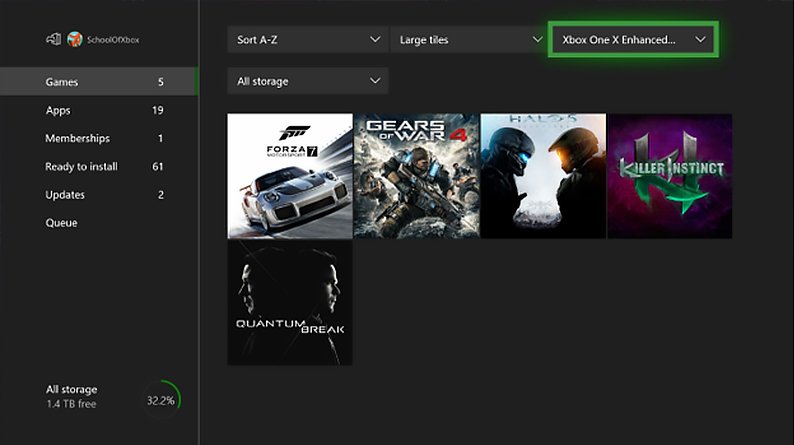
Your Xbox One game updates automatically if your console is connected to the internet and set to receive them.
Keeping your games current ensures you get all the new content and bug fixes. Wondering how to update a xbox one game? The process is actually quite simple and mostly automatic.
Your console constantly checks for updates when connected to Xbox Live. Typically, it will download and install them in the background.
You can also manually check for updates if you suspect one is available. Navigate to your games and apps to see if any game needs a download.

How to Update an Xbox One Game
Keeping your Xbox One games updated is super important for a smooth and fun gaming experience. Game updates often include fixes for bugs, add new features, and sometimes even make the game look and play better. So, how exactly do you make sure your games are up-to-date? Let’s dive into all the ways you can get those updates rolling!
Automatic Updates: The Easiest Way
The good news is that your Xbox One is usually pretty good at handling game updates all by itself. It’s like having a little helper in your console that keeps things running smoothly. The console is designed to automatically download and install updates when it’s connected to the internet. Here’s how it works and how to make sure it’s set up correctly:
Checking Your Settings
First, let’s peek at your settings to make sure automatic updates are turned on. It’s a quick check and worth doing! Follow these steps:
- Press the Xbox button on your controller. This button is usually the big glowing one in the middle.
- Go to the “Profile & system” tab. It’s usually the far left tab and is represented by your gamerpic or profile image.
- Select “Settings.”
- Choose “System.”
- Select “Updates.”
- Look for the “Keep my console up to date” option. Make sure this is checked. If it’s not, click on it to check it.
- Also, make sure “Keep my games & apps up to date” is also checked.
If both of these options are checked, your Xbox One will usually download updates in the background when you aren’t using the console or when it’s in sleep mode. So, when you are ready to play your games, you will usually have the newest version ready.
When Automatic Updates Happen
Automatic updates usually happen when:
- Your console is idle (meaning you’re not actively using it).
- Your console is in Instant-on power mode. This allows your Xbox to quickly turn on and to download updates in the background.
If you want to make sure updates download quickly, you should set your power mode to “Instant-on.” This means that when you turn off your console, it’s actually just going to sleep, which allows it to download updates.
Troubleshooting Automatic Updates
If you have trouble with automatic updates, you may need to check your internet connection. The console needs a good, stable connection to download game updates. Follow these steps for the internet connection:
- Press the Xbox button on your controller.
- Go to the “Profile & system” tab.
- Select “Settings.”
- Choose “General.”
- Select “Network Settings.”
- Select “Test network connection.” If this shows problems, you may have a problem with your connection or your internet service provider. You may need to check your cables to see if all are connected properly or to contact your internet provider if there is a problem with your internet service.
Manually Updating Games: Taking Control
Sometimes, you might want to update a specific game or make sure you have the latest version before you start playing. This is where manually updating comes in handy. Let’s look at how to do it:
Checking for Updates Manually
This is useful if you haven’t played a game for a while, or if you’re just eager to get the newest changes.
- Go to “My games & apps.” You can do this by pressing the Xbox button and then going to the “My games & apps” option.
- Choose “See all.”
- Find the game you want to update.
- Press the menu button on your controller (the button with the three horizontal lines).
- Select “Manage game & add-ons.”
- Select “Updates.” If an update is available, you’ll see it here.
- Select the update to start downloading and installing.
Your game will then start to download the newest update. Once the download is completed, you may need to restart the game or the console, before the updates take effect.
Updating Games From the Microsoft Store
You can also check for game updates through the Microsoft Store. Here’s how:
- Go to the Microsoft Store by selecting it from your main screen.
- Select “My Library.” This may be in the left hand side menu or in the top navigation.
- Select “Get Updates.” This will show you all updates that are available to you.
- Select all the updates you want to install by clicking on “Update All” or, by selecting individual updates that you want to install by selecting “Update” button next to that particular app or game.
Restarting Your Console
Sometimes, a simple console restart can solve issues if the game won’t update. It clears the cache and can help get the update process going smoothly. You can restart your console by pressing and holding down the Xbox button on your controller and then choosing “Restart console”.
Understanding Different Types of Game Updates
Not all updates are created equal. Some are big and change a lot, while others are small and focus on a few fixes. Here’s a quick overview of the different types of updates you might encounter:
Patches
Patches are small updates that fix minor issues or bugs. They’re usually downloaded quickly and are super important for making sure your game runs smoothly.
Major Updates
Major updates bring big changes to a game, including new features, game modes, or even storyline expansions. These updates can take a longer time to download and install. It is best to leave it running while the console is idle or while it’s in Instant-on mode.
Content Updates
These updates usually add new content to the game, like new maps, characters, or items. These often do not affect how the core game works, but it is necessary to stay updated so you can have the full experience of the game.
System Updates
These are updates that are for your Xbox One console, not for the game itself. System updates improve the performance of the console and add new features. It is good to make sure the console has the latest system updates.
Tips for Successful Game Updates
To make sure your game updates go smoothly, here are some tips to keep in mind:
Check Your Storage Space
Make sure you have enough free space on your console. Game updates can sometimes be large, especially major updates. If you don’t have enough space, you may need to remove some games or apps to create some space.
Having Good Internet
A fast and stable internet connection will ensure that the updates will be downloaded quicker. Check your connection regularly.
Be Patient
Sometimes updates may take a while to download, especially if it’s a large update. Don’t turn off your console while it’s updating. Wait for the updates to complete before playing.
Restart When Needed
Sometimes a simple restart is all your console needs to install updates correctly.
Dealing with Update Errors
Even though the Xbox One is pretty good at handling updates, sometimes things might go wrong. Here are a few issues and how you can handle them.
“Installation Stopped” Error
This usually happens because there might not be enough space or there might be a problem with the internet connection.
- Check the available storage space on your console.
- Check your internet connection, as mentioned above.
- Restart your console and retry.
Game Not Updating
If a game is not updating, try restarting the console. It may also be a good idea to try manually updating the game, as described above.
Unexpected Errors
If you get an unexpected error code, write it down. Microsoft’s website might have information about the specific error and what to do about it.
Why Game Updates Are So Important
Game updates aren’t just about adding new content. They’re also very important for ensuring a good gaming experience. Here’s why you should make sure your games are always updated:
Bug Fixes
Updates fix problems in the game that can cause crashes, glitches, or other annoying issues. Patches are small fixes that will improve the overall gameplay.
Enhanced Performance
Game updates can improve the performance of a game, making it run smoother and faster, and also helps reduce lag when playing online games.
Security
Updates can also fix any security risks in a game and protects your gaming data. This ensures that you will have a safe and secure experience while you are playing online games.
New Content and Features
Many updates add new characters, maps, and features that make the game even more fun and engaging. This allows for new ways to play old games.
Keeping your Xbox One games updated is very important. By turning on automatic updates or using the manual update options, you’ll make sure your games are always running their best, with new features, and the fixes that come with the updates. This helps ensure you have a great time with all your games. So, keep those games updated and keep gaming!
How to Download & Update Games Faster in 2023 on Xbox One, Xbox Series S, & Xbox Series X
Final Thoughts
To update your Xbox One game, ensure your console connects to the internet. The system automatically checks for updates when you launch a game. If an update is available, it will prompt you to install it.
You can also manually check for updates by highlighting the game and pressing the menu button. Select ‘Manage game & add-ons’, then choose ‘Updates’. This allows you to see if there are any pending files. Finally, this process demonstrates how to update a xbox one game effectively and quickly.

