
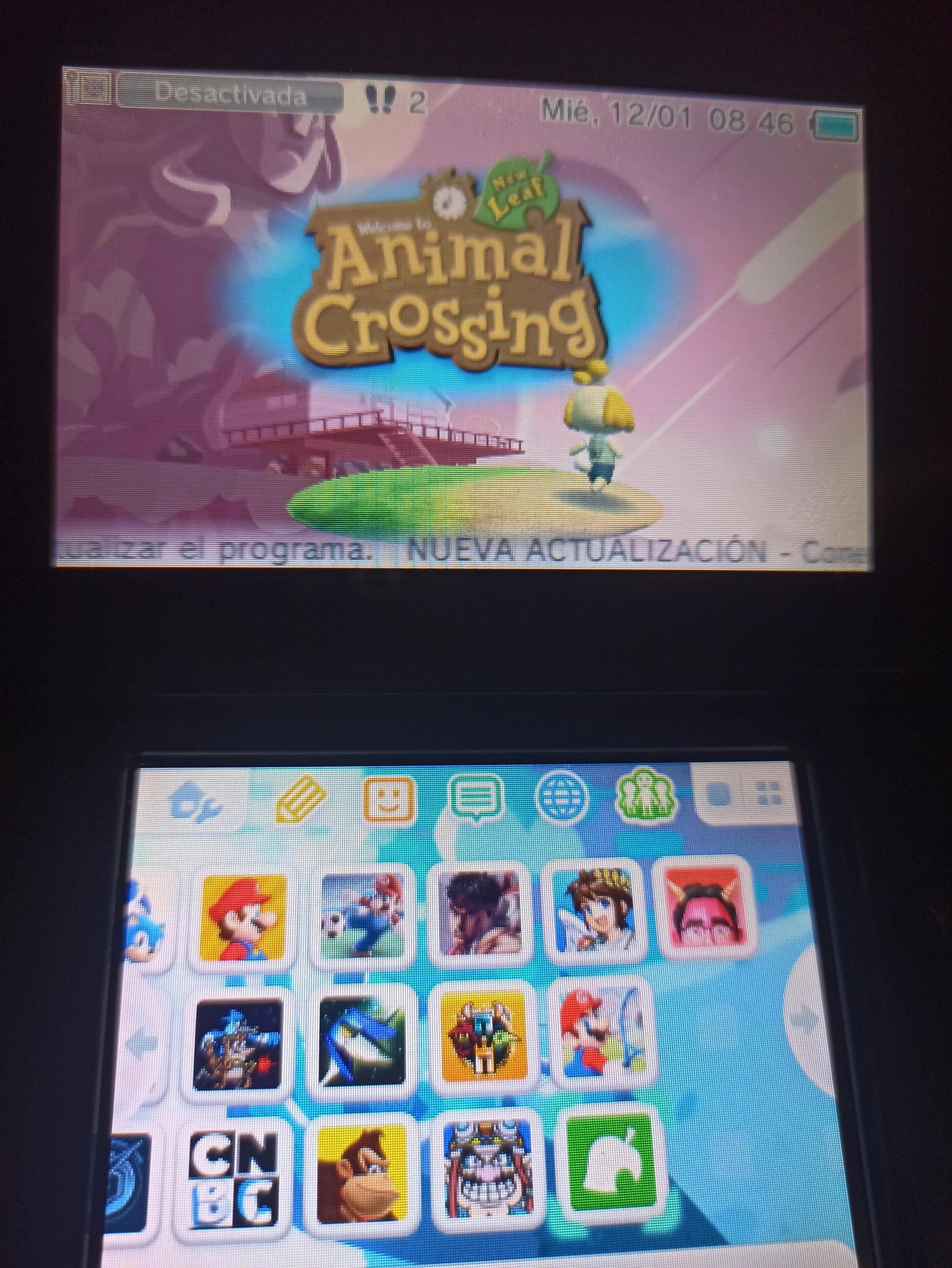
Updating your games cias often requires using a homebrew application like FBI, which allows you to install the updated CIA file directly over the existing one.
Keeping your 3DS games current can sometimes be a puzzle, especially when using CIAs. You’re not alone if you’ve ever wondered how to update games cias. It’s a common question, and the process differs slightly from traditional cartridge updates.
We’ll guide you through the typical method, ensuring your gameplay is smooth and you have the latest content. This method will require some tools to get things done. It’s usually easy once you understand the main principles involved.

How to Update Games CIAs: A Complete Guide
So, you’ve got your favorite games loaded onto your Nintendo 3DS or 2DS using CIAs, but you’re finding that some of them need updating? Maybe you’re missing out on new features, or you’ve encountered a bug that the developer fixed in a recent patch. Updating CIAs can seem tricky at first, but don’t worry, it’s not as hard as you might think! This guide will walk you through everything you need to know to keep your games current and running smoothly.
Understanding CIAs and Updates
Before we dive into the how-to, let’s quickly understand what we’re dealing with. A CIA file is basically a digital copy of a game, made to be installed on your 3DS system. These aren’t the same as the game cartridges you might be used to. When a game developer releases an update, it usually comes in the form of an update file, which needs to be applied to the game. Because of the nature of CIA games, the updating process can be a little different from simply inserting a cartridge.
Why Update Your Game CIAs?
Keeping your game CIAs up-to-date is important for several reasons:
- Bug Fixes: Developers often release updates to fix glitches or errors that players have found. These fixes can make the game more enjoyable and less frustrating.
- New Features: Some updates include new content, such as extra levels, characters, or game modes. Updating ensures you can enjoy the complete experience.
- Performance Improvements: Patches may improve the way the game runs, reducing lag or making it smoother overall.
- Security Patches: Sometimes, updates address security issues that could potentially harm your system. It’s always good to keep these security flaws patched up.
- Compatibility: Some games require the latest updates to work correctly with online features or downloadable content.
Methods for Updating CIA Games
There are a few different ways to update your games. Let’s explore the most common methods.
Using Freeshop or Similar Applications (The Most Common Method)
Freeshop was a popular application for directly downloading and updating games on modified 3DS systems. While it’s no longer actively maintained, its basic process highlights the general idea behind similar homebrew applications. These tools provide a direct link to update servers, making updating your games very convenient. Here’s how it generally works:
- Make Sure You Have a Homebrew Application: First, ensure that you have a homebrew application manager installed on your 3DS, like FBI or hShop. These applications let you install and manage other custom software.
- Install a Homebrew Update Tool: Install the update application you have chosen. These applications are not the same as “FBI”. Usually you use “FBI” to install these applications.
- Open the Update Tool: Launch the homebrew update application from your 3DS home menu.
- Find Your Games: Usually, these applications will detect the CIAs that you have installed on your system. The list will show the game’s title and sometimes the version you have installed.
- Check for Updates: The application should have a way to check for updates, either by pressing a button or via a menu option.
- Download and Install Updates: If an update is available, the application will let you download and install it. Sometimes it downloads the update and installs it automatically, other times you may have to confirm that you want to install.
Important Notes:
- You must have a reliable internet connection for this method.
- Applications like Freeshop use a title key database. If the database isn’t updated, it may not find the proper updates.
- The update might fail if you don’t have enough space on your SD card. Be sure you have adequate space for the update.
- Always make sure to download update files from safe sources.
Manually Installing Updates Using CIA Files (A More Involved Method)
Sometimes, you might need to update a CIA game manually. This is typically done when a homebrew application is not working, or when you have an update file from a specific source. Here’s how it usually works:
Finding the Update CIA File
- Look in reputable online communities: There are online communities where you can sometimes find update files shared by other users. Always be careful and get the files from well known and trusted sites.
- Look on dedicated websites: There might be specific sites dedicated to this process. Again, make sure that you trust the site you are getting the update file from.
Installing the update
Once you have your update file, you can proceed with the installation process.
- Copy the Update CIA File to Your SD Card: Take the update file (it will end in .cia) and place it on your 3DS SD card. Usually you just put it in the “cias” folder, but you can put it somewhere else if you want.
- Open FBI (or similar): Launch the FBI application (or another application that can install CIAs) from your 3DS home menu.
- Navigate to the Location: Use FBI to find the location where you placed the update file. It may be in the “cias” folder or somewhere else.
- Install the CIA: Select the update CIA file and use the application’s option to install it.
- Wait for Installation: The installation will start. It will take a few minutes depending on the size of the update. Don’t power off your system while the installation is happening.
- Return to Home Menu: Once the installation is done, go back to the 3DS home menu, where you should see an updated game.
Important Notes:
- This method requires an updated version of the installation tool you are using (FBI, or similar).
- Always double-check that the update file is meant for your region of the game. Using the wrong update can cause problems.
- Make sure the update you download comes from a source you trust to minimize potential risk.
- You have to manage and install each update for each game manually.
Region Considerations
It’s vital to remember that game updates are region-specific. Make sure that the updates you are downloading are for the correct region. Using updates from the wrong region can cause problems with your game and may require you to reinstall it. Here is the list of the common regions and what they mean:
- EUR: This means the game was released in Europe.
- USA: This is the region for games released in the United States of America.
- JPN: This stands for Japan.
- AUS: This is the region for games released in Australia.
You can usually determine the region of your game by looking at the game’s ID. The ID of the game usually contains the three letter region code. For example: “Super Mario 3D Land” ID is “CTR-A-ABAA-EUR” which has “EUR” in the game ID.
Troubleshooting Update Issues
Sometimes updating can run into problems. Here are some things to try if your update doesn’t work:
- Check your Internet Connection: If you are using an update application make sure that you are connected to the internet. If the internet is slow or not stable, this may cause problems.
- Make sure you have the latest version of update application: The update application that you are using may have a newer version that needs to be installed.
- Make sure that the Update is for the correct region: Always check the region of the update, and make sure that it matches the region of your game.
- Not Enough Space: If your SD card doesn’t have enough space, the update might not install. Try deleting files that are not needed, or move some files to a computer to create more space.
- SD Card Problems: If you have SD card issues, the update process may not work properly. Sometimes taking out the SD card and cleaning it and reinserting it will resolve this issue.
- Corrupted Files: If the game file you have is not correct, or has been damaged, the update might fail. Try uninstalling the game and then reinstalling it.
If the update still does not work, seek assistance on the same online communities where you got the game from. If the update still fails after that, you may have to start the game from the beginning with no save file.
Keeping your games up to date is a great way to enjoy the best possible game experience. Using these methods, you will be able to keep your games current with no problem.
How to Install & Update – .cia or .3dsx Homebrew Apps Manually – Whats the Difference Between Them?
Final Thoughts
Updating game CIAs requires using a specific homebrew app like FBI. First, obtain the updated CIA file for your game. Then, transfer it to your 3DS’s SD card.
Next, open FBI and navigate to the location of the update CIA. Select the file and install it. The process will overwrite the previous version.
Remember that ensuring compatibility is must before updating. This method shows how to update games cias. Always back up saves and verify compatibility.

