
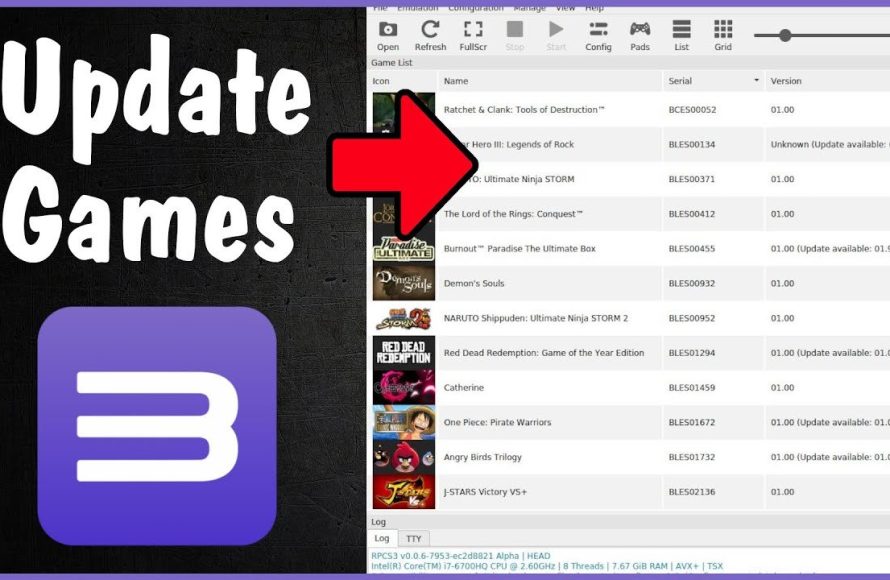
To update games in RPCS3, you typically need to find the game update files (usually .pkg files) and install them through the emulator’s “Install Packages/Raps” option.
Updating your favorite PlayStation 3 titles within RPCS3 can enhance your gameplay experience. This process allows access to bug fixes and additional content. So, you’re likely wondering how to update games in rpcs3? It’s actually quite straightforward.
You will mostly need to find the game update files yourself. These are usually in .pkg format. Then, using the emulator’s install menu makes the job easier.

How to Update Games in RPCS3
So, you’ve got RPCS3 up and running, and you’re excited to play your favorite PlayStation 3 games on your computer. That’s awesome! But sometimes, games need updates to fix bugs, add new features, or improve performance. Just like your phone or tablet needs software updates, so do some PS3 games. Updating games on RPCS3 isn’t always as straightforward as on a real console, but don’t worry, it’s not rocket science either! This guide will walk you through everything you need to know about getting your games up-to-date in RPCS3.
Why Update Games in RPCS3?
Before we dive into the how-to, let’s talk about why you would want to update your games in the first place. Think of it like this: game developers are constantly working to make games better. Updates can include:
- Bug Fixes: Sometimes, games have little glitches that can make them not work right. Updates fix these problems.
- Improved Performance: Updates can help games run smoother and faster, so you can enjoy them more.
- New Content: Some updates add new levels, characters, or items to the game, giving you more to play with.
- Better Compatibility with RPCS3: The RPCS3 emulator is always being improved. Sometimes game updates are necessary to run correctly with the latest emulator updates.
Without updates, you might find some games are difficult to play or have frustrating bugs that keep you from enjoying the experience. That’s why updating your games in RPCS3 is a great idea!
Understanding Game Update Types
PlayStation 3 games use different kinds of updates. It is important to know what these are so you can get your games updated correctly.
Disc Updates
The most common type is a disc update. When you first put a game disc into your PlayStation 3, you might be prompted to download an update. These updates are directly related to the game itself and help fix its issues.
These updates are also called game patches.
System Software Updates
These are the updates for the PlayStation 3’s operating system (the software that makes the console work). RPCS3 needs these system updates, called firmware updates, too. They make sure the emulator can properly read game discs and run them correctly.
Where to find these updates?
You generally will not be able to download system updates from the PS3 or RPCS3 itself. You need to download them separately from trusted resources, as we will discuss later in this article.
You might be able to download game updates directly from a game, but it’s more complicated in RPCS3, that’s why there are different methods we discuss in the next sections.
Preparation Steps Before Updating
Before we start, there are some things we need to make sure are ready. Doing these steps will make sure that the updating process goes smoothly.
Downloading the Correct Firmware
First things first, you’ll need the latest PS3 firmware. Think of this as the operating system for your virtual PS3. The emulator needs it to run games properly. You can usually find the firmware from trusted websites dedicated to RPCS3. Make sure you download the correct firmware version. In most cases, it’s better to download the latest firmware version for the best compatibility.
How to download PS3 firmware:
- Go to the official RPCS3 website.
- Look for a section on the site that mentions firmware (usually it’s in the documentation or quickstart guides).
- Find a link to a trusted website where you can download the PS3 firmware.
- Download the firmware file. It’ll usually be a .PUP file.
Make sure that you are only downloading the firmware from trusted sources, there are multiple links available on the internet, and not every single is safe to use and download. You can also check the community pages or groups for recommendations on trusted resources for firmware.
Installing Firmware in RPCS3
Now that you have the firmware, let’s add it to RPCS3.
Here’s how:
- Open the RPCS3 emulator.
- Go to File and then select Install Firmware.
- Find the .PUP file you just downloaded and click “Open”.
- RPCS3 will install the firmware, which may take a few minutes.
- After installation, RPCS3 will usually ask you to restart. Click “Yes” to restart.
By doing this, you have given the emulator the necessary files to emulate the PS3 correctly.
Setting Up Game Directories
Before trying to update any games in the RPCS3 emulator, you need to set the game directories. The emulator needs to know where your games are located, and this can be a single folder or multiple folders depending on where you have saved your games. If you don’t set the correct game directories, RPCS3 won’t be able to find and update them.
How to set up game directories:
- Open the RPCS3 emulator.
- Go to File and then select Add Games.
- Browse to the folder where you have saved the games and select the folder.
- If you have multiple folders, repeat the step above to add those folders as well.
- The emulator will scan and find the games in these directories, and show them on the main screen.
You should add each folder separately. The process can be the same for the game folders and the disc game folders as well.
Methods for Updating Games
Now that the basics are done, let’s explore how you can update your games. There are several methods, each with its own pros and cons.
Using the Game’s Built-In Updater (When Possible)
Some games have their own update feature, just like they did on the real PlayStation 3 console. These built in game updaters can be easier to use.
However, not all games have this option, and sometimes this function won’t work properly in the emulator, due to various limitations.
Here’s how you might use the built in updater:
- Launch the game in RPCS3.
- Look for a menu option that says “Updates,” “Game Updates,” or something similar. It’s usually in the game’s main menu.
- If the game finds any updates, it will prompt you to download and install them.
- Follow the prompts to complete the update.
While convenient, this method might not always work. Sometimes you need to use another method if this method doesn’t work. If the update can’t be downloaded from the game, this indicates a network or other issue, and it means that you need to update the game through other methods.
Applying Manual Game Updates (.pkg files)
Most of the game updates come as .pkg files. These files are like packages containing the updates. Finding the right .pkg files from a reliable source is important, and there are several reliable sources available for game updates. Some websites are safe and popular to use, and they are easily searchable on the internet.
How to apply updates with .pkg files:
- Find and download the correct update .pkg file for your game. Make sure you download the correct update for the region and game version. The updates are usually named in a specific way, and they contain the game and region specific information in the file name.
- Open RPCS3.
- Go to File and then select Install .pkg.
- Select the .pkg file that you downloaded.
- The emulator will install the update. The time it takes to install the update will depend on the file size and your system specifications.
- Restart the emulator. The game should now be updated.
This method is very common and a lot of games can be updated using this method. If your game is still not updated, you need to use the following methods, to force the update.
Using Game Update Folders
This method is useful when you have a folder with the game update files. Usually when you download a game from the internet, you might get it with all the updates already installed, and this method can be helpful when you are using those games.
Here’s how to use game update folders:
- Make sure your game files and update files are in separate folders.
- Go to File in RPCS3 and click on Boot Game and open the game folder, then open PS3_GAME, and double click on PARAM.SFO or open it.
- Now the game will run as it would be, and the game will automatically load the update data located on the folder.
This method can be used to update the game, but it also can be used to load the game with all the updates, so you don’t have to update it manually.
Troubleshooting Common Update Issues
Sometimes, things don’t go as planned. Let’s look at some common problems and how to solve them.
Update Doesn’t Install
If the update won’t install, check a few things:
- Incorrect Region: Make sure the update file is for the same region as your game (e.g., if your game is US, the update must also be for US region).
- Corrupted File: Try downloading the update file again. It might be that the downloaded file is corrupted and that’s why it’s not installing.
- Firmware Issues: Ensure you have the correct PS3 firmware installed in RPCS3.
- RPCS3 Version: Make sure that your RPCS3 emulator is up to date with the latest version.
Game Still Shows Old Version
Even after updating, sometimes the game still shows the old version number in the menu. If you see this, try the following steps:
- Restart RPCS3: Completely close and reopen the emulator.
- Restart the Game: Close and launch the game again.
- Clear Cache: If you’ve already tried restarting, consider clearing the game cache. In RPCS3, right click the game and select the “Purge Cache” option.
Network Errors
If you are using the in-game update feature and get a network error:
- Check Internet Connection: Make sure your computer is connected to the internet.
- RPCS3 Settings: Sometimes changing the network settings in RPCS3 can help. Try different settings for the network section.
- Use a VPN: In some cases, using a VPN can help with network errors.
Keeping RPCS3 Updated
Just like games, RPCS3 itself is always improving. Keeping the emulator updated is important for game compatibility and performance.
How to keep RPCS3 updated:
- The emulator will tell you when a new update is available.
- Visit the official RPCS3 website to download the latest version.
- Install the new version just like you did when you installed it the first time.
Keeping RPCS3 updated is necessary, so that all your games function properly.
Best Practices for Game Updating
To make the whole updating process smoother, follow these best practices:
- Back Up Your Games: Make copies of your game files before updating, so you have a backup in case something goes wrong.
- Use Trusted Sources: Always download updates and firmware from safe websites recommended by the RPCS3 community.
- Be Patient: Updating can take time, so don’t rush the process.
- Consult Community Forums: If you have problems, there are many helpful people in the RPCS3 community that can help you out.
By following these best practices, you can make sure that your game update process goes smoothly, without any problems. You can avoid many errors by being careful and taking your time.
Advanced Techniques (For More Experienced Users)
If you’re comfortable with the basics, there are some advanced things you can do.
Custom Firmware (CFW) Patches
Some users use custom firmware (CFW) patches. These patches can modify the game or system to enhance your gaming experience, but they also are very complicated to use and can lead to errors.
Using CFW patches:
- Before applying CFW patches, research them well.
- Always follow the guidelines carefully.
Game Modding and Custom Updates
Some users make their own mods and updates for games. If you want to try these custom modifications, proceed with caution.
Using custom updates:
- Make backups before trying any custom modifications or updates.
- Only use trusted modifications from reliable sources.
Modifying games can be a bit dangerous if you don’t know what you are doing, that’s why we recommend to do some research before trying out any modifications.
That’s a wrap on updating games in RPCS3! It might seem a little complicated at first, but once you get the hang of it, it becomes much easier. Just be sure to follow the steps carefully, use trusted sources for your downloads, and don’t be afraid to ask the community for help if you get stuck. Enjoy playing your favorite PS3 games with all the latest updates!
How to Update Games to the Latest Version on RPCS3 | PS3 Emulator Upgrade Firmware
Final Thoughts
Updating games in RPCS3 requires you to manually find and install game updates. You typically obtain these updates as PKG files. Install the update by using the ‘Install Packages/Raps/EDATs’ option within RPCS3.
After installation, restart your game. It should be updated to the latest version available. Remembering the process of how to update games in rpcs3 is crucial for a smooth gaming experience.

