
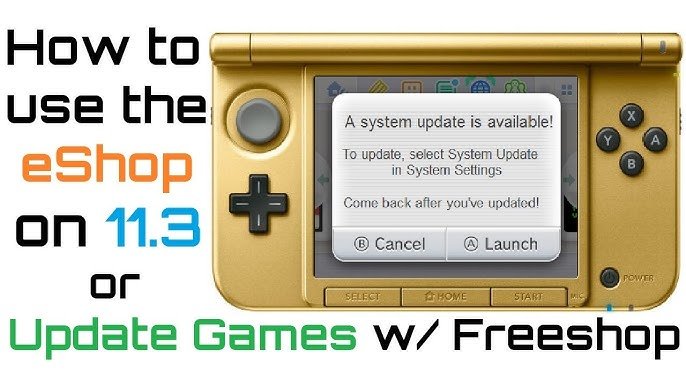
To update games on 3DS, connect your system to the internet, go to the HOME Menu, select the game icon, then tap “Update” if available.
Frustrated by outdated game versions? It’s a common experience. Many players wonder how to update games on 3DS, especially when new content or bug fixes get released. Getting these updates can be simple when you know the steps. This process ensures your favorite titles are running smoothly and offering the best possible experience.
It’s important to always keep your games current with updates. Updates often include important patches. They enhance the overall gameplay.

How to Update Games on 3DS
Keeping your Nintendo 3DS games up-to-date is super important! It’s like giving your games a little tune-up to make them work even better. Updates can fix problems, add cool new features, and even make your gaming experience more fun. But how do you actually do it? Don’t worry, it’s not as tricky as it sounds. This guide will show you everything you need to know about updating your 3DS games, step-by-step. We’ll cover everything from connecting to the internet to understanding different update methods. Let’s dive in and get your 3DS games ready for action!
Why Update Your 3DS Games?
Before we get into the “how,” let’s quickly talk about “why.” Why bother with updating your games? Well, there are a few great reasons:
Bug Fixes: Sometimes, games have little glitches or errors that can make them frustrating to play. Updates often fix these issues, making your game smoother and more enjoyable. Think of it like cleaning up a messy room – it just works better afterwards!
New Content: Game developers often add new levels, characters, items, or even whole new game modes through updates. It’s like getting a surprise present for your game, keeping things fresh and exciting.
Improved Performance: Updates can sometimes make your game run faster or look better. This means less lag and a more visually appealing experience. Who doesn’t want their game to be the best it can be?
Security Patches: Similar to updates on your phone or computer, game updates can sometimes include security patches. These protect your game and your device from potential risks.
Online Compatibility: If you like to play online with your friends, updates are vital. They help make sure you’re all playing on the same version of the game and that you can connect without problems.
Keeping your games updated is really like taking care of them, so they can take care of your fun!
Preparing Your 3DS for Updates
Okay, so you know why you need to update. Now let’s get your 3DS ready.
Checking Your Internet Connection
First things first, your 3DS needs to be connected to the internet. Updates are downloaded from Nintendo’s servers, so a stable connection is a must. Here’s how to check:
1. Go to System Settings: On the 3DS HOME Menu, tap the “System Settings” icon (it looks like a wrench).
2. Select Internet Settings: In the System Settings menu, tap on “Internet Settings.”
3. Tap Connection Settings: Tap on “Connection Settings”.
4. Choose a Connection: If you have saved Wi-Fi networks, select one of them. If you haven’t, you will need to set up a new connection. Your 3DS will find available Wi-Fi networks.
5. Test Connection: After selecting a connection, the 3DS will test it. If the test is successful, you’re ready to go. If it fails, you might need to try a different Wi-Fi network or troubleshoot your current one. Make sure your Wi-Fi password is entered correctly if you’re using a password protected network.
Verifying Your System Software is Current
It’s also crucial to make sure your 3DS system software is up to date. Game updates often rely on the latest system software to function properly. If your system software is old, it can cause problems. Here’s how to check:
1. Back to System Settings: In the System Settings Menu, select “Other Settings.”
2. Select System Update: Tap on “System Update.”
3. Follow Prompts: Your 3DS will check if there are any new updates. If an update is available, follow the on-screen instructions to download and install it. This may take some time.
Important Note: Make sure your 3DS has enough battery power before starting a system update. It’s a good idea to have it plugged into a charger to avoid any interruptions during the process.
How to Update Digital Download Games
If you’ve downloaded a game directly from the Nintendo eShop, updates are usually pretty easy to get. This is how it works:
Checking for Updates on the HOME Menu
Many times, when you start a downloaded game, your 3DS will automatically check for updates. If there is one available, it will prompt you to download it. It’s simple as that.
1. Select Your Game: From the 3DS HOME Menu, select the game you want to update.
2. Look for a Prompt: If an update is available, the game will show a small download icon or a message prompting you to update.
3. Follow Instructions: Follow the on-screen prompts to start the download and install process.
Checking for Updates from the Nintendo eShop
Sometimes, you might need to go into the Nintendo eShop directly to see if there are updates for your games. Here’s how to do that:
1. Open Nintendo eShop: From the 3DS HOME Menu, select the “Nintendo eShop” icon (it looks like an orange shopping bag).
2. Navigate to Menu: Tap the menu button in the top-left corner of the eShop screen.
3. Select Settings / Other: Then tap on “Settings / Other”.
4. Select Updates: Tap on “Updates”.
5. Download and Install: If any updates are available, they will show on the list. Tap on the update you want and start the download and installation process.
Troubleshooting Tip: If you’re having issues with the eShop, try restarting your 3DS. Power it down completely and then turn it back on. That can sometimes fix small problems.
Automatic Updates
Your 3DS can also update games automatically if you have the correct settings enabled. This can help keep all of your games up-to-date in the background and save you time. It is a convenient way to keep your games running at their best.
1. Go to System Settings: On the 3DS HOME Menu, tap the “System Settings” icon (it looks like a wrench).
2. Select Internet Settings: In the System Settings menu, tap on “Internet Settings.”
3. Select SpotPass: Tap on “SpotPass.”
4. Enable Automatic Updates: Make sure the “Software Updates” option is set to “On.” This will allow your 3DS to download game updates while you’re not using it.
Note: Automatic updates only happen when your 3DS is in sleep mode (lid closed), connected to the internet, and has enough battery power.
How to Update Physical Cartridge Games
Updating games that come on a physical game card is a little different, but it’s still straightforward. These updates also come from the internet, but the process is slightly different than for digital games.
In-Game Update Prompts
Just like with digital games, many physical cartridge games will prompt you to update when you start them. Here’s what to expect:
1. Insert Your Game: Put the game card into your 3DS.
2. Start the Game: Launch the game from the HOME Menu.
3. Look for a Prompt: If an update is available, the game will show a message, or a download icon will appear on screen.
4. Follow Instructions: Follow the on-screen instructions to download the update. The update will be downloaded from the Nintendo servers, and will then install to your 3DS.
Manual Update Checks
If your game doesn’t automatically prompt you, you can sometimes manually check for an update:
1. Start the Game: Launch the game from the HOME Menu.
2. Look for Update Option: Check the game’s main menu. Sometimes, there will be an option like “Update” or “Downloadable Content.” Not all games have this, but it’s worth checking.
3. Select the Option: If you find an update option, select it, and the game will check for an update.
4. Download and Install: If an update is available, follow the prompts to download and install it.
Important Tip: Physical games may not always have updates, so it’s not unusual if you don’t see one. Updates are usually for major bug fixes or to add significant new content.
Troubleshooting Common Update Problems
Sometimes things can go wrong. Here are some common issues you might encounter, and some tips to get you back on track:
Slow Download Speeds
If your update is taking a long time to download, it could be due to a slow internet connection.
Check Your Internet: Make sure other devices on your network are working normally. If they are slow too, the problem could be with your internet service provider.
Move Closer to Router: If possible, try moving closer to your Wi-Fi router to get a stronger signal.
Try Another Connection: If you have a different Wi-Fi network available, try connecting to that one.
Download Errors
Sometimes, your download might stop or give an error message. This could be due to a number of reasons.
Restart Your 3DS: Turn off your 3DS completely and then turn it back on. Sometimes a simple restart can solve minor problems.
Check Storage Space: Make sure you have enough storage space on your 3DS system. If you don’t, you may need to delete some games or pictures to make space.
Check for Nintendo Server Issues: It’s possible that the Nintendo server is temporarily down. Check Nintendo’s website or social media for any reported outages.
Try Again Later: If the server is busy, try downloading the update later when fewer people may be online.
Game Won’t Start After Update
If your game refuses to start after an update, it can be frustrating. Here are a few things to try:
Restart Your 3DS: A reboot of the system might fix it.
Check for Another System Update: See if there’s a new update for your 3DS system software.
Check Game Forums: See if other people are experiencing the same problem. Sometimes, developers will address specific issues.
Contact Nintendo Support: If the problem continues, reach out to Nintendo customer support for further help.
Error Codes
Your 3DS will sometimes show error codes when things go wrong. These codes can provide more information about the problem.
Note the Code: Write down the code that appears on the screen.
Search Nintendo Support: Use the Nintendo support website and enter the error code to get specific instructions on how to fix it.
Follow Instructions: Carefully follow the recommended steps to resolve the problem.
Tip: The official Nintendo website is a great place to find help. Search the error code or your specific problem and you’re very likely to find a solution.
Important Considerations When Updating
Updating your games is mostly straightforward but here are a couple more important things to keep in mind:
Data Usage
Keep in mind that game updates use data from your internet connection. If you have a limited data plan, updating can eat into that quickly.
Connect to Wi-Fi: Try to update using a Wi-Fi connection to avoid using up your data.
Monitor Updates: Pay attention to the size of the update before downloading it.
Battery Power
Downloading and installing updates can take time and a lot of battery power.
Charge Before Updating: Make sure your 3DS is fully charged or plugged into a power adapter before starting an update. This will ensure the process isn’t interrupted.
Use Charger When Possible: Keep the 3DS plugged in while downloading or installing updates to avoid any interruptions.
Storage Management
3DS doesn’t have a ton of internal memory, and game updates can take up space.
Manage Your Storage: Occasionally, check how much space you have left on your system and consider deleting old games, pictures or videos if necessary.
Use SD Card: If you haven’t, consider getting an SD card for your 3DS to get more storage for your games and updates.
Updating games on your 3DS is essential to enjoy them to the fullest. By following these steps, you can ensure that your games are always running smoothly, and that you can benefit from all the latest content. Remember to check your internet connection, keep your system software up-to-date, and manage your storage space, so you can experience all your 3DS games to their full potential. If you run into a problem, the tips we have discussed can help you troubleshoot and get back to gaming! Happy gaming!
How to update imported games on your modded 3ds!
Final Thoughts
To update your 3DS games, first connect to the internet. Then, navigate to the eShop and check for available updates for your titles. You must download and install any updates manually.
This process ensures you have the latest features and bug fixes. Remember that some updates are mandatory for online play. It is straightforward how to update games on 3DS.

